Wednesday, 29 May 2024

Create a Cluster in Azure


Create a Cluster in Azure

Step 1

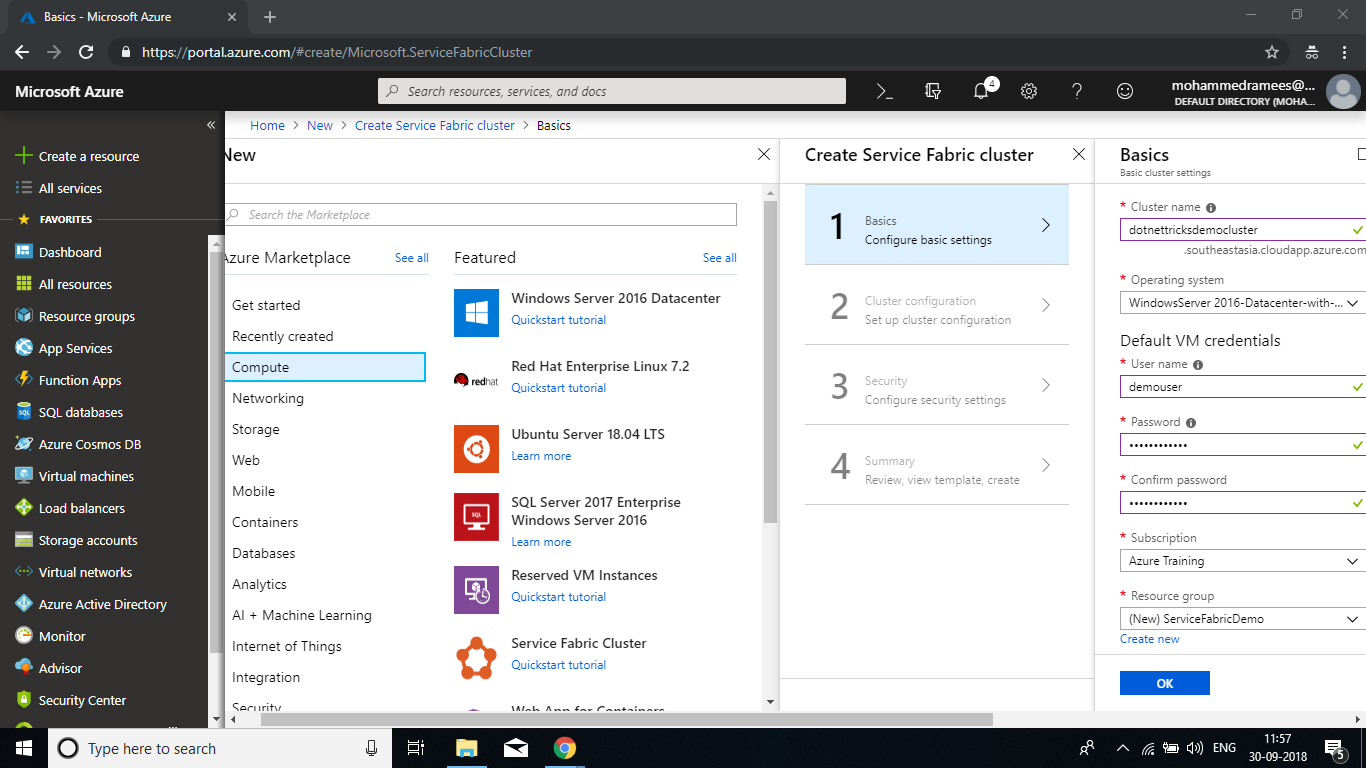
Sign into Azure Portal and create a new Service Fabric Cluster by clicking on Create a resource => Compute => Service Fabric Cluster => Create Creation of Service Fabric Cluster involves four steps. In the first step, you have to provide the following details.

Cluster name : Enter a unique name for your cluster. Here I am using dotnettricksdemocluster which will be appended by .<location>.cloudapp.azure.com as domain

Operation System : Select the preferred operating system for your virtual machine. You can choose between Windows and Linux versions. Here I am going with the default WindowsServer 2016-Datacenter-with-Containers

Username : Provide a username that you need to use to connect to the nodes of the cluster using Remote Desktop

Password : A strong password as per your choice to connect to the VM

Subscription : Select the subscription to which the services to be deployed in case of multiple

Resource group : Create or select an existing resource group. Here I am creating a new one named Service Fabric Demo

Location : Select the nearest data center location for your services to be deployed.
Create a Cluster in Azure

Step 2

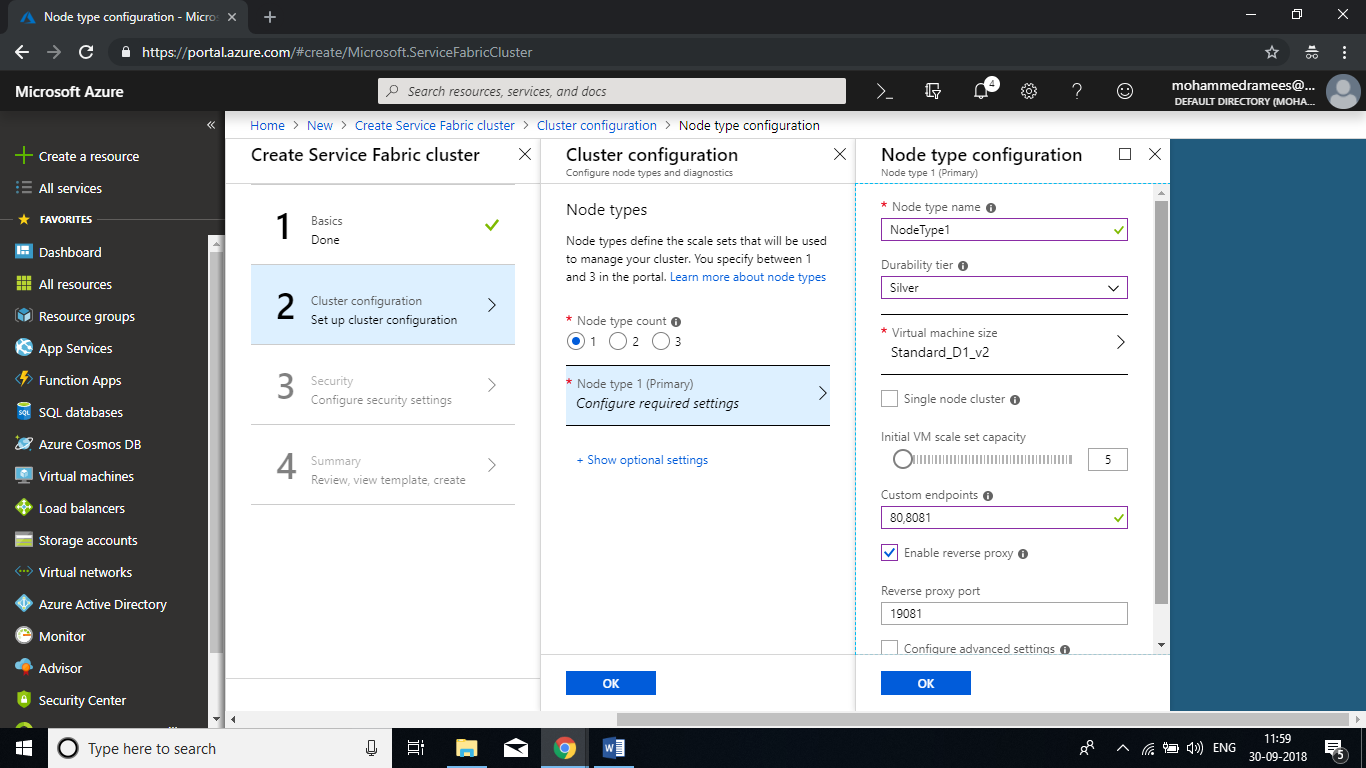
In the second step we need to set up the cluster configuration. In a cluster, we can have more than one node type(scale sets that will be used to manage a cluster). First, we have to specify the count for the node type. Its equivalent to roles in cloud services and in each node type we can define the VM sizes, number of VMs and their properties. Here we are using one node type and we have to define it. Click on Node type 1 to configure the settings and provide the following details.

Node type name : Provide a name with alphanumeric characters. Here I am using NodeType1

Durability tier : Choose a durability tier according to your requirement. It determines the SKU size for the node type. Here I am using Silver

Virtual machine size : Choose your VM size from the available options. Sizes are shown here depend upon the tier you selected

Single Node Cluster : By default, a cluster will have five nodes. Check this option if you are opting for a single node only

Initial VM scale set capacity : Choose a value between 3-50 for your scale set. Here I am going with the default five

Custom endpoints : List the endpoints required separated by a comma.

Enable reverse proxy : Check if you need to communicate between applications.
Create a Cluster in Azure- step 2

Add Security to Cluster

Step 3

Next we have to configure security settings for the cluster. We are having two options to configure security. If you have already a certificate uploaded to your key vault you can use custom and provide the values here or you can go with the basic where you can create a new certificate. Choose the Basic and follow the screen to create or use key vault and add a certificate. Provide a name and create a new resource group for the vault, leave everything as default and click on create and wait for creation to complete as it is a synchronous process.
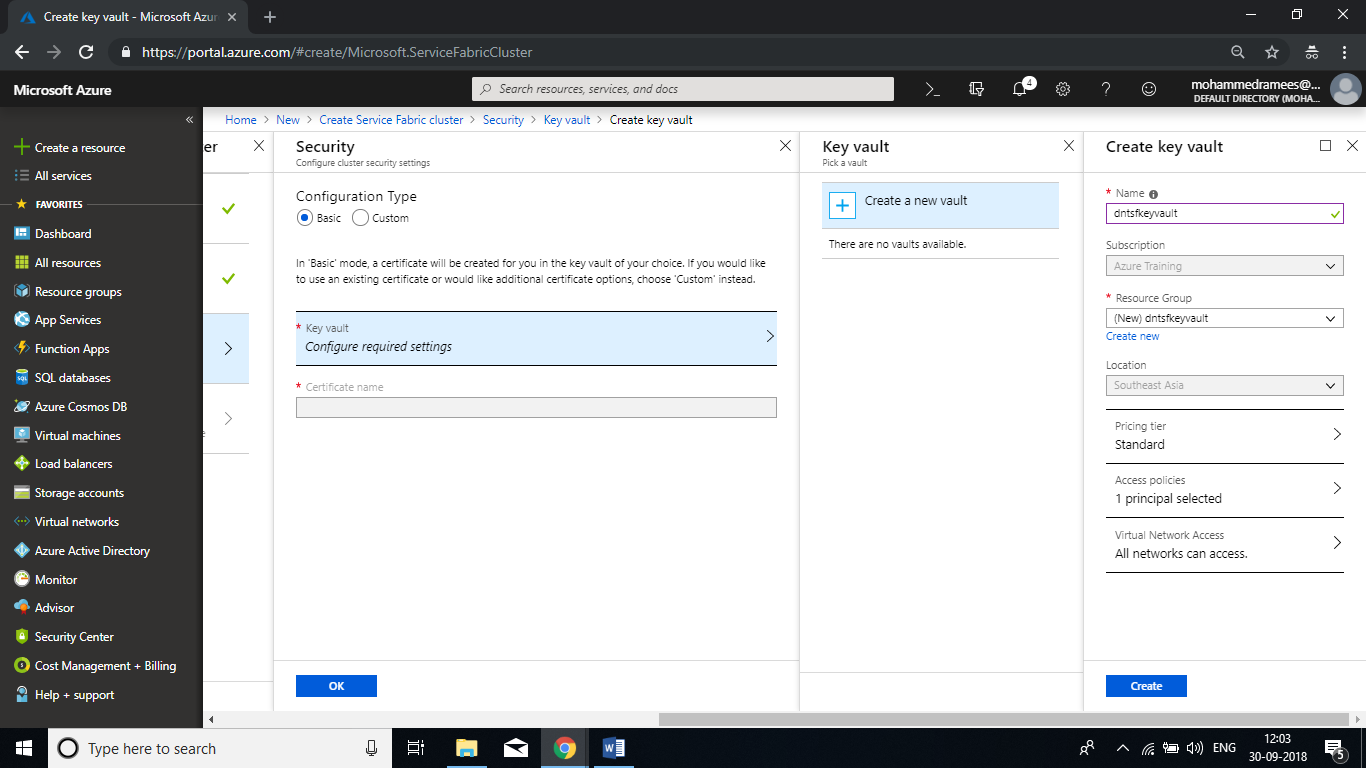
Add Security to Cluster - step 3

Now we have to edit access policies for the key vault to enable for the deployment. Click on the Edit access policies and then click on Click to show advanced access policies, and check Enable access to Azure Virtual Machines for deployment and Enable access to Azure Resource Manager for template deployment and click on Save
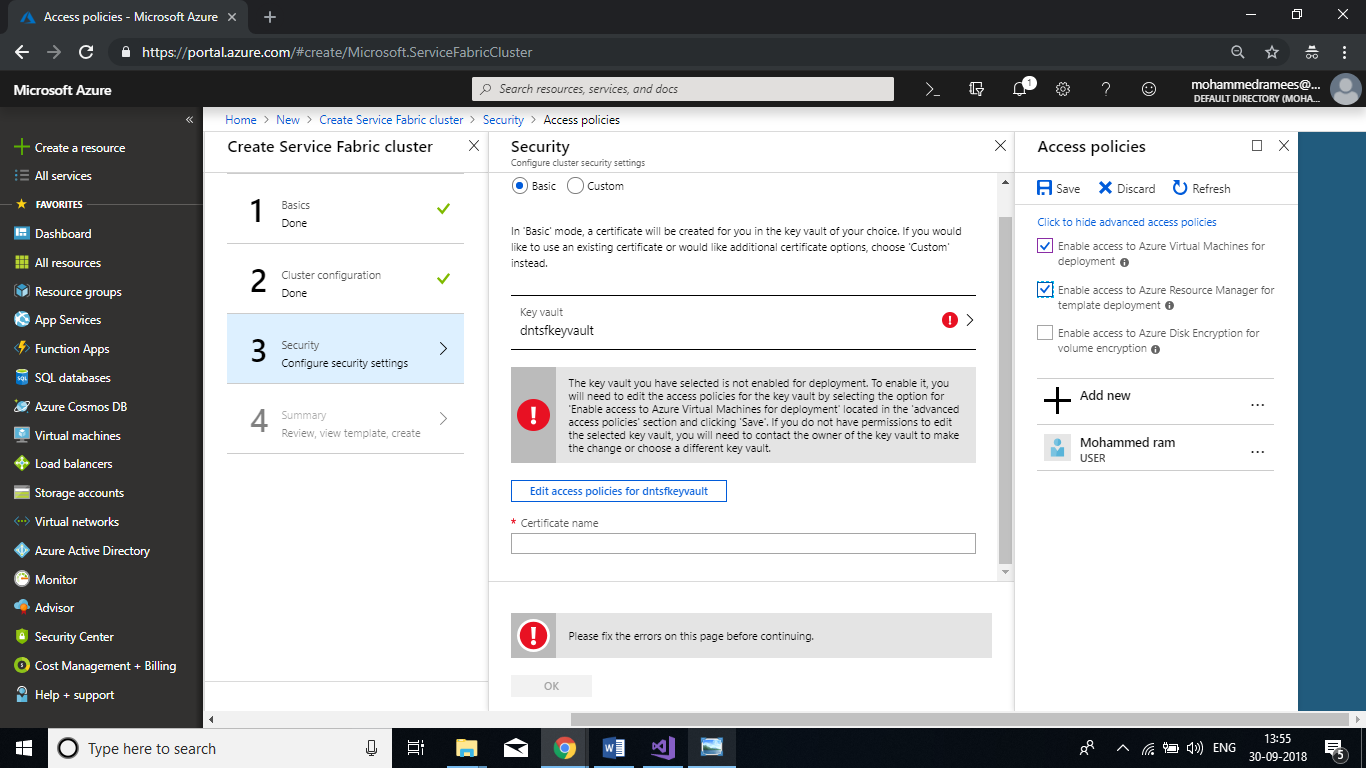
Add Security to Cluster

Provide a name for the certificate and click on OK
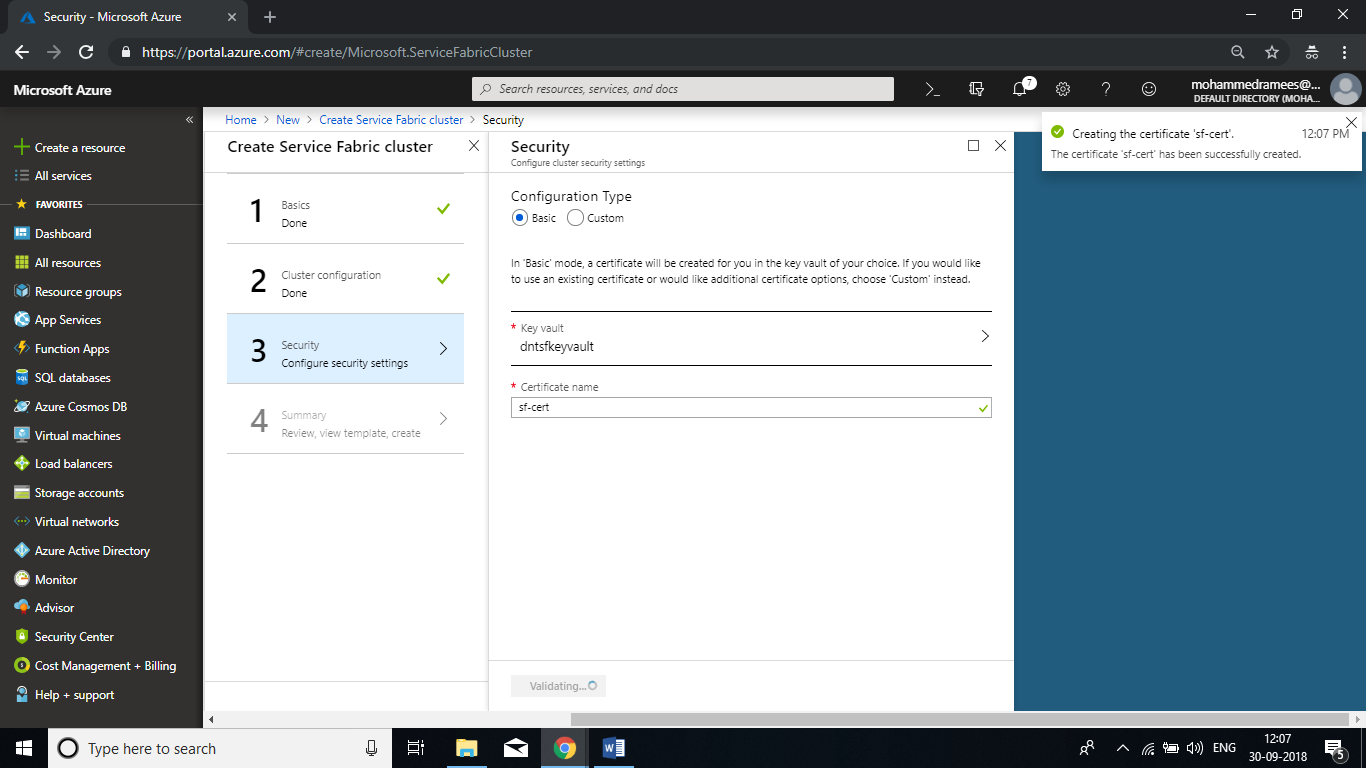
Add Security to Cluster

In case you have opted for custom you have to submit SourceVault, CertificateThumbprint and the CertificateURL values from your key vault.
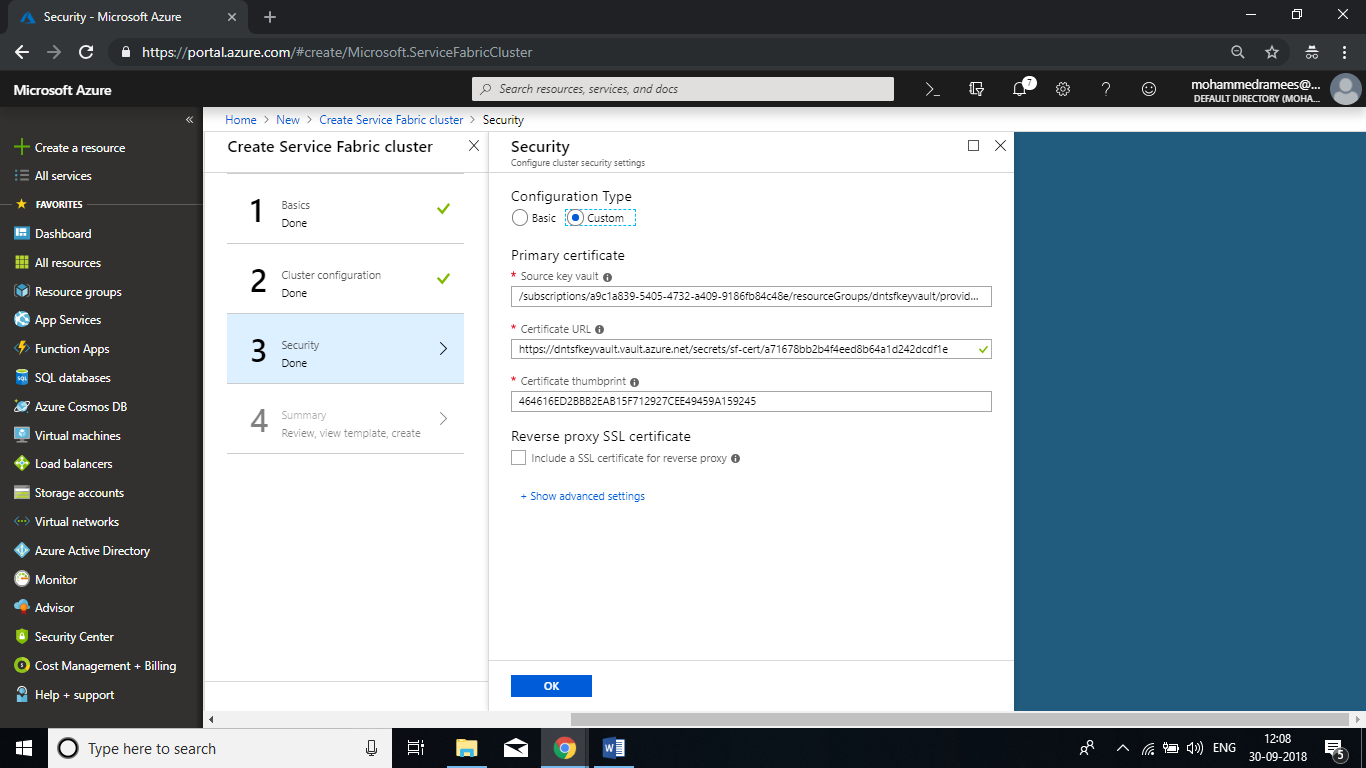
Add Security to Cluster

Finalize Cluster Creation

Step 4

Here the final validation will happen and you can initiate for the deployment. Here you can download the certificate by clicking on the link (please keep it open in another tab). As the certificate is not password protected you should make sure that it is safe.
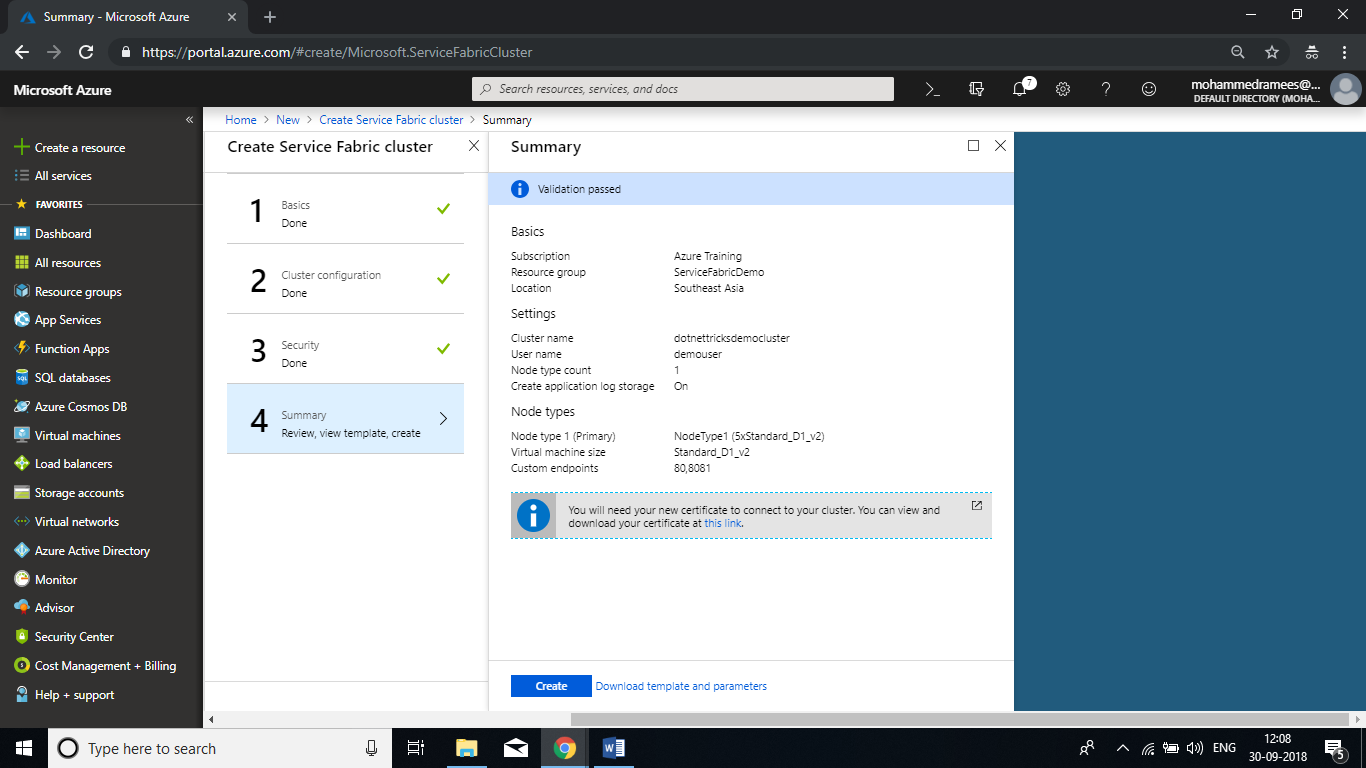
Finalize Cluster Creation

It may take some few minutes for the deployment and once it is completed you can check the status here on the dashboard.
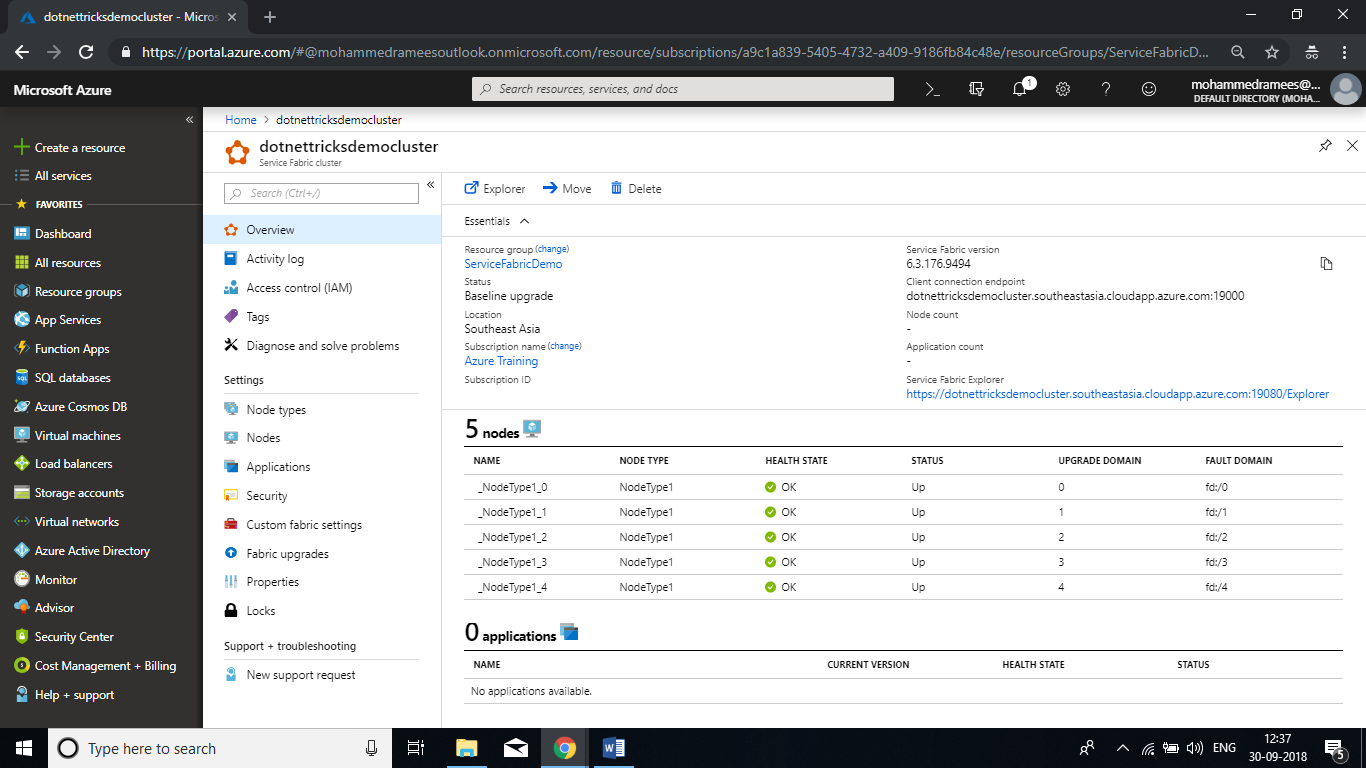
Finalize Cluster Creation

Connect to the cluster using Service Fabric Explorer

Step 5

To connect to your secure cluster using Service Fabric Explorer you first need to import the certificate into the Personal (My) store of the current user or local computer. Download the certificate and follow the steps to install on your machine.
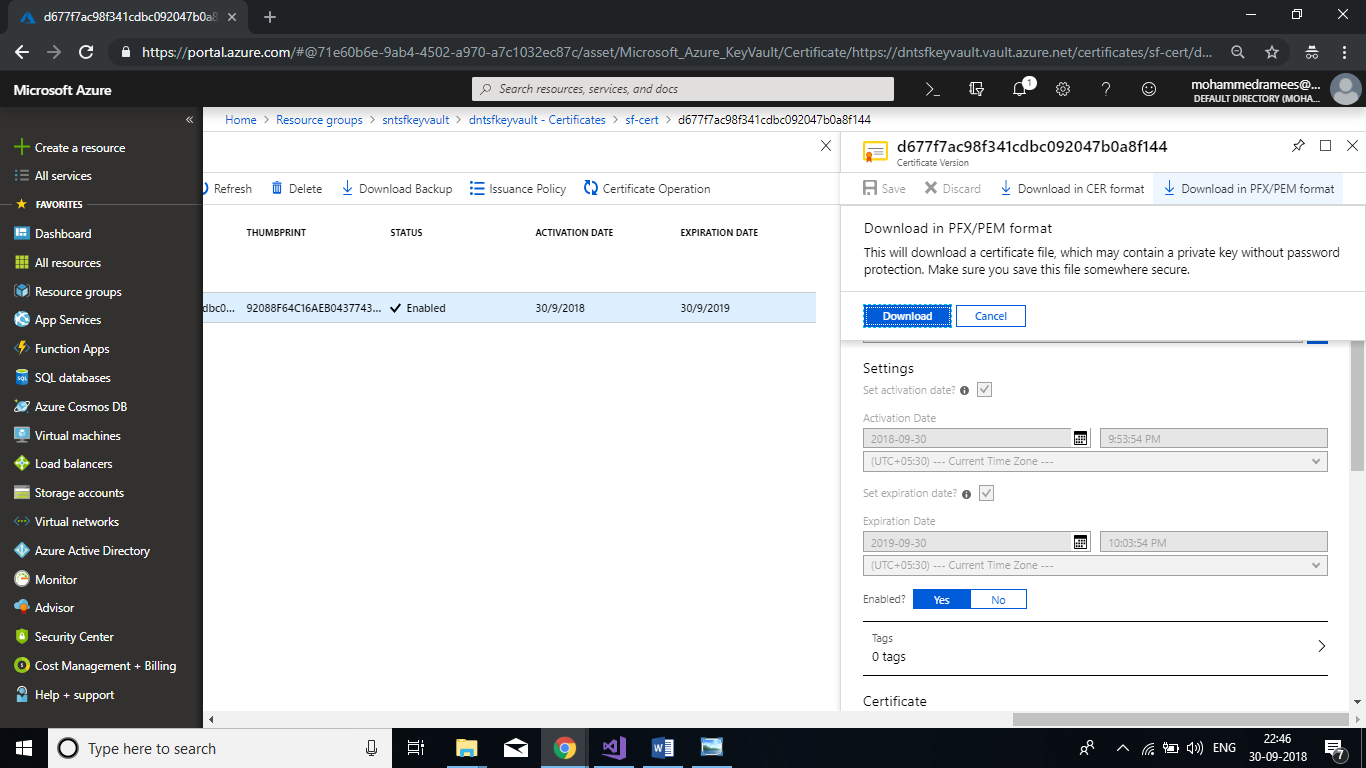
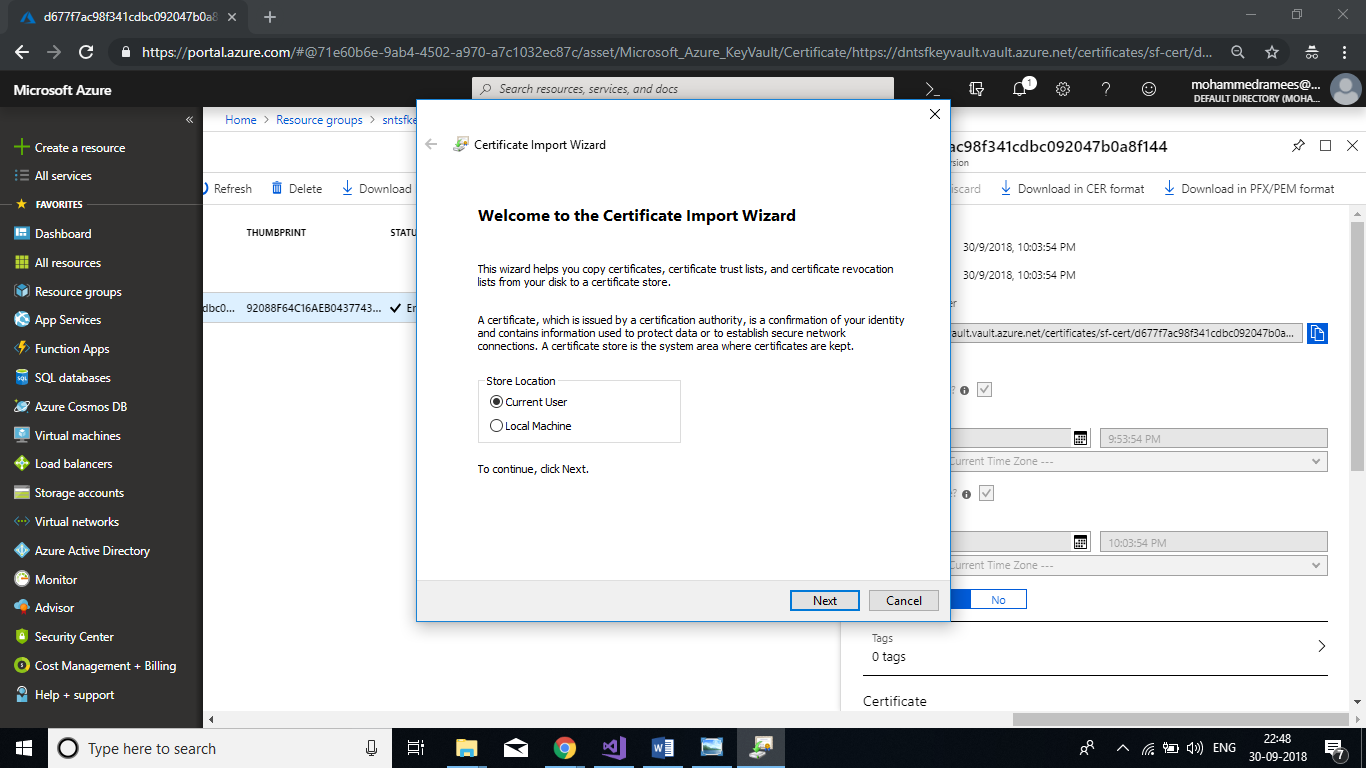
Connect to the cluster using Service Fabric Explorer

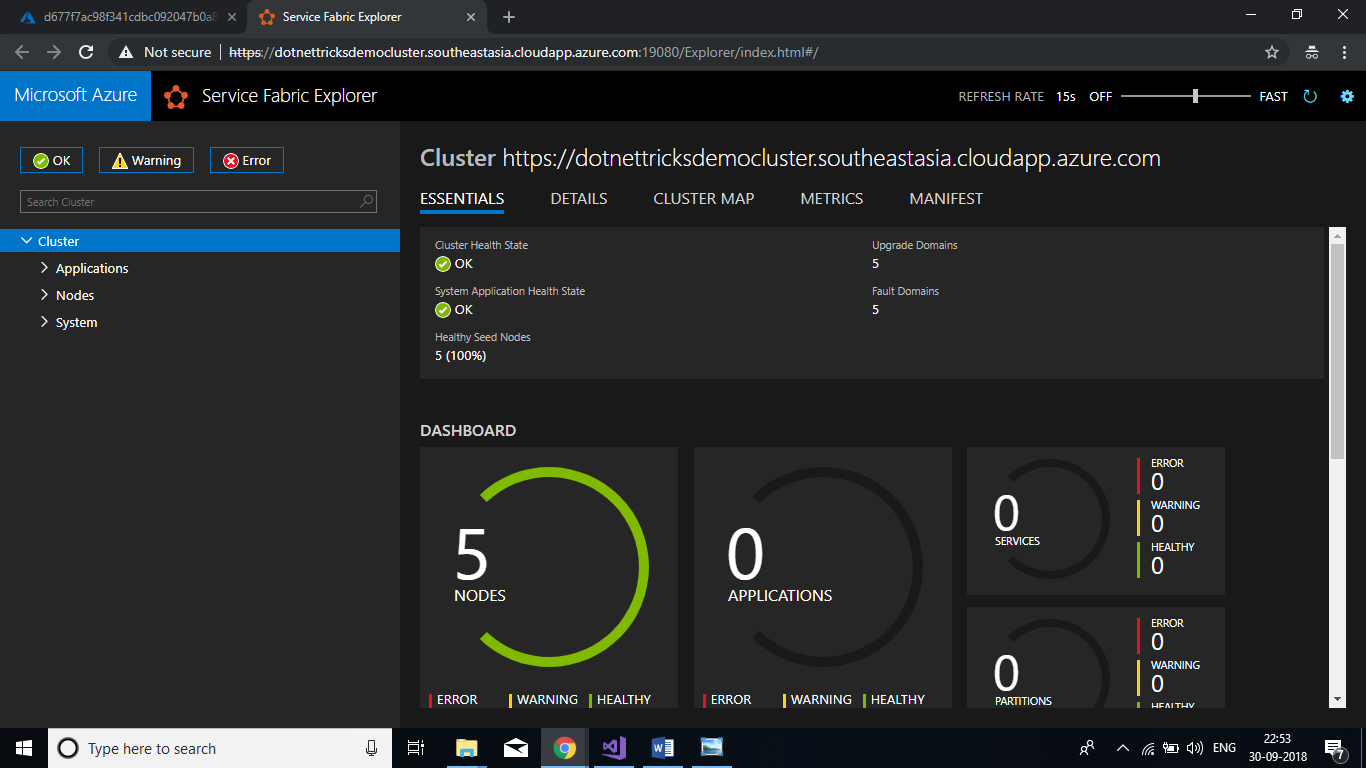
Once the import is completed, click on the explorer on the dashboard and it will prompt you to choose your certificate and it will take you to the service fabric explorer. It will be having an URL similar to https://<your-cluster-endpoint>:19080/Explorer
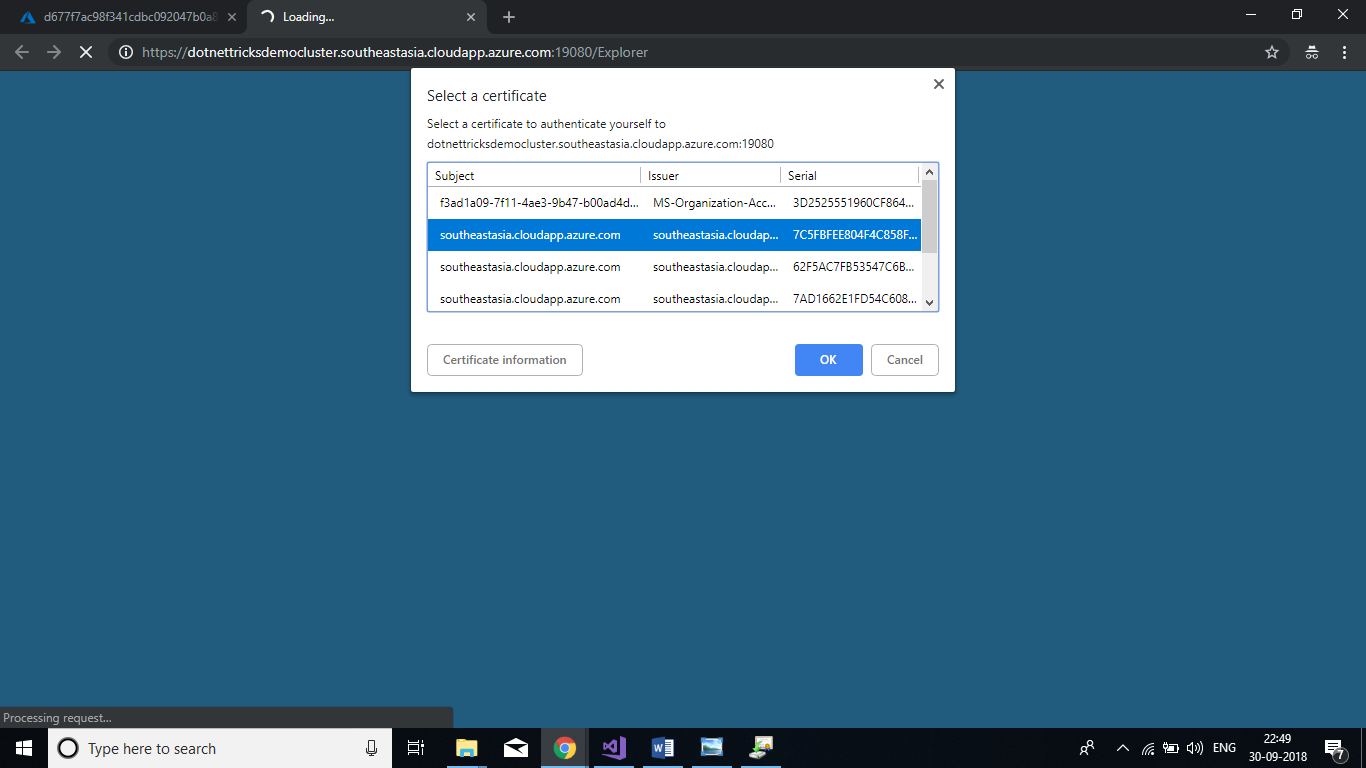
Connect to the cluster using Service Fabric Explorer

Deploy Application to an Azure Cluster

Step 6

Here we are deploying a sample voting application from Microsoft to our cluster. You can get the application from the top download link. Open the application in Visual Studio and Right click on the Voting project from solution explorer and click on Publish
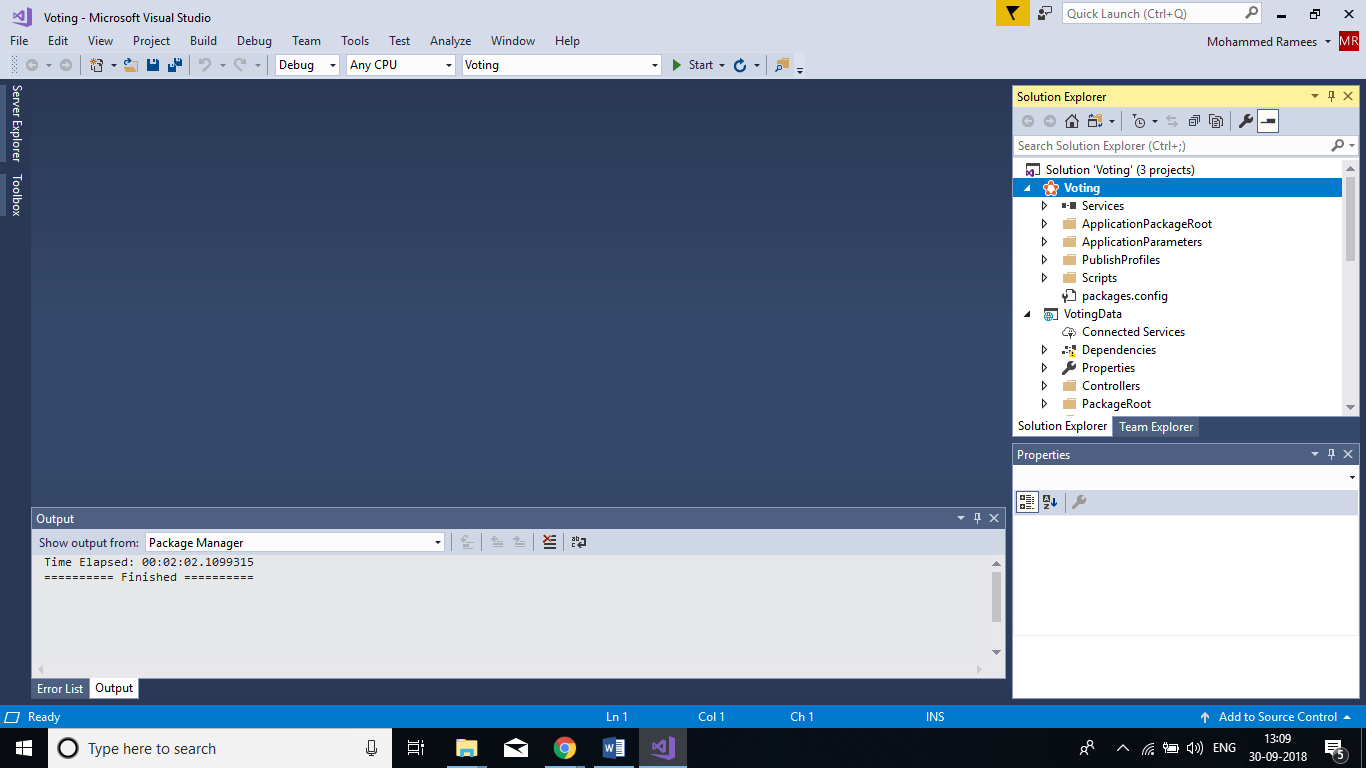
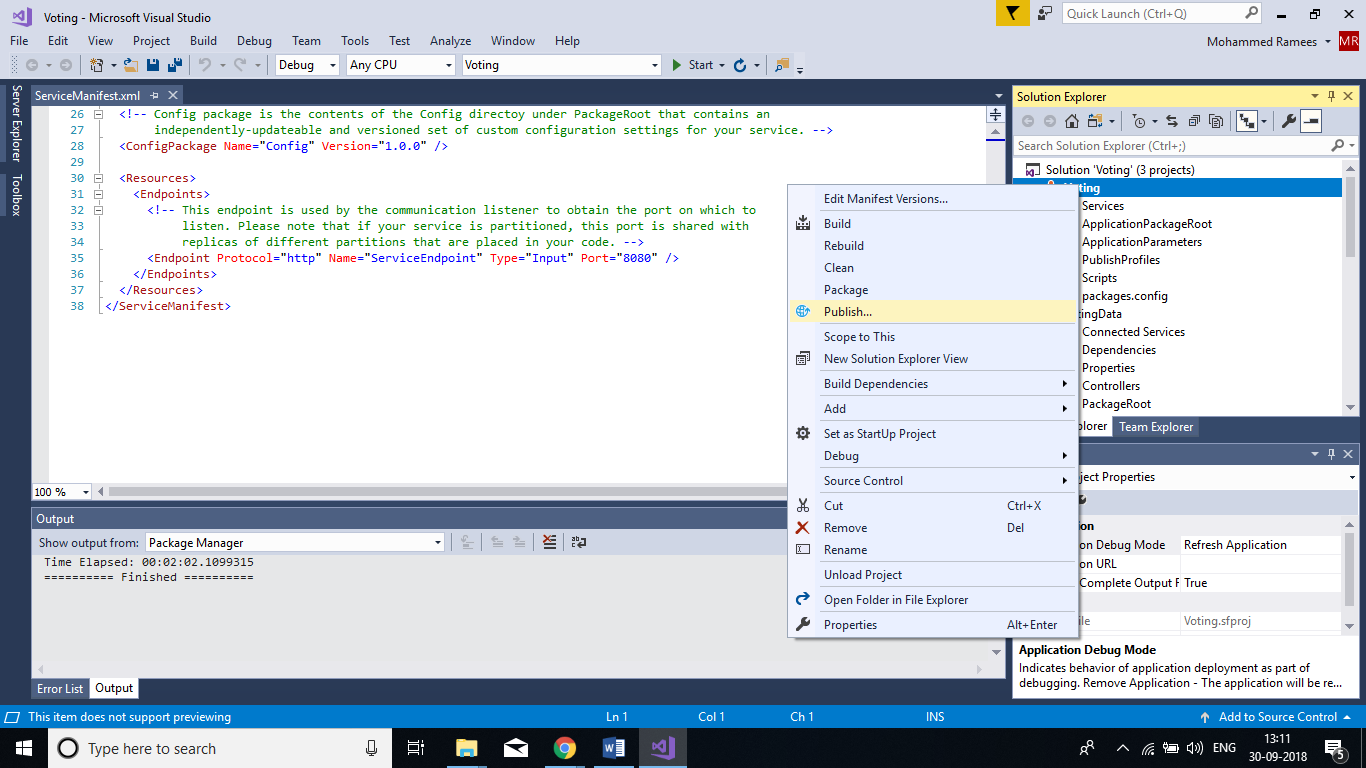
Deploy Application to an Azure Cluster

Sign into your Azure Account if prompted for and select the Connection Endpoint from the list. Make sure the values in the Advanced Connection Parameters match with your certificate values. Click on Publish. It may take a few minutes for the publishing to be completed.
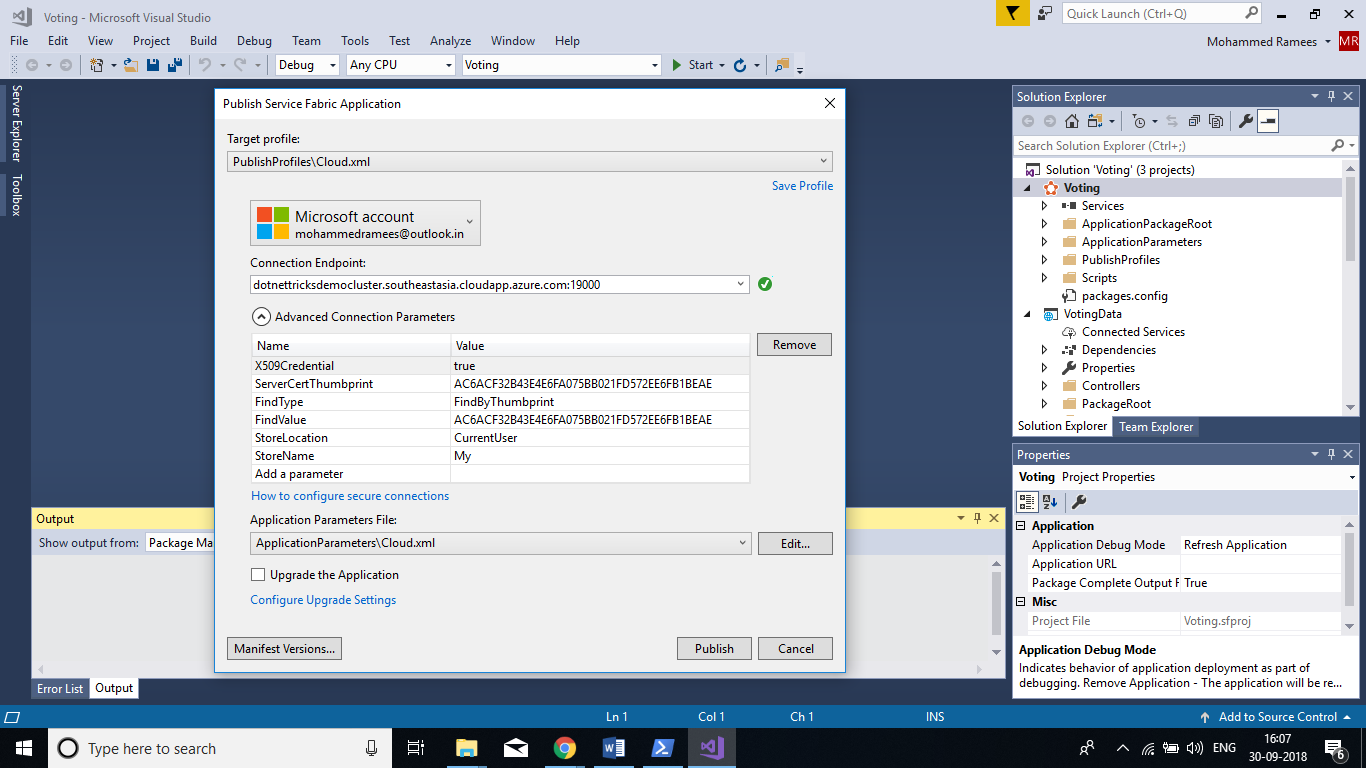
Deploy Application to an Azure Cluster

The web project has a manifest file located at \PackageRoot\ServiceManifest.xml that specifies the endpoint protocol and port as below. Endpoint Protocol="http" Name="ServiceEndpoint" Type="Input" Port="8080" We need to update load balancer rule to make the clusters URL reach the website. Open your Load Balancer=> Load balancing rules=>Select first rule that maps backend and front end to port 80.
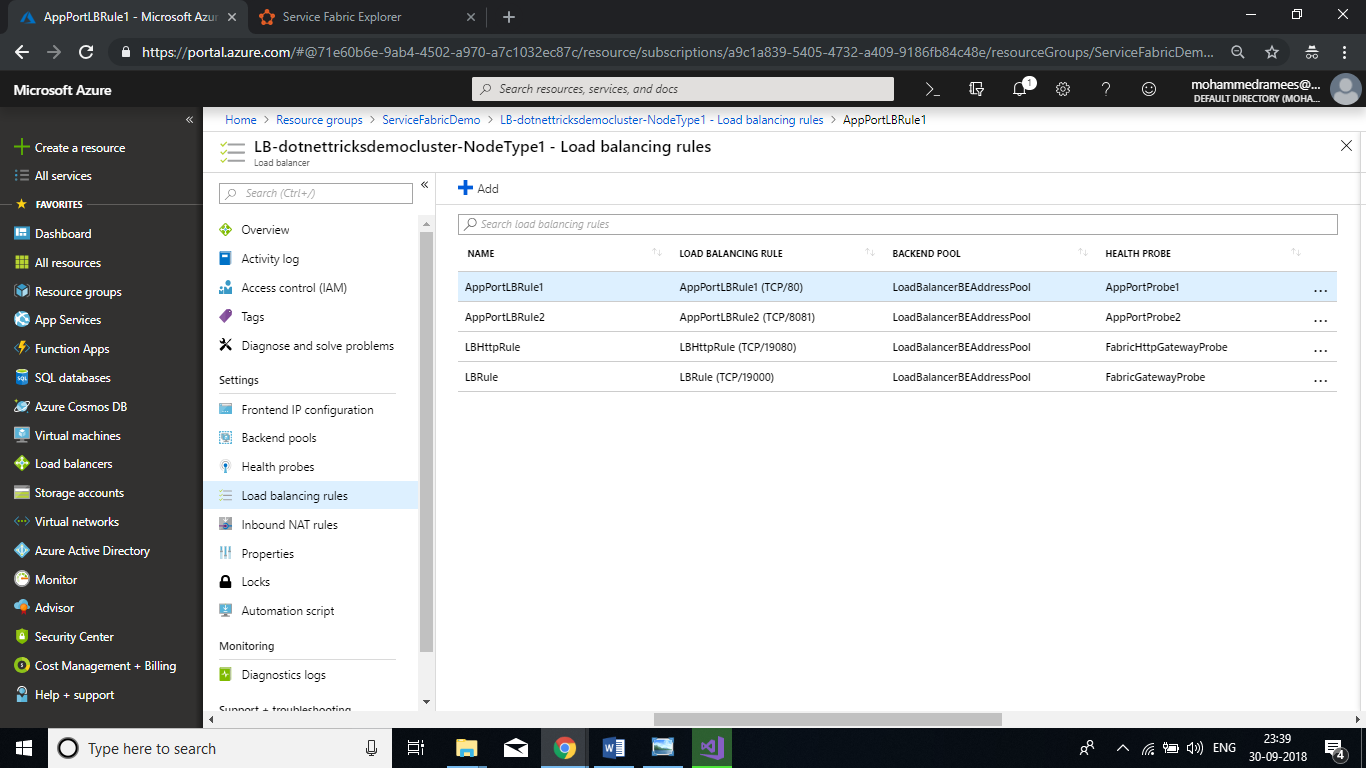
Deploy Application to an Azure Cluster

In the settings blade update Backend port to 8080 and Health probe to FabrixHttpGatewayProbe (TCP:19080). Save the settings.
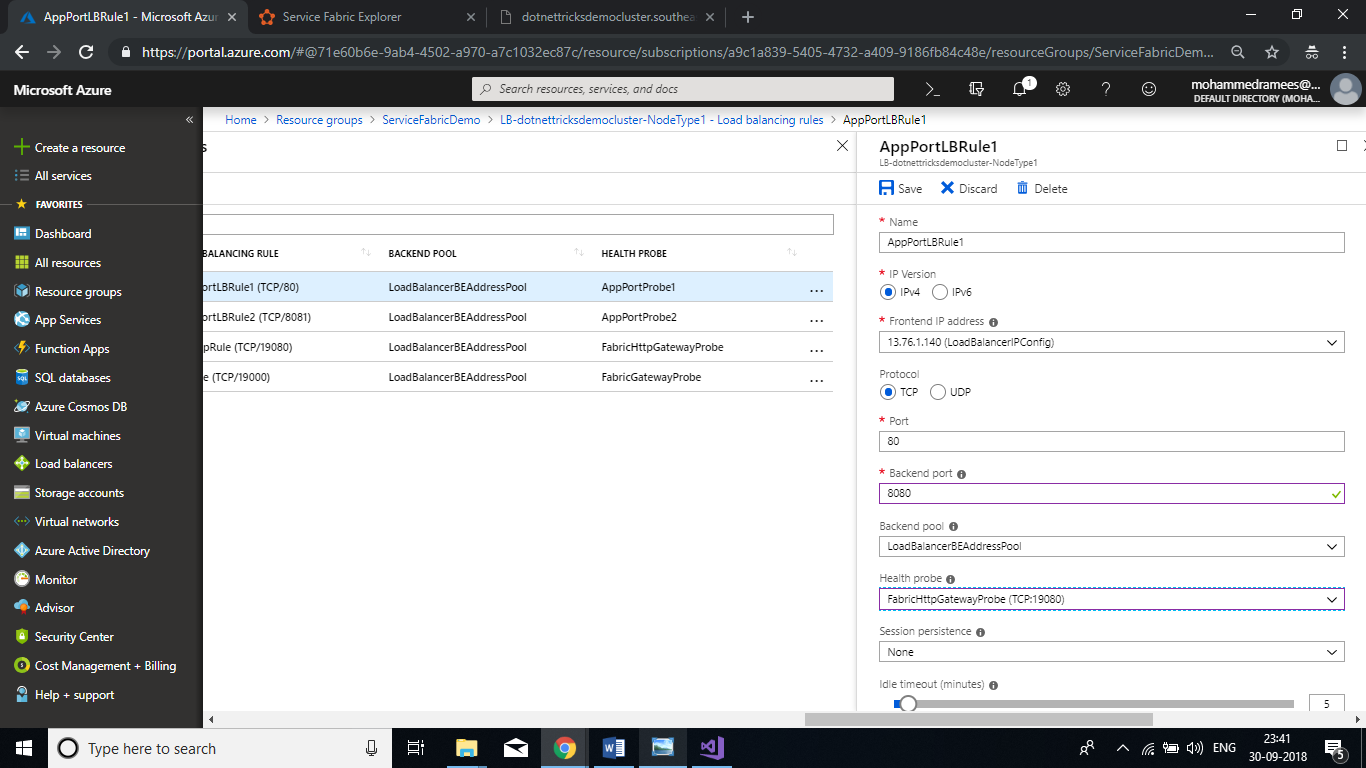
Deploy Application to an Azure Cluster

Once the saving is completed you can access the application from the URL
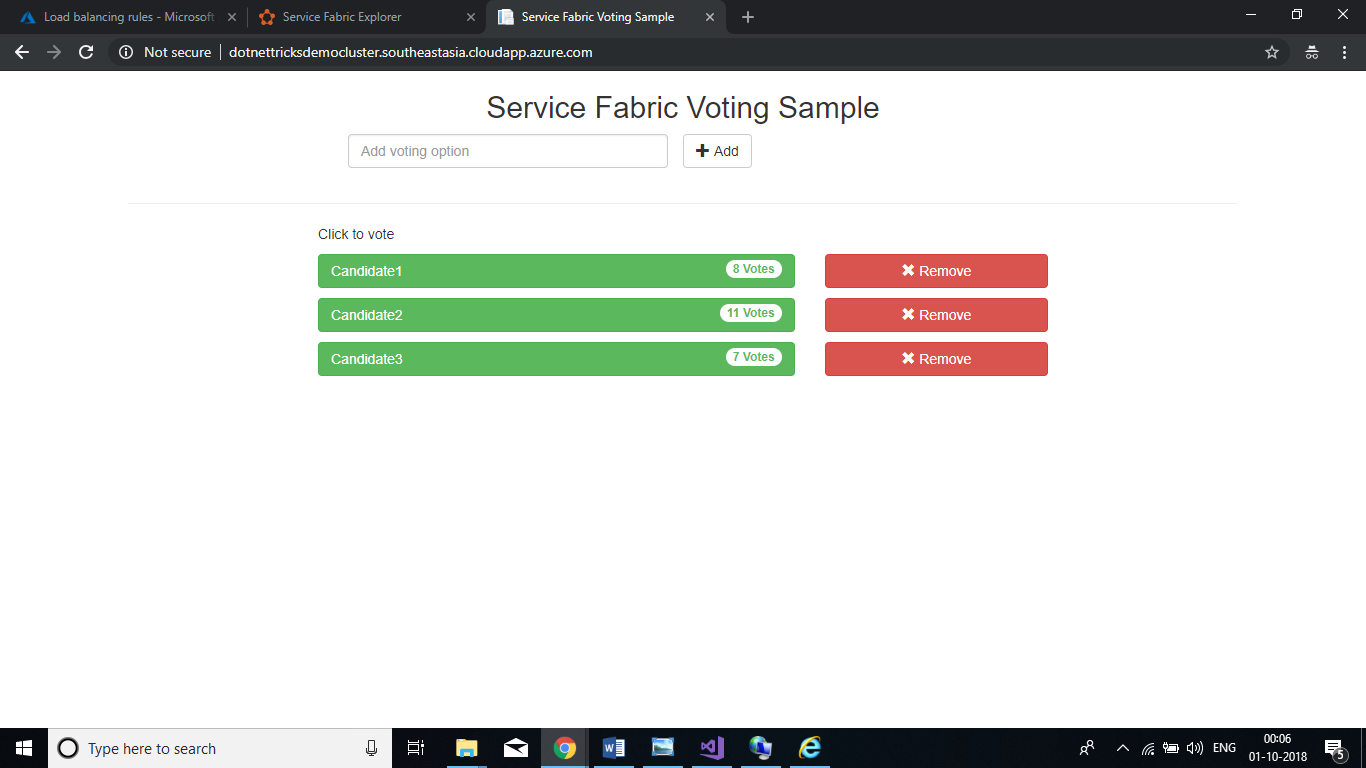
Deploy Application to an Azure Cluster
Summary

So, we have successfully deployed a Service Fabric application to Azure Service Fabric Cluster using Visual Studio 2017

Service Fabric managed clusters


Service Fabric managed clusters

Service Fabric managed clusters are an evolution of the Azure Service Fabric cluster resource model that streamlines your deployment and cluster management experience.

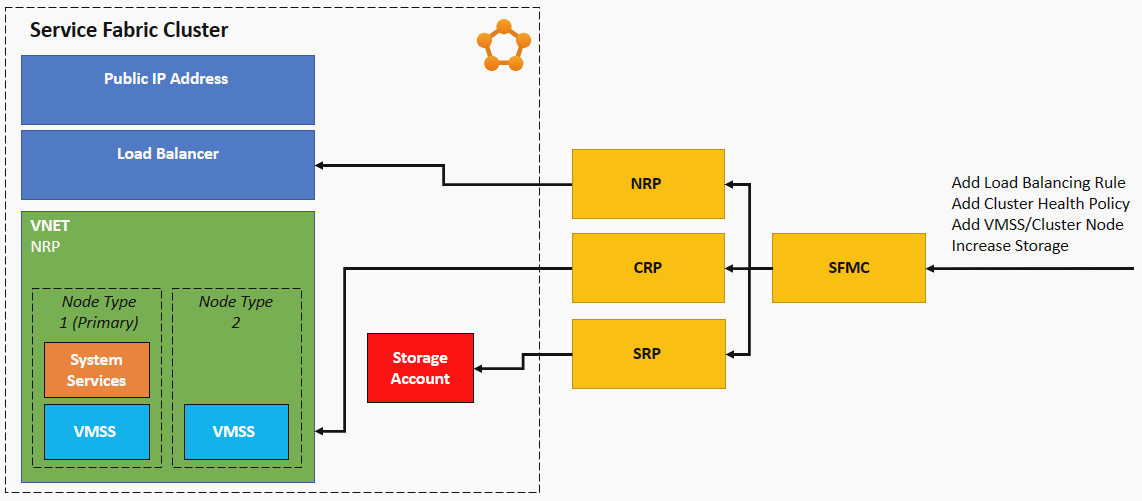
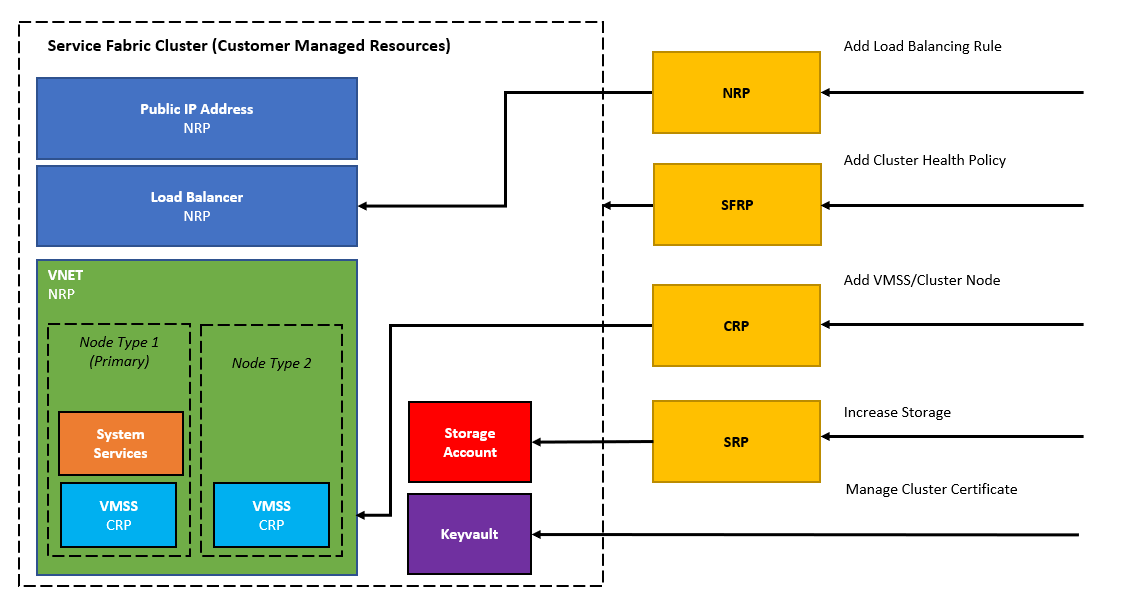
The Azure Resource Model (ARM) template for traditional Service Fabric clusters requires you to define a cluster resource alongside a number of supporting resources. These resources must be configured correctly for the cluster and your services to function properly. In contrast, the encapsulation model for Service Fabric managed clusters consists of a single, Service Fabric managed cluster resource. All of the underlying resources for the cluster are abstracted away and managed by Azure on your behalf.

Service Fabric traditional cluster model Service Fabric traditional cluster model

Service Fabric managed cluster model Service Fabric encapsulated cluster model

In terms of size and complexity, the ARM template for a Service Fabric managed cluster is about 100 lines of JSON, versus some 1,000 lines required to define a typical Service Fabric cluster:


Service Fabric resourcesService Fabric managed cluster resources
Service Fabric clusterService Fabric managed cluster
Virtual machine scale set(s)
Load balancer
Public IP address
Storage account(s)
Virtual network

Service Fabric managed cluster advantages

Service Fabric managed clusters provide a number of advantages over traditional clusters including:

Simplified cluster deployment and management

  • Deploy and manage a single Azure resource
  • Cluster certificate management and 90 day autorotation
  • Simplified scaling operations
  • Automatic OS Image upgrade support
  • In-Place OS SKU change support

Prevent operational errors

  • Prevent configuration mismatches with underlying resources
  • Block unsafe operations (such as deleting a seed node)

Best practices by default

  • Simplified reliability and durability settings

There's no extra cost for Service Fabric managed clusters beyond the cost of underlying resources required for the cluster, and the same Service Fabric Service Level Agreement (SLA) applies for managed clusters.

Tuesday, 28 May 2024

Deploy an Azure Red Hat OpenShift cluster using the Azure portal


 Deploy an Azure Red Hat OpenShift cluster using the Azure portal

Azure Red Hat OpenShift is a managed OpenShift service that lets you quickly deploy and manage clusters. In this quickstart, we'll deploy an Azure Red Hat OpenShift cluster using the Azure portal.

Prerequisites

Sign in to the Azure portal.

Create a service principal, as explained in Use the portal to create a Microsoft Entra application and service principal that can access resourcesBe sure to save the client ID and the appID.

Register the Microsoft.RedHatOpenShift resource provider. For instructions on registering resource providers using Azure portal, see Register resource provider.

Create an Azure Red Hat OpenShift cluster

  1. On the Azure portal menu or from the Home page, select All Services under three horizontal bars on the top left hand page.

  2. Search for and select Azure Red Hat OpenShift clusters.

  3. Select Create.

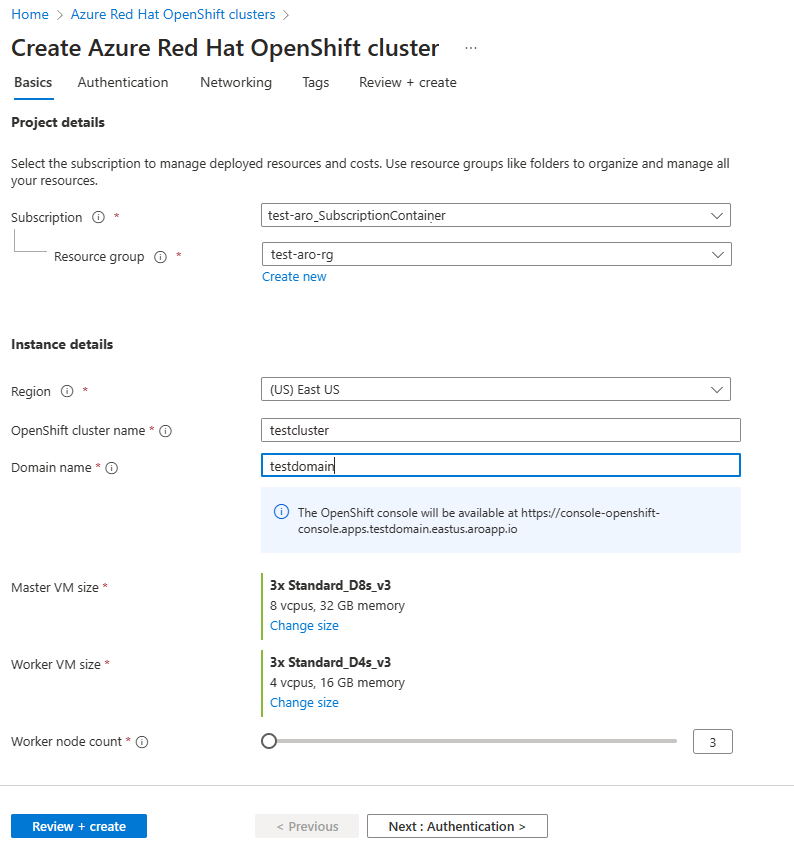
  4. On the Basics tab, configure the following options:

    • Project details:
      • Select an Azure Subscription.
      • Select or create an Azure Resource group, such as myResourceGroup.
    • Instance details:
      • Select a Region for the Azure Red Hat OpenShift cluster.
      • Enter an OpenShift cluster name, such as myAROCluster.
      • Enter a Domain name.
      • Select Master VM Size and Worker VM Size.
      • Select Worker node count (i.e., the number of worker nodes to create).

    Basics tab on Azure portal


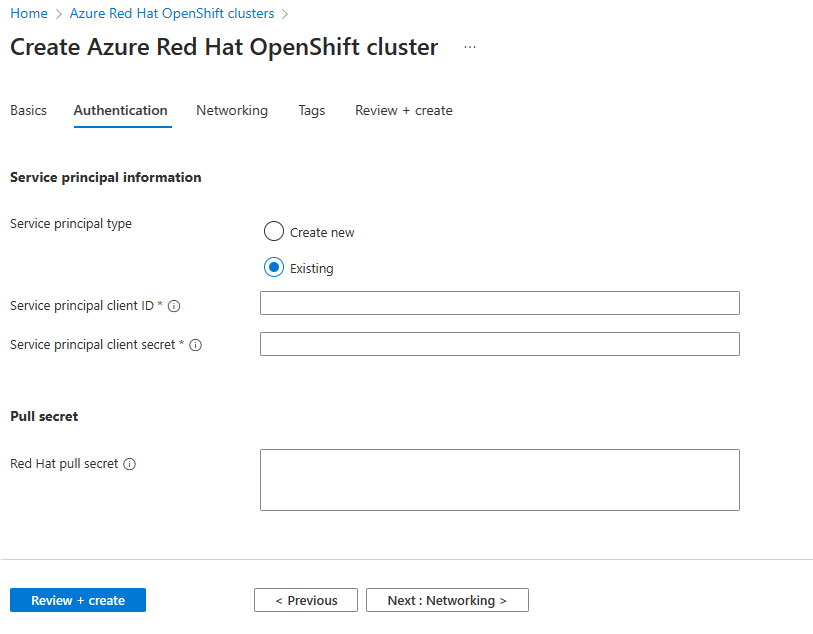
  5. On the Authentication tab, complete the following sections.

    Under Service principal information, select either Create new or Existing. If you choose to use an existing service principal, enter the following information:

    • Service principal client ID is your appId.
    • Service principal client secret is the service principal's decrypted Secret value.


    Under Pull secret, enter the Red Hat pull secret (i.e., your cluster's pull secret's decrypted value). If you don't have a pull secret, leave this field blank.

    Screenshot that shows how to use the Authentication tab with Azure portal to create a service principal.

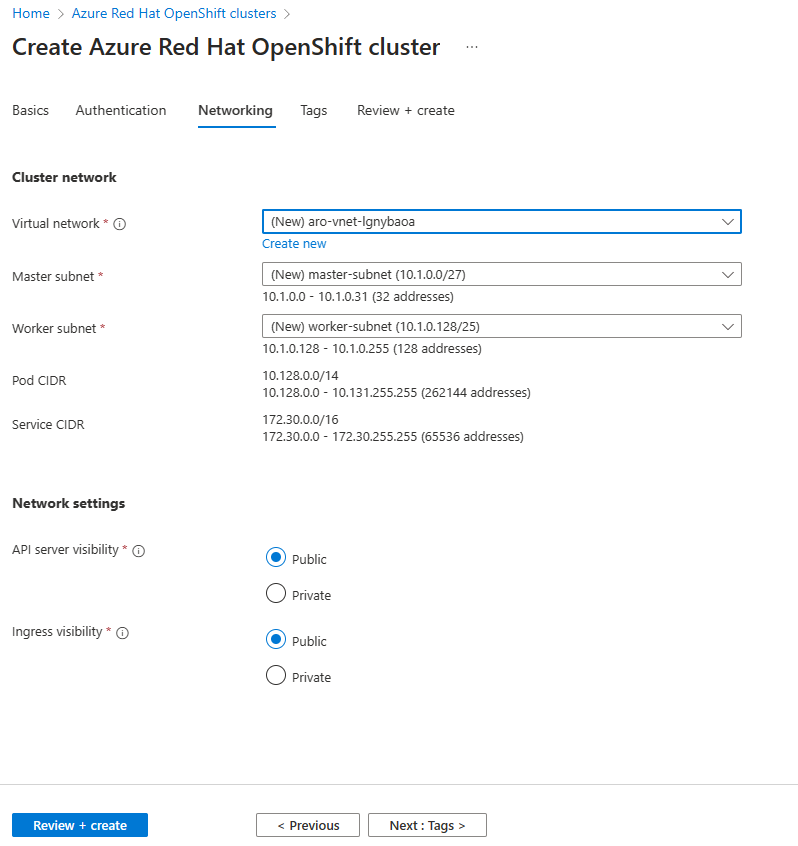
  6. On the Networking tab, configure the required options.


Networking tab on Azure portal

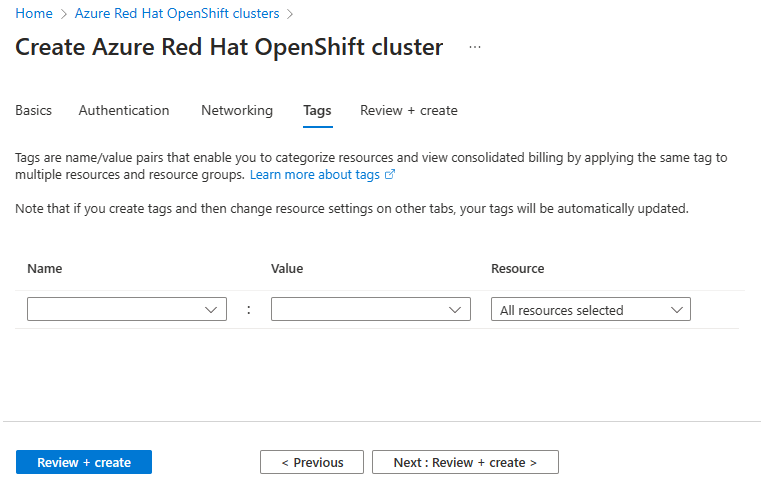
  1. On the Tags tab, add tags to organize your resources.

Tags tab on Azure portal

  1. Check Review + create and then Create when validation completes.

Review + create tab on Azure portal

  1. It takes approximately 35 to 45 minutes to create the Azure Red Hat OpenShift cluster. When your deployment is complete, navigate to your resource by either:

Deploying OpenShift on Azure


Deploying OpenShift on Azure

Azure Red Hat OpenShift, a jointly engineered, managed, and supported service by Red Hat and Microsoft, inherits Azure’s compliance features and offers seamless billing integration. Deploying OpenShift on Azure is swift, easy, and delivers a fully managed service, allowing users to prioritize their applications without concerning themselves with the underlying infrastructure management.

In this demonstration, our focus is specifically on Azure Red Hat OpenShift “ARO”, a service jointly engineered, operated, and supported by Microsoft and Red Hat, offering an integrated support experience.

Get a Red Hat pull secret

  1. To begin, Log in to the Red Hat Hybrid Cloud Console to access the Azure Red Hat OpenShift pull secret page.
  2. Click Download pull secret and save the pull secret in a secure place as a .txt file. You’ll reference it later.
Microsoft Azure Red Hat OpenShift pull secret page in the Hybrid Cloud Console​​​​

Navigate to the Red Hat Cluster Manager to kickstart your journey with Azure Red Hat OpenShift. This service, being an Azure first-party offering, ensures seamless integration and innovation. Clicking on the “Try it on Azure” link within the OpenShift Cluster Manager leads you to detailed instructions for swiftly setting up a production-grade OpenShift cluster on Azure.

Before diving into creating the cluster on Azure, a few prerequisites must be met. Ensure that Azure Red Hat OpenShift is available in your region. Additionally, you’ll need a pay-as-you-go Azure account, preferably not the entry-level free account, and sufficient quota for the standard DSv3 family of vCPUs. If you lack the necessary quota, follow the standard Azure process to request an increase.

# Verify you have the correct number of Azure resource quotas, in this case Total Regional vCPUs. Change the location if you’re not using “East US.”
# Azure Red Hat OpenShift requires at least 40 cores to create and run a cluster. The default Azure resource quota for a new Azure subscription is only 10.
az vm list-usage --location "East US" -o table
# If you have multiple accounts, specify the subscription ID you want to work with by running:
az account set --subscription <SUBSCRIPTION ID>

Preparing Azure for Installation:
Firstly, register the required resource providers against your subscription. Resource providers grant access to Azure’s resources, and while some are registered by default, others, like those for OpenShift on Azure, need manual registration. This can be done easily via the CLI.

Variables and resource groups

  1. Sign into the Azure CLI by running az login and following the steps to authorize your account.
  2. Set the following environment variables. You can change the values to suit your environment, but these defaults should work.
AZR_RESOURCE_LOCATION=eastus # the location of your cluster
AZR_RESOURCE_GROUP=openshift # the name of the resource group where you want to create your cluster
AZR_CLUSTER=cluster # the name of your cluster
AZR_PULL_SECRET=~/Downloads/pull-secret.txt # the download file of your Red Hat pull secret

3. Creating a Resource Group:
Establish a logical grouping of Azure resources by creating a resource group. Define the location for this group, which determines the default location for resources deployed within it.

az group create \
--name $AZR_RESOURCE_GROUP \
--location $AZR_RESOURCE_LOCATION

Setting Up Networking:
Create a virtual network within the resource group, containing dedicated subnets for the control plane and worker nodes. Additionally, configure a service endpoint for secure and direct routing.

  1. Create a virtual network with two empty subnets. Create the virtual network.
az network vnet create \
--address-prefixes 10.0.0.0/22 \
--name "$AZR_CLUSTER-aro-vnet-$AZR_RESOURCE_LOCATION" \
--resource-group $AZR_RESOURCE_GROUP

2. Create the control plane subnet.

az network vnet subnet create \
--resource-group $AZR_RESOURCE_GROUP \
--vnet-name "$AZR_CLUSTER-aro-vnet-$AZR_RESOURCE_LOCATION" \
--name "$AZR_CLUSTER-aro-control-subnet-$AZR_RESOURCE_LOCATION" \
--address-prefixes 10.0.0.0/23 \
--service-endpoints Microsoft.ContainerRegistry

3. Create the machine subnet.

az network vnet subnet create \
--resource-group $AZR_RESOURCE_GROUP \
--vnet-name "$AZR_CLUSTER-aro-vnet-$AZR_RESOURCE_LOCATION" \
--name "$AZR_CLUSTER-aro-machine-subnet-$AZR_RESOURCE_LOCATION" \
--address-prefixes 10.0.2.0/23 \
--service-endpoints Microsoft.ContainerRegistry

4. Disable network policies on the control plane subnet. This is required for the service to be able to connect to and manage the cluster.

az network vnet subnet update \
--name "$AZR_CLUSTER-aro-control-subnet-$AZR_RESOURCE_LOCATION" \
--resource-group $AZR_RESOURCE_GROUP \
--vnet-name "$AZR_CLUSTER-aro-vnet-$AZR_RESOURCE_LOCATION" \
--disable-private-link-service-network-policies true

Building the Cluster:
Utilize the ‘aro create’ command to initiate the cluster build process. Specify crucial details such as the resource group, cluster name, virtual network, subnets, and reference your OpenShift pull secret. The installation typically takes around 35 to 40 minutes, which can be tracked via the Azure console or CLI.

az aro create \
--resource-group $AZR_RESOURCE_GROUP \
--name $AZR_CLUSTER \
--vnet "$AZR_CLUSTER-aro-vnet-$AZR_RESOURCE_LOCATION" \
--master-subnet "$AZR_CLUSTER-aro-control-subnet-$AZR_RESOURCE_LOCATION" \
--worker-subnet "$AZR_CLUSTER-aro-machine-subnet-$AZR_RESOURCE_LOCATION" \
--pull-secret @$AZR_PULL_SECRET

Connecting to the Cluster:
Utilizing another command, we retrieve cluster details. Notably, we could have used our domain name during the initial setup to have a personalized URL for our cluster. However, in this instance, a random URL was generated for our cluster access.

  1. Get the OpenShift console URL:
az aro show \
--name $AZR_CLUSTER \
--resource-group $AZR_RESOURCE_GROUP \
-o tsv --query consoleProfile

2. Get your OpenShift credentials.

az aro list-credentials \
--name $AZR_CLUSTER \
--resource-group $AZR_RESOURCE_GROUP \
-o tsv

Use the URL and the credentials provided by the output of the last two commands to log into OpenShift via a web browser. Here, you can monitor and update your cluster as needed.

Once these steps are complete, your cluster is ready for application deployment, which you can do in the OpenShift console or via the CLI.

You can use your own domain name with the — domain flag on the ‘az aro create’ command and then we would just set it up.

With OpenShift on Azure, gaining full cluster admin access allows for advanced customization and management. This access provides control over upgrades, lifecycle management, direct integration with Azure services like storage and compute, and scalability through multi-AZ setups. Accessing the cluster from the command line remains just as straightforward.

Deleting the Cluster:
Deleting a cluster is as effortless as creating one — a simple ‘az aro delete’ command removes the entire resource group and its associated resources, including the cluster.

az aro delete -y \
--resource-group $AZR_RESOURCE_GROUP \
--name $AZR_CLUSTER

Increasing Operational Efficiency:
The focus remains on enhancing operational efficiency. With ARO Managed Services, Red Hat and Microsoft handle the complexities of deploying, managing, and updating the platform. This offloading of management tasks empowers businesses to concentrate on their core operations, relying on the expertise of the platform’s managers.

In summary, Azure Red Hat OpenShift simplifies the deployment process, streamlines management tasks, and ensures a hassle-free experience, allowing users to concentrate on their applications while leveraging the platform’s managed services.