Monday, 27 May 2024

Get started with Q# programs and Visual Studio Code


Get started with Q# programs and Visual Studio Code

In this article you will find the steps to use VC Code to create and submit Q#, Jupyter Notebook, or Python quantum computing jobs to Azure Quantum using VS Code.

Submitting Q# jobs to Azure Quantum

Learn how to use VS Code to run, debug, and submit a Q# program to Azure Quantum.

Prerequisites

For installation details, see Installing the Modern QDK on VS Code.

Load a Q# sample program

  1. In VS Code, select File > New Text File and save the file as RandomNum.qs.

  2. Open RandomNum.qs and type sample, then select Random Bit sample from the list of options and save the file.
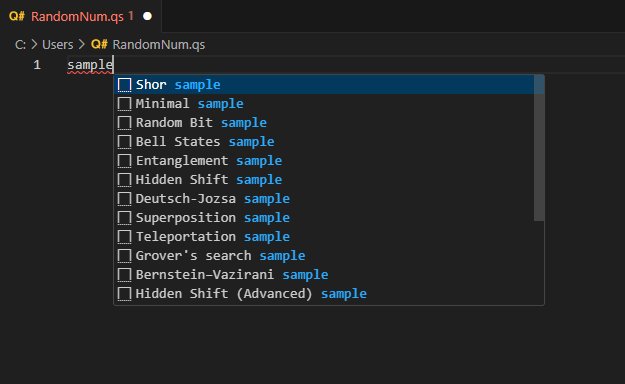
    Screenshot the Q# file in Visual Studio Code showing the list of code samples when writing the word sample in the file.

 Note

You can also open your own Q# file. If you run an older Q# program and run into errors, see Testing and debugging or Migrating your programs to the Modern QDK.

Run a Q# program

  1. To test run your program locally on the built-in simulator, click on Run from the list of commands below @EntryPoint(), or press Ctrl+F5. Your output will appear in the debug console.

  2. To debug your program before submitting it to Azure Quantum, click on Debug from the list of commands below @EntryPoint(), or press F5. Use the debugging controls at the top to step over, into, and out of the code. For more information about debugging Q# programs, see Testing and debugging.
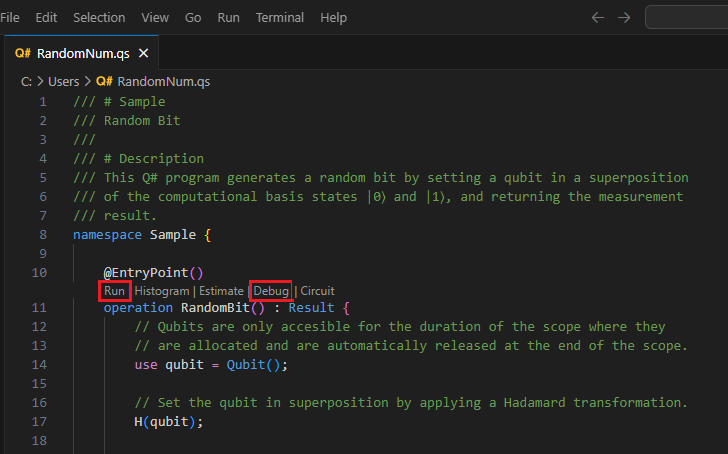
    Screenshot the Q# file in Visual Studio Code showing where to find the code lens with run and debug commands.

Visualize the frequency histogram

The frequency histogram represents the distribution of results obtained from running a quantum program multiple times, or "shots". Each bar in the histogram corresponds to a possible outcome, and its height represents the number of times that outcome is observed. The frequency histogram helps visualize the probability distribution of these outcomes.

  1. Select View -> Command Palette and type “histogram” which should bring up the Q#: Run file and show histogram option. You can also click on Histogram from the list of commands below @EntryPoint(). Select this option to open the Q# histogram window.
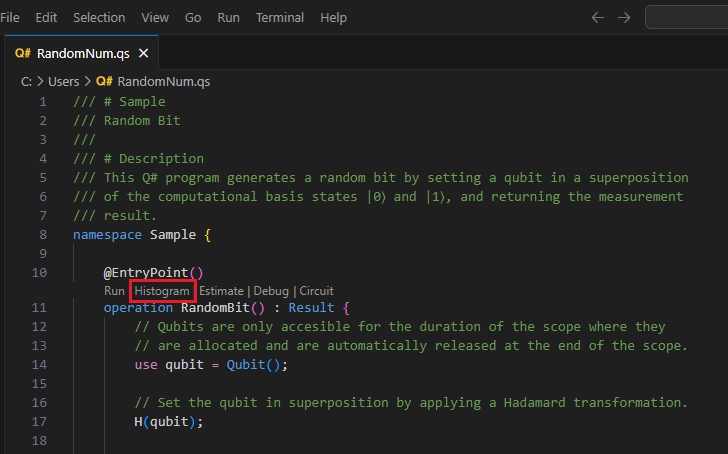
    Screenshot the Q# file in Visual Studio Code showing where to find the code lens with histogram command.

  2. Enter a number of shots to execute the program, for example, 100 shots, and press Enter. The histogram will display in the Q# histogram window.

  3. Click the top-left settings icon to display options.
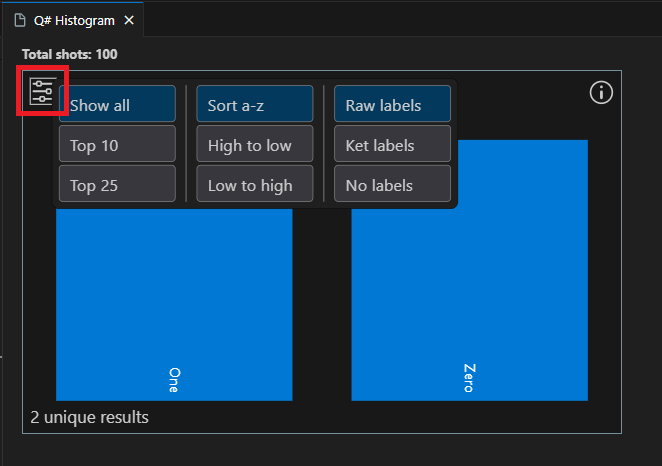
    Screenshot the Q# histogram window in Visual Studio Code showing how to display settings.

  4. Click on a bar to display the percentage of that outcome. In this case there are two possible outcomes, 0 and 1, and the percentage of each outcome is close to 50%.
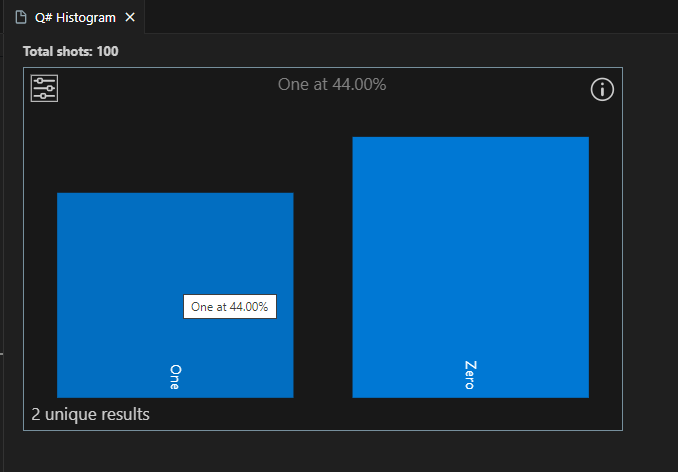
    Screenshot the Q# histogram window in Visual Studio Code.

 Tip

You can zoom the histogram using the mouse scroll wheel or a trackpad gesture. When zoomed in, you can pan the chart by pressing 'Alt' while scrolling.

Visualize the quantum circuit

Quantum circuit diagrams are a visual representation of quantum operations. They show the flow of qubits through the quantum program, including the gates and measurements applied to them. For more information, see Quantum circuit diagrams in Visual Studio Code.

  1. Select View -> Command Palette and type “circuit” which should bring up the Q#: Show circuit option. You can also click on Circuit from the list of commands below @EntryPoint().
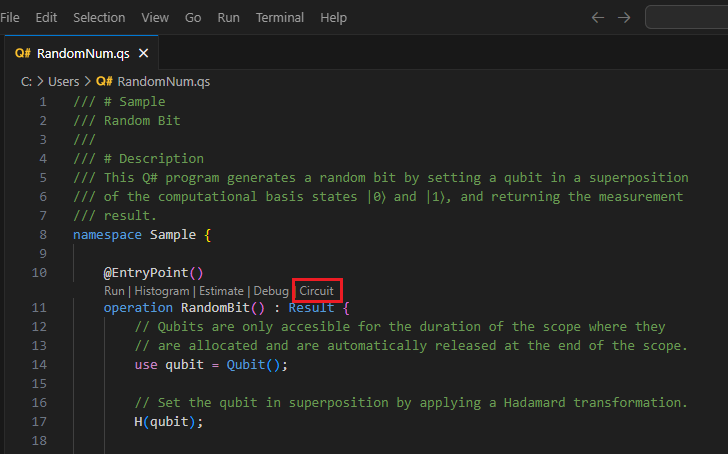
    Screenshot the Q# file in Visual Studio Code showing where to find the code lens circuit command.

  2. The circuit is displayed in the Q# circuit window. The circuit diagram shows one qubit register which it's initialized to the |0⟩ state. Then, a Hadamard gate, H, is applied to the qubit, followed by a measurement operation, which is represented by a meter symbol. For more information, see Quantum circuits conventions.
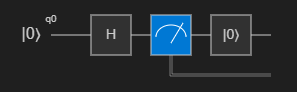
    Screenshot the Q# circuit window showing the resulting circuit diagram for the random bit operation.

Connect to Azure Quantum and submit your job

You can connect and submit jobs directly from VS Code. For this example, you'll submit a job to the Rigetti simulator.

  1. Select View -> Command Palette and type Q#: Connect to an Azure Quantum workspace. Press Enter.

  2. Select Azure account, and follow the prompts to connect to your preferred directory, subscription, and workspace.

     Note

    If you have a connection string, you can select Connection string and paste the connection string corresponding to your Azure Quantum workspace. For more information, see Connect to a Quantum workspace using a connection string.

  3. Once you are connected, in the Explorer pane, expand Quantum Workspaces.

  4. Expand your workspace and expand the Rigetti provider.

     Note

    If there is an issue connecting to Azure Quantum, a warning icon displays next to the workspace name. Hover over the workspace name to display error information.

  5. Select rigetti.sim.qvm as your target.
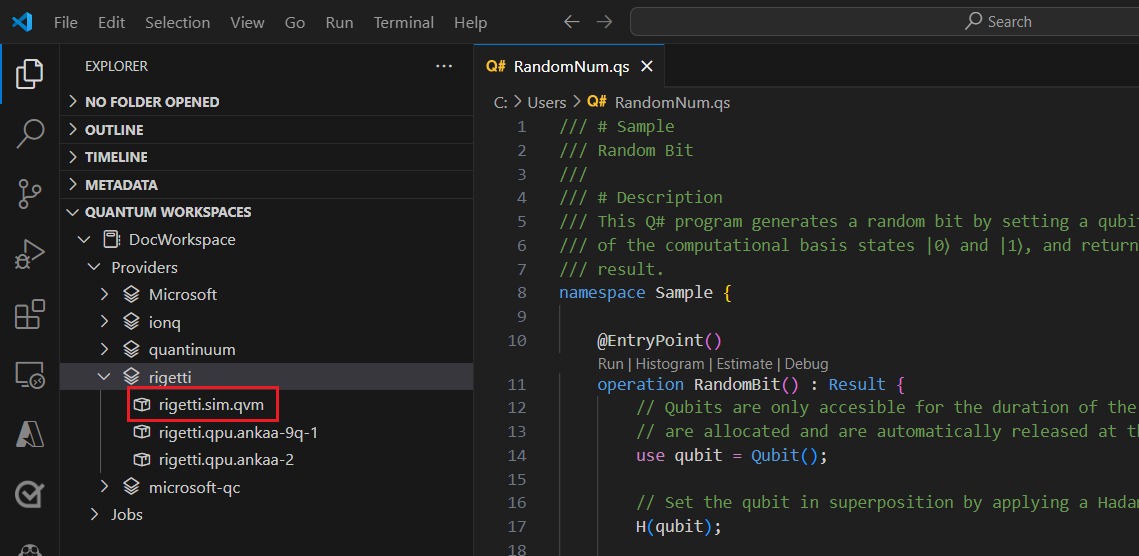
    Screenshot of Visual Studio Code showing how to select Rigetti simulator as target.

  6. Select the play icon to the right of the target name to start submitting the current Q# program. If you get a popup, select Change the QIR target profile and continue.
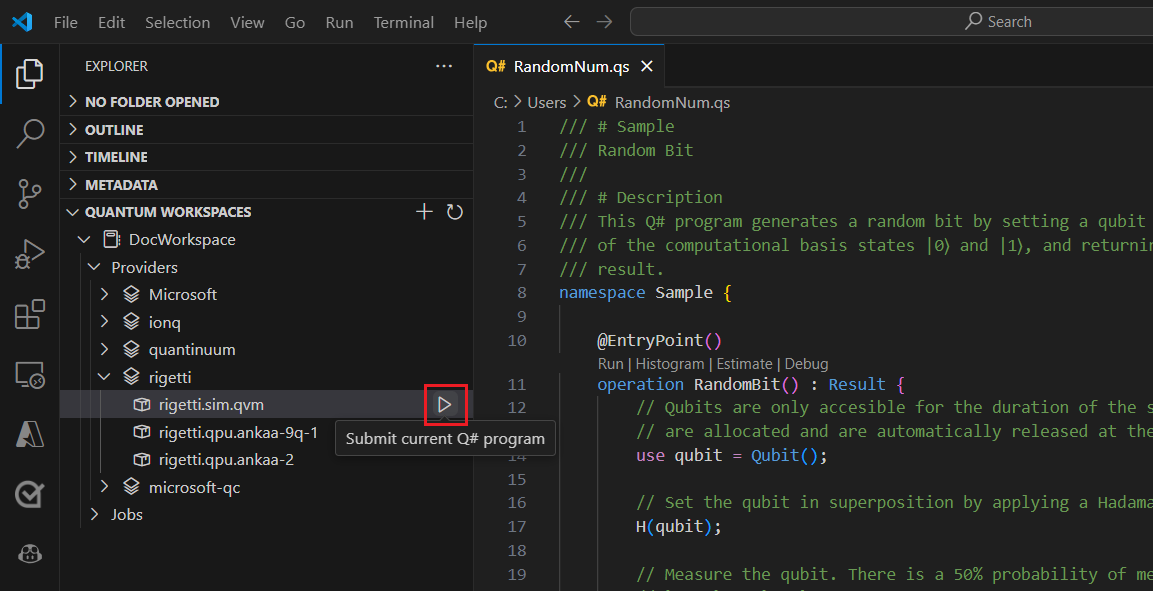
    Screenshot of Visual Studio Code showing how to run Rigetti simulator as target.

  7. Add a name to identify the job.

  8. Add the number of shots, or number of times that the program is run.

  9. Press Enter to submit the job. The job status will display at the bottom of the screen.

  10. Expand Jobs and hover over your job, which displays the times and status of your job.

  11. To view the results, select the cloud icon next to the job name to download the results from your workspace storage and display it in VS Code.
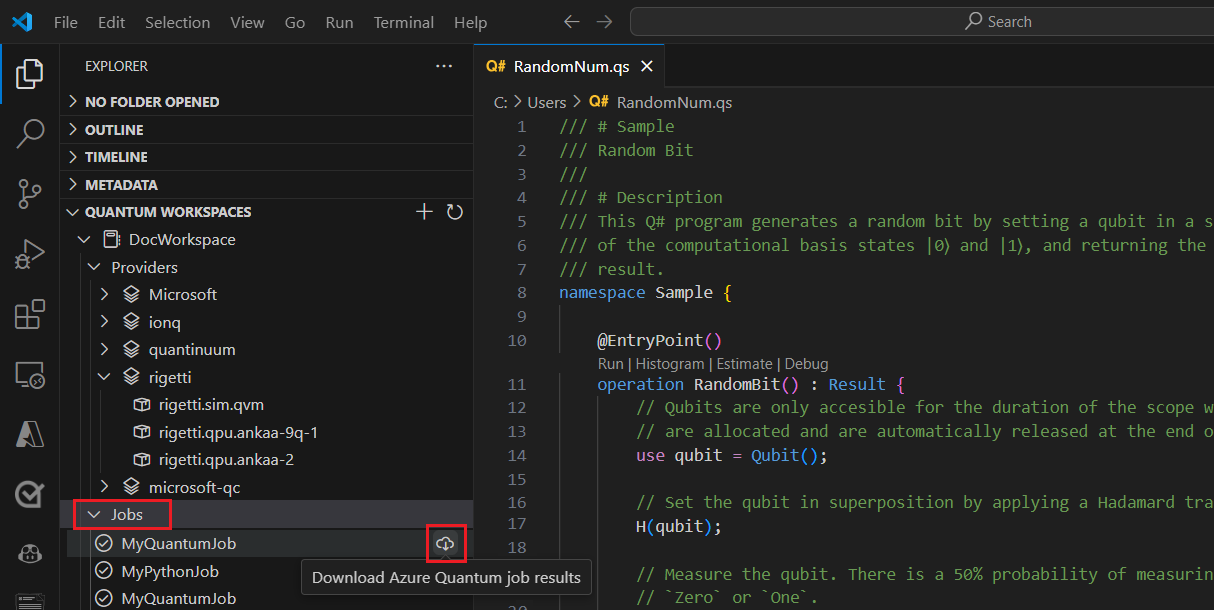
    Screenshot of Visual Studio Code showing how to download and view the results of your quantum job.

Share access to your Azure Quantum workspace


Share access to your Azure Quantum workspace

Learn how to share access to your Azure Quantum workspace. For example, you may need to grant your team members or students access to your workspace.

We recommend using the instructions in this article if you need to grant access to 10 or less users. For a larger number of users, it may be easier for you or your IT department to create a group of users and then grant it access to your workspace. For instructions, see Add a group to your Azure Quantum workspace.

Prerequisites

You need the following prerequisites to share access to your Azure Quantum workspace:

Azure Active Directory

Each user must have an account in your organization's Azure Active Directory before you can grant them access to your workspace. To add new users, you must be a User Administrator or Global Administrator. For instructions, see Add a new user.

Add users as contributors to your Azure Quantum workspace

  1. Sign in to the Azure portal and navigate to your Azure Quantum workspace. You must be an Owner of the workspace in order to add users.

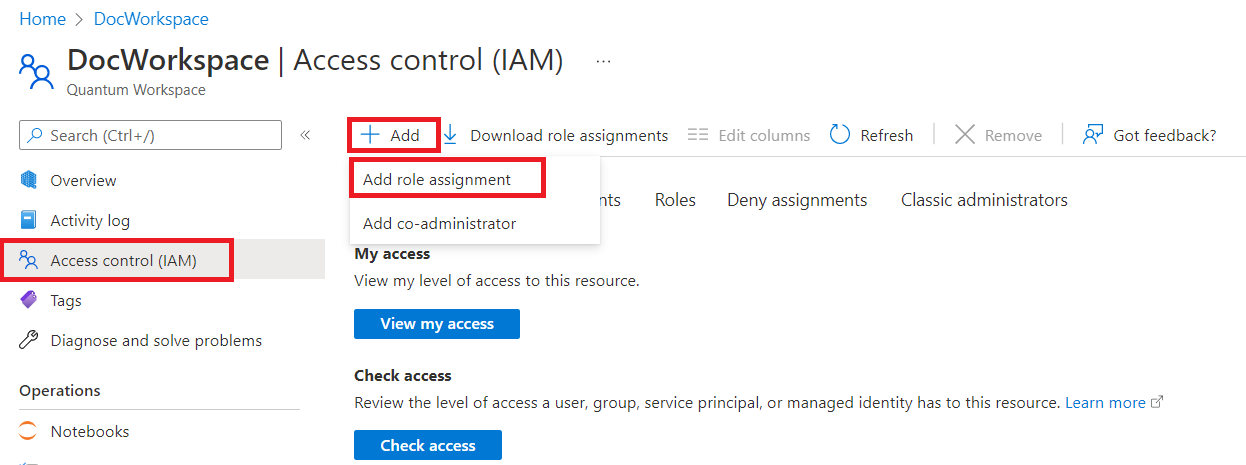
  2. Select Access control (IAM) from the left-side menu. Select Add, and then Add role assignmentScreen shot showing how to add a new role assignment to your Azure Quantum workspace.

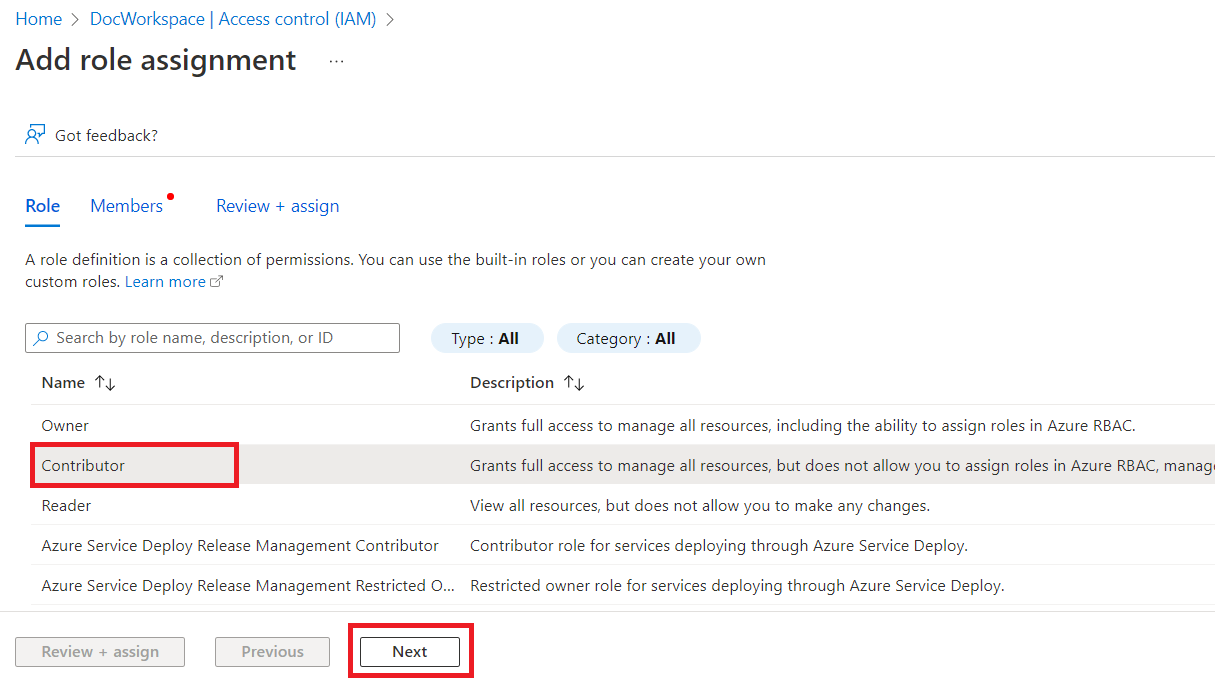
  3. The Add role assignment page opens. On the Role pane, select Contributor and then select Next.

    Screen shot showing how to create a contributor to your Azure Quantum workspace.

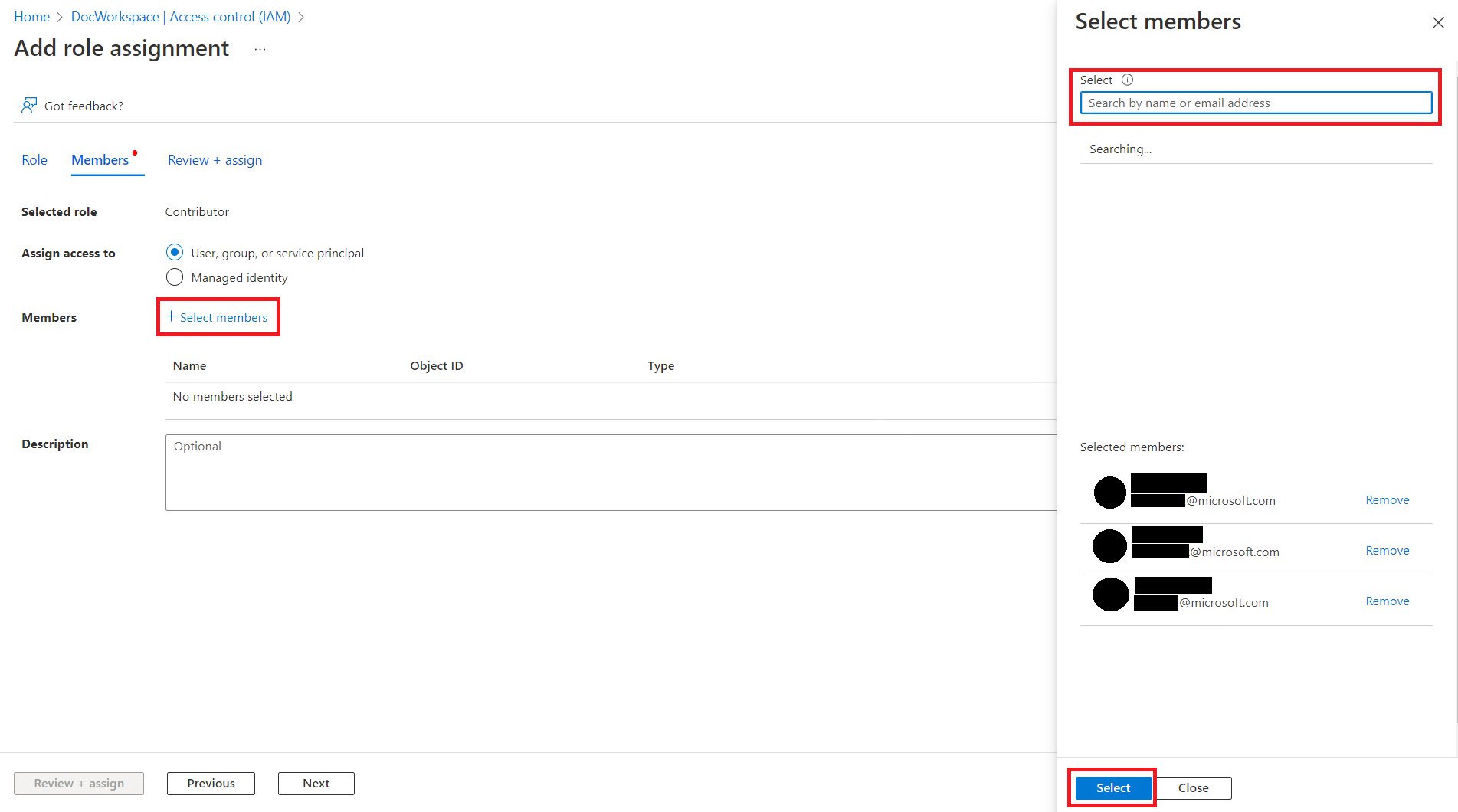
  4. On the Members pane, select Assign access to User, group, or service principal. Then select +Select members. The Select members blade opens. Search for and select each of your users. Then select the blue Select button.

    Screen shot showing how to select your users to add to your Azure Quantum workspace.

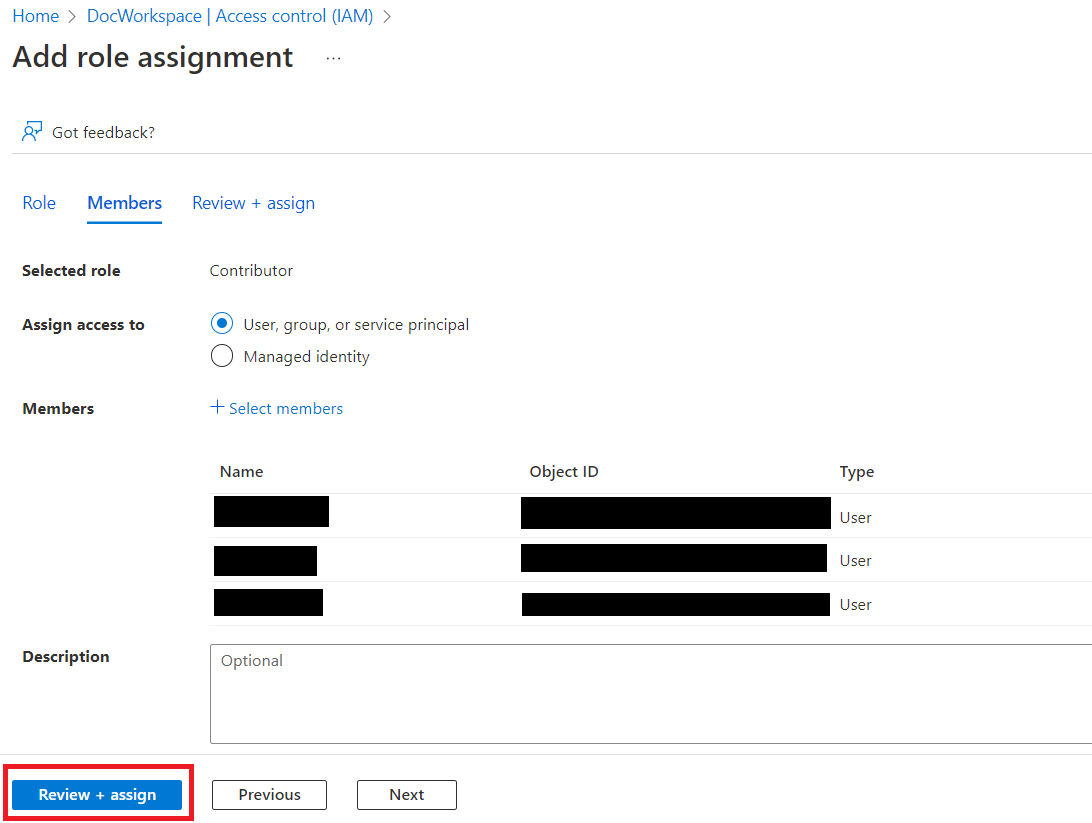
  5. A list of your users will appear under Members. Select Review + assign. On the Review + assign pane, Select Review + assign again. You should get a notification that your users were added to your workspace.

    Screen shot showing how to assign your users as a contributor to your Azure Quantum workspace.

Share access using a connection string

You can share the access to your Azure Quantum workspace using a connection string. The connection string contains the information needed to connect to your workspace, including the subscription ID, resource group, workspace name, and location.

Every Azure Quantum workspace has primary and secondary keys, and their corresponding connection strings. If you want to allow access to your workspace to others, you can share your secondary key and you use your primary for your own services. This way, you can replace the secondary key as needed without having downtime in your own services.

Different ways to connect to your Azure Quantum workspace


Different ways to connect to your Azure Quantum workspace

Once you have created an Azure Quantum workspace, you can connect to it and submit your code using the azure-quantum Python package. The azure-quantum package provides a Workspace class that represents an Azure Quantum workspace.

For other ways to access to your workspace, see Authenticate using a service principal or Authenticate using a managed identity.

Prerequisites

Connect with a connection string

You can use a connection string to specify the connection parameters to an Azure Quantum Workspace. You might use a connection string in the following scenarios:

  • You want to share the workspace access with others who don't have an Azure account.
  • You want to share the workspace access with others for a limited time.
  • You cannot use Microsoft Entra ID due to company policies.

 Tip

Every Azure Quantum workspace has primary and secondary keys, and their corresponding connection strings. If you want to allow access to your workspace to others, you can share your secondary key and you use your primary for your own services. This way, you can replace the secondary key as needed without having downtime in your own services. For more information about sharing your workspace access, see Share your workspace access.

Copy the connection string

  1. Log in to the Azure portal and select your Azure Quantum workspace.

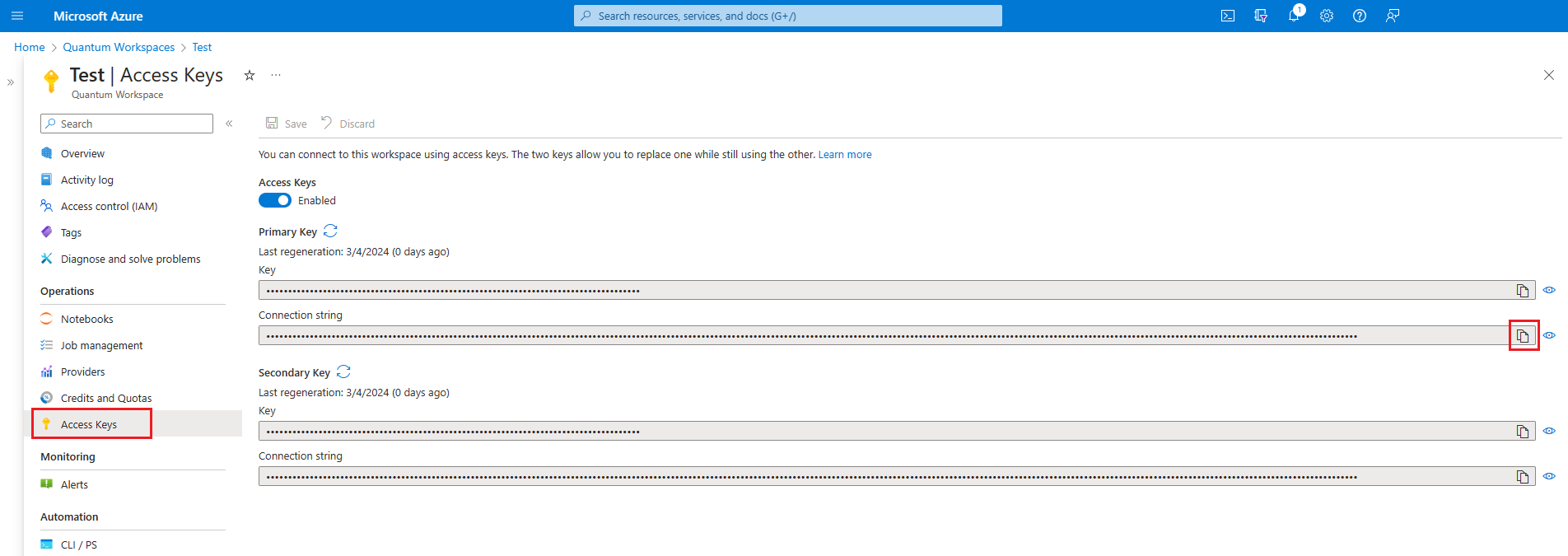
  2. On the left panel, navigate to Operations > Access keys.

  3. Access Keys have to be enabled. If Access Keys are disabled, you need to enable them first. See how to do it in Manage your Access Keys.

  4. Click on the Copy icon to copy the connection string. You can select either the primary or secondary connection string.

    Screenshot of Azure portal showing how to copy the connection strings.

 Warning

Storing your account access keys or connection string in clear text presents a security risk and is not recommended. Store your account keys in an encrypted format, or migrate your applications to use Microsoft Entra authorization for access to your Azure Quantum workspace.

Use a connection string to access your Azure Quantum workspace

Once you copied the connection string, you can use it to connect to your Azure Quantum workspace.

If you're working with a Python environment, you can create a Workspace object to connect to your Azure Quantum workspace. When creating a Workspace object, you have two options for identifying your Azure Quantum workspace.

  • You can create a Workspace object by calling from_connection_string.

    Python# Creating a new Workspace object from a connection string 
    from azure.quantum import Workspace 
    
    connection_string = "[Copy connection string]" 
    workspace = Workspace.from_connection_string(connection_string) 
    
    print(workspace.get_targets()) 
    
  • If you don't want to copy your connection string in the code, you can also store your connection string in an environment variable and use Workspace().

    Python# Using environment variable to connect with connection string
    
    connection_string = "[Copy connection string]" 
    
    import os 
    
    os.environ["AZURE_QUANTUM_CONNECTION_STRING"] = connection_string 
    
    from azure.quantum import Workspace 
    
    workspace = Workspace() 
    print(workspace.get_targets()) 
    

For more information about how to enable/disable and regenerate your keys, see Manage your Access Keys.

 Important

When Access Keys are disabled, all request using connection strings or access keys are unauthorized. You can still use the workspace parameters to connect to your workspace.

Connect with workspace parameters

Every Azure Quantum workspace has a unique set of parameters that you can use to connect to it. You can use the following parameters to connect to your Azure Quantum workspace:


ParameterDescription
subscription_idThe Azure subscription ID.
resource_groupThe Azure resource group name.
nameThe name of your Azure Quantum workspace.
locationThe Azure region where the Azure Quantum workspace is provisioned. This may be specified as a region name such as "East US" or a location name such as "eastus".
resource_idThe Azure resource ID of the Azure Quantum workspace.

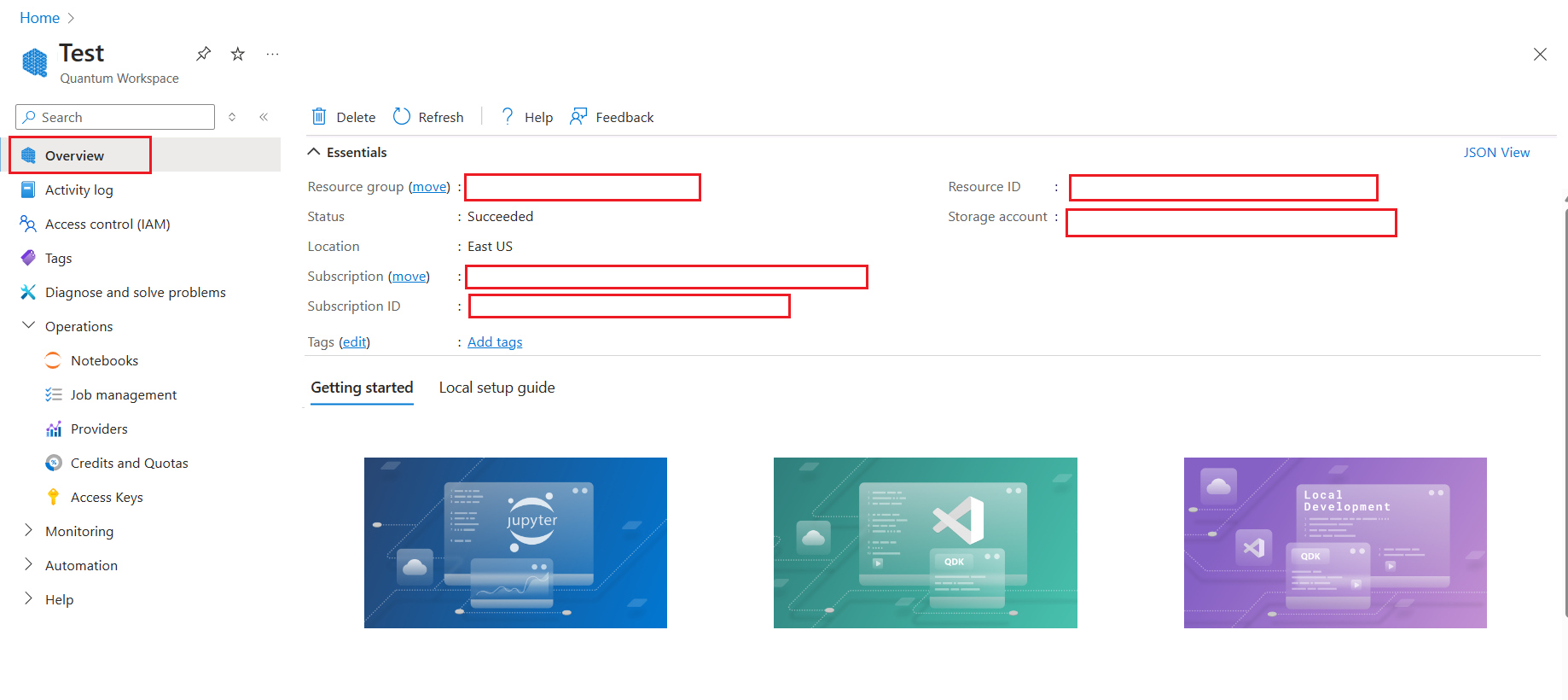
You can find the workspace parameters in the overview of your Azure Quantum workspace in Azure portal.

  1. Log in to your Azure account, https://portal.azure.com,

  2. Select your Azure Quantum workspace, and navigate to Overview.

  3. Copy the parameters in the fields.

    Screenshot of Visual Studio Code showing how to expand the overview pane of your Quantum Workspace.

Use the workspace parameters to connect to your Azure Quantum workspace

Create a Workspace object to connect to your Azure Quantum workspace. When creating a Workspace object, you have two options for identifying your Azure Quantum workspace.

  • You can specify the location and resource ID (recommended):

    Pythonfrom azure.quantum import Workspace 
    
    workspace = Workspace(  
        resource_id = "", # Add the resource ID of your workspace
        location = "" # Add the location of your workspace (for example "westus")
        )
    
  • You can specify the location, subscription ID, resource group, and workspace name:

    Pythonfrom azure.quantum import Workspace 
    
    workspace = Workspace(  
        subscription_id = "", # Add the subscription ID of your workspace
        resource_group = "", # Add the resource group of your workspace
        workspace_name = "", # Add the name of your workspace
        location = "" # Add the location of your workspace (for example "westus")
        )