Monday, 27 May 2024

ADM Account Batch Creation and Importation


1. Introduction

ADM’s batch creation function allows you to quickly create multiple regular sequential user accounts (e.g., student numbers). With regards to irregular non-sequential account creation, you can enter account data into a text file (*.txt, *.csv) and then import it into ADM to create accounts.


2. Creating Accounts

2.1 Batch creation of ADM accounts


STEP 1

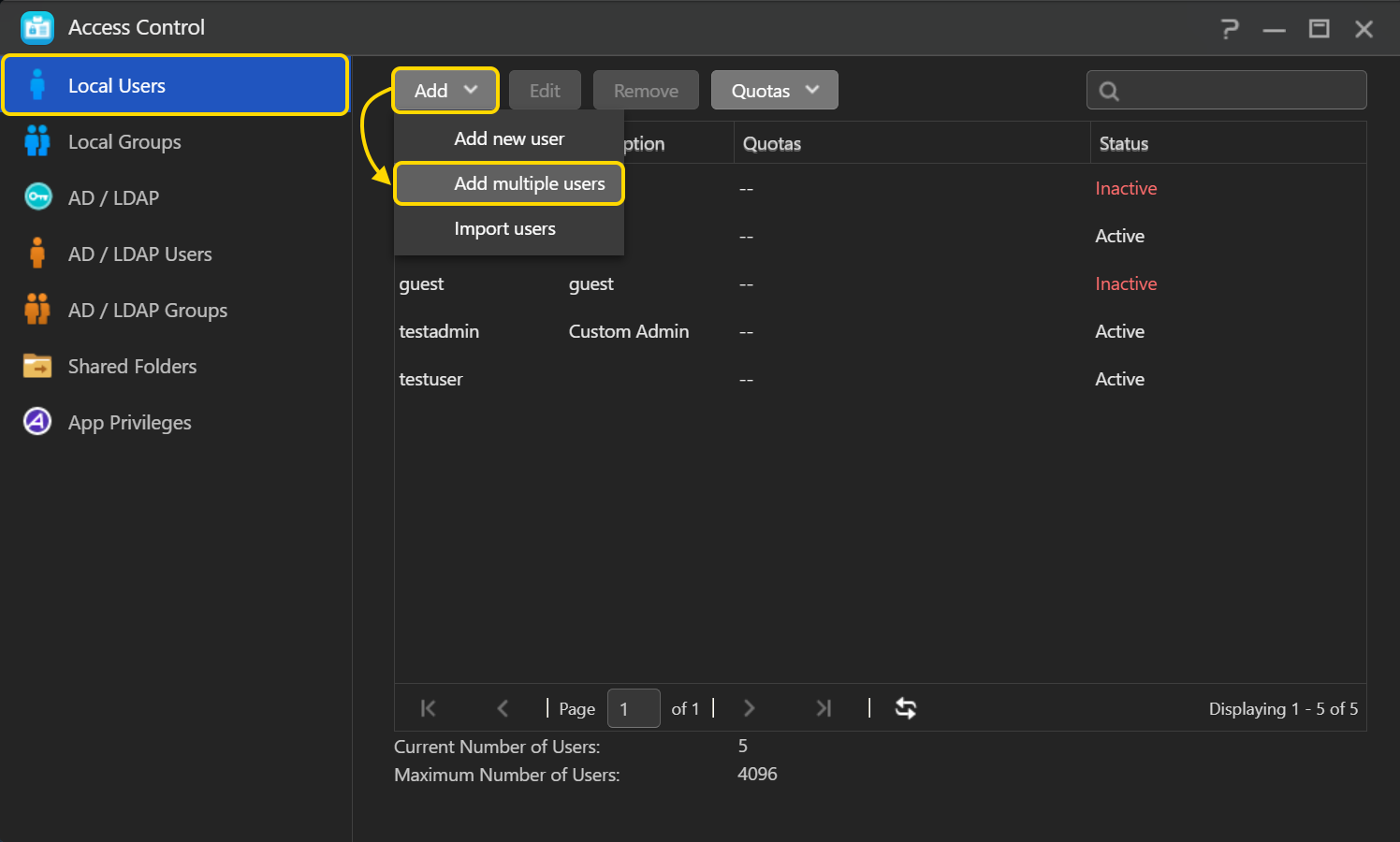
  • Log into ADM and then select [Access Control]  [Local Users]  [Add]  [Add multiple users].

STEP 2

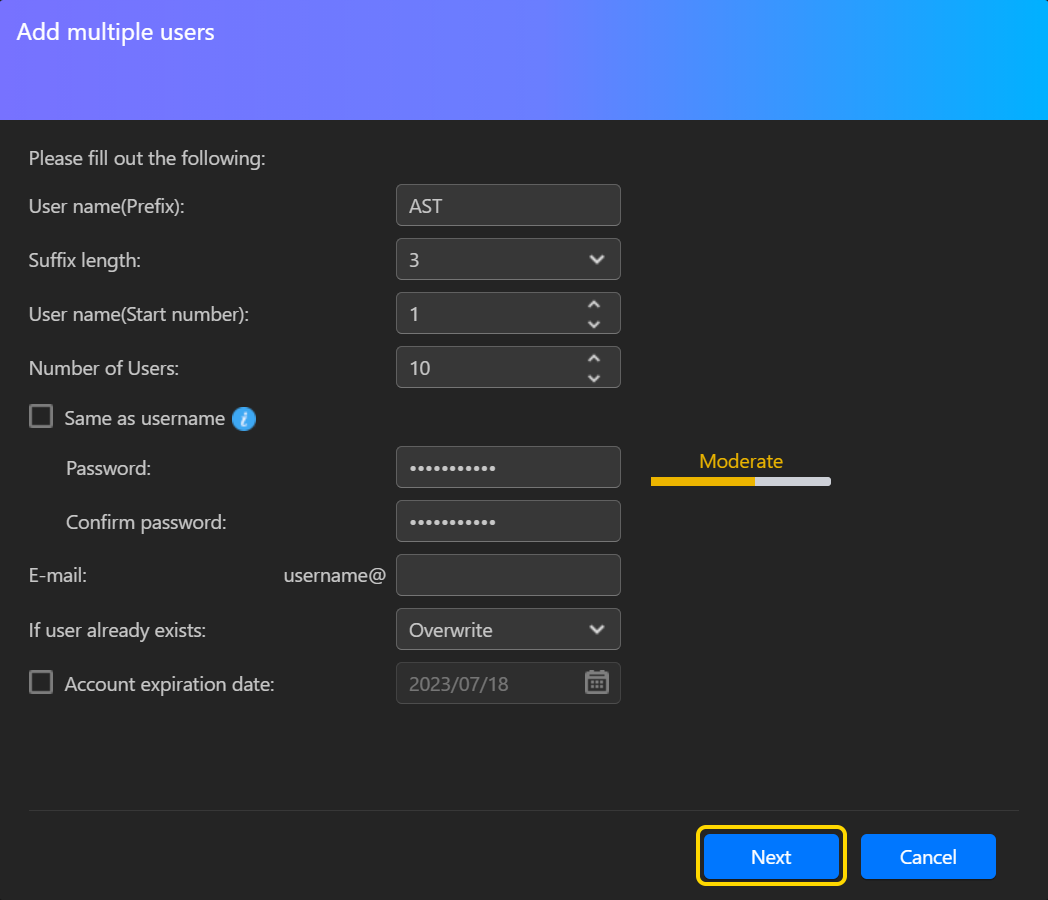
  • Fill out the following information:
    • User name (prefix): Enter a prefix that you would like to be used at the beginning of each user name. In the example below we have used "AST". "AST" will now appear at the beginning of each username for the accounts we create.
    • Suffix length: Select the number of digits that you would like to use in the username suffix. The username suffix comes immediately after the prefix in a username and consists of numerical digits only.
    • User name (start number): Enter the start number that you would like to use in the suffix of the first user. The other users will then be created sequentially based on the start number of this user.
    • Number of users: Enter the number of users that you wish to create.
    • Password: Enter a password of your choice. You can also choose to select the [Same as username] checkbox to make all passwords the same as the usernames.
    • Confirm password: Enter your password again to confirm it.
    • E-mail: Enter an e-mail address for the accounts (optional).
    • If user already exists: Select either [Overwrite] or [Skip]. If ADM encounters a user with the same name as one you are trying to create it will automatically either overwrite the existing user or skip the creation of the new user.
    • Account expiration date: Select this checkbox if you wish to set an expiration date for the accounts you are about to create (optional).
  • Click on [Next] after you have filled out all of the relevant information.

STEP 3

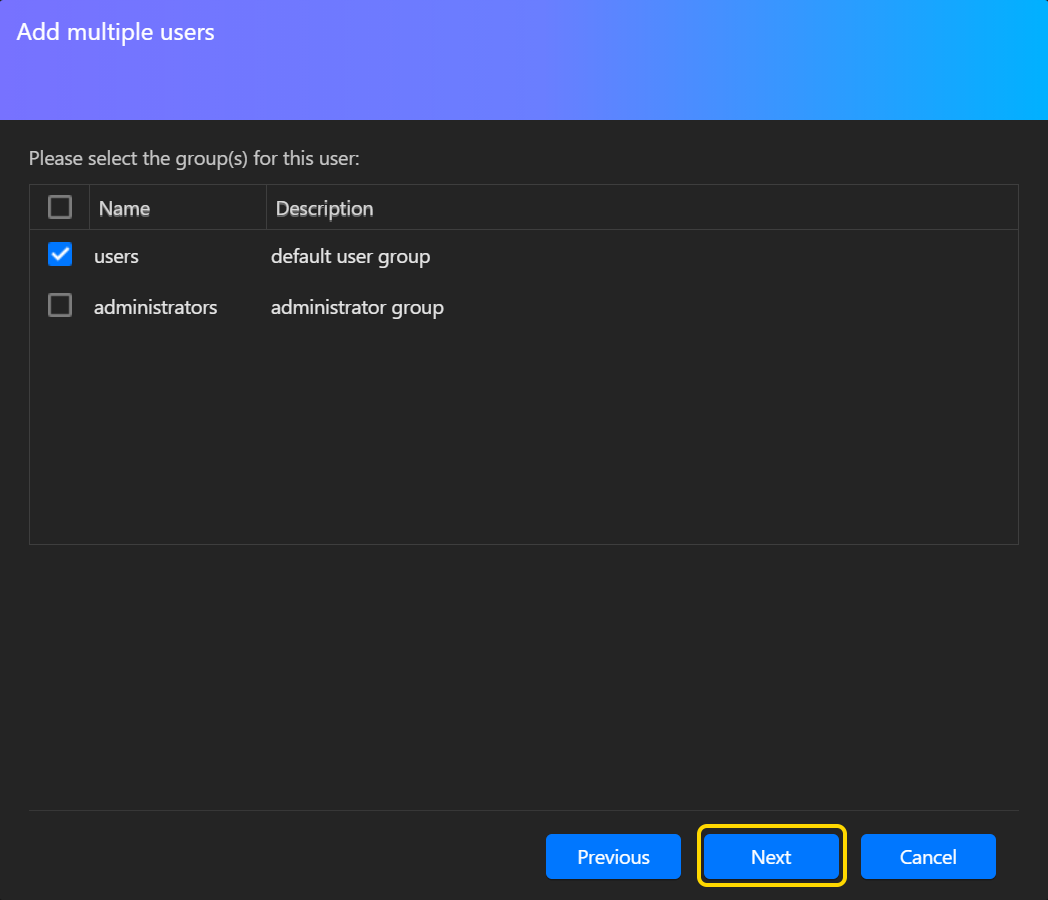
  • Select the group(s) for the users you are about to create.
  • Click on [Next] once you are done.


STEP 4

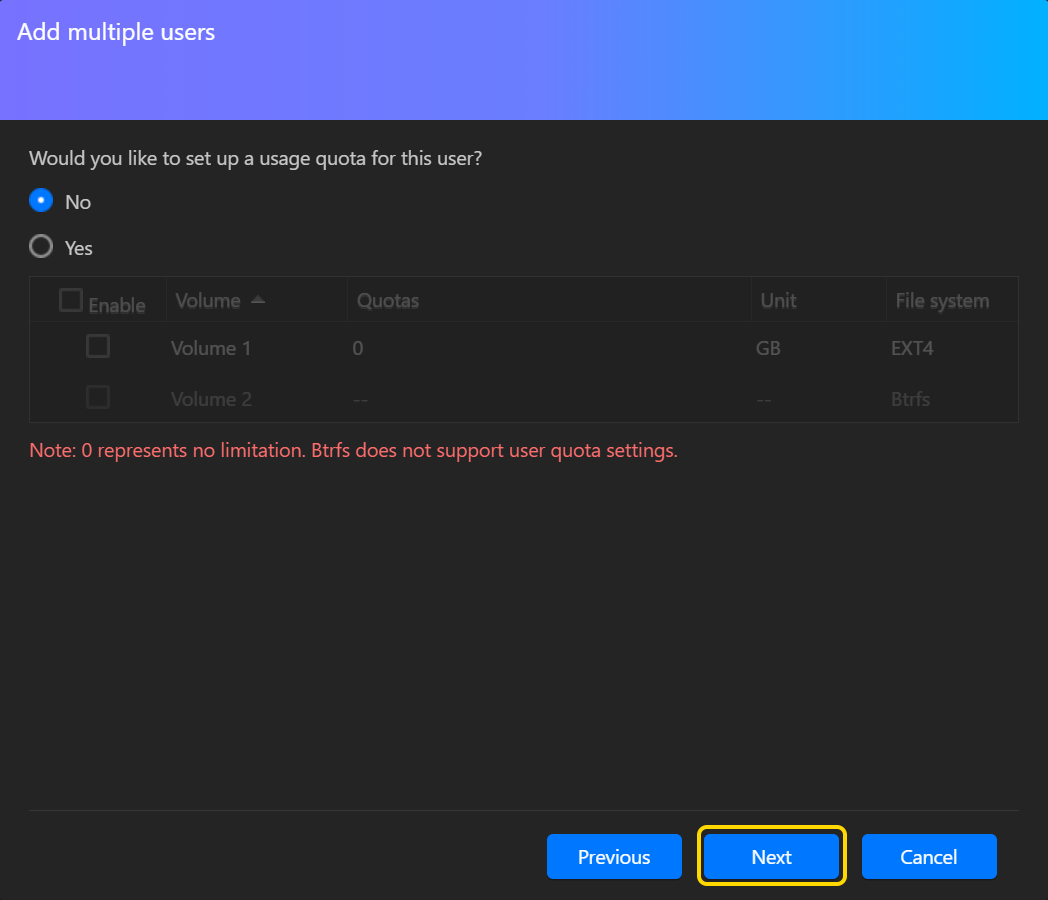
  • Here you will be able to create a usage quota for the users if you wish.
  • Click on [Next] once you are done.

 Note: Btrfs does not support user quota settings.

STEP 5

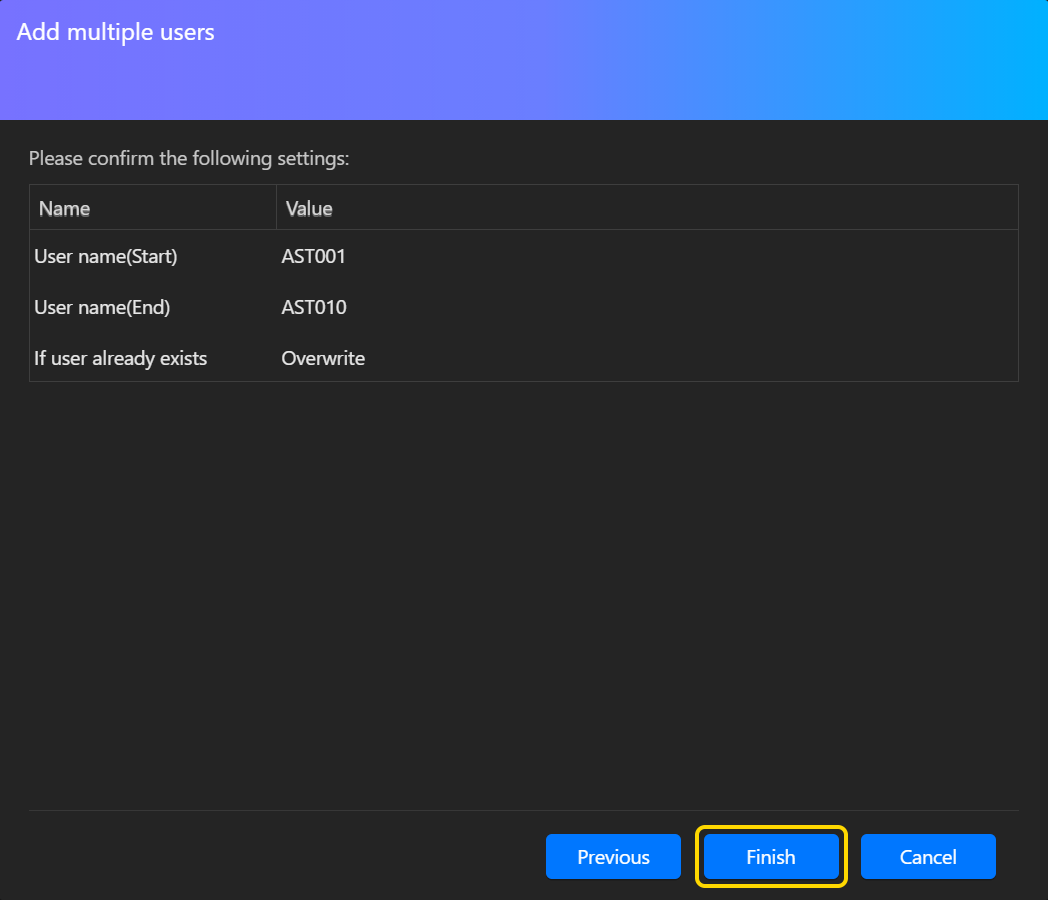
  • Here you will be able to view a summary of the settings for the users accounts you are about to create.
  • Click on [Finish] once you have confirmed the settings.

STEP 6

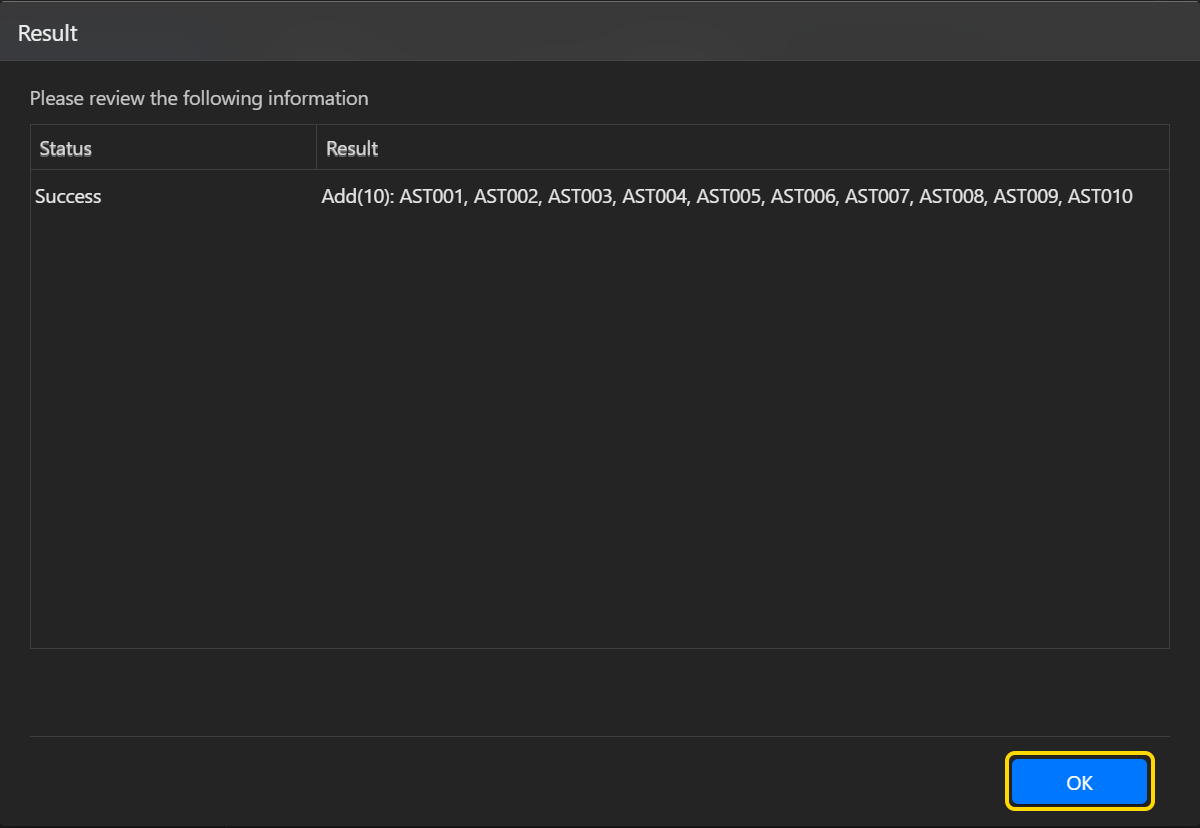
  • Now you will be able to see if the new accounts were created successfully along with a list of the user accounts created. Click on [OK].
  • The batch of accounts should now have been created successfully.


2.2 Importing a batch of accounts to ADM


STEP 1

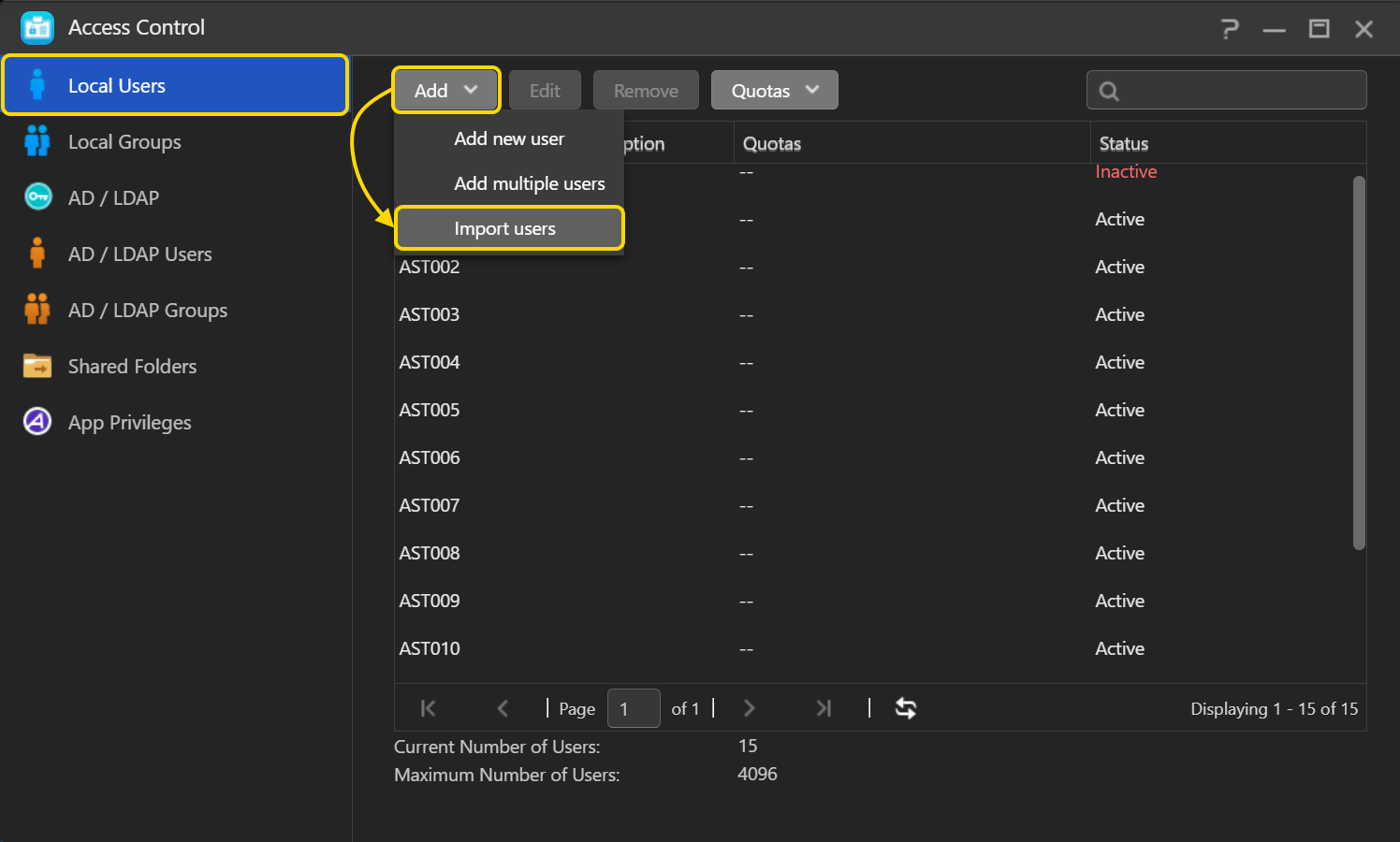
  • Log into ADM and then select [Access Control]  [Local Users]  [Add]  [Import users].

STEP 2

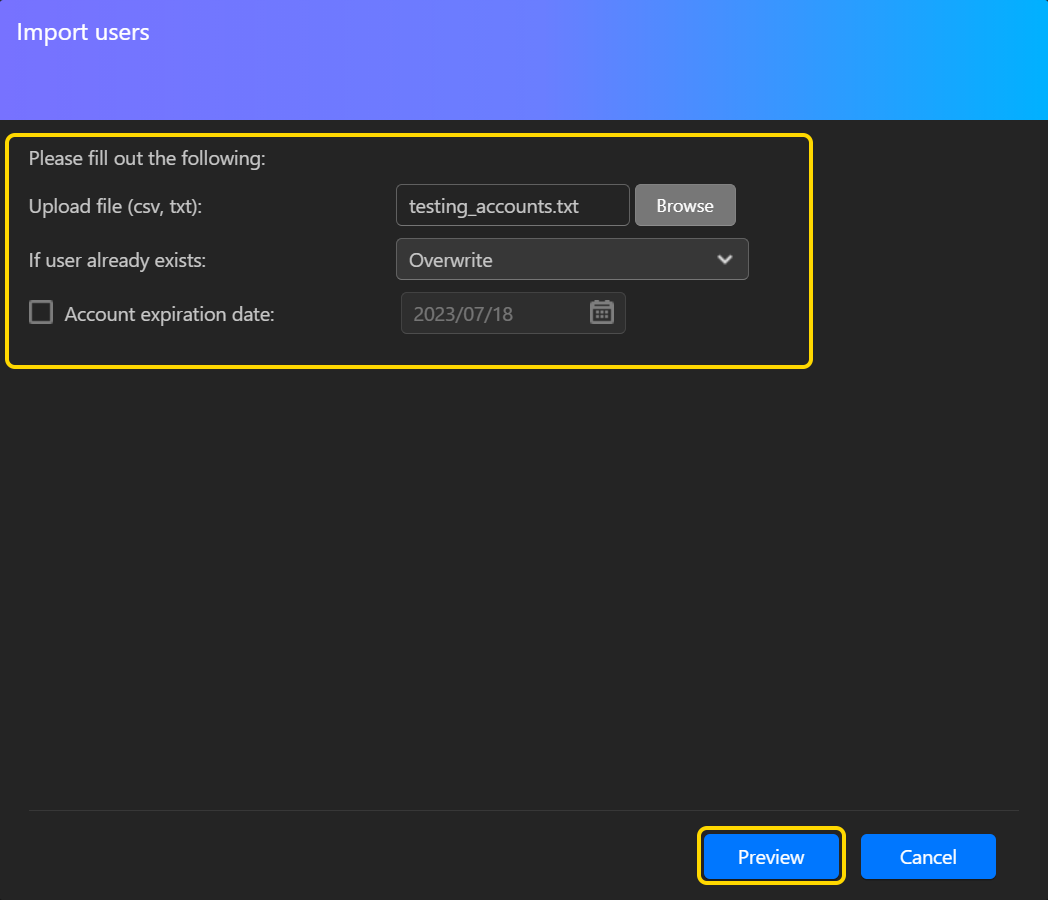
  • Fill out the following information:
    • Upload file (csv, txt): Click on the [Browse] button and then select the account file that you wish to use. For more information on creating suitable account files for ADM, please see the Notes section at the end of this document.
    • If user already exists: Select either [Overwrite] or [Skip]. If ADM encounters a user with the same name as one you are trying to create it will automatically either overwrite the existing user or skip the creation of the new user.
    • Account expiration date: Select this checkbox if you wish to set an expiration date for the accounts you are about to create (optional).
  • Click on [Preview] once you have filled out all of the relevant information.

STEP 3

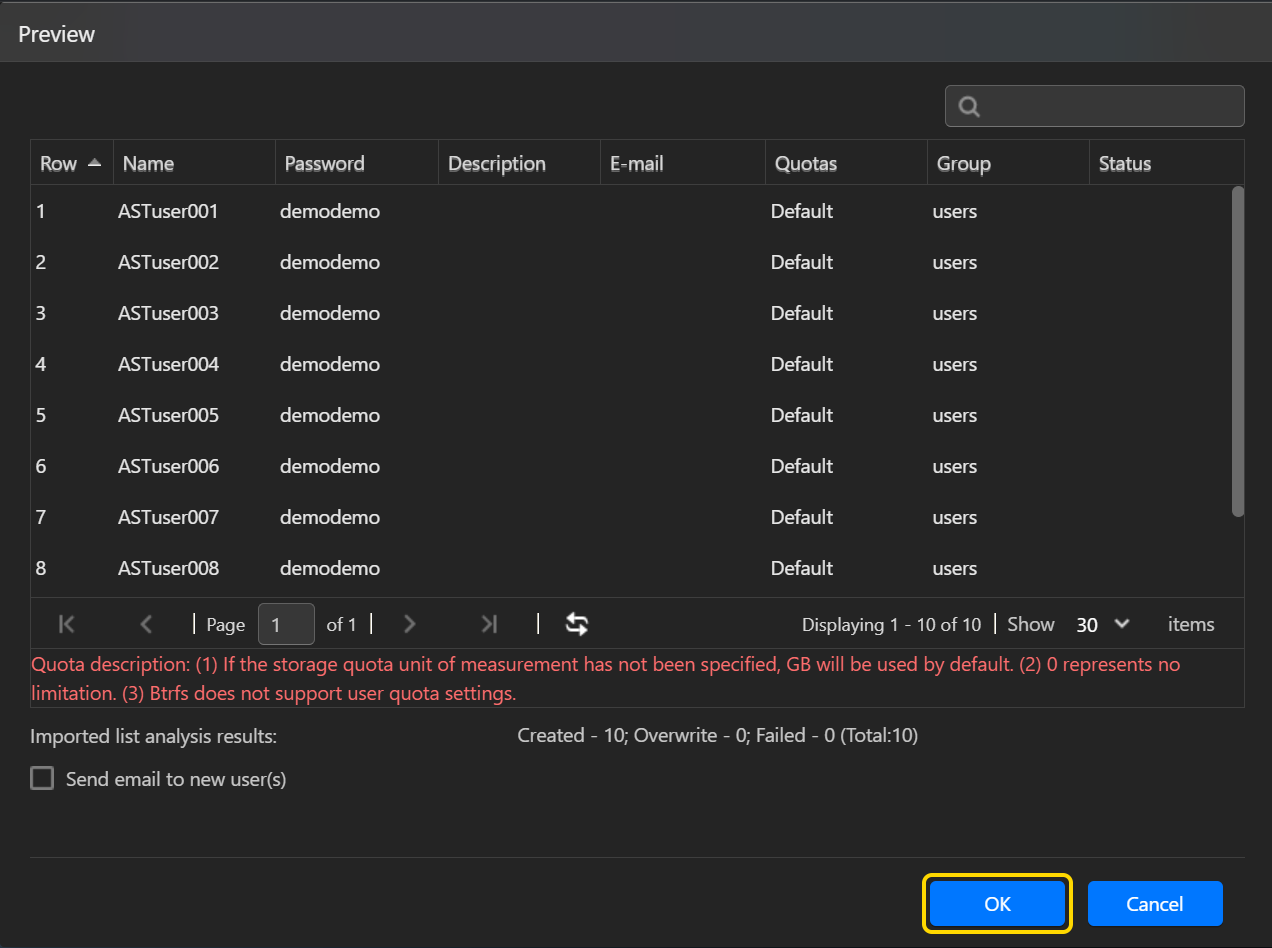
  • You will now be able to see a preview and summary of the accounts that you are about to create.
  • Click on [OK] to begin creating the accounts.

STEP 4

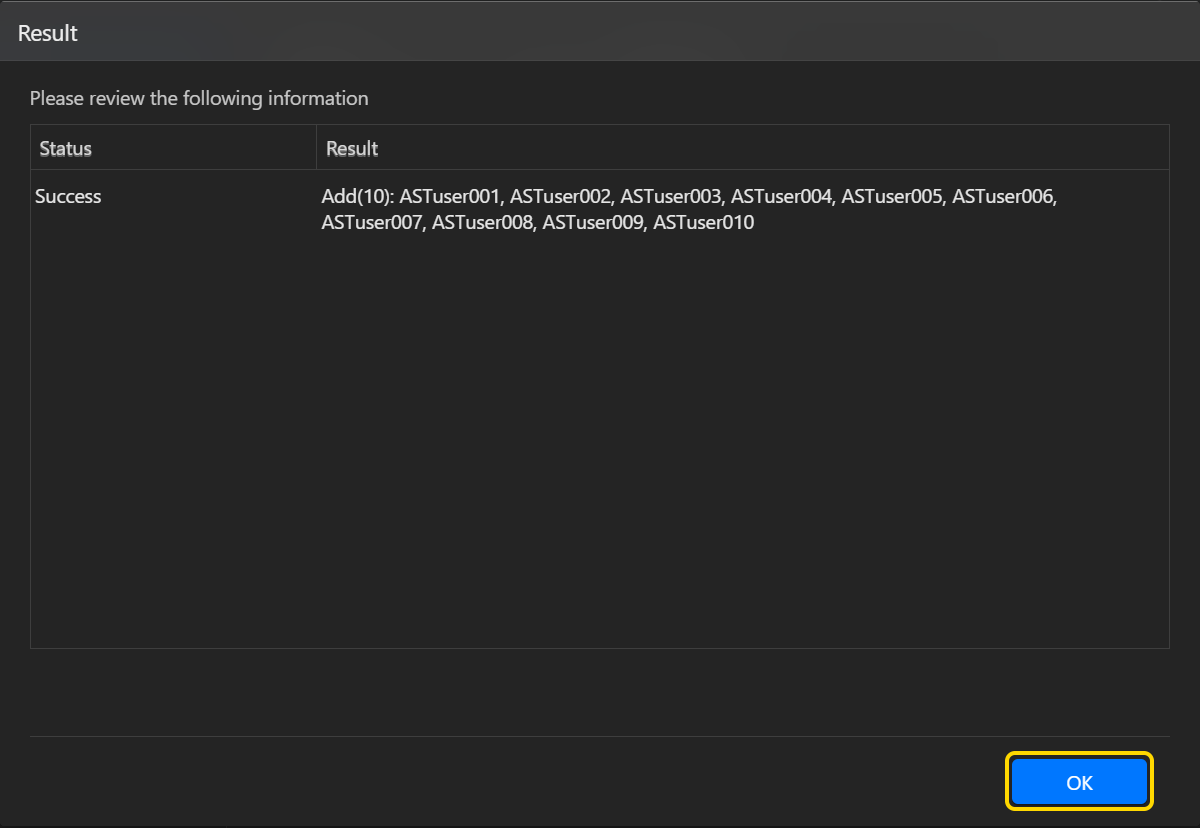
  • Now you will be able to see if the new accounts were created successfully along with a list of the user accounts created. Click on [OK].
  • The batch of accounts should now have been successfully created.

batch payments

How do I match batch payments that I’ve received through payment gateways with their corresponding transactions in Zoho Books? 

Let’s assume that you use the payment gateway Authorize.Net and your customers pay you for 5 invoices, amounting to $100 each. 

However, once your customers pay for the invoices through Authorize.Net, the amount will be withheld by Authorize.Net for a short period, after which, it will be deposited as a batch payment to your bank account, say Citi bank as $500.

Now, to match the five customer payments to a single deposit:

  • Go to Chart of Accounts from the Accountant module on the left sidebar.

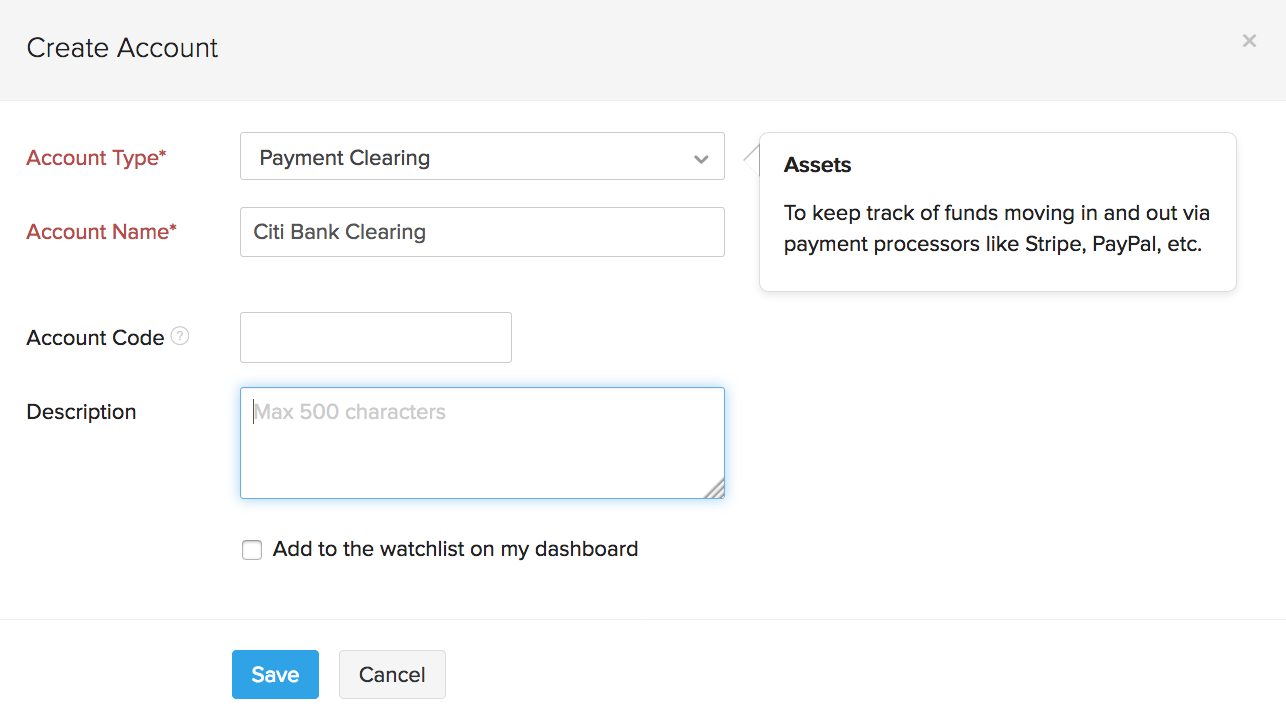
  • Click + New Account and create a new account with the Account Type as Payment Clearing. You can name this account as “Citi Bank Clearing”.

    Match Batch Payments
  • Go to the Banking module from the left sidebar and select the bank (Citi bank) for which you’d like to categorize your transactions. 

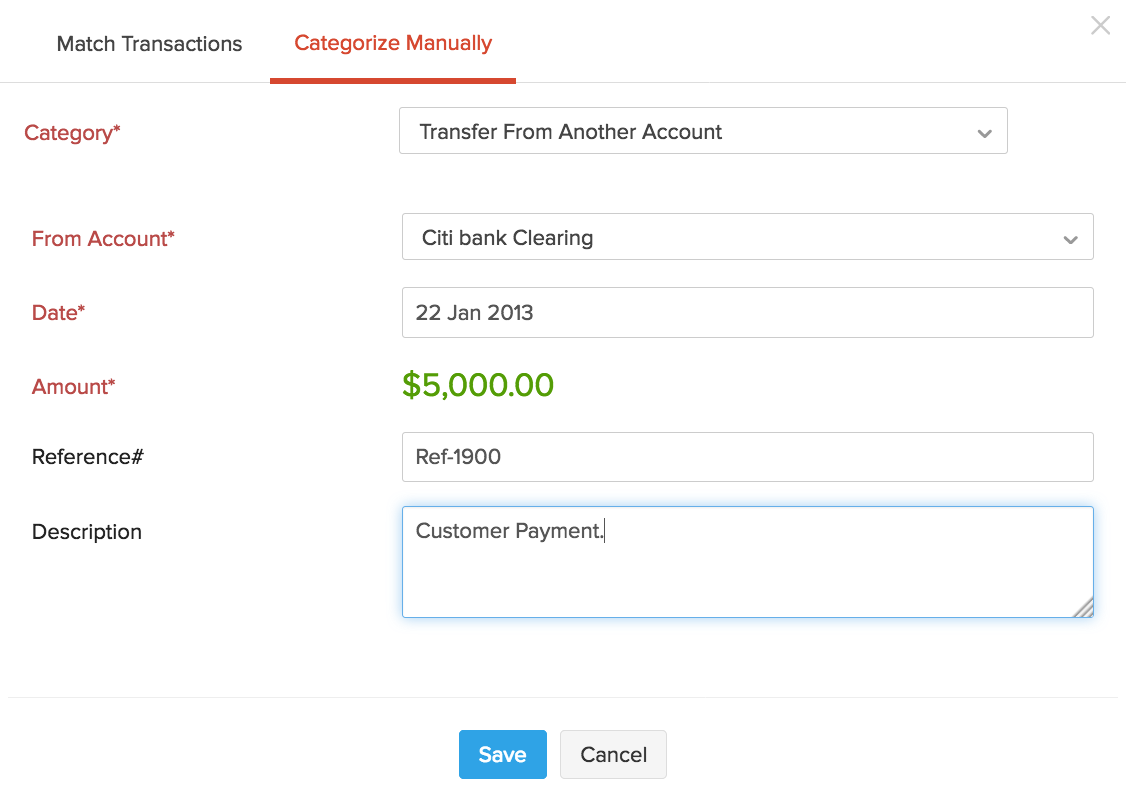
  • Choose a deposit transaction and click the Categorize Manually tab. 

  • Select the Category as Transfer From Another Account and choose the corresponding clearing account(Citi Bank Clearing) in the From Account dropdown.

    Match Batch Payments

Now, your transaction will be categorized and a credit entry for the amount will automatically be created in the clearing account (Citi Bank Clearing). 

This ensures that you do not have to manually create a credit entry in the clearing account. Additionally, you can further simplify this process by creating transaction rules to automatically categorize transactions. 

Batch Payments


Batch Payments

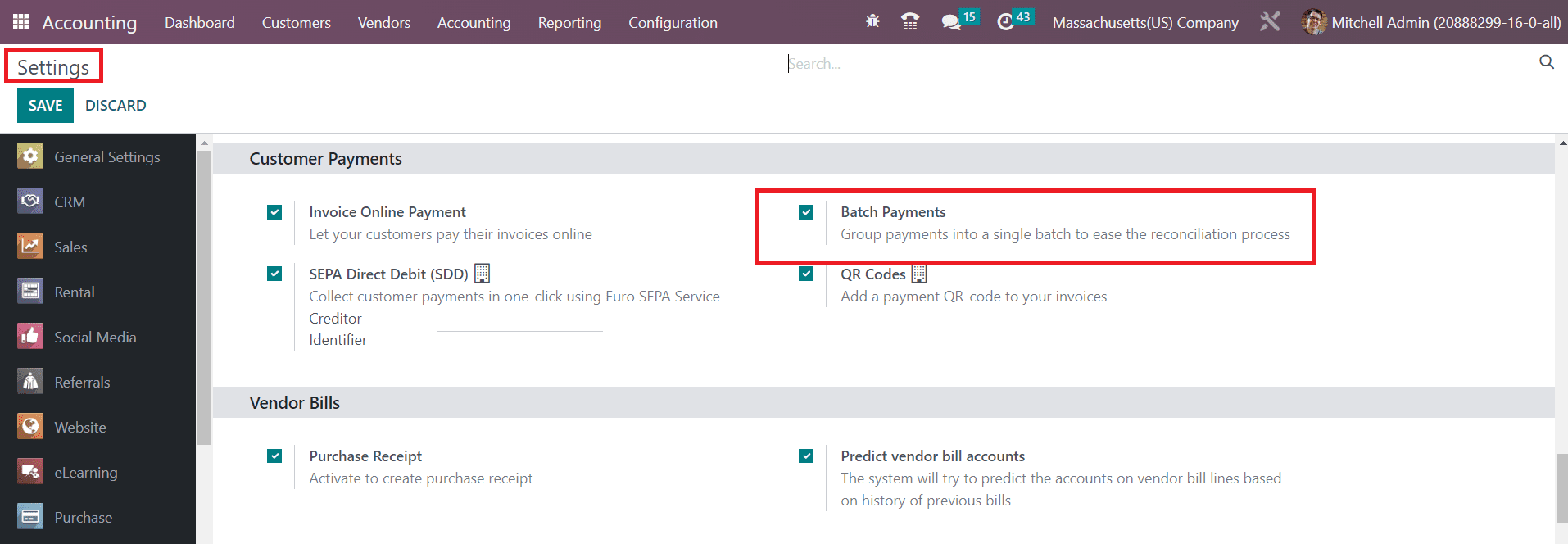
The batch payment feature in Odoo allows you to group different payments in order to simplify the reconciliation. Matching bank statements with batch payments is a crucial task in accounting management. Odoo provides support to reconcile multiple payments with bank statements in simple methods. With the assistance of the batch payment feature, you can process a group of payments in a single step. This will record the batch payment as a single entry in the bank statement. In order to get this feature in the Odoo Accounting module, you have to activate the Batch Payments option from the Settings menu as shown below.

Odoo 16 accounting

Once you activate this option, you will get the option Batch Payments under the Customers as well as Vendors menus. You can batch different customer payments using the Batch Payments option available in the Customers menu. The Batch Payments option under the Vendors menu will assist you to batch the vendor payments. The method of creating a new batch payment is similar in both cases.

Odoo 16 accounting

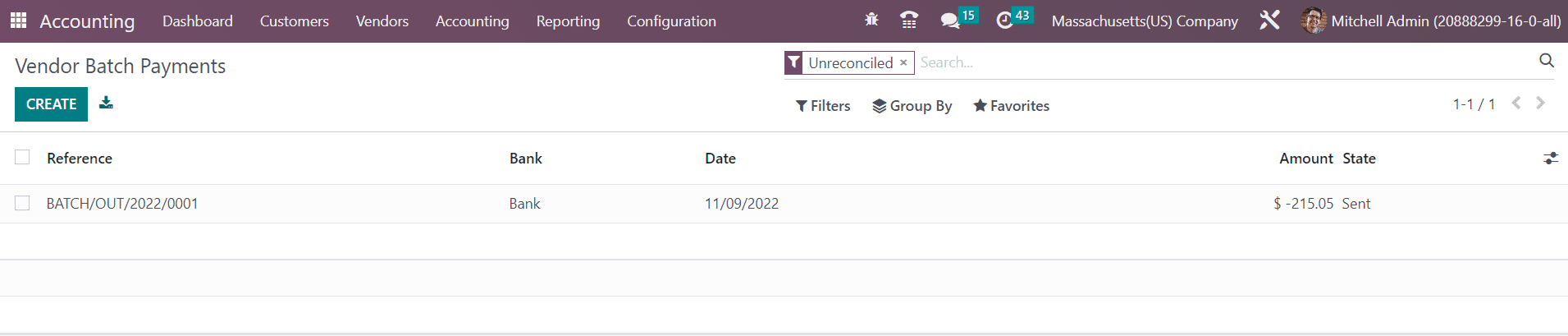
The list view of the Batch Payment window is shown above. Here, you can observe the Reference, Bank, Date, Amount, and State of the batch payments. Clicking on the Create button will lead you to a new window where you can configure a new batch payment.

Odoo 16 accounting

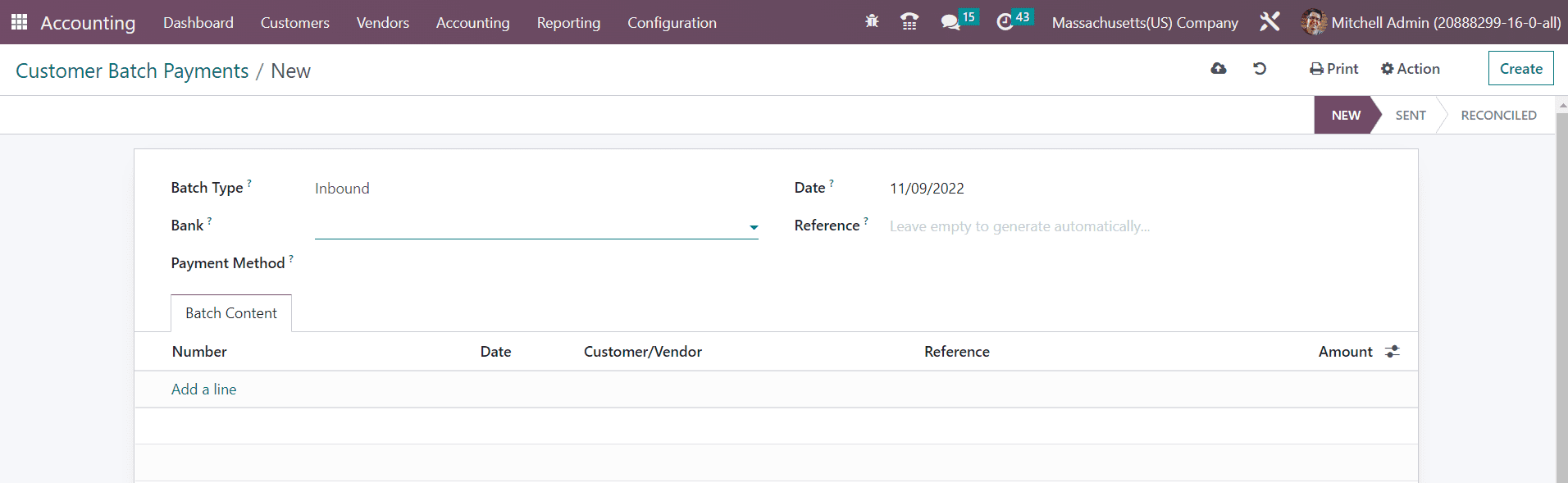
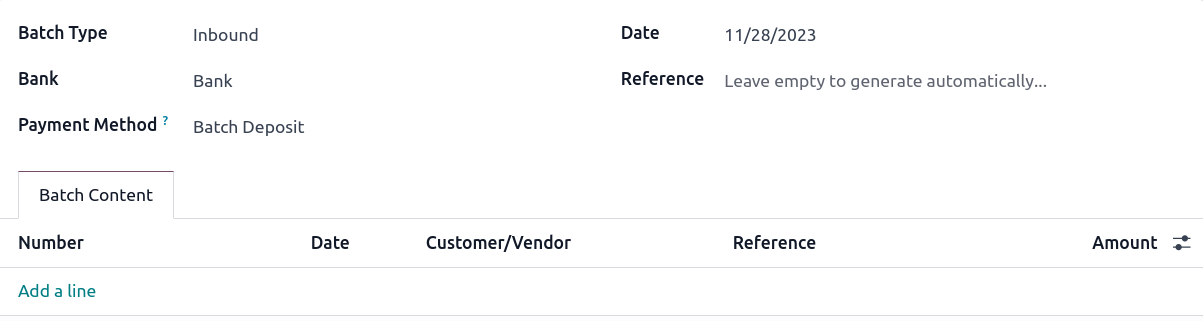
There are two types of batch payments available in Odoo, Inbound, and Outbound. The Inbound batch payment is used when batching customer payments. If you want to batch multiple numbers of vendor payments you can use the Outbound batch payment. After defining the Batch Type, you can select the Bank from the dropdown. In the corresponding fields, you can add the Payment Method used for payment registration, Date, and Reference. Now, add the payments that you want to batch under the Batch Content tab.

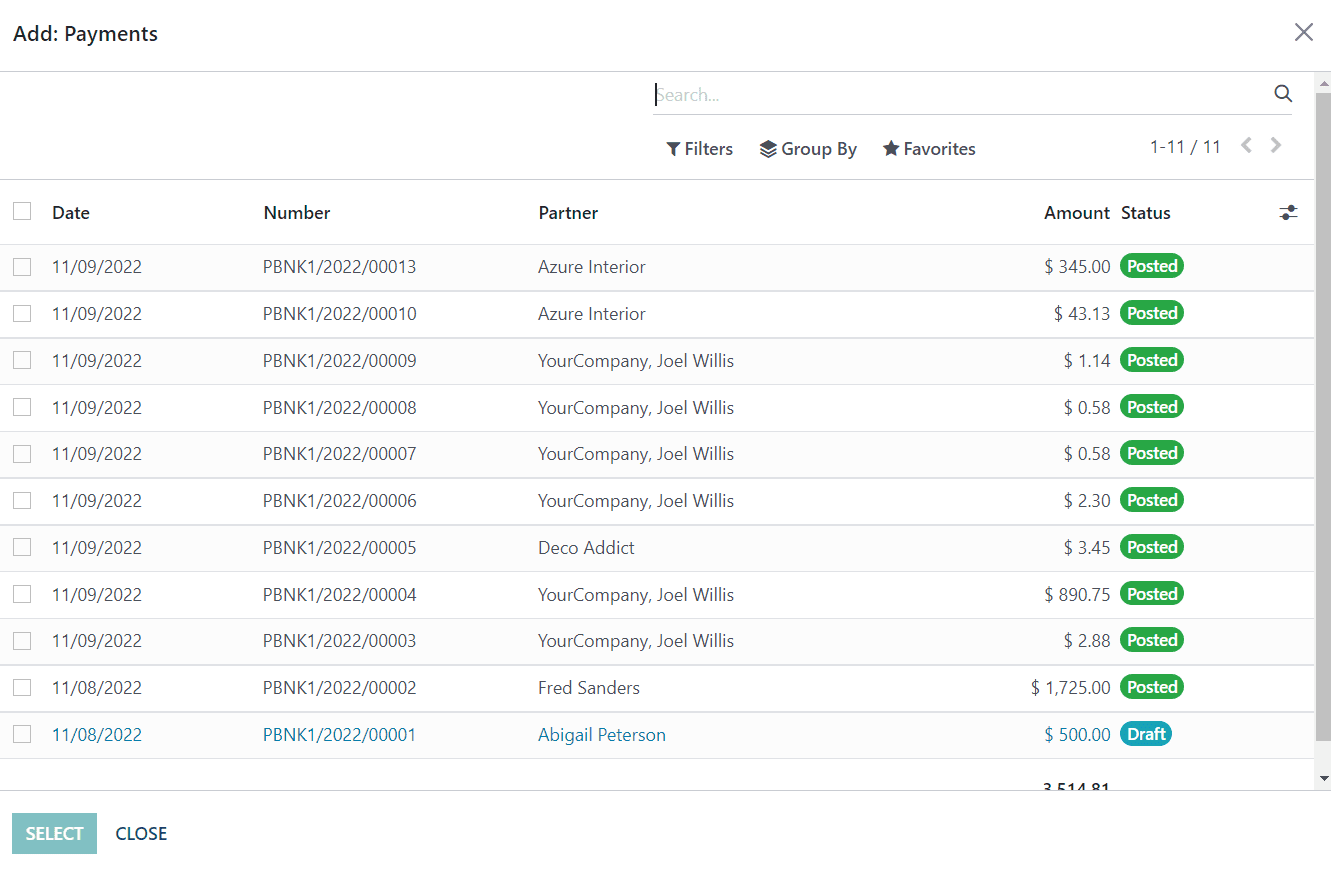
When you click on the Add a Line button, a pop-up will appear from where you can select payments.

Odoo 16 accounting

In the case of Inbound batch payment, this list will show customer payments. You will get the list of vendor payments in the pop-up window in the case of Outbound batch payment.

Odoo 16 accounting

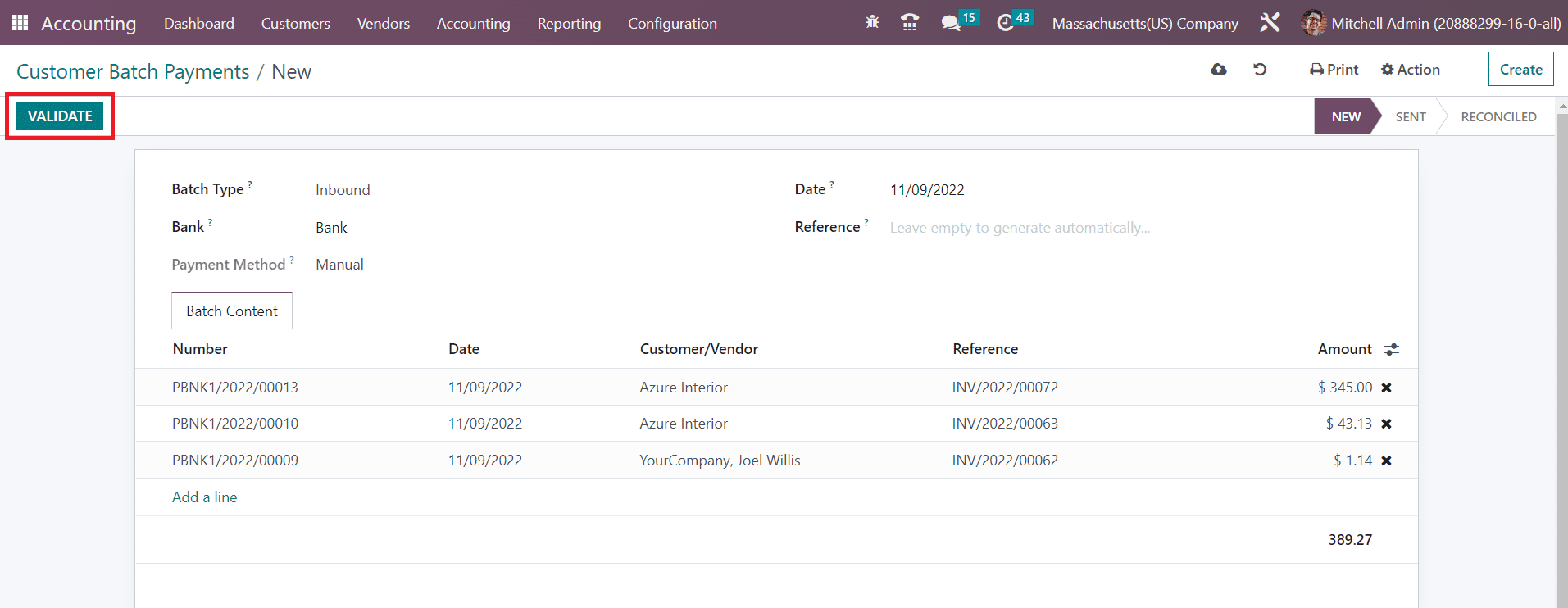
After adding a list of payments to the batch, you can click on the Validate button.

Odoo 16 accounting

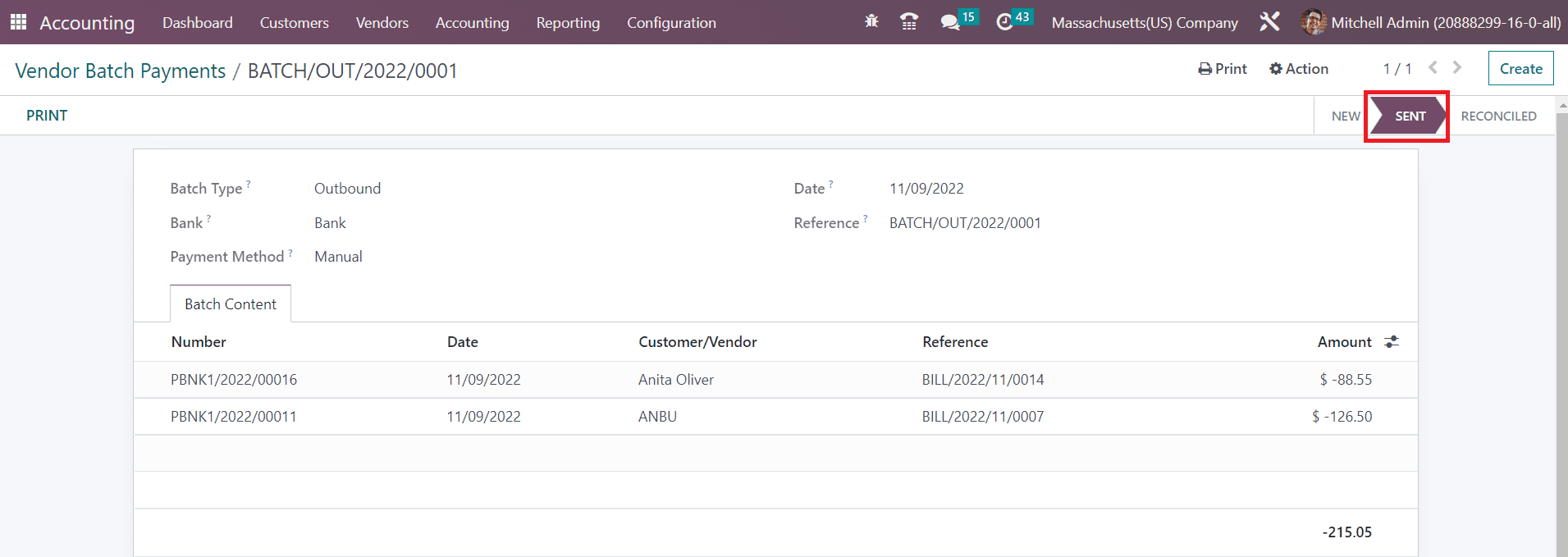
The stage of the validated batch payment can be seen as Sent as shown in the image above which indicates that the payment needs to be reconciled with the bank statement.

Create a Batch Payment Payable


Create a Batch Payment Payable

  1. Navigate to Accounting Home and click the Create Entries tab. Then, under the Expenses menu, click Payables.
  2. Select the Ready For Payment list view. This will show all open and posted Payables.
  3. Select all Payables or just the ones you would like to pay. 
  4. Click Pay Batch.

    The number of Cash Disbursements will display in the data grid based upon the Aggregate by Payee checkbox. This checkbox defaults to selected.

    In the sample screen below, one Payee has three different Payables.

    CashD_05.pngNote: Click here to view the above image in full screen. 

    Using this example, when Pay Batch is clicked, the Payables Pay Batch intermediate screen displays with Aggregate by Payee defaulted to checked. The Cash Disbursements will be aggregated by the Payee. Therefore, using this example only one Cash Disbursement will be created.

    CashD_06.pngNote: Click here to view the above image in full screen. 

    This checkbox can be de-selected if you do not want to aggregate by Payee. If you de-select this checkbox, the message below displays. Click Continue.

    CashD_07.pngNote: Click here to view the above image in full screen. 

    When the Aggregate by Payee checkbox is de-selected, continue with using this example, three Cash Disbursements will be created.

    CashD_08.pngNote: Click here to view the above image in full screen. 

    In the screen above, once the Aggregate by Payee checkbox has been de-selected, the Discount Amount field is now editable. The Discount Amount field will be editable when the Aggregate by Payee checkbox is not selected AND no payments or cash applications have been made, and the Payable is eligible for a discount. In addition, the Discount Amount field will be editable when there is a partial Credit Memo application, but no payments (cash applications) have been made. In other words, the Credit Memo Applied Amount is greater than zero AND the Balance is greater than zero, and the Already Paid Amount is equal to zero.

    Note: If you make changes to the Discount Amount field, click Create or Create & Post to save the changes.

    Note: If the default Posting Status on Cash Disbursement records is not “Approved,” the Create & Post button displays disabled, along with a warning message to indicate the default status must be “Approved” in order to use this button.      

  5. The Bank Account will default to the Bank Account that is set up in Multi-Ledger Defaults. Change this, if necessary and change the Type, as needed.

    Important: When using Payment Services with Edenred Pay, Payment Services must be selected as the Type.

    Note: If Check is selected as the Type, the starting check number will automatically populate based upon the highest check number recorded against the Bank GL Account.

  6. Verify that everything is correct.
    Note: If the Payees include 1099 Vendors, the 1099 information defaults from the Account or Contact records. From the Pay Batch intermediate screen, the Form 1099 Type and Form 1099 Box can be updated, if necessary.
  7. Follow one of the two below processes:
    • Click Create to create the Cash Disbursements. This will create the records, but not post them to the ledger. These can be posted in a batch later from the cash disbursement batch screen.
    • Click Create & Post to both create the Cash Disbursements and post them to the ledger. This is the recommended process if the Scheduled Post job has not been set up,. so that a user doesn’t forget to post these records after printing the checks. Cash Disbursements can always be unposted and edited as necessary.

      Note: If the default Posting Status on Cash Disbursement records is not “Approved,” the Create & Post button displays disabled, along with a warning message to indicate the default status must be “Approved” in order to use this button.

      When you click Create & Post, as a part of the asynchronous process, if one or more records failed to post, you can review the failed information on the Exceptions: Sched/Async Post Unpost - CD report. The Automated Job Results includes a link to this report. Additionally, a Task will be created in an Open Status, as an alert to inform you that action is required on the record(s) that failed.    

      Best Practice: It is recommended to have the daily Scheduled Post job created, which provides the ability for all Cash Disbursements that have a posting status of “Approved” to automatically post based upon the Next Run Date and Preferred Start Time. 

When the Cash Disbursement(s) is created, clicking the Applied To tab will display the APD (AP Disbursement) record. When the Cash Disbursement Source = Payable, the Applied Date on the APD record will be the same as the Cash Disbursement Date. This is true whether the Cash Disbursement Date is in a prior or future Accounting Period. 

Note: If the Cash Disbursement Source = Manual, the Applied Date on the APD will be the date that was manually entered when the Cash Disbursement was created.

Note: If more than 100 Cash Disbursements were selected for posting, the posting process will be performed in the background. An Automated Job Results record will be created once this process completes. Additionally, if any records failed, click the hyperlink on the Automated Job Results record to review the Exceptions: Sched/Async Post Unpost - CD report to see information about Cash Disbursements that failed to post during the Scheduled Post job and/or Cash Disbursements that did not post/unpost as part of the background process.

Async_01.png

  1. If the type of check was selected, these Cash Disbursements can be printed in batch by clicking the Print Checks button. A PDF will be generated in the format of stub-check-stub.
  2. The check stub supports up to 10 lines of detail for each Payable. If a check relates to more than 10 Payables, then click the Print Full Remittance button to show all related Payables.

Batch pool with user assigned Managed Identity and Key Vault extension


Batch pool with user assigned Managed Identity and Key Vault extension

Azure PaaS Blog > Batch pool with user assigned Managed Identity and Key Vault extension https://techcommunity.microsoft.com/t5/azure-paas-blog/batch-pool-with-user-assigned-managed-identity-and-key-vault/ba-p/4058893

On Feb 29th, 2024, the certificate feature in Azure Batch Account will be retired. To continue using the certificate with Batch task, user will need to migrate the Batch account certificates to Azure Key Vault. But since there is not an existing example provided, that might be a little difficult.

This blog will mainly focus on providing an example about how to recreate the Batch pool with required user assigned Managed Identity and Key Vault extension. Currently the Batch pool with user assigned Managed Identity and extension is only supported by ARM template and REST API call. Creating a pool with extension is unsupported in Azure Portal. Creating a pool with user assigned Managed Identity is unsupported in Az PowerShell module and Azure CLI.

Pre-requisite:


To follow this blog, please prepare the following points:


JerryZhangMS_0-1708057692831.png


JerryZhangMS_1-1708057692836.png


Reminder:


In this blog, a sample Batch pool with the only necessary setup is created. If any additional feature is needed, please kindly modify the related part in ARM/bicep template or REST API request payload.

The pool created in this blog contains the following properties:

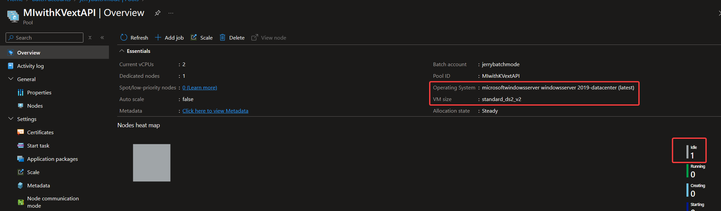
  • OS:  Windows Server 2019 Datacenter with latest version

  • Node Agent:  batch.node.windows amd64

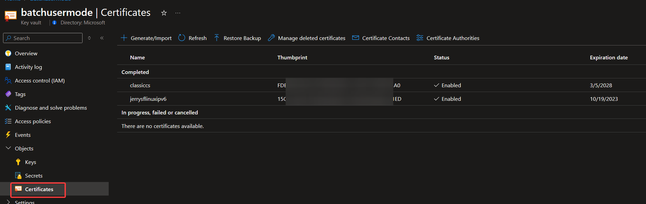
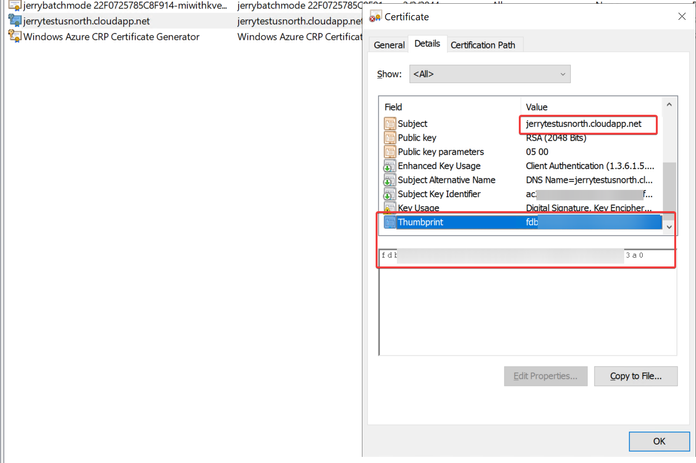
  • Key Vault extension version 3.0: Install one certificate with thumbprint FDBB….F3A0 into LocalMachine/My certificate store

  • Scale: 1 fixed dedicated node

  • VM SKU:  standard_ds2_v2


The expected result:


Created pool’s node can be in a healthy status:


JerryZhangMS_2-1708057692840.png


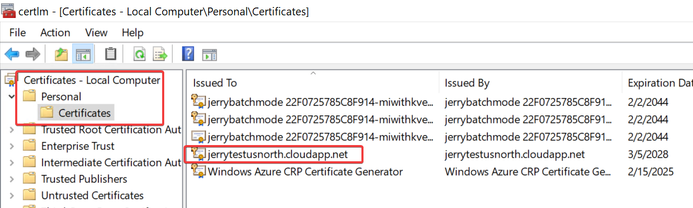
And if we RDP into the node, we should be able to see the expected certificate saved into LocalMachine/My path:


JerryZhangMS_3-1708057692853.png


JerryZhangMS_4-1708057692867.png


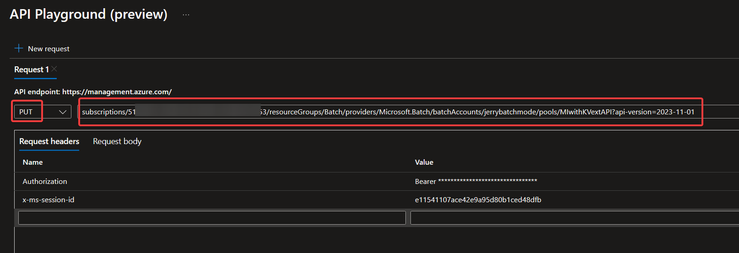
Sample REST API call: (The parts in red need to be replaced by own resource information)


HTTP method: PUT


URLhttps://management.azure.com/subscriptions/{subscription ID}/resourceGroups/{resource group name}/providers/Microsoft.Batch/batchAccounts/{batch account name}/pools/{pool name}?api-version=2023-11-01


Request headers:  Authorization header with Microsoft Entra ID authentication Bearer token is required. Please refer to this document, or just simply search for API Playground in Azure Portal. The second way is easier because it will automatically generate the Authorization header.


JerryZhangMS_5-1708057692869.png


Batch payments by bank deposit


Batch payments by bank deposit

batch deposit is a convenient way to group customer payments and deposit them into your bank account. The feature lets you list multiple payments and generate a detailed deposit slip with a batch reference. This reference can be used when reconciling to match bank statement lines with transactions in the batch deposit.

Configuration

Go to Accounting ‣ Configuration ‣ Settings ‣ Customer Payments and tick Batch Payments to activate the feature.

Deposit multiple payments in batch

Register payments

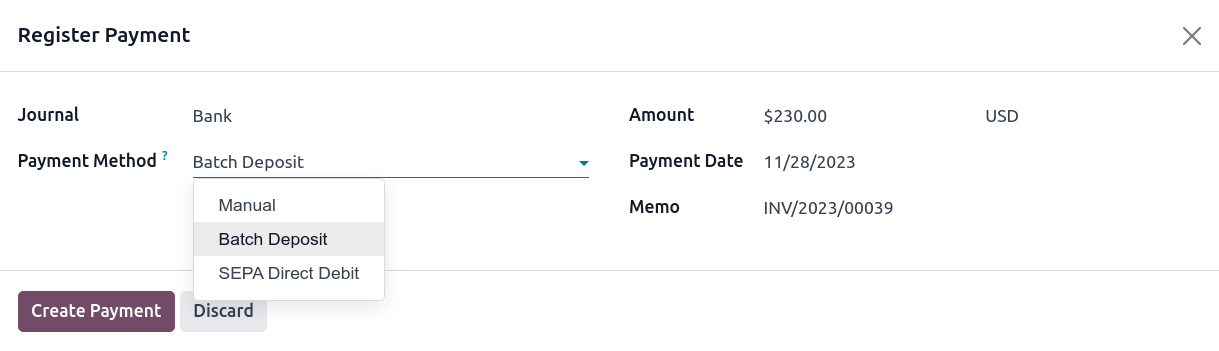
Before performing a batch deposit, it is necessary to register each transaction’s payment. To do so, open the corresponding customer invoice and click Register Payment. In the pop-up window, select the Journal linked to your bank account and Batch Deposit as the Payment Method, and click Create Payment.

Registering a customer payment as part of a batch deposit

Add payments to a batch deposit

To add payments to a batch deposit, go to Accounting ‣ Customers ‣ Batch Payments, and click New. Next, select the Bank and choose Batch Deposit as the Payment Method.

Filling out a new inbound batch payment form

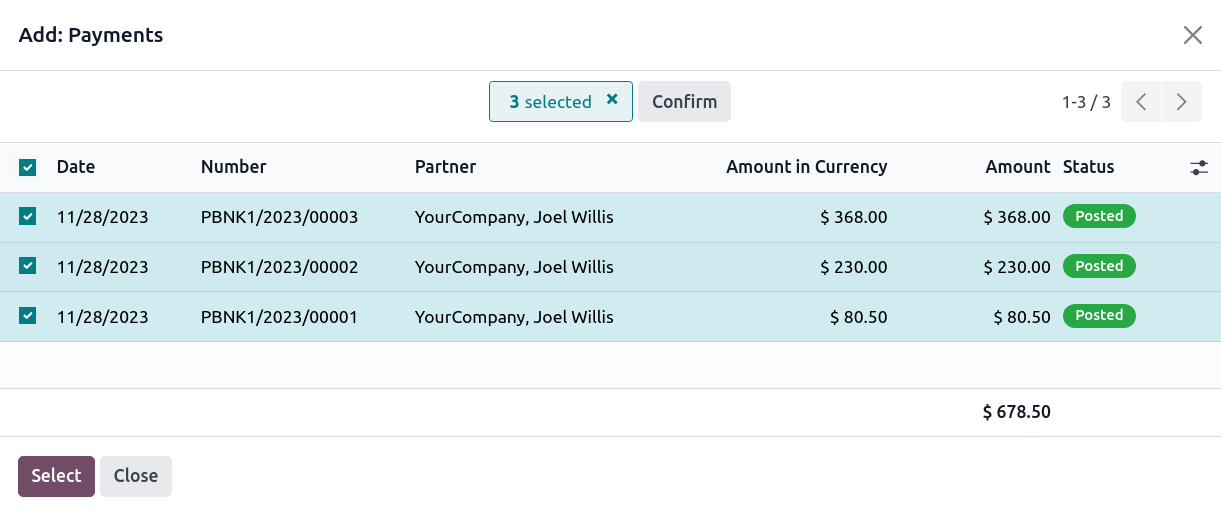
Click Add a line. In the pop-up window, tick all payments to include in the batch deposit, then click Select.

Selecting all payments to include in the batch deposit

Once done, click Validate to finalize the batch deposit.

Bank reconciliation

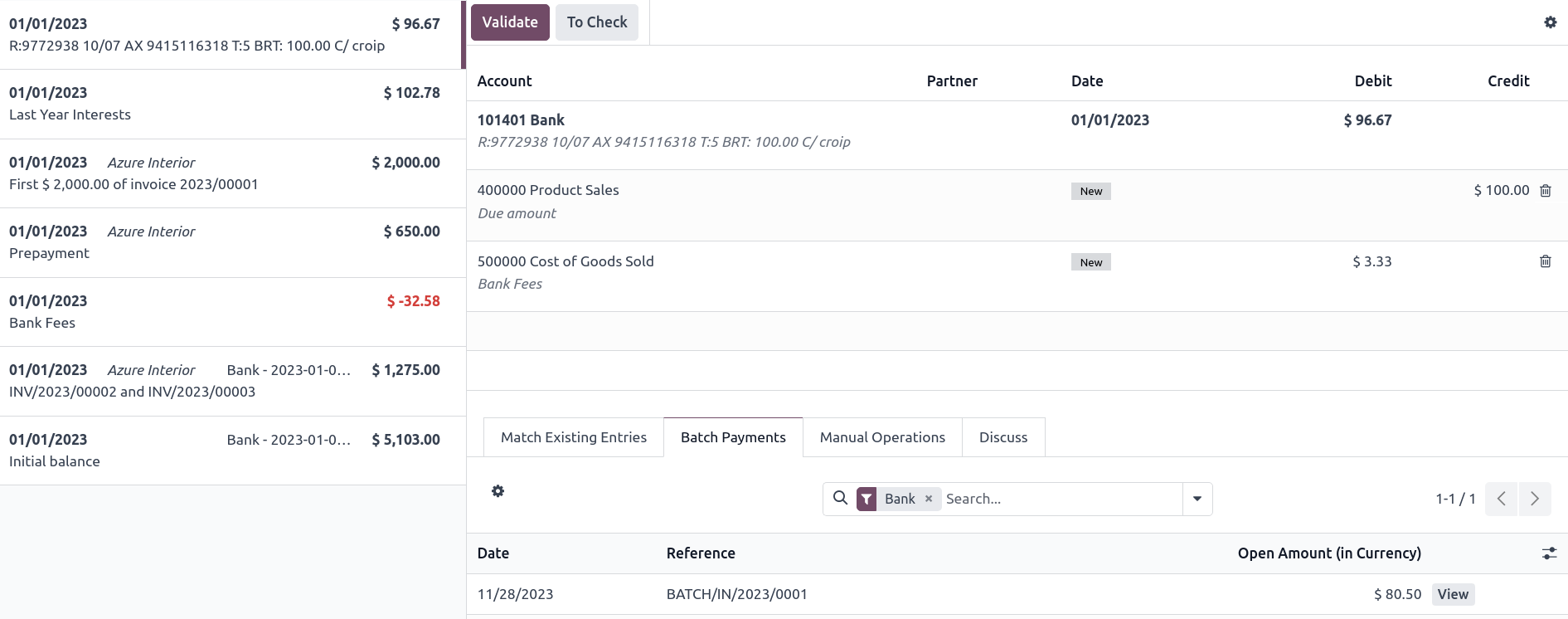
Once the bank transactions are on your database, you can reconcile bank statement lines with the batch payment. To do so, go to the Accounting Dashboard and click Reconcile Items on the related bank account. Go to the Batch Payments tab to select a specific batch and click Validate to finalize the process.

Reconciling the batch payment with all its transactions

Batch Entry


Batch Entry

"Batch Entry" is a function that will let the user enter Accounts Receivable transactions in groups. The system will also allow the user to enter

transactions individually, however, the advantages of "Batch Entry" include:


  • The capability to conveniently save partially entered transactions and to come back to these transactions at a later time.


  • Batch Entry will provide a convenient method for double-checking multiple transactions. Transactions entered as a Batch may reference a single

     audit trail whose totals may be printed for verification.


  • The capability to have someone enter the transactions in a batch and subsequently checked by a supervisor who then posts the batch.


  • Entering transactions in a Batch will allow the user to conveniently balance and track archived transactions.


  • The system will generate a single General Ledger audit trail when the Accounts Receivable batch is processed.


Create/View/Edit AR Batch

Select main screen function Entry/Batch Entry (or, alternately, select drop-down menu option Entry/Batch Entry) and the system will display the

"AR Batch Entry" screen.


AR Batch Entry Screen


The top section ("Batches") will display a list of "unposted" Accounts Receivable Batches, and as a specific Batch is highlighted, the lower window

("Transactions")will display the transactions that are included in the Batch. The total number of transactions and value will also be displayed for

the Batch.

Customer accounts will not be updated until a Batch has been posted.


Batches may be created for the following Transaction Types: "Invoice", "Credit Note", "Receipt", "Credit Journal" and "Debit Journal".


Batches Window ("AR Batch Entry" Screen)


AR Top Batches Entry Screen


This window will display a list of unposted AR Batches. Function buttons to "Add", "Edit", "Search", "Post", "Audit Trail" and "Delete" will be

available, as discussed in the following paragraphs.  


Add/Edit (Batches)

Click Add to add a batch or Edit to edit an existing batch. The system will display a screen to create an AR Batch.


 AR Batch Entry Screen Receipt


The user will select the "Transaction Type", a "Batch Date" and may enter a "Description" (optional). The "Batch Number" will be automatically

assigned by the system. The user will also select a GL Bank Code for a receipt. The Plant ID field will only be displayed if the user is operating

in a multi-plant environment. This will facilitate assigning a batch to a specific plant.


Batch Date:

The "Batch Date" will default to the current date unless the current date falls outside of the current financial month (Era). In that event, the system

will default to the first or last day of the financial month depending on whether the current date is prior to or after the financial period.


Note that transactions included in the batch will be posted to the Accounting Period determined by the "Batch Date". Typically, the transactions

in the batch should have the same date as the batch (or at least the same month).


In exceptional circumstances, however, it will be possible to date the batch in one month (say "September") and the transactions in a prior month

(for example, "August"). This would have the effect of updating the September figures in AR reports but Customer statements will show the August

date. This might be deemed the best way to handle, for example, August transactions that were mistakenly not processed before the August rollover.


A warning will be displayed if the user attempts to enter transactions that are not in the current financial month.


Search (Batches)Click Search to activate a search utility that will allow the user to search for a specific Batch.

The system will display the "Batch Search"

screen.


Batch Search Screen


Enter search parameters in the usual way.


Post (Batches)

Click Post to post a Batch and associated transactions to the General Ledger. The system will display a confirmation screen before posting the

transactions.


Answer "Yes" and the system will post the transactions and will remove the Batch and transactions from the list of unposted transactions.


Audit Trail (Batches)

Click Audit Trail to view the "AR Batch Audit Trail" report. The system will display details of the Batch before the user posts the entries.


AR Audit Trail Report


Delete (Batches)

Click Delete to delete a Batch.


Transactions Window ("AR Batch Entry" Screen)

Note that the user may enter transactions as part of a Batch or may choose to enter transactions individually.  When a user highlights a Batch in the

"Batches" window, the "Transactions" window will list transactions that have been entered for the Batch.


Transactions Window (part of "AR Batch Entry" Screen)


The following functions will be available for "Transactions":


  •  Add/Edit/Delete (Transactions)

The subsequent screen display will depend on the Transaction Type. See screens in Sections 6.2 through 6.6


  •  Print/Print Batch

These functions will allow the user to print an individual Invoice or Credit Note, or a batch.


  •  Transfer

This function will allow the user to transfer a highlighted transaction to a different batch.  Click Transfer and the system will display a window

where the user will be able to choose a batch.  This is convenient if using the draft invoice functionality and the user is waiting for one invoice

before posting a large batch.  With the Transfer function, the one invoice may be moved to another batch to allow posting the large batch.


  •  Record Log (Transactions)

Click Record Log (highlight a transaction) to view an entry record for the transaction.


Record Log Screen