
Use SSH key authentication
You can connect to your Git repos through SSH on macOS, Linux, or Windows to securely connect with HTTPS authentication.
Important
SSH URLs have changed, but old SSH URLs continue to work. If you've already set up SSH, update your remote URLs to the new format:
Up to date SSH URLs start with ssh.dev.azure.com. The previous URLs use vs-ssh.visualstudio.com.
- Verify which remotes are using SSH. Run
git remote -vin your shell or use a GUI client instead. - Visit your repository on the web and select Clone.
- Select SSH and copy the new SSH URL.
- In your shell run
git remote set-url <remote name> <new SSH URL>for each remote of a repository you wish to update. Alternatively, use a GUI client to update the remote URLs.
How SSH key authentication works
SSH public key authentication works with an asymmetric pair of generated encryption keys. The public key is shared with Azure DevOps and used to verify the initial ssh connection. The private key is kept safe and secure on your system.
Set up SSH key authentication
The following steps cover configuration of SSH key authentication on the following platforms using the command line (also called shell):
- Linux
- macOS
- Windows systems running Git for Windows
Note
As of Visual Studio 2017, SSH can be used to connect to Azure DevOps Git repositories.
Tip
On Windows, we recommended the use of Git Credential Manager or Personal Access Tokens.
Step 1: Create your SSH keys
Note
If you've already created RSA SSH keys on your system, skip this step and configure your SSH keys. To verify this go to your home directory and look into the .ssh folder (%UserProfile%\.ssh\ on Windows or ~/.ssh/ on Linux, macOS, and Windows with Git Bash). If you see two files named id_rsa and id_rsa.pub respectively continue with configuring your SSH keys.
To use key-based authentication, you first need to generate public/private key pairs for your client. ssh-keygen.exe is used to generate key files and the algorithms DSA, RSA, ECDSA, or Ed25519 can be specified. If no algorithm is specified, RSA is used.
Note
The only SSH key type supported by Azure DevOps is RSA.
To generate key files using the RSA algorithm, run the following command from a PowerShell or another shell such as bash on your client:
ssh-keygen
The output from the command should display the following output (where username is replaced by your username):
Generating public/private rsa key pair.
Enter file in which to save the key (C:\Users\username/.ssh/id_rsa):
You can press Enter to accept the default, or specify a path and/or filename where you would like your keys to be generated. At this point, you'll be prompted to use a passphrase to encrypt your private key files. The passphrase can be empty but it's not recommended. The passphrase works with the key file to provide two-factor authentication.
Enter passphrase (empty for no passphrase):
Enter same passphrase again:
Your identification has been saved in C:\Users\username/.ssh/id_rsa.
Your public key has been saved in C:\Users\username/.ssh/id_rsa.pub.
The key fingerprint is:
SHA256:FHK6WjcUkcfQjdorarzlak1Ob/x7AmqQmmx5ryYYV+8 username@LOCAL-HOSTNAME
The key's randomart image is:
+---[RSA 3072]----+
|      . ** o     |
|       +.o= .    |
|      . o+       |
|      .+. .      |
|     .ooS  .     |
|  . .oo.=.o      |
|   =.= O.= .     |
|  . B BoE + . .  |
|   . *+*o. .o+   |
+----[SHA256]-----+
Now you have a public/private rsa key pair in the location specified. The .pub files are public keys, and files without an extension are private keys:
Mode                 LastWriteTime         Length Name
----                 -------------         ------ ----
-a----        10/11/2022   6:29 PM           2610 id_rsa
-a----        10/11/2022   6:29 PM            578 id_rsa.pub
Important
Never share the contents of your private key. If the private key is compromised, attackers can use it to trick servers into thinking the connection is coming from you. Private key files are the equivalent of a password and should be protected the same way.
Step 2: Add the public key to Azure DevOps
Associate the public key generated in the previous step with your user ID.
Note
You have to repeat this operation for each organisation you have access to and want to use SSH with.
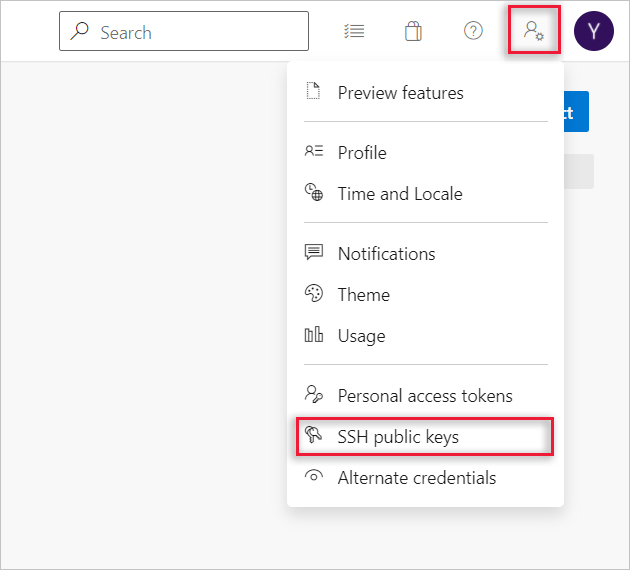
Open your security settings by browsing to the web portal and selecting the icon next to the avatar in the upper right of the user interface. Select SSH public keys in the menu that appears.
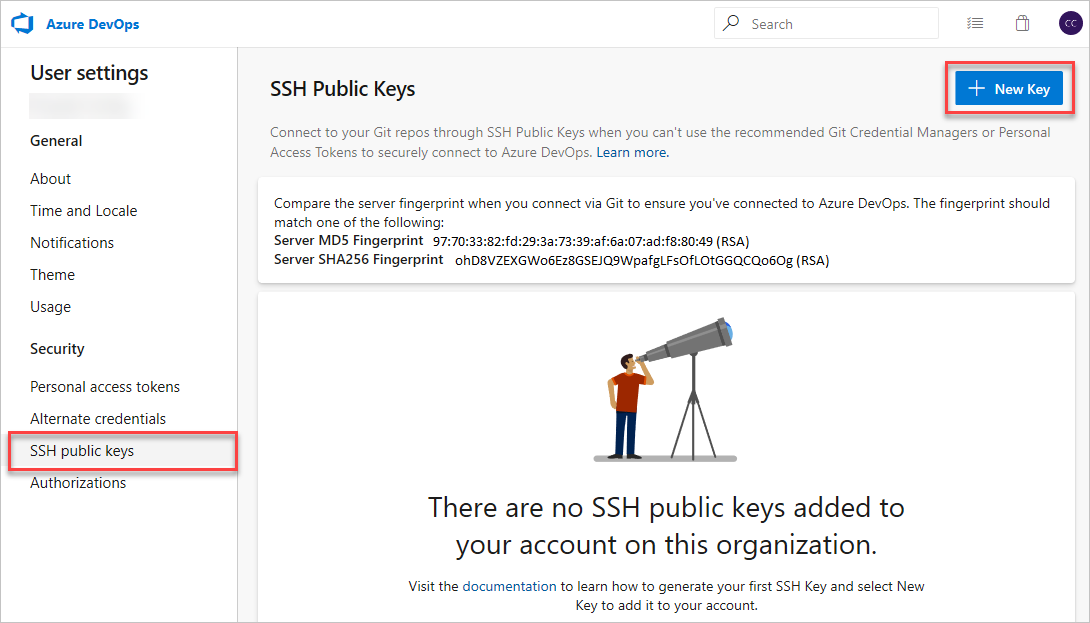
Select + New Key.
Copy the contents of the public key (for example,
id_rsa.pub) that you generated into the Public Key Data field.Important
Avoid adding whitespace or new lines into the Key Data field, as they can cause Azure DevOps to use an invalid public key. When pasting in the key, a newline often is added at the end. Be sure to remove this newline if it occurs.
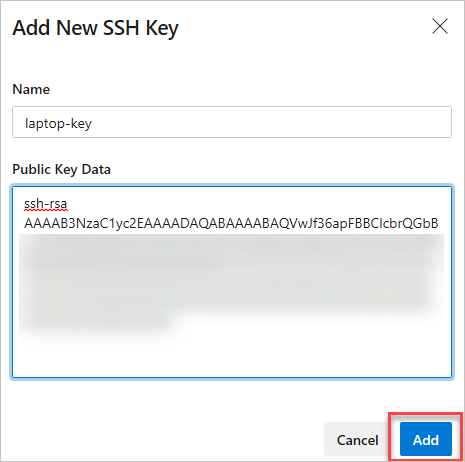
Give the key a useful description (this description is displayed on the SSH public keys page for your profile) so that you can remember it later. Select Save to store the public key. Once saved, you can't change the key. You can delete the key or create a new entry for another key. There are no restrictions on how many keys you can add to your user profile. Also note that SSH keys stored in Azure DevOps expire after one year. If your key expires, you may upload a new key or the same one to continue accessing Azure DevOps via SSH.
On the overview page a note is displayed at the top containing the server fingerprints. Make note of them because they will be required when you first connect to Azure DevOps via SSH.
Test the connection by running the following command:
PowerShellssh -T git@ssh.dev.azure.comIf this was the first time connecting you should receive the following output:
OutputThe authenticity of host 'ssh.dev.azure.com (<IP>)' can't be established. RSA key fingerprint is SHA256:ohD8VZEXGWo6Ez8GSEJQ9WpafgLFsOfLOtGGQCQo6Og. This key is not known by any other names Are you sure you want to continue connecting (yes/no/[fingerprint])?Compare the given fingerprint with the fingerprints offered on the aforementioned settings page. Proceed only if they match!
If everything is configured correctly the output should look like this:
Outputremote: Shell access is not supported.If not, see the section on Questions and troubleshooting.
Step 3: Clone the Git repository with SSH
Note
To use SSH with a repository previously cloned via HTTPS, see update your remotes to SSH.
Copy the SSH clone URL from the web portal. In this example, the SSH clone URL is for a repo in an organization named fabrikam-fiber, as indicated by the first part of the URL after
dev.azure.com.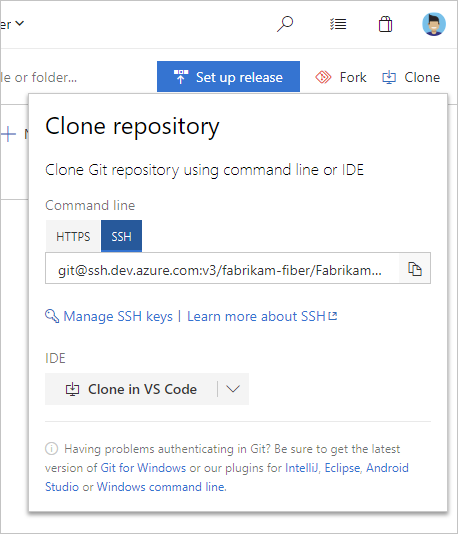
Note
With Azure DevOps Services, the format for the project URL is
dev.azure.com/{your organization}/{your project}. However, the previous format that references thevisualstudio.comformat is still supported. For more information, see Introducing Azure DevOps, Switch existing organizations to use the new domain name URL.Run
git clonefrom the command prompt.Bashgit clone git@ssh.dev.azure.com:v3/fabrikam-fiber/FabrikamFiber/FabrikamFiberYou should now be prompted to enter your passphrase for your SSH key before you can continue unless it is managed by an SSH Agent:
OutputCloning into 'FabrikamFiber'... Enter passphrase for key '/c/Users/username/.ssh/id_rsa': remote: Azure Repos remote: Found 127 objects to send. (50 ms) Receiving objects: 100% (127/127), 56.67 KiB | 2.58 MiB/s, done. Resolving deltas: 100% (15/15), done.If you are instead prompted to verify a fingerprint, please read Step 2: Add the public key to Azure DevOps again. For other problems read the section on Questions and troubleshooting.
Questions and troubleshooting
Q: I see SSH-RSA related warnings. What should I do?
A: There are two different warning messages you may see:
ssh-rsa is about to be deprecated and your request has been throttled. Please use rsa-sha2-256 or rsa-sha2-512 instead. Your session will continue automatically. For more details see https://devblogs.microsoft.com/devops/ssh-rsa-deprecation.
or
You’re using ssh-rsa that is about to be deprecated and your request has been blocked intentionally. Any SSH session using SSH-RSA is subject to brown out (failure during random time periods). Please use rsa-sha2-256 or rsa-sha2-512 instead. For more details see https://devblogs.microsoft.com/devops/ssh-rsa-deprecation.
You may have previously modified your SSH config to downgrade your security settings for Azure DevOps by adding the following to your ~/.ssh/config (%UserProfile%\.ssh\config on Windows) file:
Host ssh.dev.azure.com vs-ssh.visualstudio.com
  HostkeyAlgorithms +ssh-rsa
Please remove these lines now and make sure rsa-sha2-256 and/or rsa-sha2-512 are allowed.
For more details, refer to the blog post.
Q: SSH cannot establish a connection. What should I do?
A: There are multiple different problems that you may experience:
Use of unsupported SSH-RSA
OutputYou’re using ssh-rsa that is unsupported. Please use rsa-sha2-256 or rsa-sha2-512 instead. For more details see https://devblogs.microsoft.com/devops/ssh-rsa-deprecation.You may have previously modified your SSH config to downgrade your security settings for Azure DevOps by adding the following to your
~/.ssh/config(%UserProfile%\.ssh\configon Windows) file:Host ssh.dev.azure.com vs-ssh.visualstudio.com HostkeyAlgorithms +ssh-rsaPlease remove these lines now and make sure
rsa-sha2-256and/orrsa-sha2-512are allowed.For more details, refer to the blog post.
No matching host key
This should happen neither on Azure DevOps Service nor on more recent Azure DevOps Server versions as mentioned in the blog post.
OutputUnable to negotiate with <IP> port 22: no matching host key type found. Their offer: ssh-rsaModify your SSH config to downgrade your security settings for Azure DevOps by adding the following to your
~/.ssh/config(%UserProfile%\.ssh\configon Windows) file:Host ssh.dev.azure.com vs-ssh.visualstudio.com HostkeyAlgorithms +ssh-rsaImportant
OpenSSH deprecated the
ssh-rsapublic key signature algorithm in version 8.2 and disabled it by default in version 8.8.No matching MAC
OutputUnable to negotiate with <IP> port 22: no matching MAC found. Their offer: hmac-sha2-256,hmac-sha2-512Modify your SSH config to downgrade your security settings for Azure DevOps by adding the following to your
~/.ssh/config(%UserProfile%\.ssh\configon Windows) file:Host ssh.dev.azure.com vs-ssh.visualstudio.com MACs +hmac-sha2-512,+hmac-sha2-256No matching key exchange method
OutputUnable to negotiate with <IP> 22: no matching key exchange method found. Their offer: diffie-hellman-group1-sha1,diffie-hellman-group14-sha1,diffie-hellman-group-exchange-sha256Modify your SSH config to downgrade your security settings for Azure DevOps by adding the following to your
~/.ssh/config(%UserProfile%\.ssh\configon Windows) file:Host ssh.dev.azure.com vs-ssh.visualstudio.com KexAlgorithms +diffie-hellman-group-exchange-sha256,+diffie-hellman-grou

No comments:
Post a Comment