
Azure – Create a new Linux VM and connect to using SSH
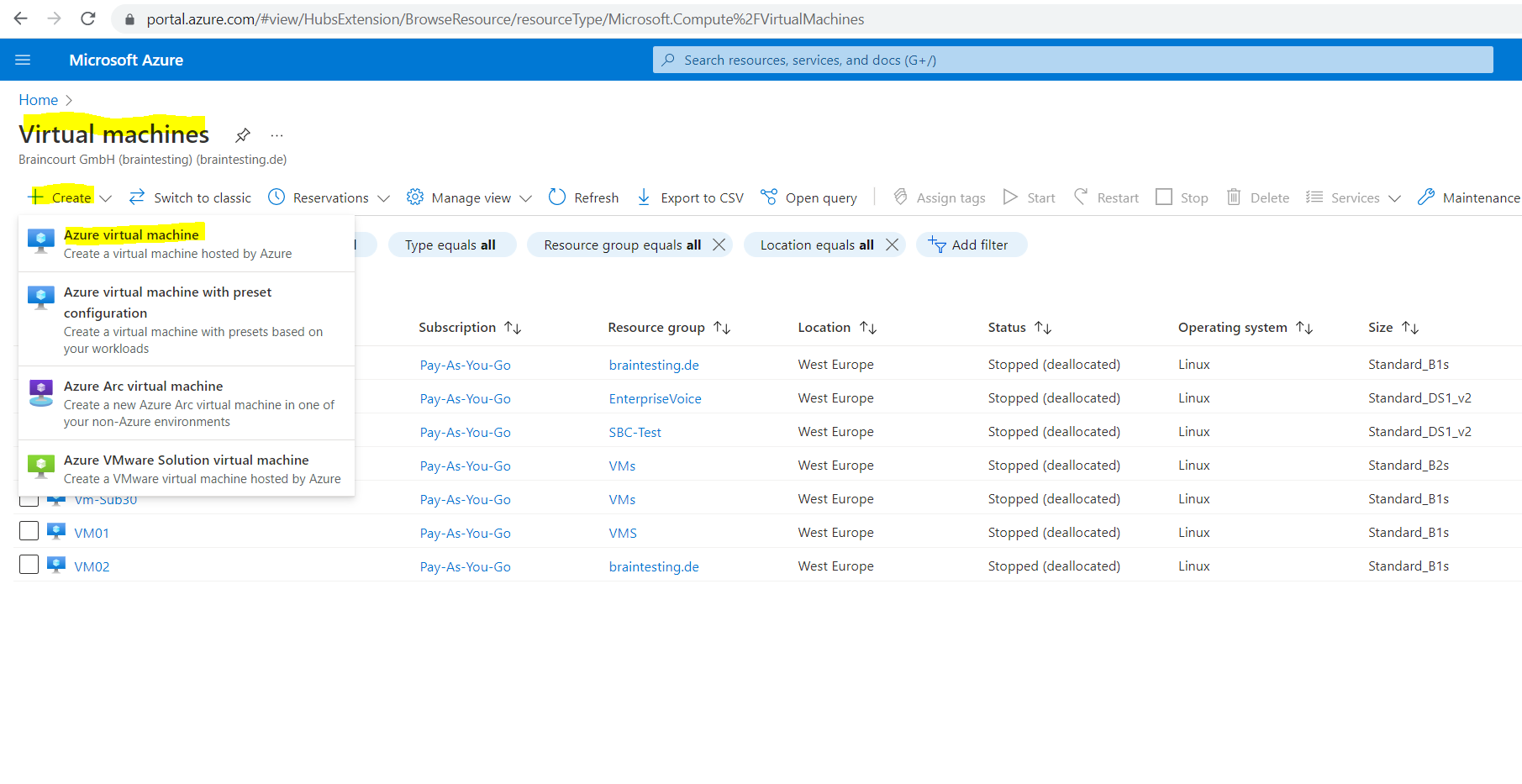
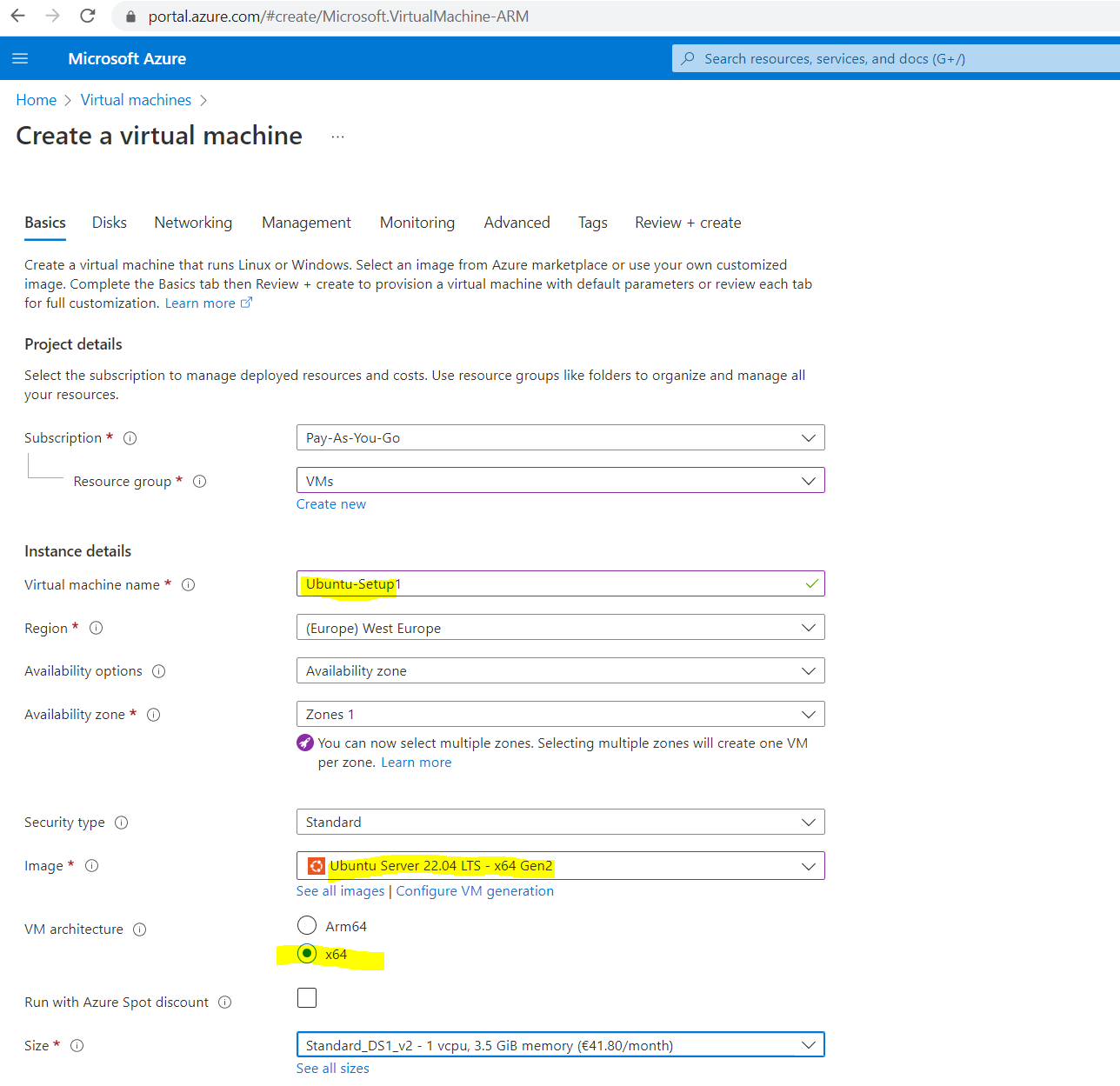
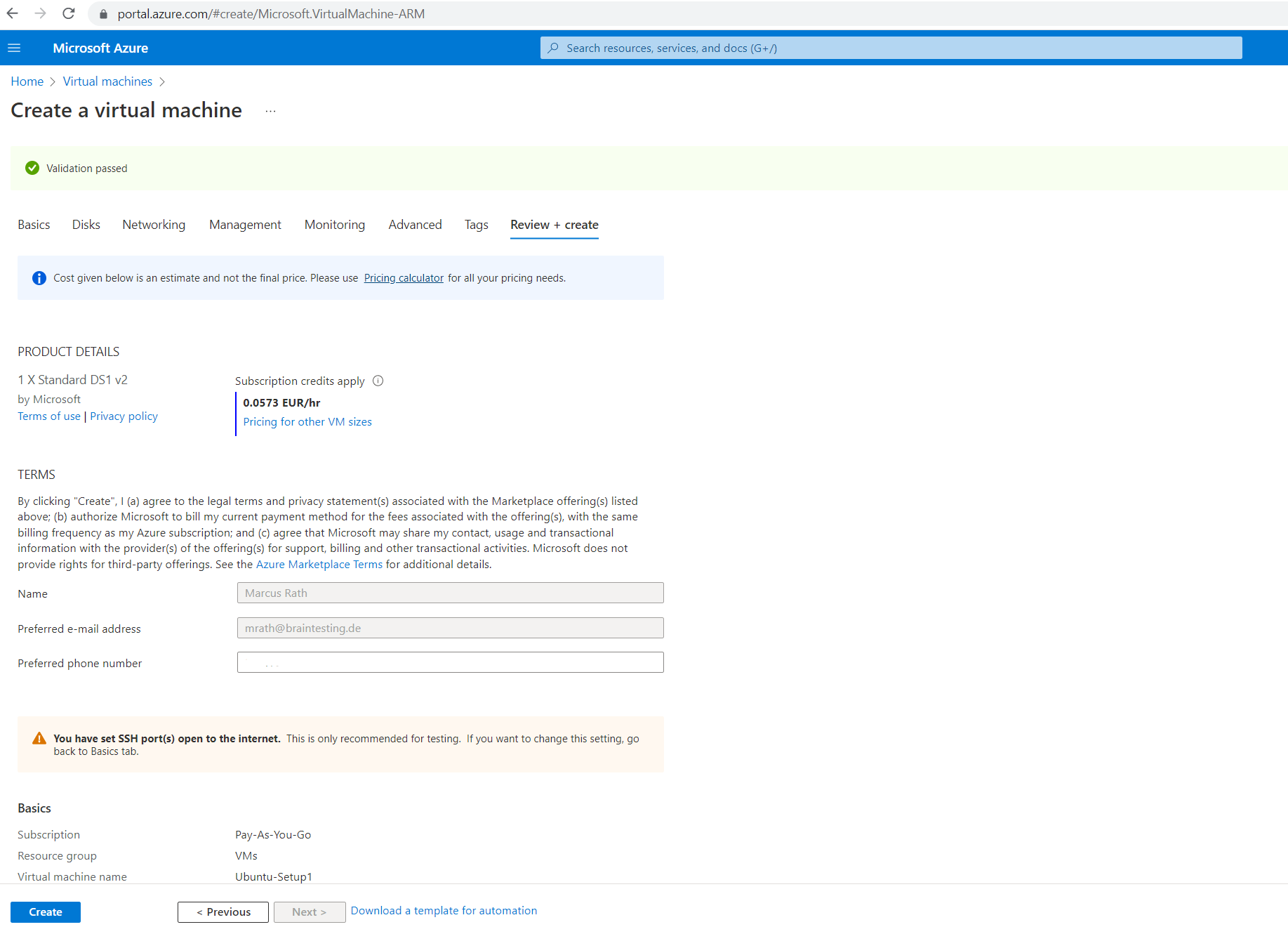
In the Azure portal open the Virtual Machines services and click on Create –> Azure virtual machine
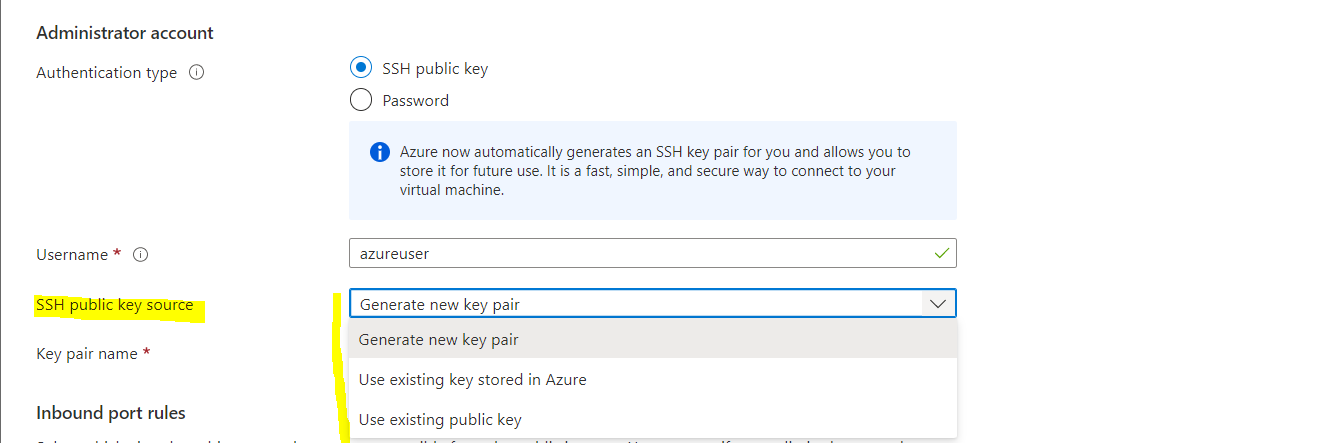
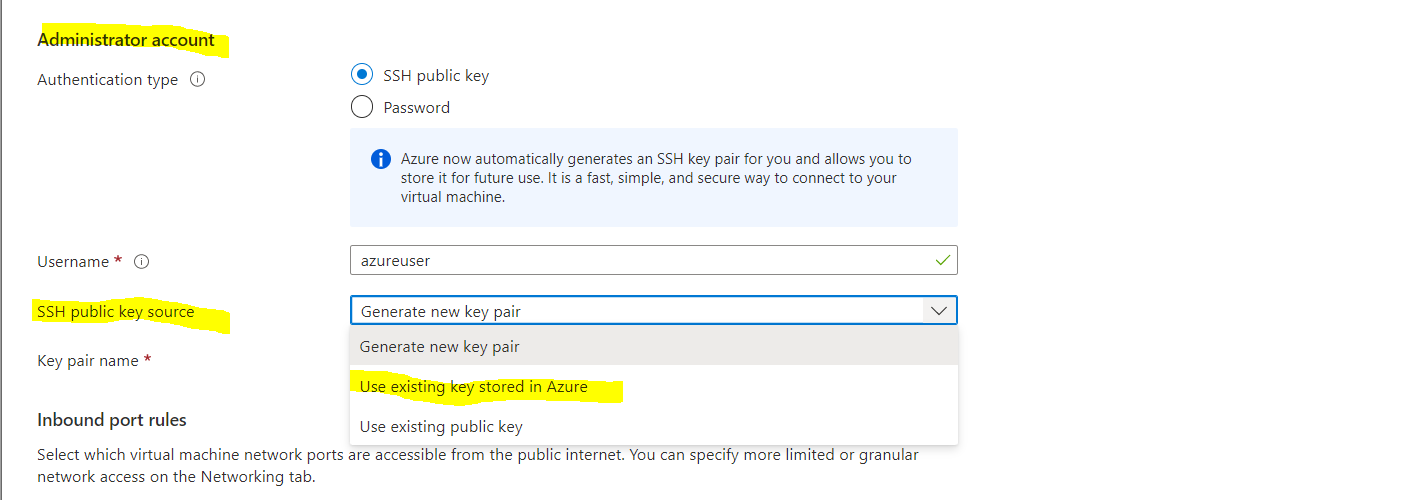
When using SSH with private/public key authentication, you can choose between:
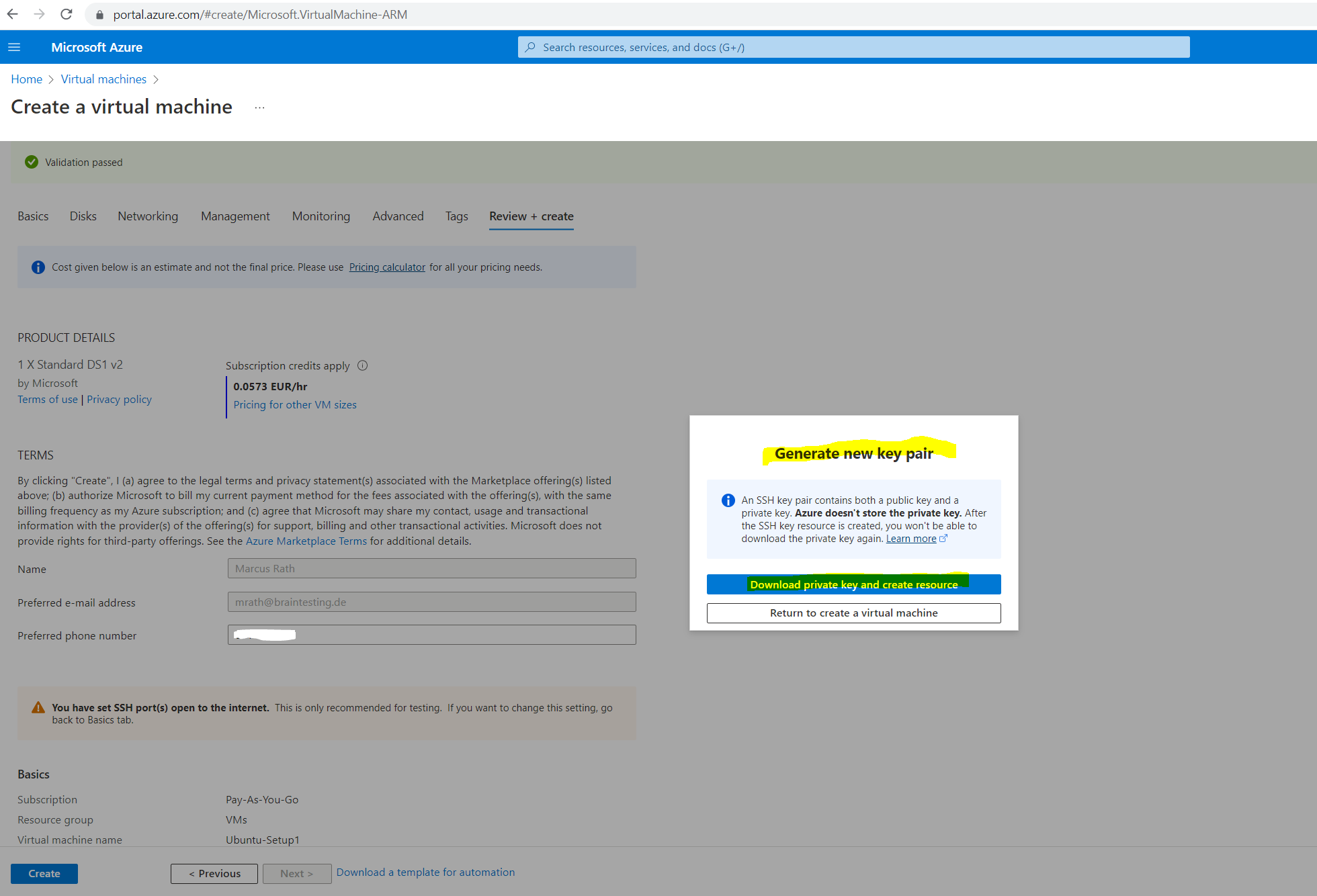
- Generate a new key pair
- Use existing key stored in Azure
- Use existing public key
I will create a new key pair below.
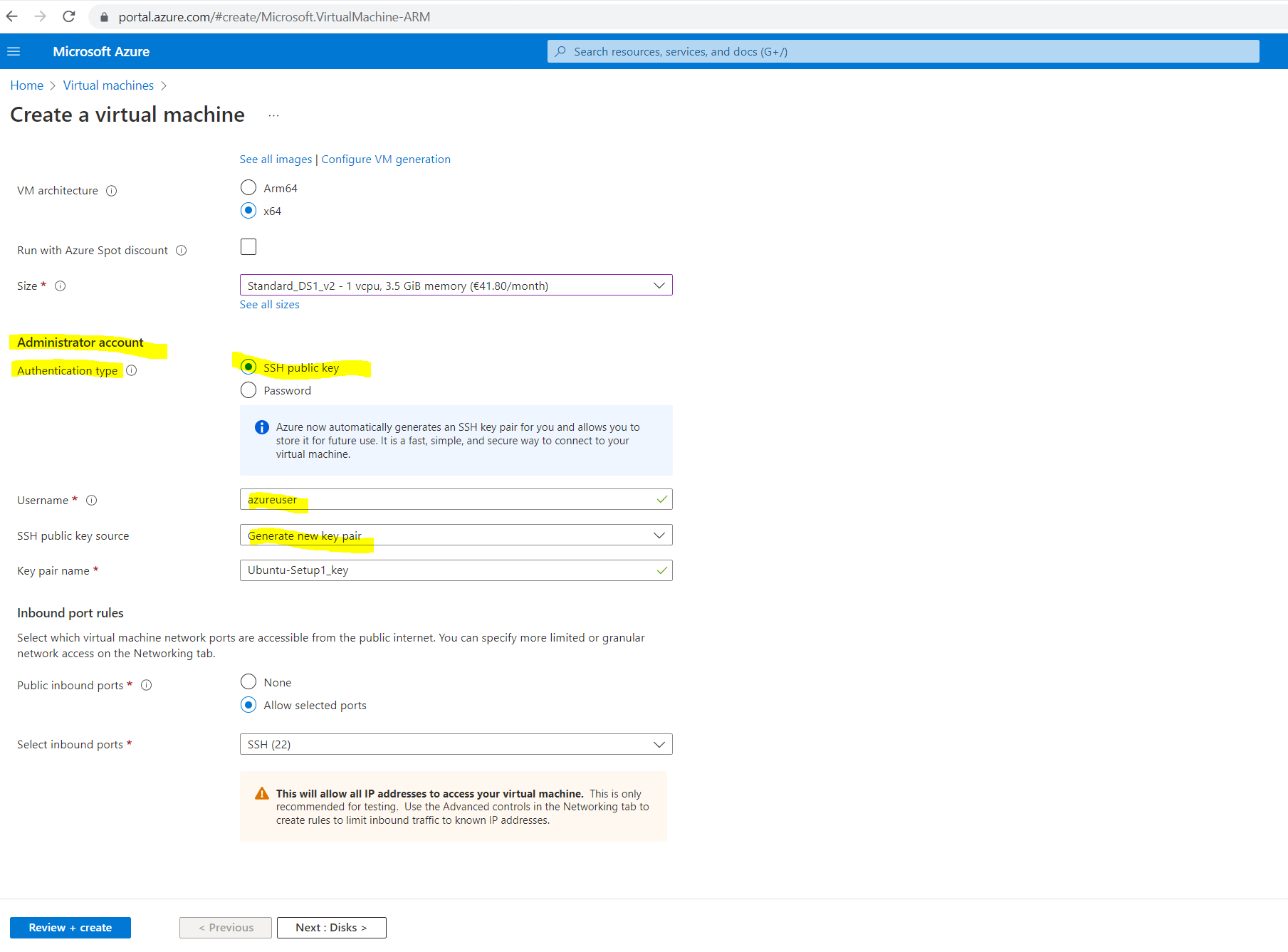

Save the private key to your computer.
Connect to a Azure Linux VM using SSH private/public key authentication
To connect from another Linux VM to our new VM, we can use the ssh command and -i parameter (identity file) for the private key file to connect to.
To connect to the new Linux VM from a Windows host we can use PuTTY to connect to.
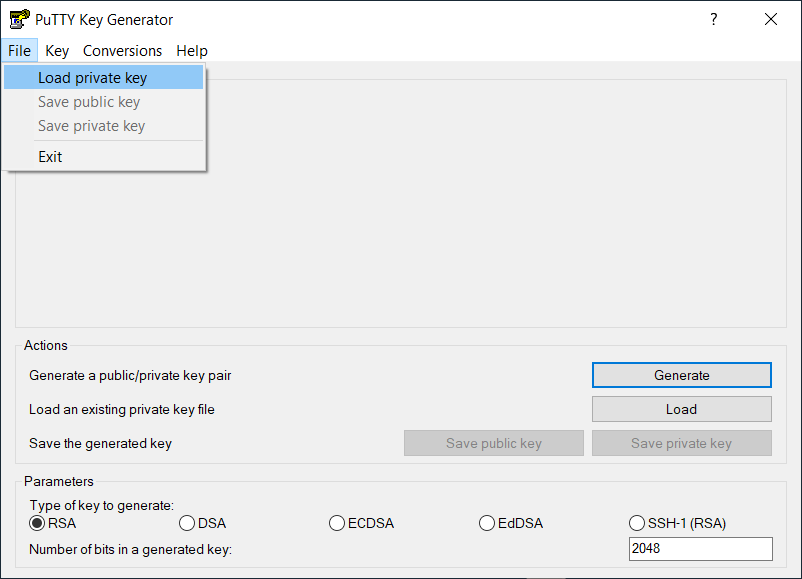
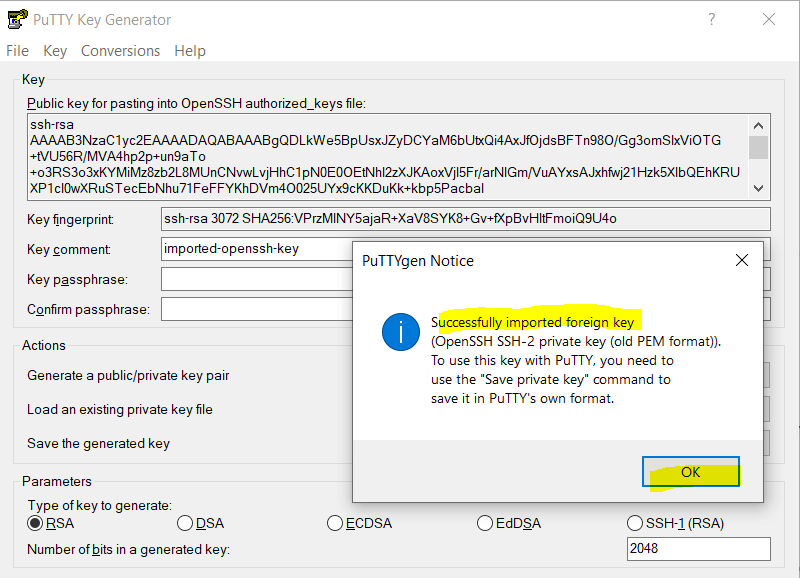
In order to use the previously downloaded private SSH key in PuTTY, we first need to convert it to the .ppk format.
In PuTTYgen click on File –> Load private key
The private key file will be converted and finally you have to save it.
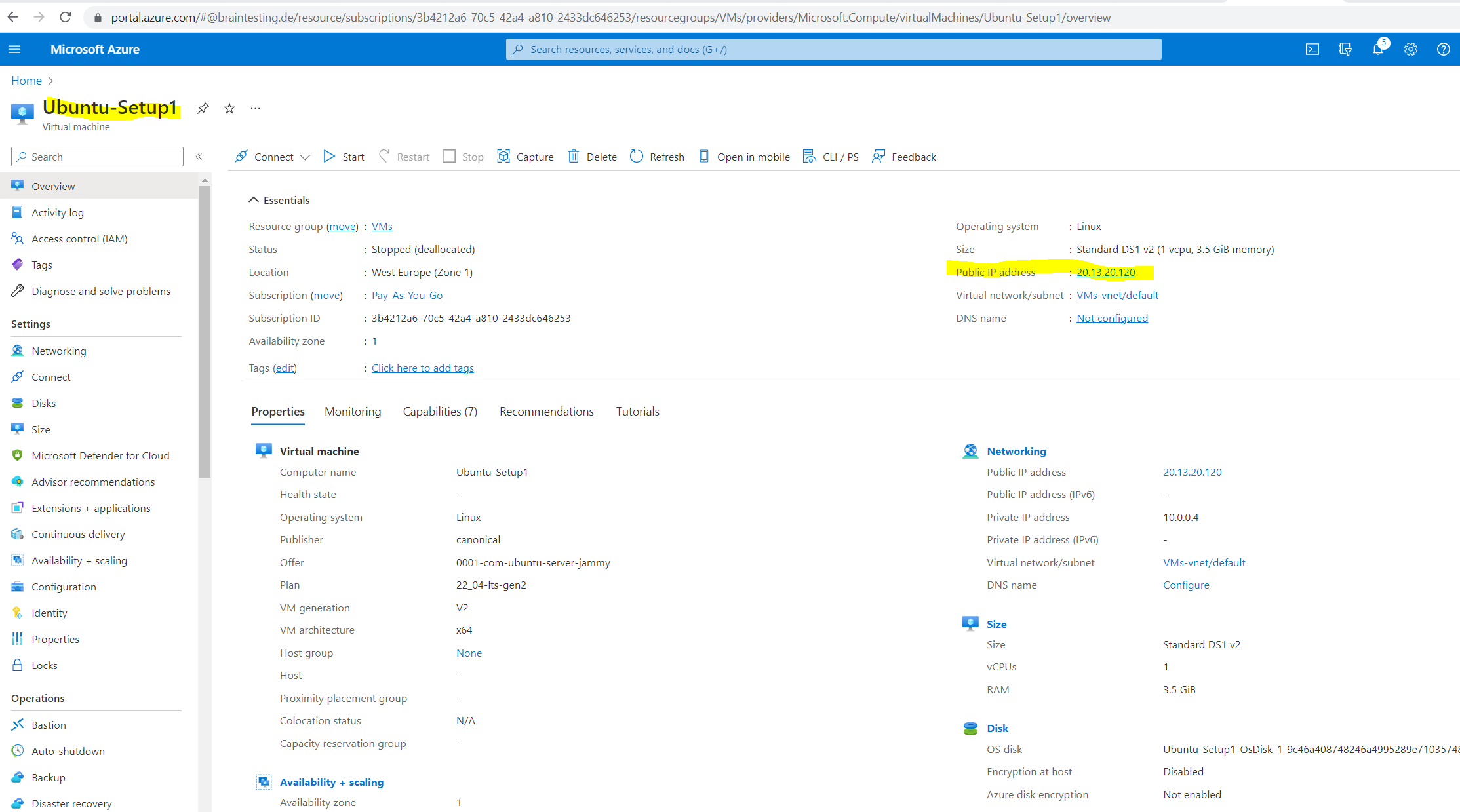
Now we just need to check the public IP address and we can use PuTTY to connect to the VM from Windows.
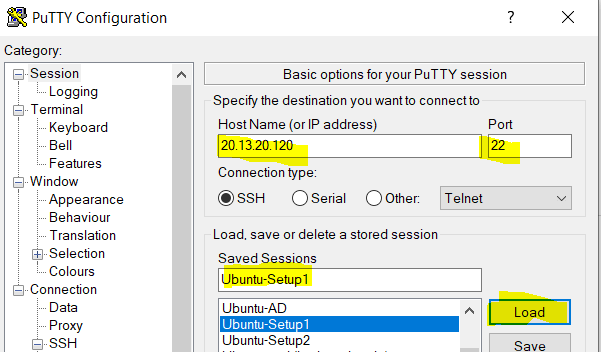
In PuTTY create a new Session with the public IP address, port number default 22 for SSH and save the session.
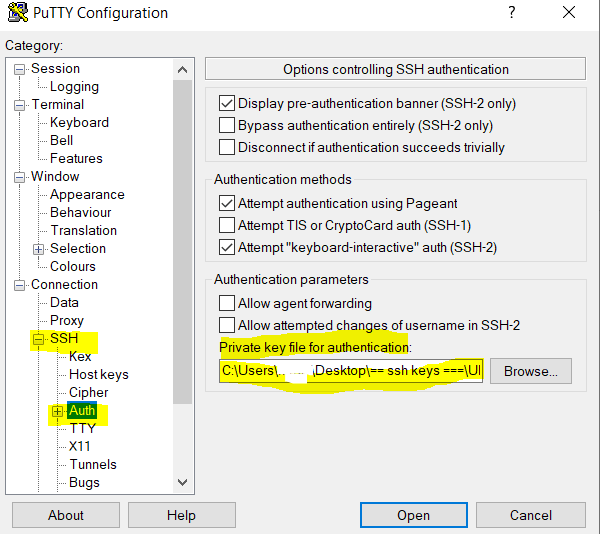
We also need to add the previously created private SSH key in .ppk format to use with PuTTY.

Create SSH Key Store
If you frequently use the portal to deploy Linux VMs, you can make using SSH keys simpler by creating them directly in the portal, or uploading them from your computer.
If you have existing keys and you want to simplify using them in the portal, you can upload them and store them in Azure for reuse.
For more detailed information about creating and using SSH keys with Linux VMs, see Use SSH keys to connect to Linux VMs.
Source: https://learn.microsoft.com/en-us/azure/virtual-machines/ssh-keys-portal
Generate new keys
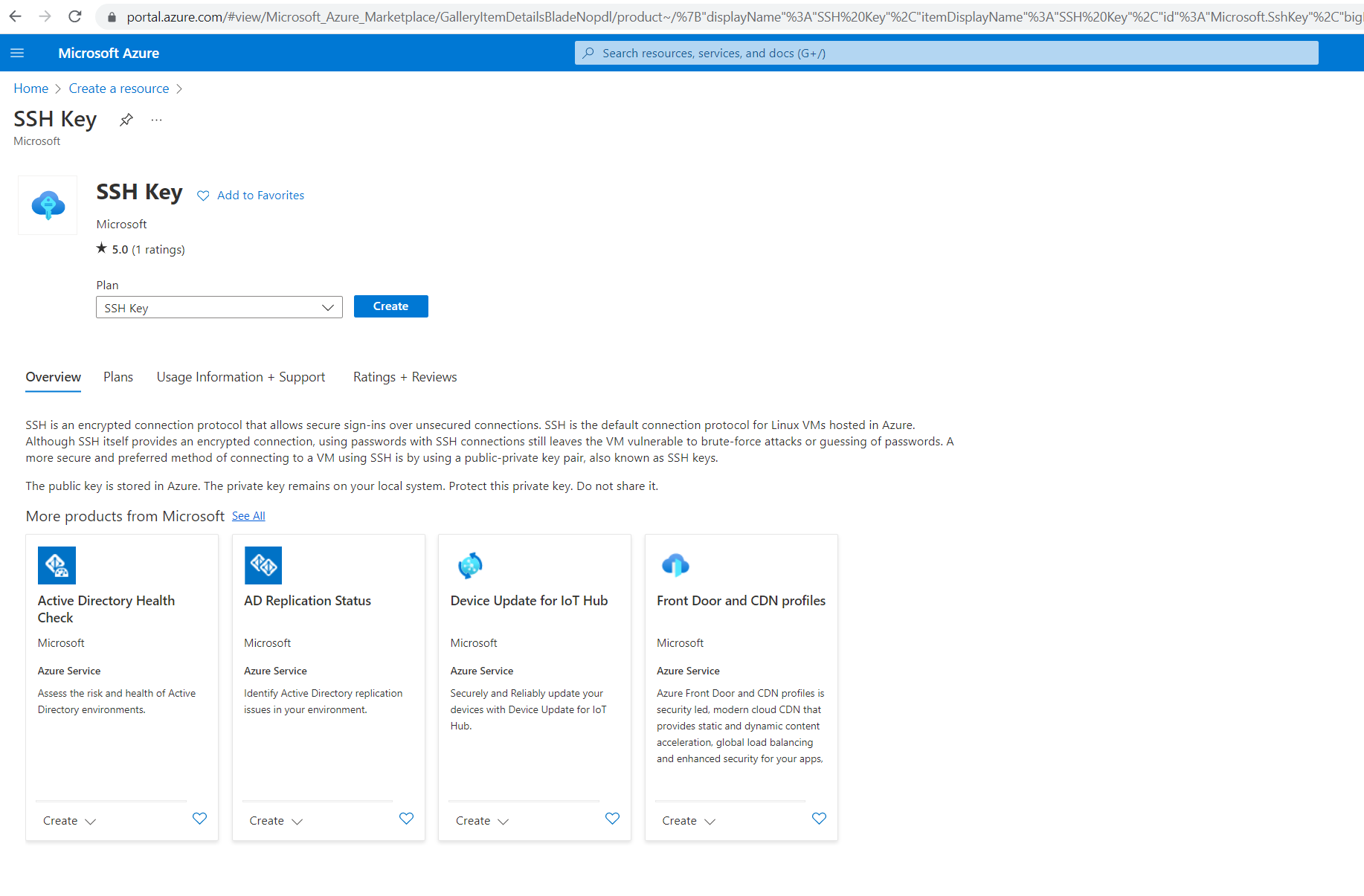
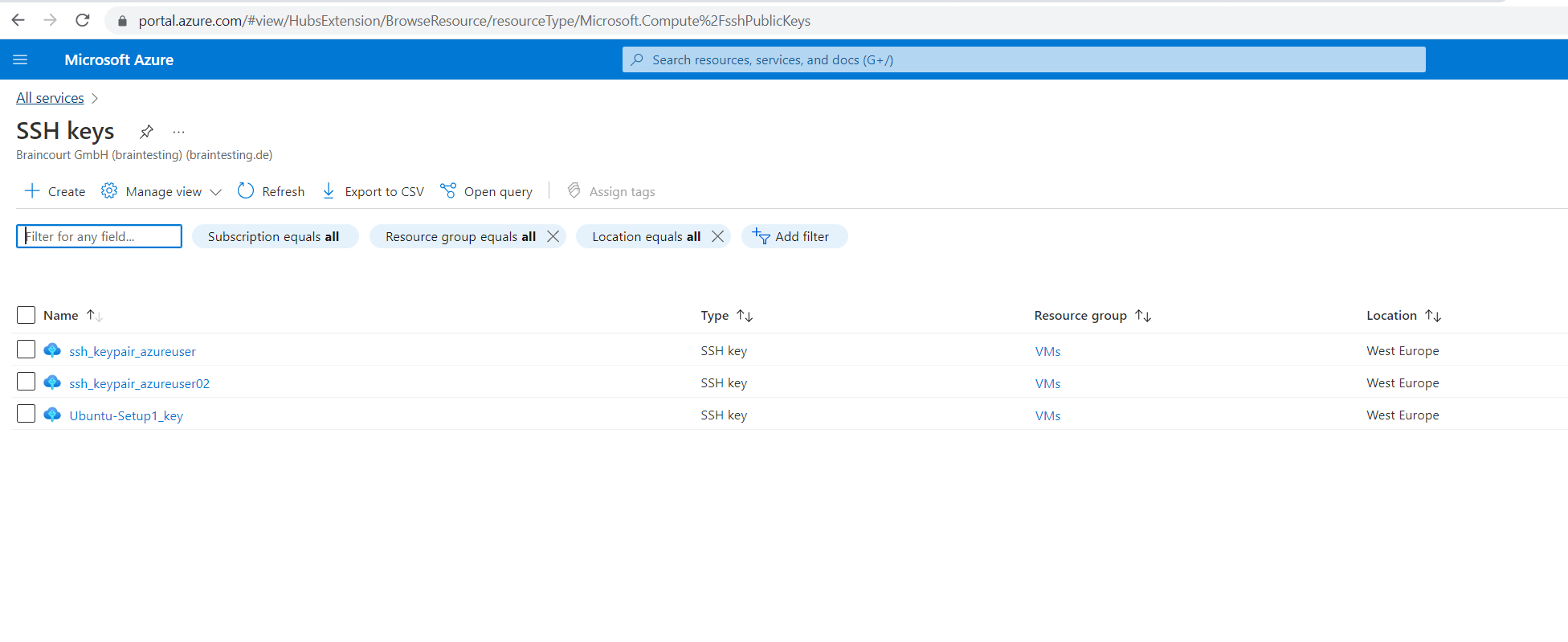
Open the Azure portal and search for SSH.
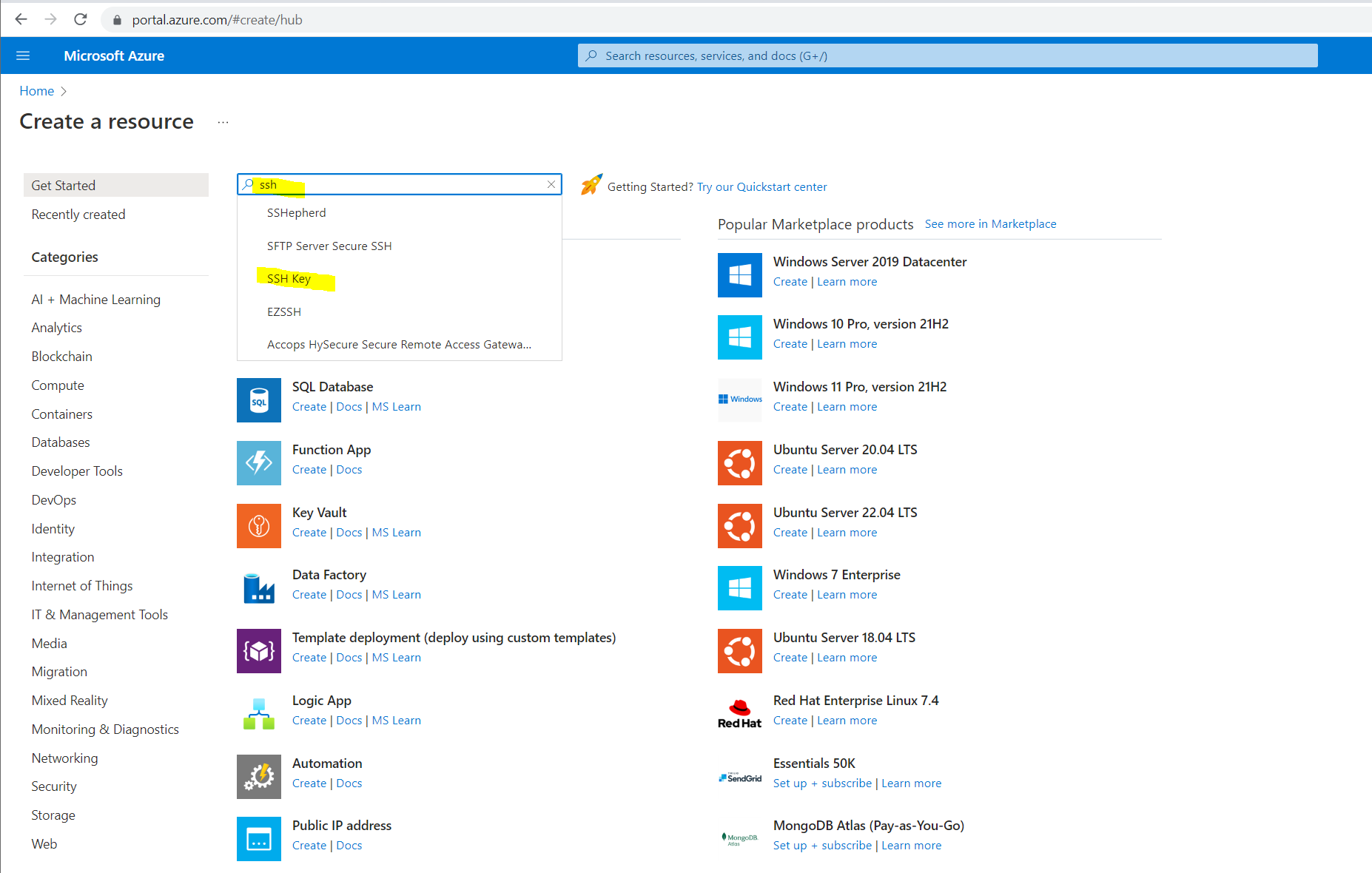
On the SSH Key page, select Create.
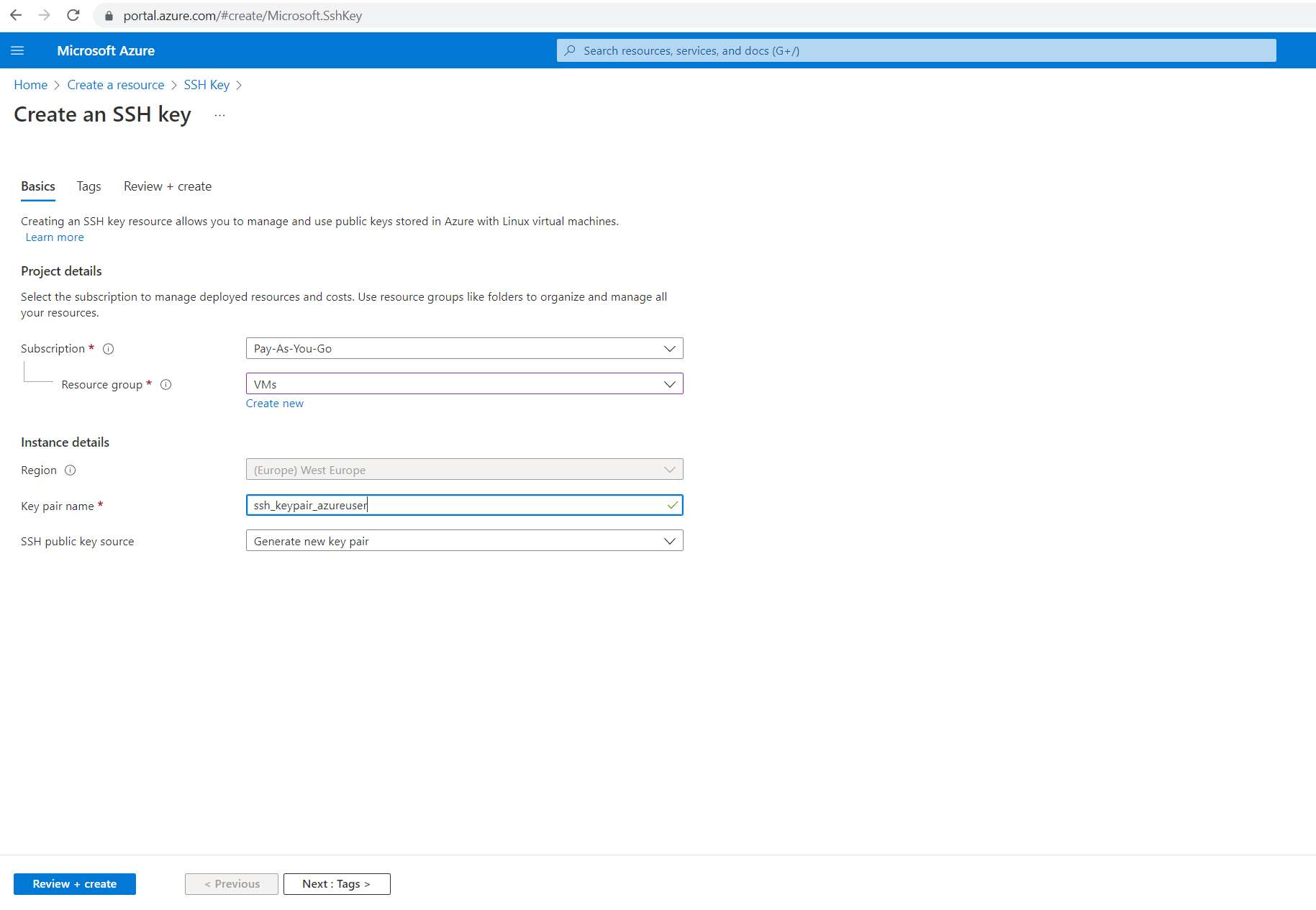
Enter a name for the key pair and select the source, I will create a new one here.
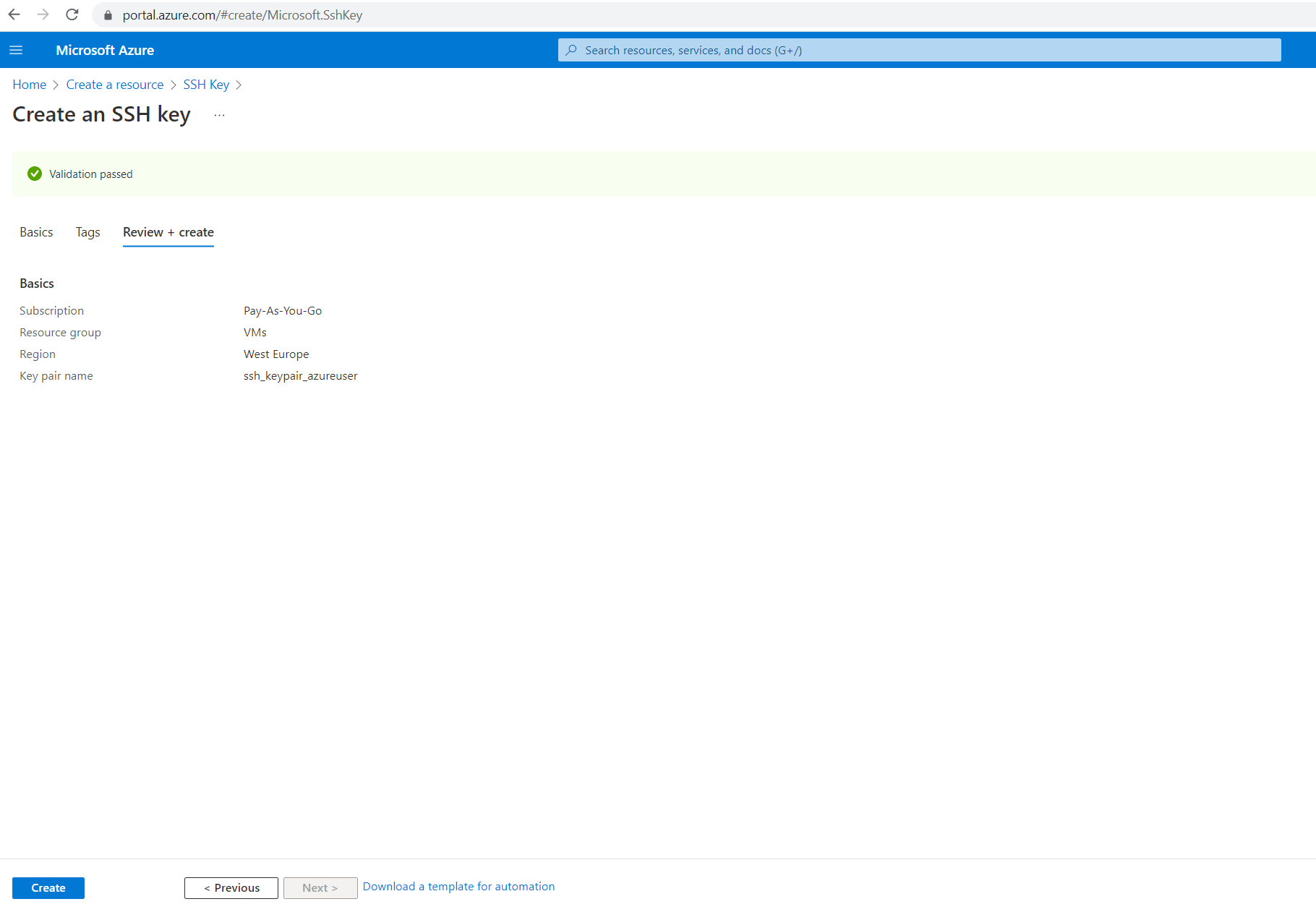
Download the private key to your computer you want to connect from.

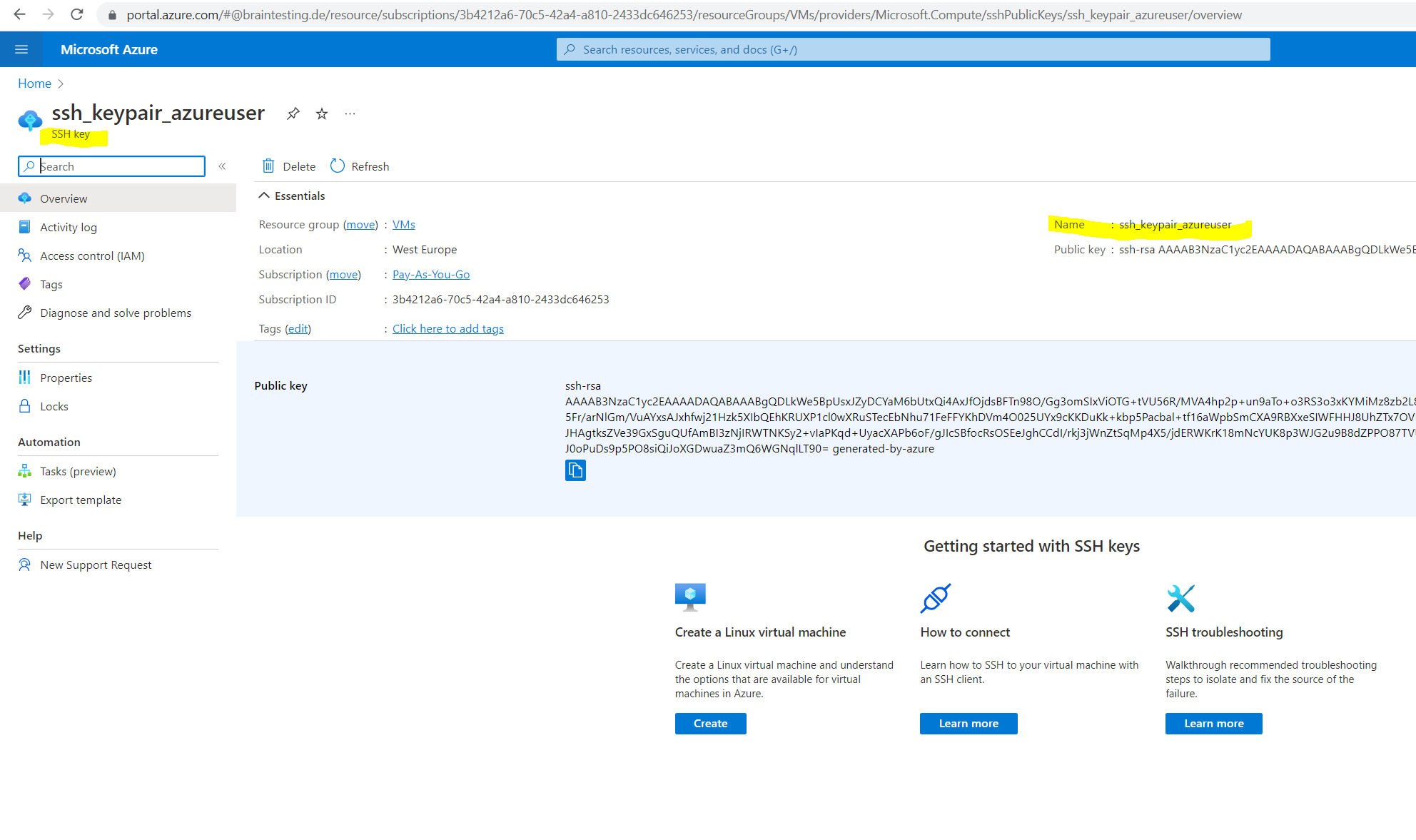
Below I created separately two key pairs, ssh_keypair_azureuser and ssh_keypair_azureuser02. The last one Ubuntu-Setup1_key was generated during the creation of my VM previouly and shown further above by using Generate new key pair.
When I now create a new Linux VM, I didn’t have to generate a new SSH key pair and can use instead an existing one stored in Azure.
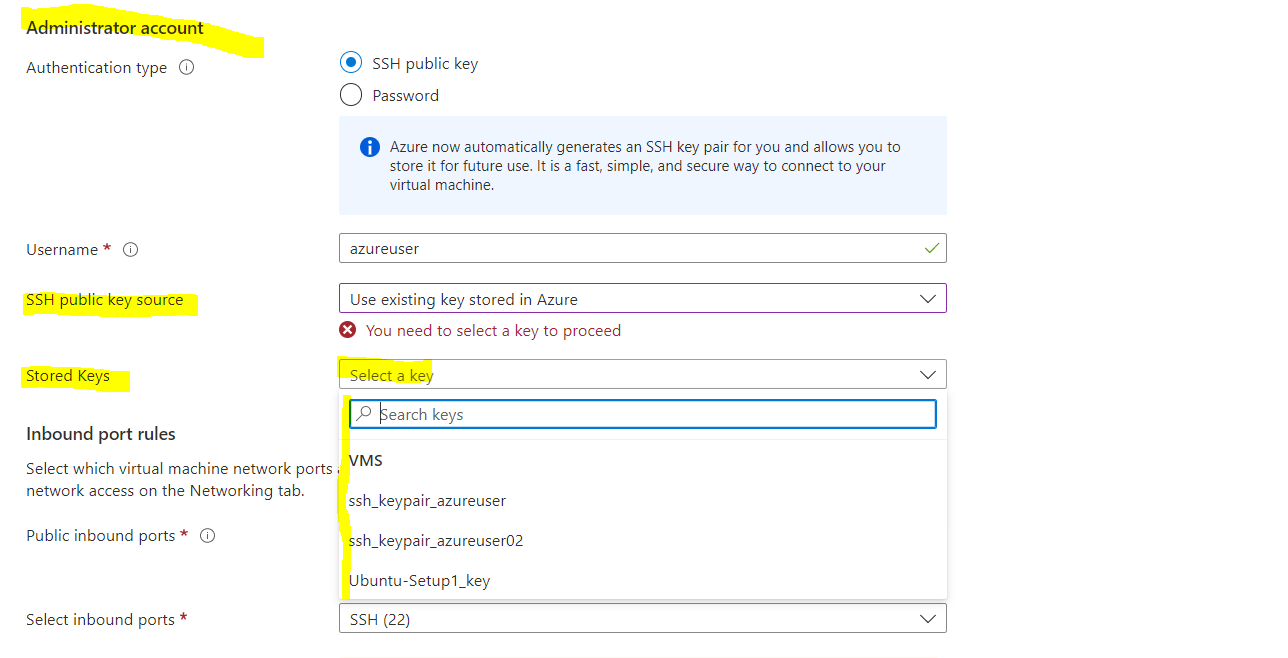
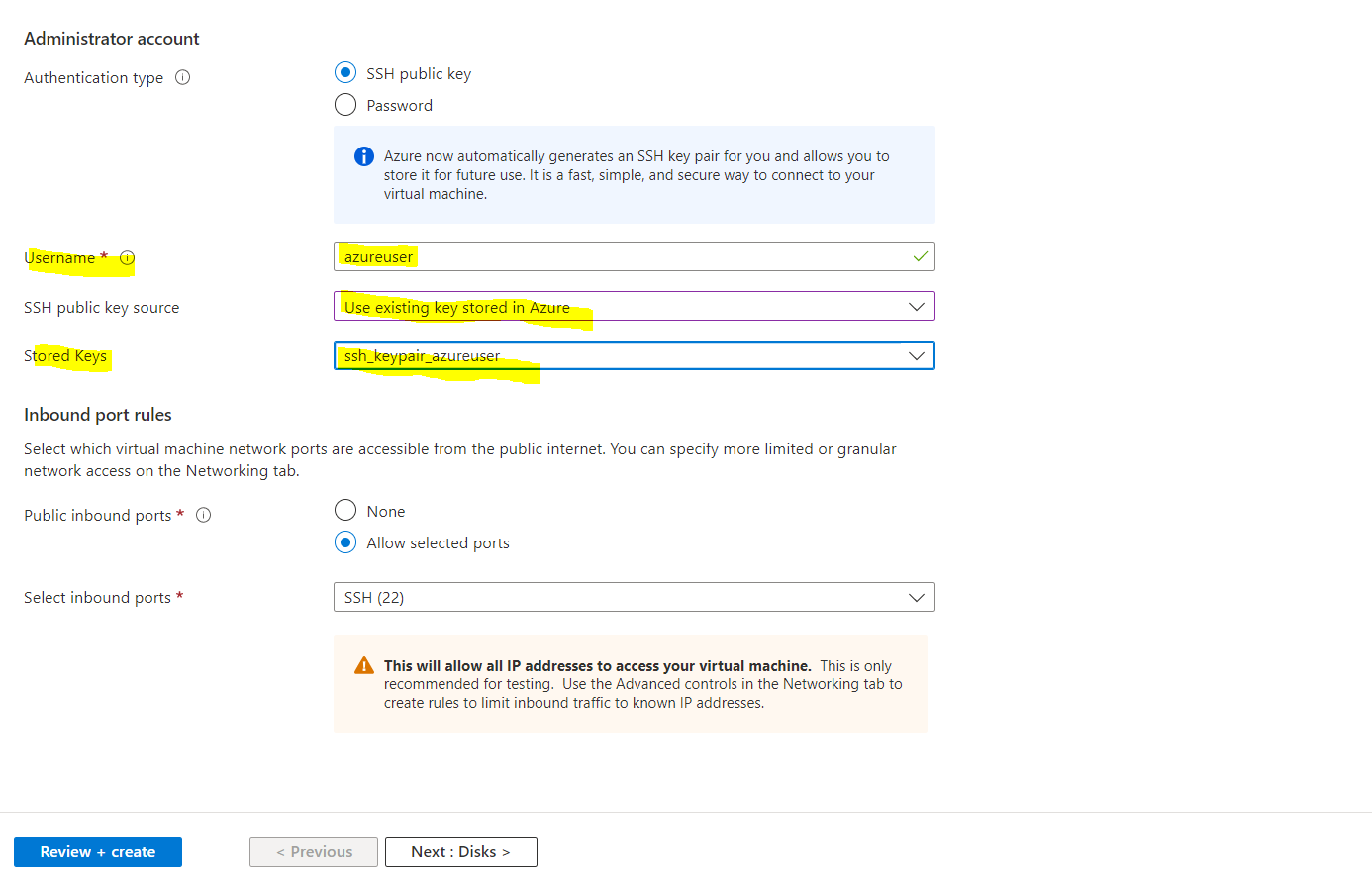
So I can use my existing private key also for this new Linux VM.
So now I can choose one of my stored SSH public keys in Azure to use for the VM.

No comments:
Post a Comment