Thursday, 30 May 2024

Virtual machine and disk performance

Virtual machine and disk performance


How does disk performance work?

Azure virtual machines have input/output operations per second (IOPS) and throughput performance limits based on the virtual machine type and size. OS disks and data disks can be attached to virtual machines. The disks have their own IOPS and throughput limits.

Your application's performance gets capped when it requests more IOPS or throughput than what is allotted for the virtual machines or attached disks. When capped, the application experiences suboptimal performance. This can lead to negative consequences like increased latency. Let's run through a couple of examples to clarify this concept. To make these examples easy to follow, we'll only look at IOPS. But, the same logic applies to throughput.

Disk IO capping

Setup:

  • Standard_D8s_v3
    • Uncached IOPS: 12,800
  • E30 OS disk
    • IOPS: 500
  • Two E30 data disks × 2
    • IOPS: 500

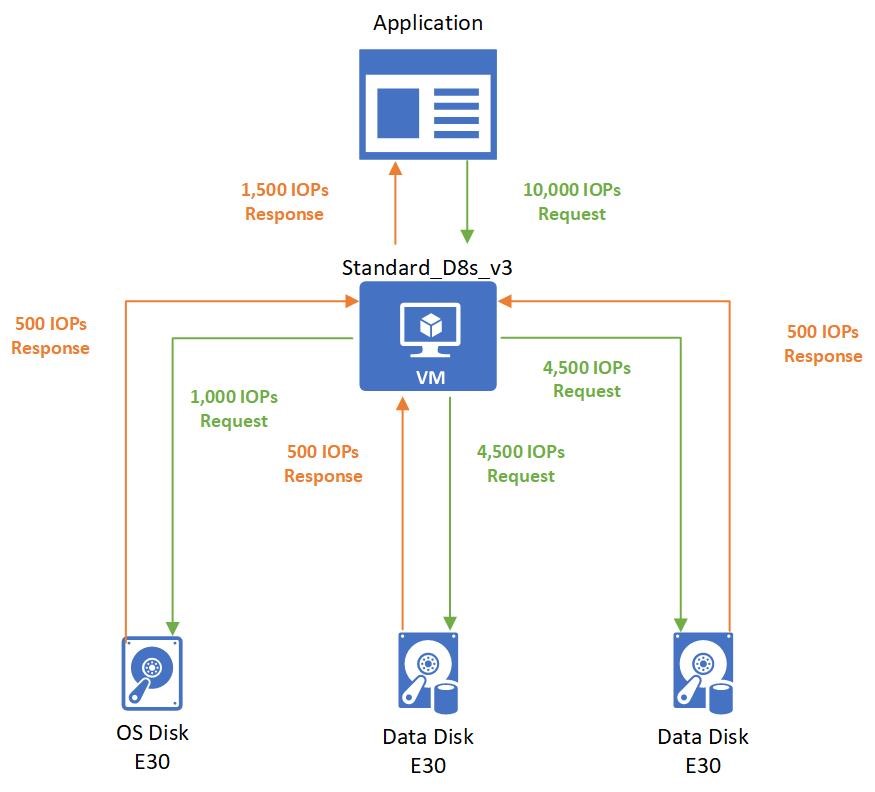
Diagram showing disk level capping.

The application running on the virtual machine makes a request that requires 10,000 IOPS to the virtual machine. All of which are allowed by the VM because the Standard_D8s_v3 virtual machine can execute up to 12,800 IOPS.

The 10,000 IOPS requests are broken down into three different requests to the different disks:

  • 1,000 IOPS are requested to the operating system disk.
  • 4,500 IOPS are requested to each data disk.

All attached disks are E30 disks and can only handle 500 IOPS. So, they respond back with 500 IOPS each. The application's performance is capped by the attached disks, and it can only process 1,500 IOPS. The application could work at peak performance at 10,000 IOPS if better-performing disks are used, such as Premium SSD P30 disks.

Virtual machine IO capping

Setup:

  • Standard_D8s_v3
    • Uncached IOPS: 12,800
  • P30 OS disk
    • IOPS: 5,000
  • Two P30 data disks × 2
    • IOPS: 5,000

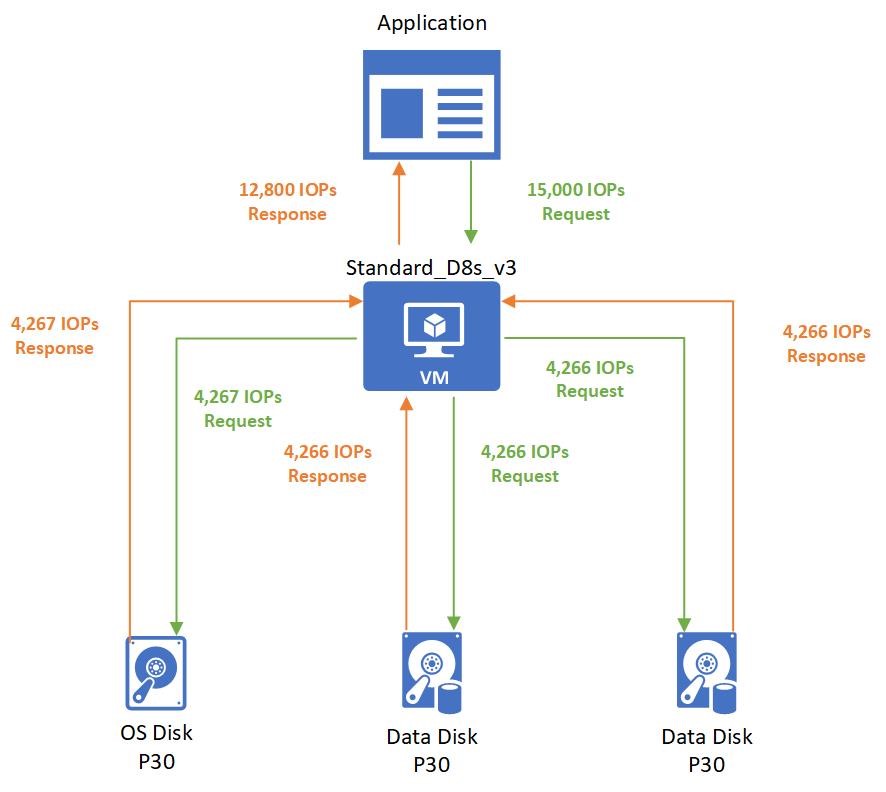
Diagram showing virtual machine level capping.

The application running on the virtual machine makes a request that requires 15,000 IOPS. Unfortunately, the Standard_D8s_v3 virtual machine is only provisioned to handle 12,800 IOPS. The application is capped by the virtual machine limits and must allocate the allotted 12,800 IOPS.

Those 12,800 IOPS requested are broken down into three different requests to the different disks:

  • 4,267 IOPS are requested to the operating system disk.
  • 4,266 IOPS are requested to each data disk.

All attached disks are P30 disks that can handle 5,000 IOPS. So, they respond back with their requested amounts.

Virtual machine uncached vs cached limits

Virtual machines that are enabled for both premium storage and premium storage caching have two different storage bandwidth limits. Let's look at the Standard_D8s_v3 virtual machine as an example. Here is the documentation on the Dsv3-series and the Standard_D8s_v3:
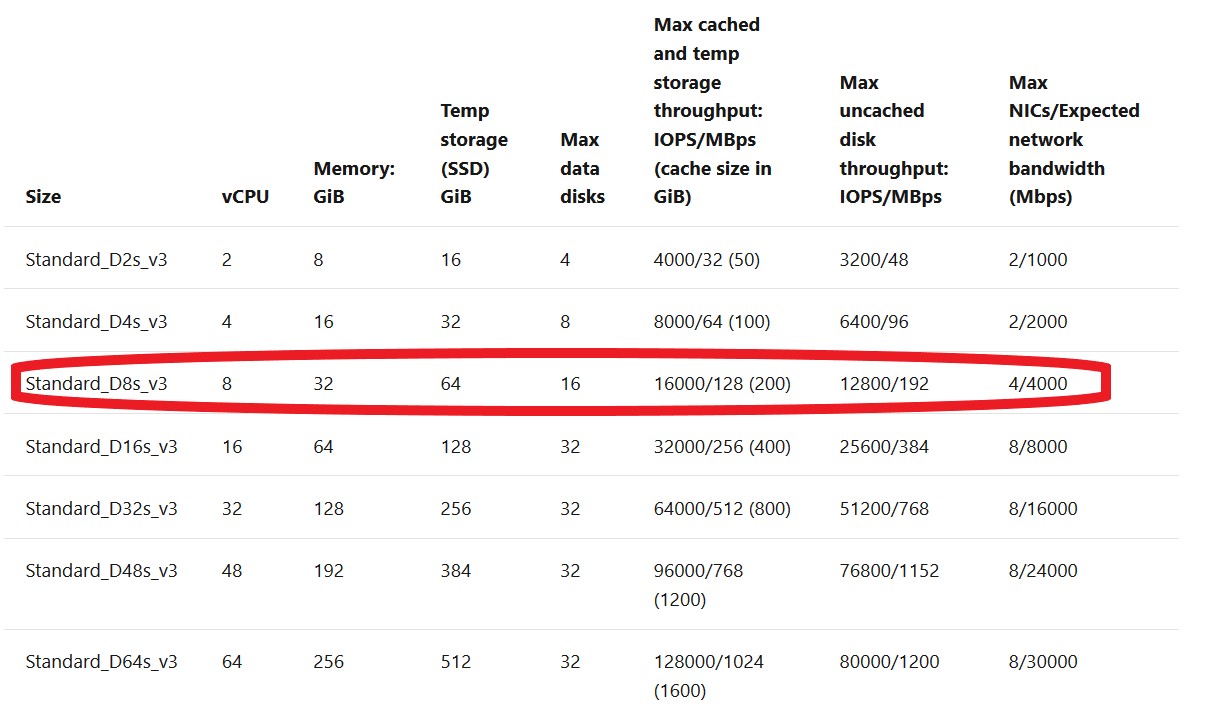
Chart showing D s v 3 specifications.

  • The max uncached disk throughput is the default storage maximum limit that the virtual machine can handle.
  • The max cached storage throughput limit is a separate limit when you enable host caching.

Host caching works by bringing storage closer to the VM that can be written or read to quickly. The amount of storage that is available to the VM for host caching is in the documentation. For example, you can see the Standard_D8s_v3 comes with 200 GiB of cache storage.

You can enable host caching when you create your virtual machine and attach disks. You can also turn on and off host caching on your disks on an existing VM. By default, cache-capable data disks will have read-only caching enabled. Cache-capable OS disks will have read/write caching enabled.
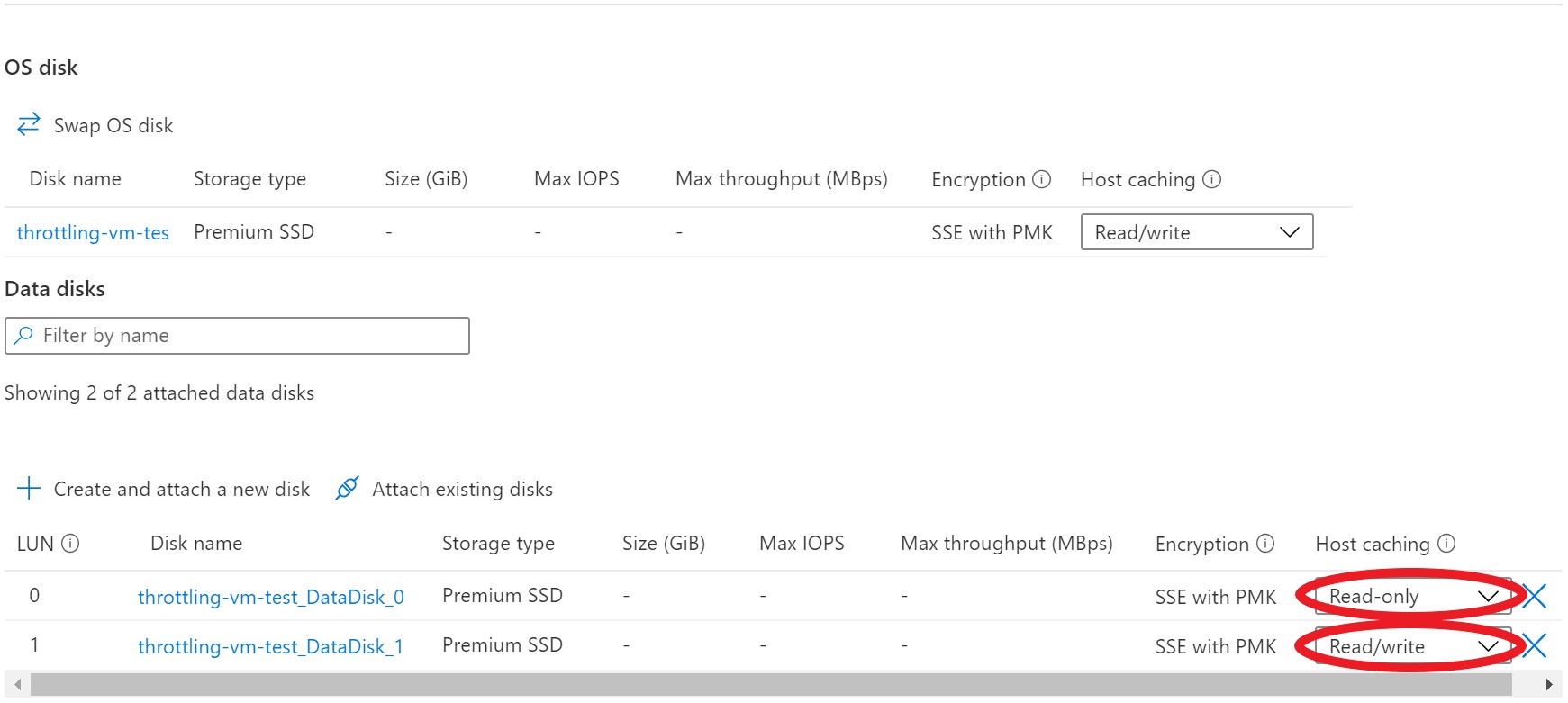
Screenshot showing host caching.

You can adjust the host caching to match your workload requirements for each disk. You can set your host caching to be:

  • Read-only: For workloads that only do read operations
  • Read/write: For workloads that do a balance of read and write operations

If your workload doesn't follow either of these patterns, we don't recommend that you use host caching.

Let's run through a couple examples of different host cache settings to see how it affects the data flow and performance. In this first example, we'll look at what happens with IO requests when the host caching setting is set to Read-only.

Setup:

  • Standard_D8s_v3
    • Cached IOPS: 16,000
    • Uncached IOPS: 12,800
  • P30 data disk
    • IOPS: 5,000
    • Host caching: Read-only

When a read is performed and the desired data is available on the cache, the cache returns the requested data. There is no need to read from the disk. This read is counted toward the VM's cached limits.
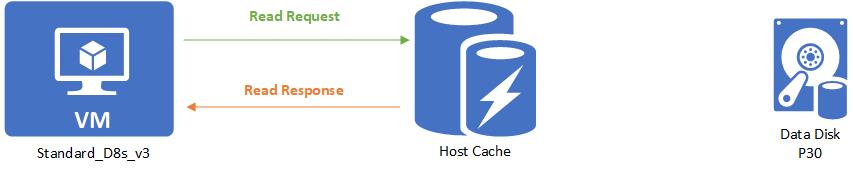
Diagram showing a read host caching read hit.

When a read is performed and the desired data is not available on the cache, the read request is relayed to the disk. Then the disk surfaces it to both the cache and the VM. This read is counted toward both the VM's uncached limit and the VM's cached limit.
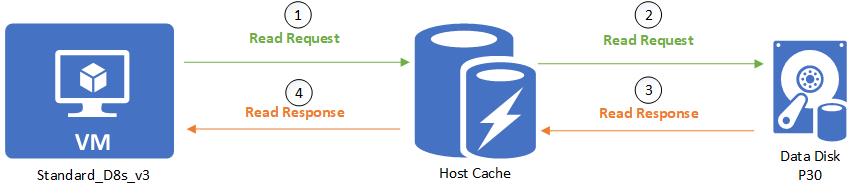
Diagram showing a read host caching read miss.

When a write is performed, the write has to be written to both the cache and the disk before it is considered complete. This write is counted toward the VM's uncached limit and the VM's cached limit.
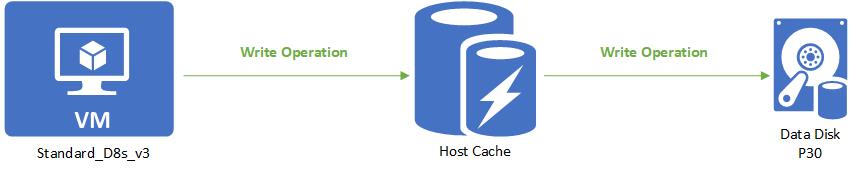
Diagram showing a read host caching write.

Next let's look at what happens with IO requests when the host cache setting is set to Read/write.

Setup:

  • Standard_D8s_v3
    • Cached IOPS: 16,000
    • Uncached IOPS: 12,800
  • P30 data disk
    • IOPS: 5,000
    • Host caching: Read/write

A read is handled the same way as a read-only. Writes are the only thing that's different with read/write caching. When writing with host caching is set to Read/write, the write only needs to be written to the host cache to be considered complete. The write is then lazily written to the disk when the cache is flushed periodically. Customers can additionally force a flush by issuing an f/sync or fua command. This means that a write is counted toward cached IO when it is written to the cache. When it is lazily written to the disk, it counts toward the uncached IO.
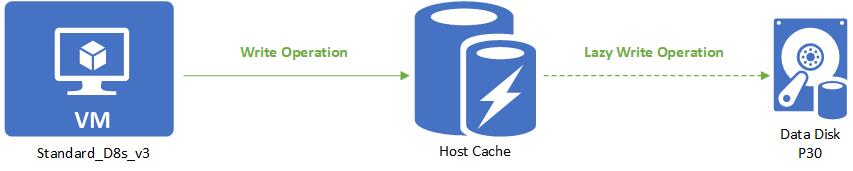
Diagram showing read/write host caching write.

Let’s continue with our Standard_D8s_v3 virtual machine. Except this time, we'll enable host caching on the disks. This makes the VM's IOPS limit 16,000 IOPS. Attached to the VM are three underlying P30 disks that can each handle 5,000 IOPS.

Setup:

  • Standard_D8s_v3
    • Cached IOPS: 16,000
    • Uncached IOPS: 12,800
  • P30 OS disk
    • IOPS: 5,000
    • Host caching: Read/write
  • Two P30 data disks × 2
    • IOPS: 5,000
    • Host caching: Read/write

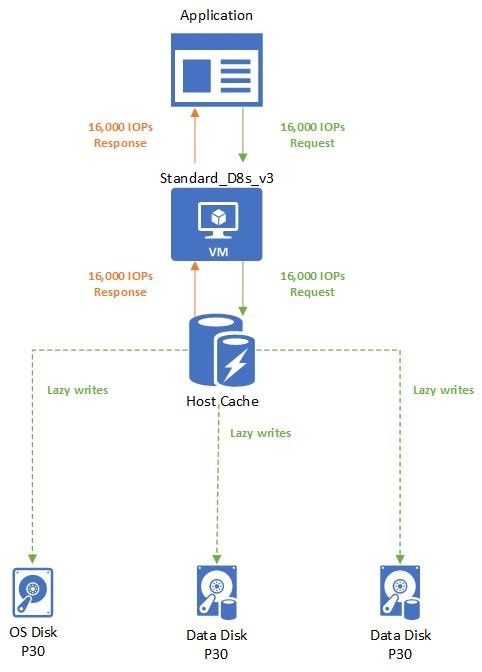
Diagram showing a host caching example.

The application uses a Standard_D8s_v3 virtual machine with caching enabled. It makes a request for 16,000 IOPS. The requests are completed as soon as they are read or written to the cache. Writes are then lazily written to the attached Disks.

Combined uncached and cached limits

A virtual machine's cached limits are separate from its uncached limits. This means you can enable host caching on disks attached to a VM while not enabling host caching on other disks. This configuration allows your virtual machines to get a total storage IO of the cached limit plus the uncached limit.

Let's run through an example to help you understand how these limits work together. We'll continue with the Standard_D8s_v3 virtual machine and premium disks attached configuration.

Setup:

  • Standard_D8s_v3
    • Cached IOPS: 16,000
    • Uncached IOPS: 12,800
  • P30 OS disk
    • IOPS: 5,000
    • Host caching: Read/write
  • Two P30 data disks × 2
    • IOPS: 5,000
    • Host caching: Read/write
  • Two P30 data disks × 2
    • IOPS: 5,000
    • Host caching: Disabled

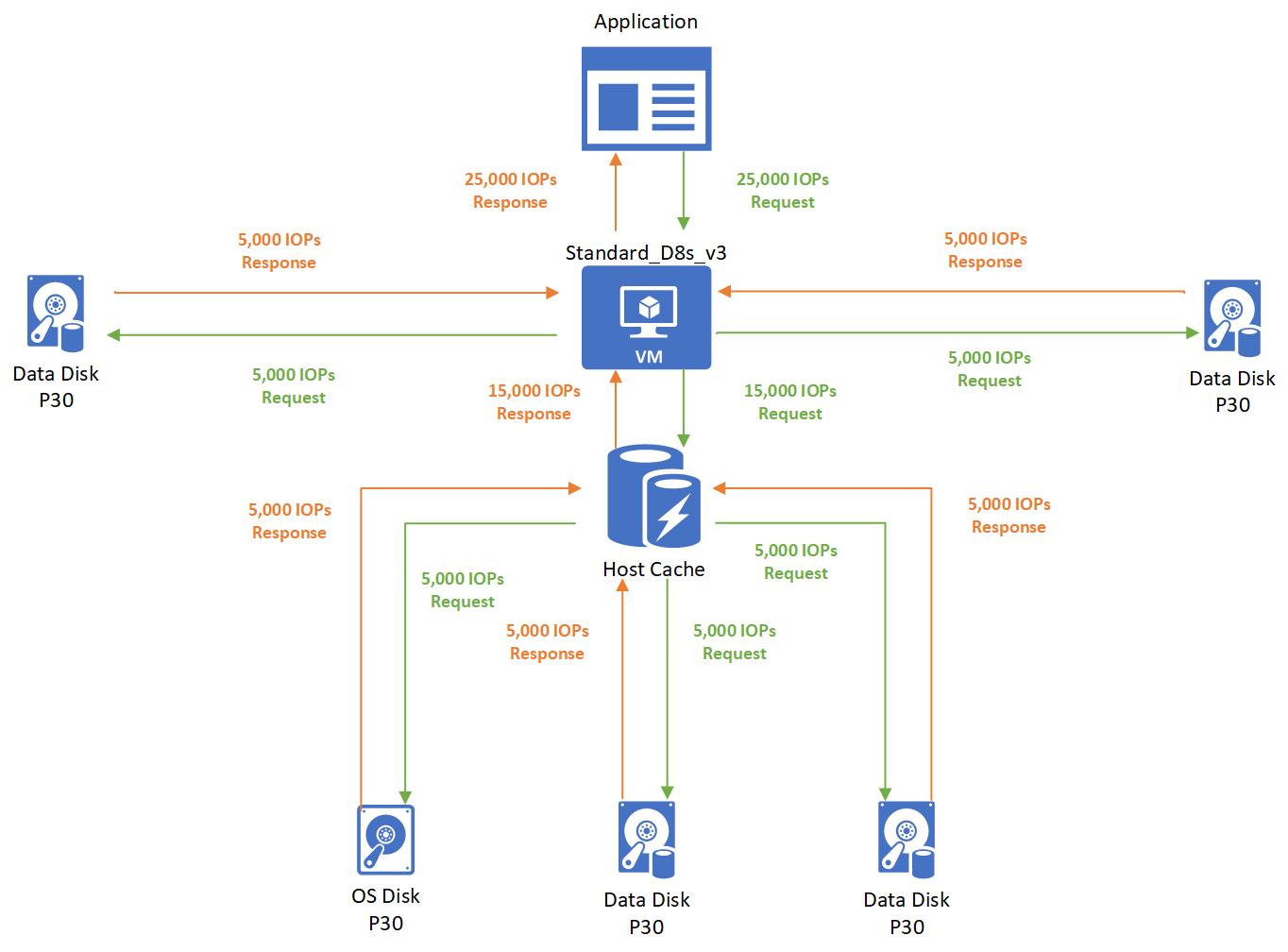
Diagram showing a host caching example with remote storage.

In this case, the application running on a Standard_D8s_v3 virtual machine makes a request for 25,000 IOPS. The request is broken down as 5,000 IOPS to each of the attached disks. Three disks use host caching and two disks don't use host caching.

  • Since the three disks that use host caching are within the cached limits of 16,000, those requests are successfully completed. No storage performance capping occurs.
  • Since the two disks that don't use host caching are within the uncached limits of 12,800, those requests are also successfully completed. No capping occurs.

Robert Smit MVP Blog

 Robert Smit MVP Blog


  1. Stage the VHD into a storage account before converting it into a managed disk. 
  2. Attach an empty managed disk to a virtual machine and do copy.

Both these ways have disadvantage.The first option requires extra storage account to manage while the second option has extra cost of running virtual machine. Direct-upload addresses both these issues and provides a simplified workflow by allowing copy of an on-premises VHD directly as a managed disk. You can use it to upload to Standard HDD, Standard SSD, and Premium SSD managed disks of all the supported sizes. With this new option Migration  could speed up and it seems less work.

Now days Microsoft want to do a lot in the Azure CLI, Working with this and personally I like the Azure CLI to do quick things but for testing and building I like the PowerShell options. So in this blog post I show you how to do upload your VHD to a managed Azure disk.

Starting this I noticed the weirdness of PowerShell I did not have the proper options, It seems I run some older versions of the Azure Az module.

SO running new Azure options with PowerShell make sure you run the latest version. This is not needed in the Azure CLI.

I had version 2.7.0 running and I needed 2.8.0 Do a uninstall of the old version  

Uninstall-AllModules -TargetModule Az -Version 2.7.0 –Force

Or if you have a lot of old versions running uninstall them all.

$versions = (Get-InstalledModule Az -AllVersions | Select-Object Version)
$versions[0..($versions.Length-2)]  | foreach { Uninstall-AllModules -TargetModule Az -Version ($_.Version) -Force }


image

And of course you can run this in the Azure CLI  with the following command

az disk create -n mydiskname1 -g disk1 -l westeurope --for-upload --upload-size-bytes 10737418752 --sku standard_lrs
 
image
 
image


image


But where is the fun on doing this, Right.

For creating a Managed disk in the GUI there are only a few steps but then you need to add this to a Virtual machine and copy over the data. time consuming

image


image


Lets create a powershell script that will pick the right disk size and upload the VHD to Azure as a Managed disk.

First we need to see what size my VHD file is to make sure the disk has enough disk space.

$vhdSizeBytes = (Get-Item "I:\Hyperv-old\MVPMGTDC01\mvpdc0120161023143512.vhd").length

image

So I need a disk size of 136367309312

Our next step is create a proper disk configuration. with placement in the correct region and resource group.


#Provide the Azure region where Managed Disk will be located.

$Location = “westeurope”

#Provide the name of your resource group where Managed Disks will be created.

$ResourceGroupName =”rsguploaddisk001”

#Provide the name of the Managed Disk

$DiskName = “mvpdc01-Disk01”

New-AzResourceGroup -Name $ResourceGroupName -Location $location

$diskconfig = New-AzDiskConfig -SkuName ‘Standard_LRS’ -OsType ‘Windows’ -UploadSizeInBytes $vhdSizeBytes -Location $location -CreateOption ‘Upload’

$diskconfig

image


Now that the configuration is set we can actual create a new Disk.

New-AzDisk -ResourceGroupName $ResourceGroupName  -DiskName $DiskName -Disk $diskconfig

image

Now that the disk is created we can see this in the Azure portal also.


image

The details of the just created disk.

image

Comparing the disk configuration this is now empty and the Disk state is ReadyToUpload. 

We Tried Building an HA Cluster Using Azure Shared Disk


WE Tried Building an HA Cluster Using Azure Shared Disk 


Introduction

Azure Shared Disk is a new feature in managed disks that allows Azure managed disks (hereinafter called "managed disk") to be connected to multiple virtual machines (hereinafter called "VM") at the same time.
We tried building a shared disk type HA cluster on Microsoft Azure (hereinafter called "Azure") using Azure shared disk.

Previously, it could not be treated as a disk connected to multiple VMs, such as a shared disk on Azure.
This time, we will build a shared disk type HA cluster using Azure shared disk.


1. What is an Azure Shared Disk?

Azure shared disks are the ability to connect managed disks to multiple VMs at the same time. Managed disks with shared disks enabled provide shared block storage that can be accessed by multiple VMs.

Previously, managed disks could only be attached to a single VM, so they could not be used to build shared disk clusters because they could not be attached to multiple VMs.
From now on, Azure shared disk features allows managed disks to be treated like shared disks. EXPRESSCLUSTER X shared disk clusters are an option in environments where I/O performance is important because there is no write performance degradation associated with synchronizing I/O data, such as mirror disk clusters.

Azure shared disk features provides these benefits, but the application must maintain the write order to ensure that the data in managed disks is consistent. If you write data from multiple VMs without controlling the writes, the data may appear to be written successfully at first glance, but you may actually be destroying the file system.

Therefore, it is necessary to take measures such as controlling VMs that can write data, such as EXPRESSCLUSTER X disk resources (shared disk control resources).

[Reference]
popupShare an Azure managed disk
  • How it works

2. Shared Disk Type HA Cluster Configuration

In this case, we built a "shared disk type HA cluster" in the West Central US region environment, and confirmed that managed disks attached to multiple VMs can be controlled by disk resources.

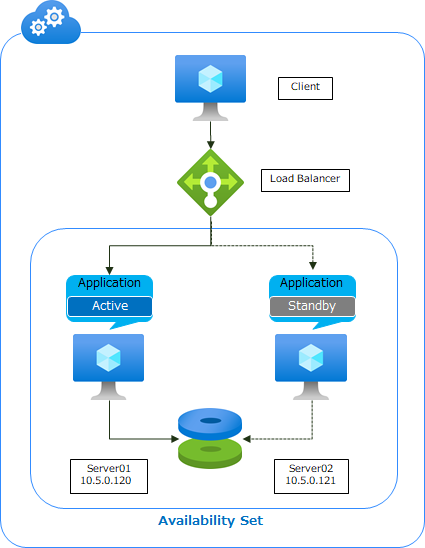
In this configuration, a two-node shared disk type cluster is built, and the VMs that can access the managed disk enabled is switched by disk resources that controls the shared disk.

We build an "HA cluster using an internal load balancer".
The configuration is as follows:

Configuration

-Azure shared disk capabilities enable managed disks that can be connected from multiple VMs at the same time to take over business data

-Use the Azure load balancer to switch destinations to active VMs

Managed disk is attached to both nodes, but is accessible only from the nodes where disk resources are running (the active VM in the case of figure) due to disk resource control. Managed disk cannot be referenced or written from the standby VM.

If the active VM fails, the standby VM starts the disk resource and can reference and write managed disk from the standby VM.

By specifying the virtual IP address set in the Azure load balancer to access the business application, the client can access it without being aware of which node is running.

3. Shared Disk Type HA Cluster Construction Prucedure

3.1 Preparation for HA Cluster Construction

There are limitations on the types of disks that can be enabled for shared disks.
For more information on limitations, please refer to the following website:

[Reference]
popupShare an Azure managed disk
  • Limitations

In this case, we use Premium SSD for the disk type.

※As of July 16, 2020, only the West Central US region will be supported when using Premium SSD as a shared disk.
If you wish to use it in other regions, you will need to use Ultra Disk.

3.1.1 Create a Proximity Placement Group

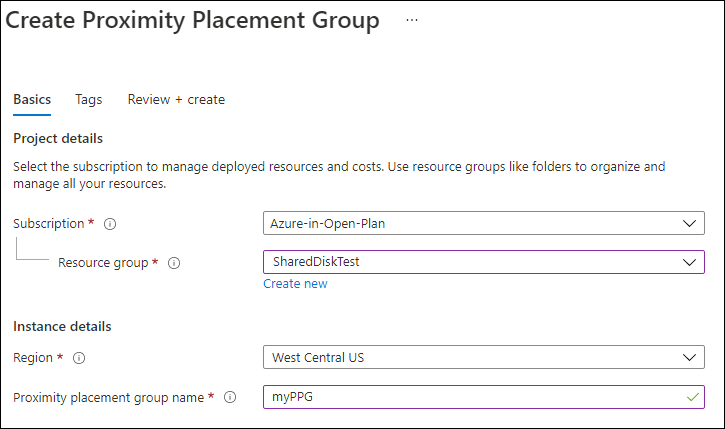
This time, we will build VMs as a proximity placement group.

Proximity placement groups can be used to reduce network latency between VMs and improve overall application performance. When you place VMs in a proximity placement group, all VMs that share the disk must be in the same proximity deployment group.
Specify "West Central US" as the region.

The procedure for creating a proximity placement group was refered to the following site.

[Reference]
popupCreate a proximity placement group using the Azure portal
  • Create the proximity placement group

Create a Proximity Placement Group

3.1.2 Create an Azure Shared Disk

Create a managed disk with shared disk enabled.
You can create it in the following steps:

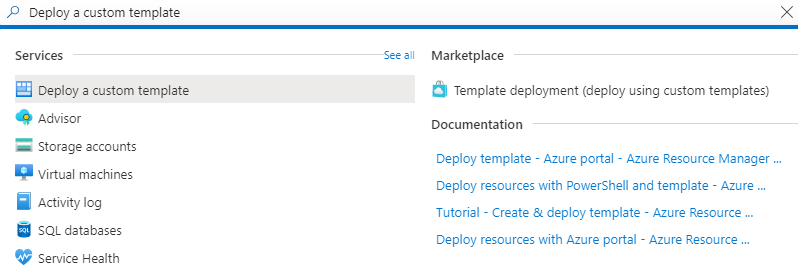
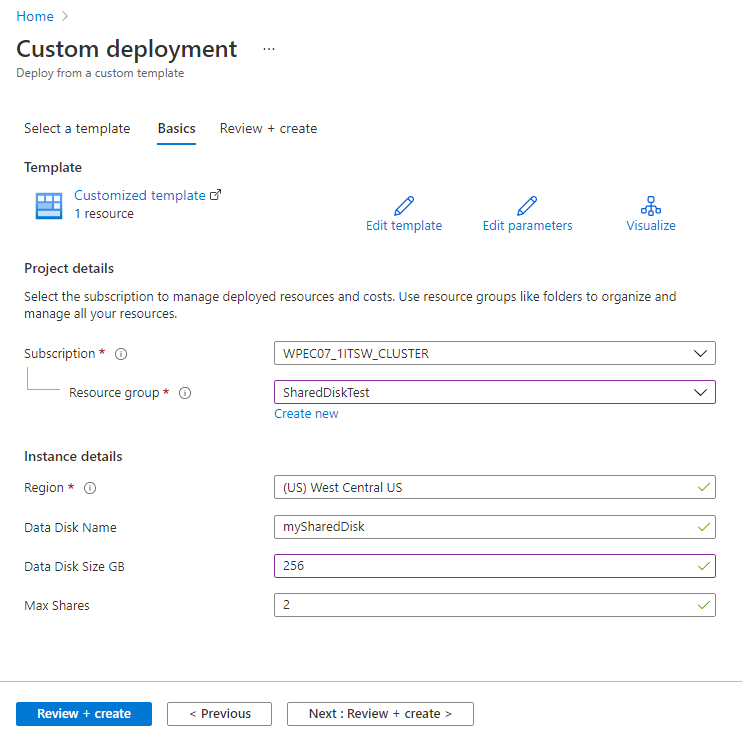
  • 1.Open the Azure portal, search for "Deploy a custom template" from the search for resources, services, and docs at the top, and select it.

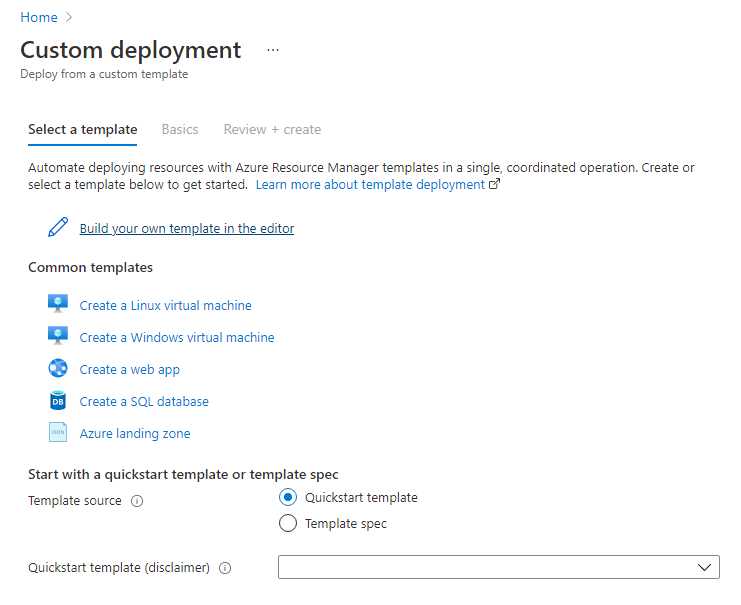
  • 2.Select "Build your own template in the editor".

Build Your Own Template

  • 3.Use the following JSON template to create a managed disk:
[Reference]
popupDeploy shared disks
  •  
  • → Deploy a premium SSD as a shared disk
  • → Resource Manager Template
  • → Premium SSD shared disk template
  • → raw data

Change the deployment settings accordingly and click the "Review & Create" button.
We use Data Disk Size GB for "256" and Max Shares in "2".

3.2 Procedure for Building a Shared Disk Type HA Cluster


※The configuration guide is a procedure for building a mirror disk type cluster, so you need to replace the the settings for mirror disk resources with the settings for (shared) disk resources as appropriate, and create the cluster.


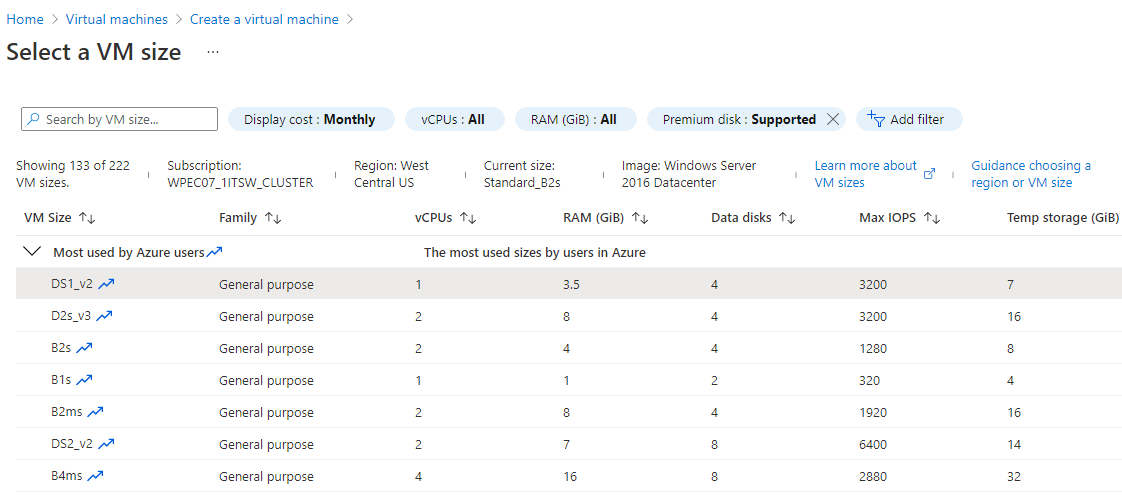
VMs are placed in a proximity placement group.

Note that if you have selected an existing availability set, and the selected availability set is not included in the proximity deployment group, you need to place the availability set in the proximity deployment group in advance.
If you create a new availability set when you create a VM and specify a proximity placement group, the new availability set is also placed in the proximity deployment group.

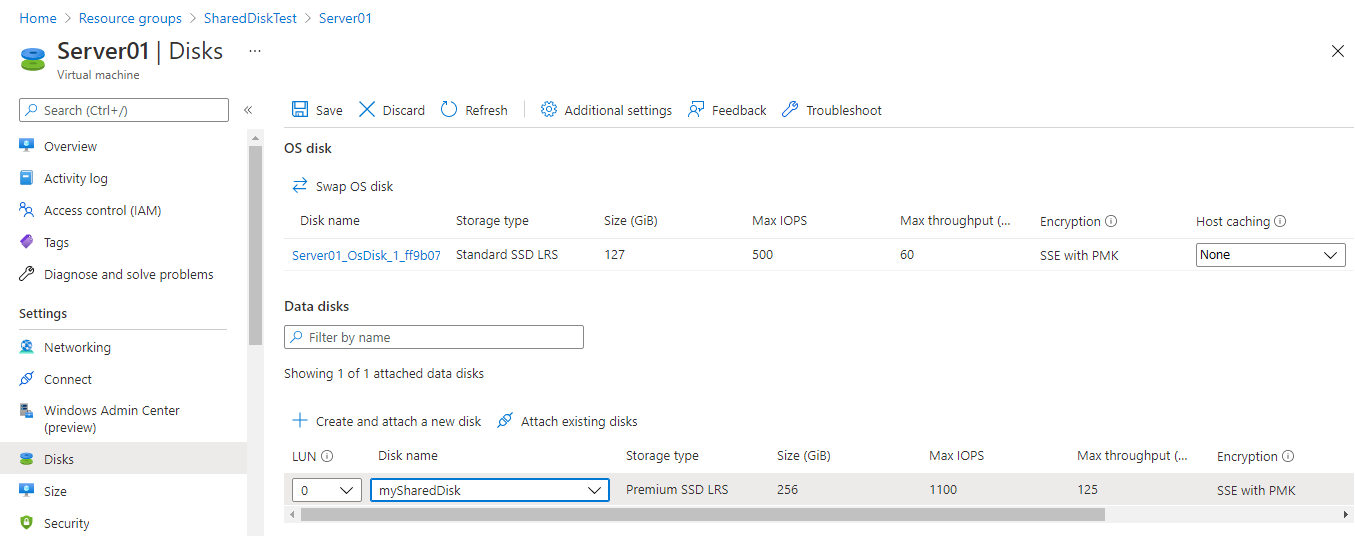
3.2.2 Adding a Data Disk

Select the VM you want to connect to the managed disk you created and add the data disk. Select "None" for the host caching. The procedure for adding the data disk was refer to the following website:

3.2.3 Building HA Clusters

Build a "shared disk type HA cluster".
Please refer to the "Installation & Configuration Guide" of EXPRESSCLUSTER X for the construction procedure.

Create the disk partitions, switchable partitions, and add disk resources that are required for shared disks.

[Reference]
popupDocumentation - Previous Versions
  • Manuals > EXPRESSCLUSTER X > EXPRESSCLUSTER X 4.3 for Windows > Installation and Configuration Guide
  •  
  • → 2. Determining a system configuration
  • → 2.6 Settings after configuring hardware
  • → 2.6.1. Shared disk settings (Required for shared disk)
  •  
  • → 6. Creating the cluster configuration data
  • → 6.4 Procedure for creating the cluster configuration data
  • → add a group resource (Disk resource/Mirror disk resource/Hybrid disk resource)
  •  
  •  
  •  
  •  
  • Manuals > EXPRESSCLUSTER X > EXPRESSCLUSTER X 4.3 for Linux > Installation and Configuration Guide
  •  
  • → 2. Determining a system configuration
  • → 2.8 Settings after configuring hardware
  • → 2.8.1. Shared disk settings for disk resource (Required for disk resource)
  •  
  • → 6. Creating the cluster configuration data
  • → 6.4 Creating the configuration data of a 2-node cluster
  • → 6.4.2 Creating a failover group
  •  
  • → Add a group resource (Disk resource)
  •  

4. Checking the Operation

Before and after failover, verify that access to the shared disk is in place and that data is being taken over.

  • 1.Start failover group in the active VM.


  • 2.Verify that you can access the switchable partition on the active VM.
    Also, verify that the switchable partition cannot be accessed from the standby VM.


  • 3.Create a test.txt in the switchable partition on the active VM.
  • 4.Move failover group to the standby VM manually and check on the Cluster WebUI that the group has been started on the moving destination VM.
  • 5.Verify that you can access the switchable partition on the standby VM.
    Also, verify that the switchable partition cannot be accessed from the active VM.
6. Confirm that test.txt appears in the switchable partition and that you can open it with an editor on the standby VM.