Thursday, 30 May 2024

To create a management resource for a device ordered through the Azure Edge Hardware Center


To create a management resource for a device ordered through the Azure Edge Hardware Center


To create a management resource for a device ordered through the Azure Edge Hardware Center, do these steps:

  1. Use your Microsoft Azure credentials to sign in to the Azure portal at this URL: https://portal.azure.com.

  2. There are two ways to get started creating a new management resource:

    • Through the Azure Edge Hardware Center: Search for and select Azure Edge Hardware Center. In the Hardware Center, display All order items. Select the item Name. In the item Overview, select Configure hardware.

      The Configure hardware option appears after a device is shipped.

      Illustration showing 4 steps to start management resource creation from an order item in the Azure Edge Hardware Center.

    • In Azure Stack Edge: Search for and select Azure Stack Edge. Select + Create. Then select Create management resource.

      Illustration showing 3 steps to start management resource creation in Azure Stack Edge.

    The Create management resource wizard opens.

  3. On the Basics tab, enter the following settings:

    SettingValue
    Select a subscription1Select the subscription to use for the management resource.
    Resource group1Select the resource group to use for the management resource.
    NameProvide a name for the management resource.
    Deploy Azure resource inSelect the country or region where the metadata for the management resource will reside. The metadata can be stored in a different location than the physical device.

    1 An organization may use different subscriptions and resource groups to order devices than they use to manage them.

    Screenshot of the Basics tab for Create Management Resource. The Basics tab, options, and Review Plus Create button are highlighted.

    Select Review + create to continue.

  4. On the Review + create tab, review basic settings for the management resource and the terms of use. Then select Create.

    If you started this procedure by clicking Configure hardware for a delivered item in an Azure Edge Hardware Center order, the device, order resource name, and order status are listed at the top of the screen.

    Screenshot of Review Plus Create tab when an Azure Stack Edge management resource is created for an order item in Azure Edge Hardware Center. Device order info is highlighted.

    The Create button isn't available until all validation checks have passed.

  5. When the process completes, the Overview pane for new resource opens.

    Screenshot showing a completed management resource in Azure Stack Edge.

Use the Azure portal to manage your Azure Edge Hardware Center orders


Use the Azure portal to manage your Azure Edge Hardware Center orders

This article describes how to manage the orders created by Azure Edge Hardware Center. You can use the Azure portal to track and cancel orders created via the Edge Hardware Center.

In this article, you learn how to:

  • Track order
  • Cancel order
  • Return hardware

Track order

Follow these steps in the Azure portal to track the order you created using the Edge Hardware Center.

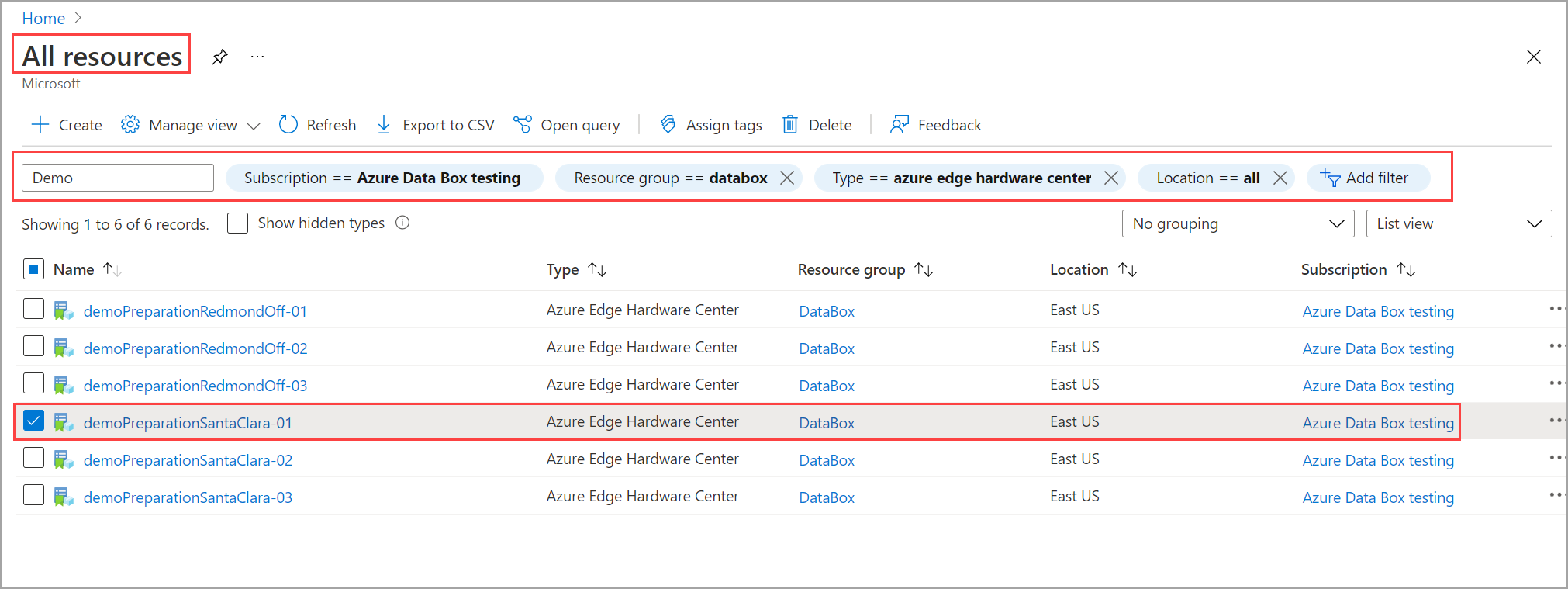
  1. In the Azure portal, go to All resources. Filter by Type == Azure Edge Hardware Center. This should list all the orders created using the Edge Hardware Center. From the list of orders, select your order and go to the order resource.

    Screenshot showing how to select order from list of Edge Hardware Center orders.

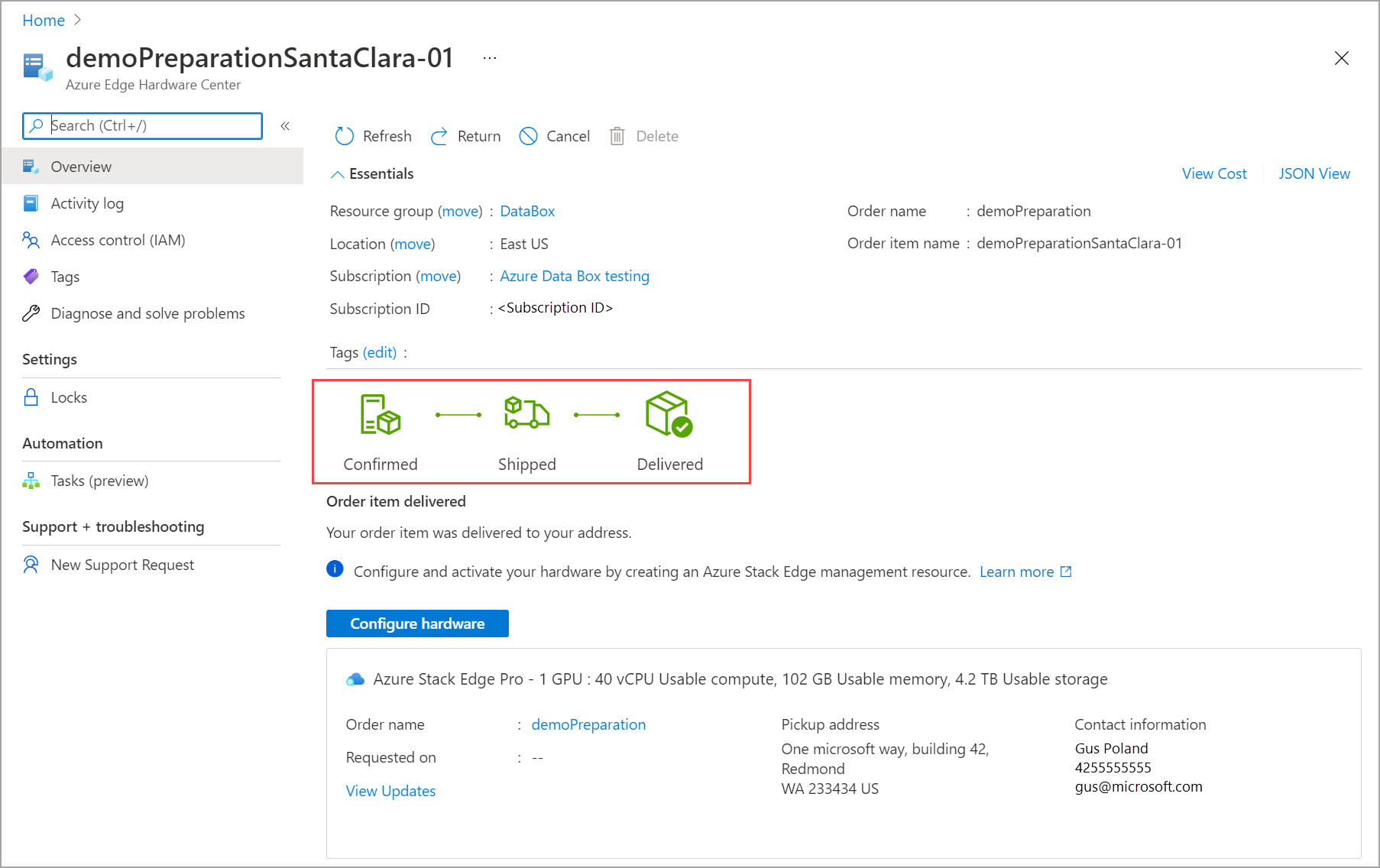
  2. In the selected order resource, go to Overview. In the right pane, you can view the status of the order. For example, here the order was delivered to the customer.

    Screenshot showing how to view order status for the created Edge Hardware Center order.

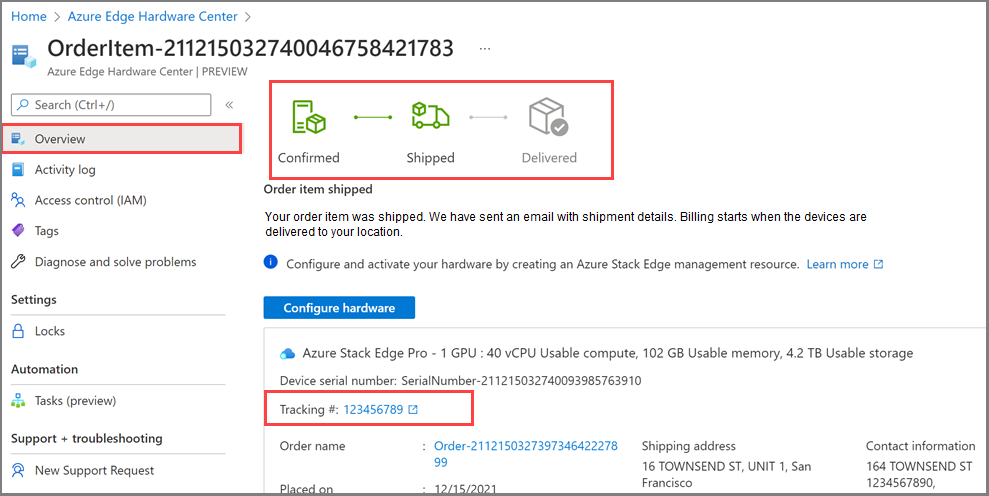
    You can see the tracking information for your order after the hardware is shipped.

    Screenshot showing how to view tracking number after the hardware is shipped.

Cancel order

Follow these steps in the Azure portal to track the order you created using the Edge Hardware Center.

  1. In the Azure portal, go to All resources. Filter by Type == Azure Edge Hardware Center. This should list all the orders created using the Edge Hardware Center. From the list of orders, select your order and go to the order resource.

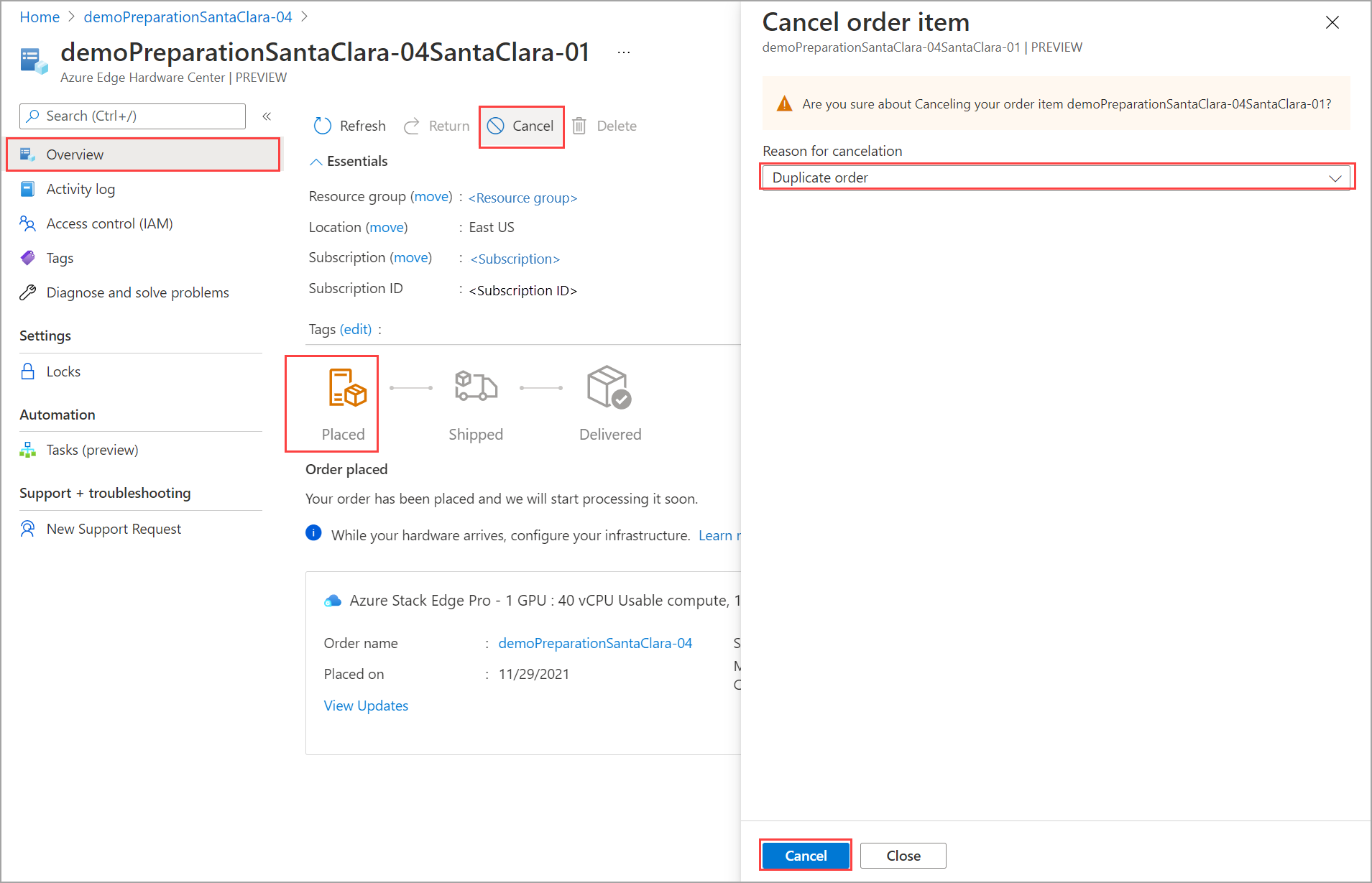
  2. In the selected order resource, go to Overview. In the right pane, from the top command bar, select Cancel. You can only cancel an order after the order is created and before the order is confirmed. For example, here the Cancel is enabled when the order status is Placed.

    Screenshot showing how to cancel an order from list of Edge Hardware Center orders.

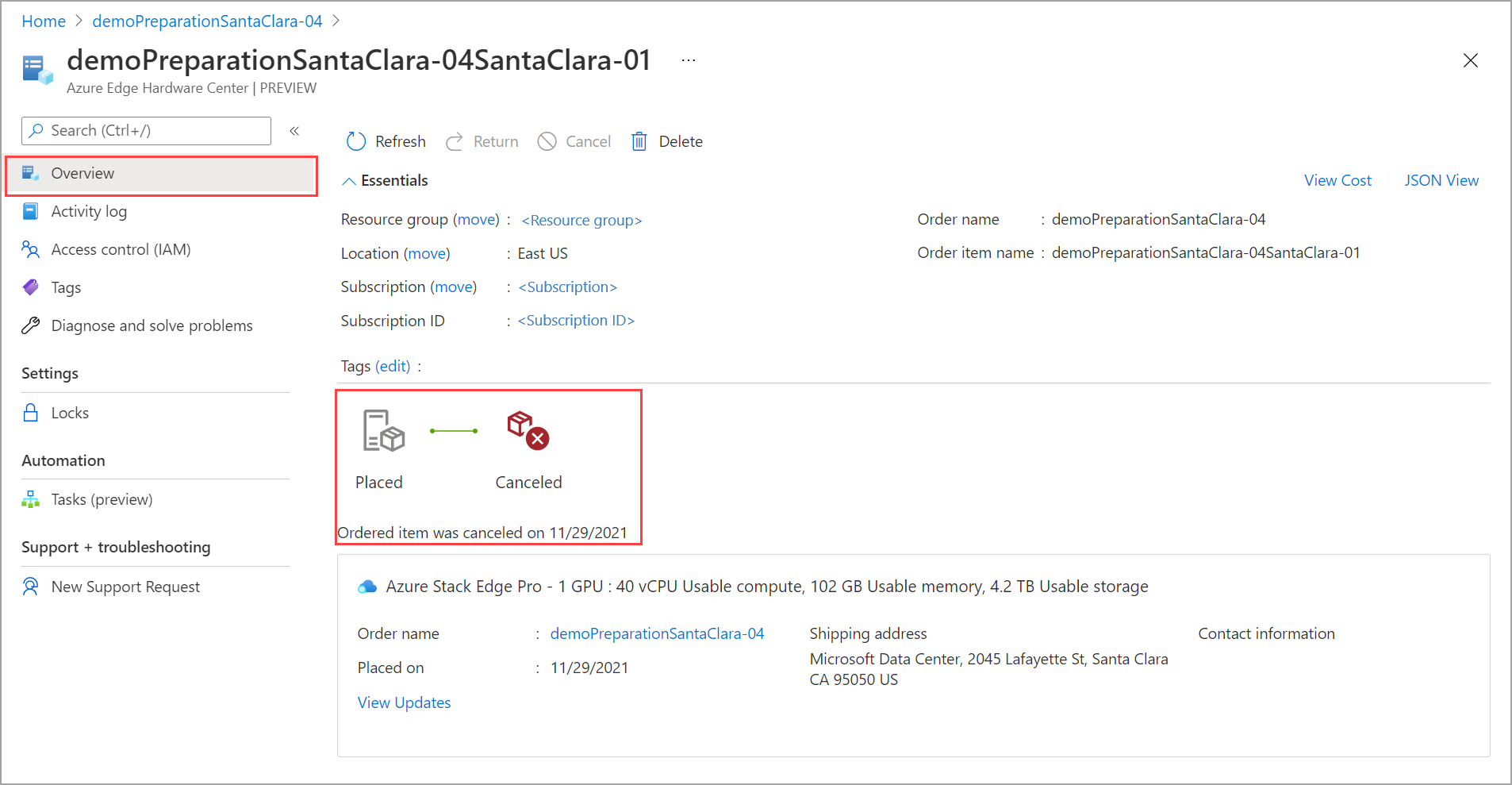
  3. You see a notification that the order is being canceled. Once the order is canceled, the order status updates to Canceled.

    Screenshot showing the order in Canceled state.

    If your order item shows up as Confirmed and you need to cancel it for some reason, send an email to Operations team with your request.

Return hardware

If you used the Azure Edge Hardware Center to order your hardware, follow these steps to initiate the return. The example here is for Azure Stack Edge device but a similar flow applies to returning other hardware as well.

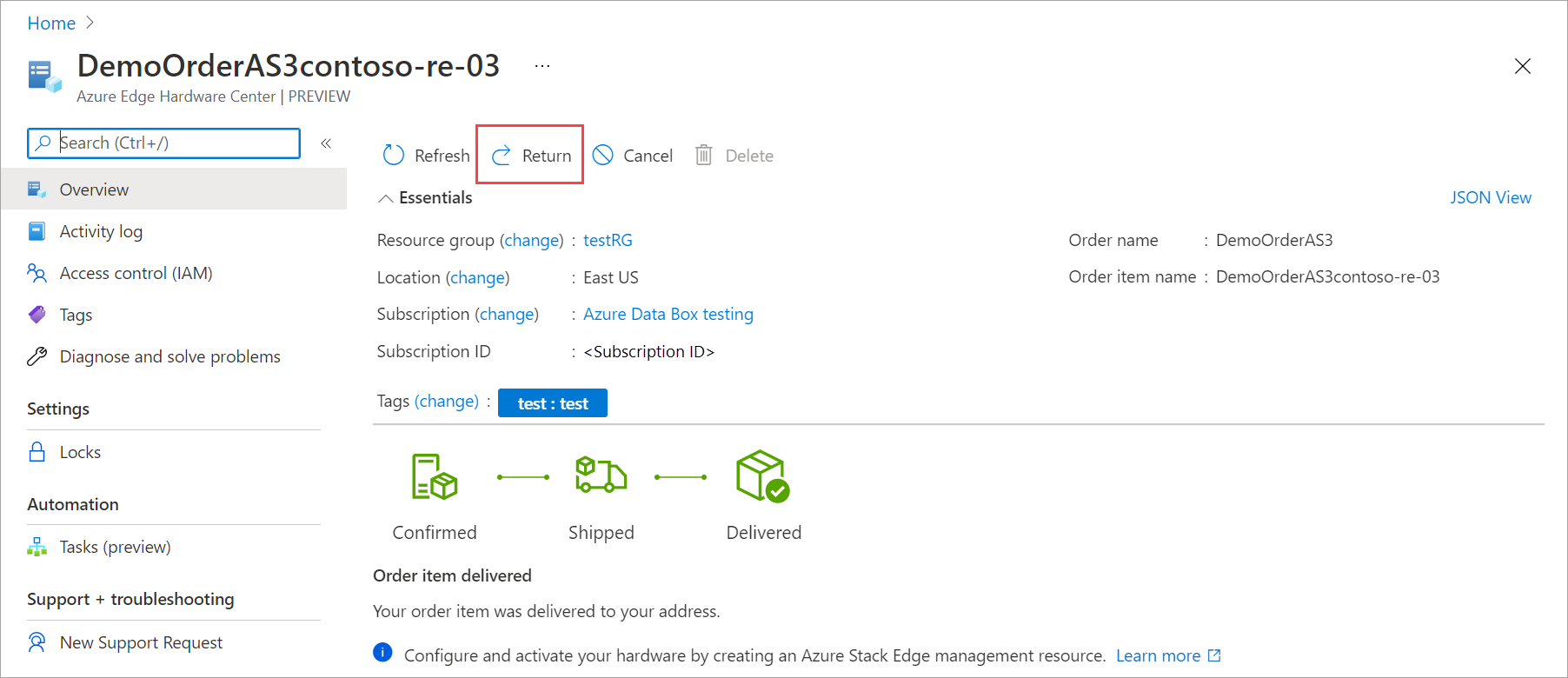
  1. In the Azure portal, go to your Azure Edge Hardware Center order item resource. In the Overview, go to the top command bar in the right pane and select Return. The return option is only enabled after you have received a device.

    Return device 1

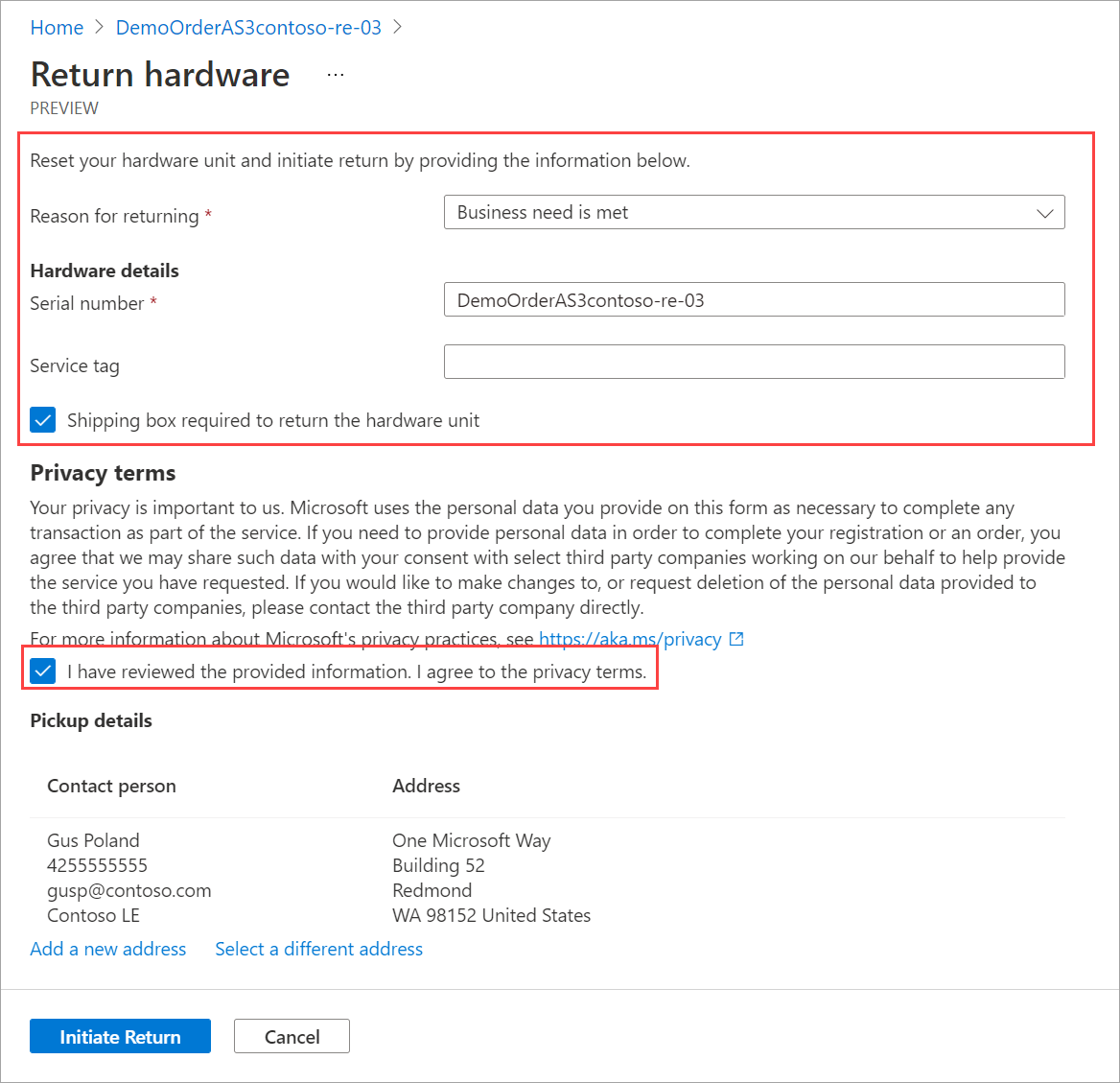
  2. In the Return hardware blade, provide the following information:

    Return device 2

    1. From the dropdown list, select a Reason for returning.

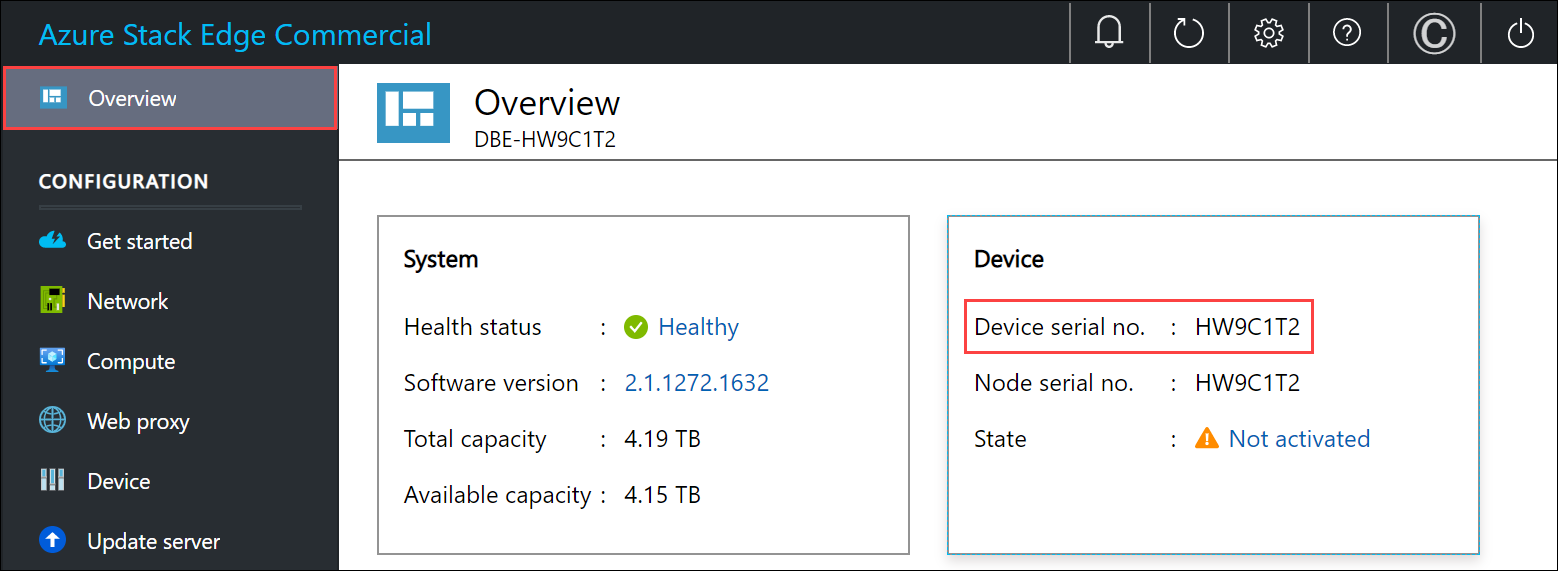
    2. Provide the serial number of the device. To get the device serial number, go the local web UI of the device and then go to Overview.

      Device serial number 1

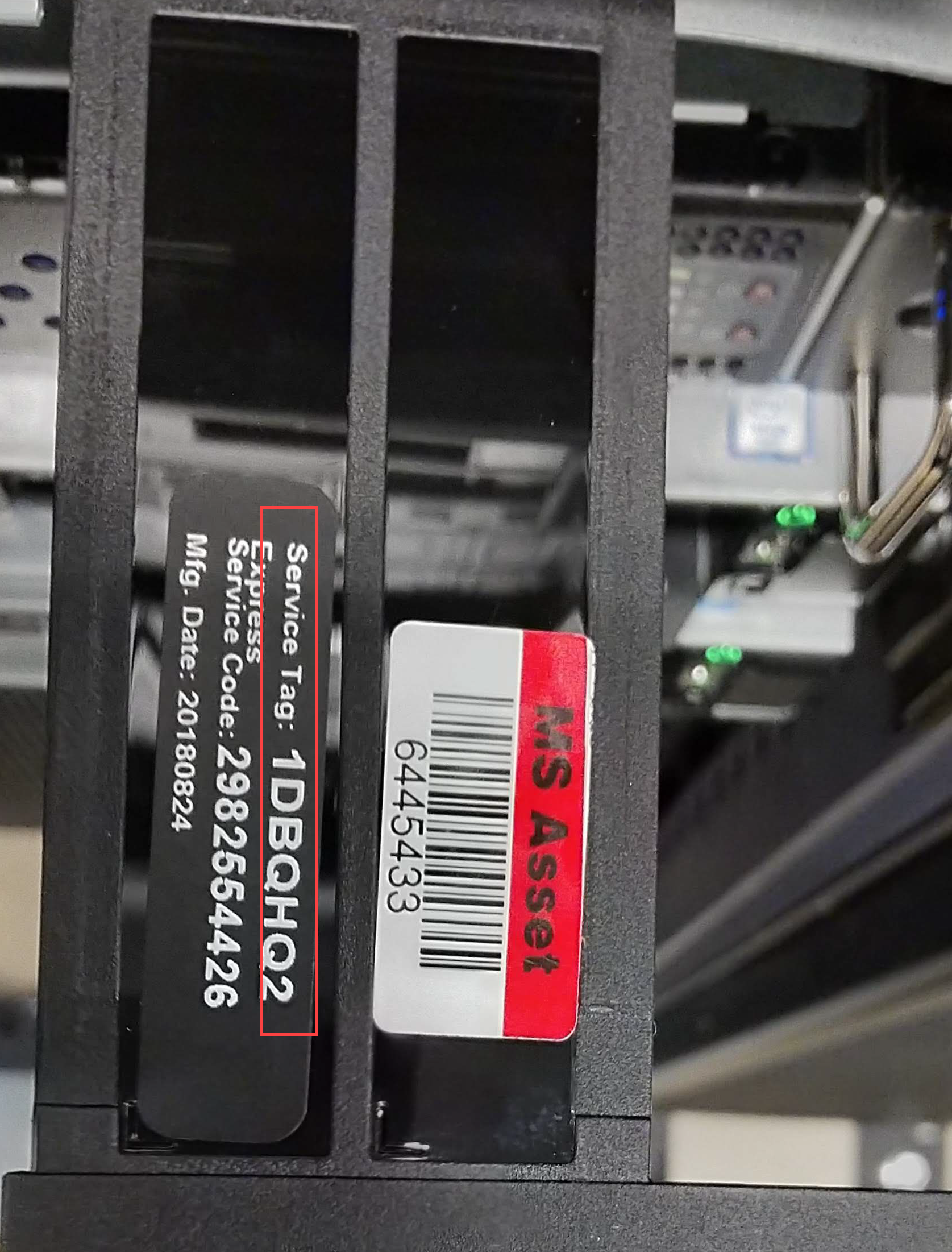
    3. (Optionally) Enter the Service tag number. The service tag number is an identifier with five or more characters, which is unique to your device. The service tag is located on the bottom-right corner of the device (as you face the device). Pull out the information tag (it is a slide-out label panel). This panel contains system information such as service tag, NIC, MAC address, and so on.

      Service tag number 1

    4. To request a return shipping box, check the Shipping box required to return the hardware unit.you can request it. Answer Yes to the question Need an empty box to return.

    5. Review the Privacy terms, and select the checkbox by the note that you have reviewed and agree to the privacy terms.

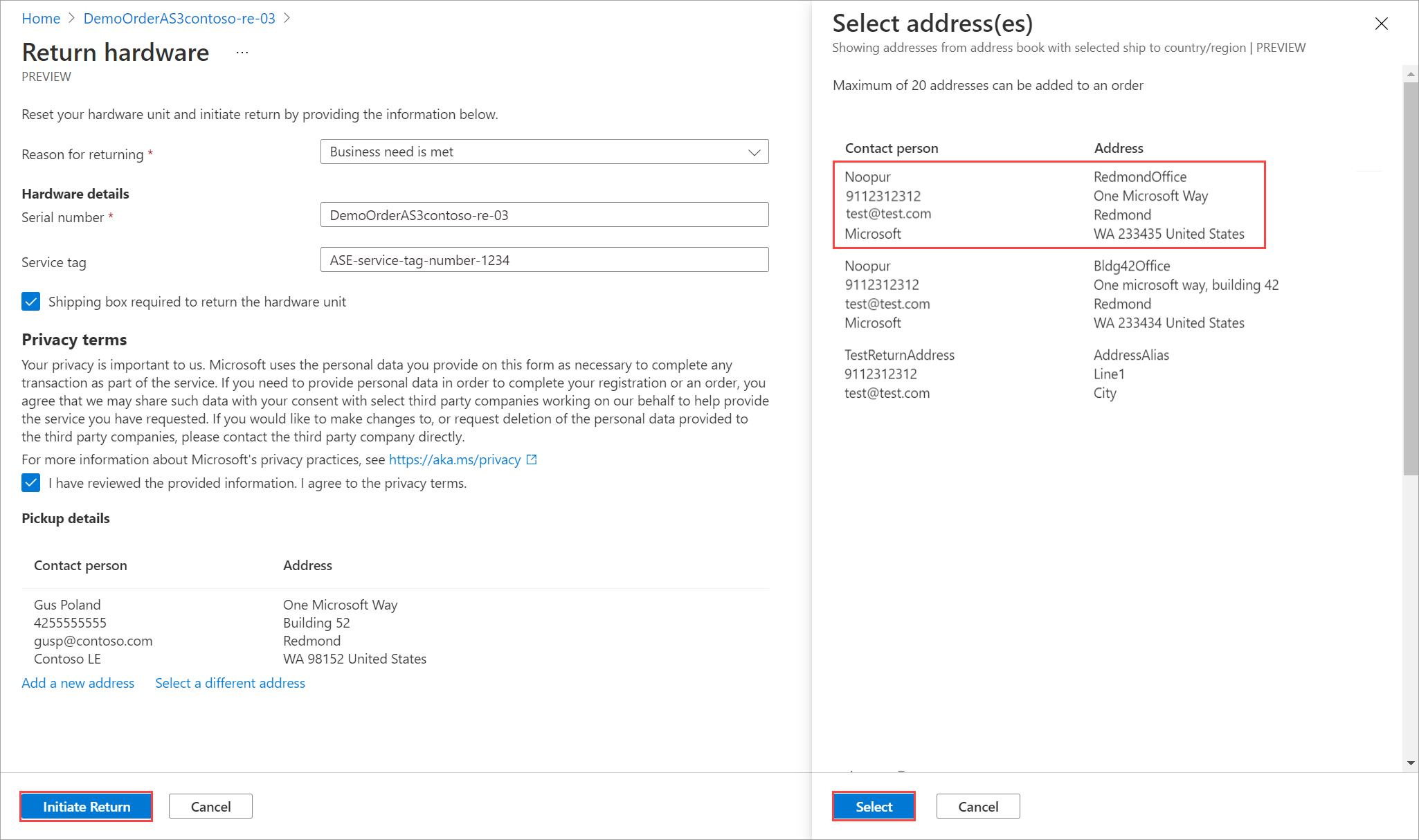
    6. Verify the Pickup details. By default, these are set to your shipping address. You can add a new address or select a different one from the saved addresses for the return pickup.

      Return device 3

    7. Select Initiate return.

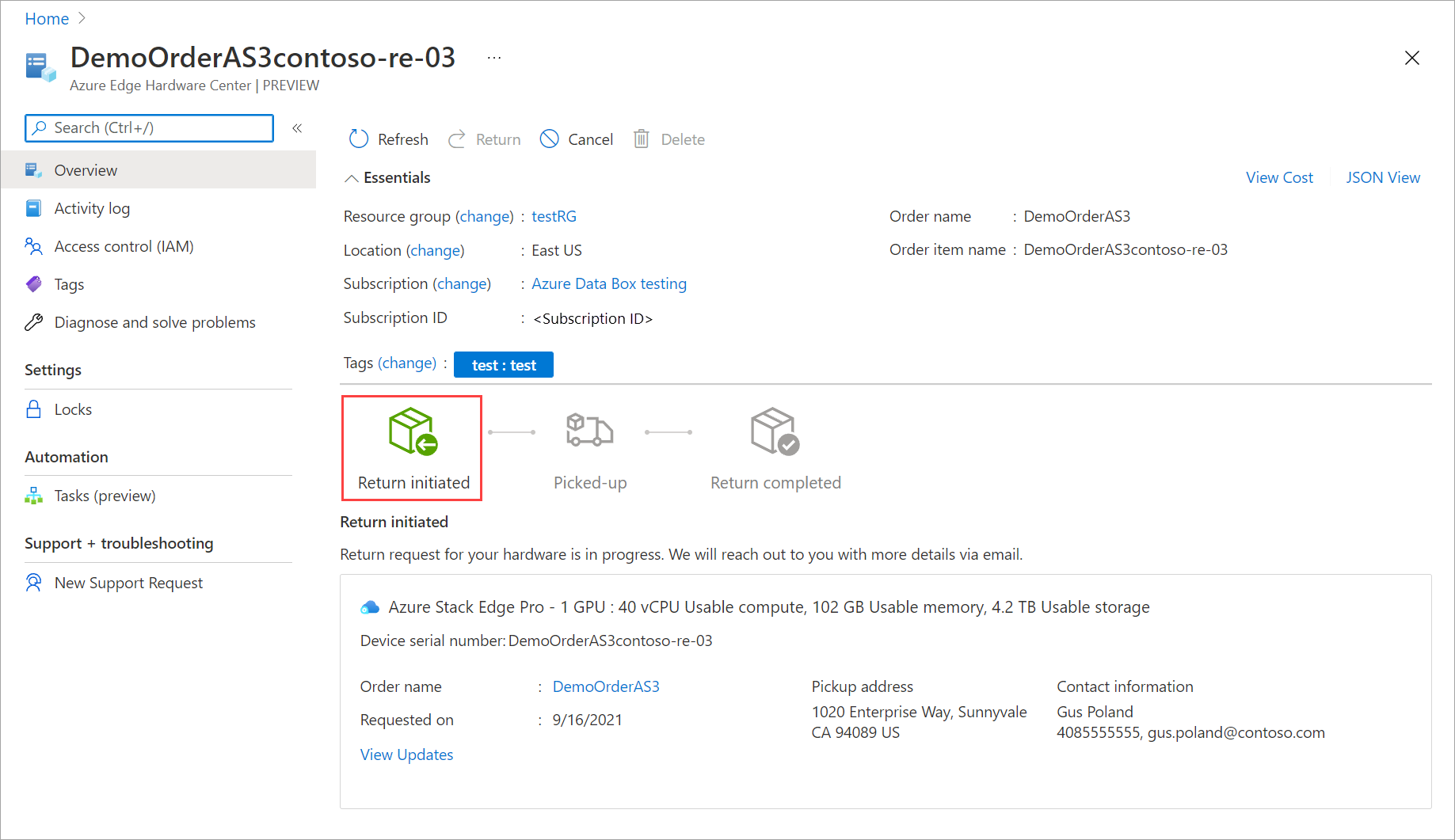
  3. Once the return request is submitted, the order item resource starts reflecting the status of your return shipment. The status progresses from Return initiated to Picked up to Return completed. Use the portal to check the return status of your resource at any time.

    Return device 5

  4. Once the request is initiated, the Azure Stack Edge operations team reaches out to you to help schedule the device pickup.

Create an Azure Edge Hardware Center


Create an Azure Edge Hardware Center

Azure Edge Hardware Center service lets you explore and order a variety of hardware from the Azure hybrid portfolio including Azure Stack Edge devices. This tutorial describes how to create an order using the Azure Edge Hardware Center via the Azure portal.

In this tutorial, you'll:

  • Review prerequisites
  • Create an order

Prerequisites

Before you begin:

  • Make sure that the Microsoft.EdgeOrder provider is registered. To create an order in the Azure Edge Hardware Center, the Microsoft.EdgeOrder provider should be registered against your subscription.

    For information on how to register, go to Register resource provider.

  • Make sure that all the other prerequisites related to the product that you're ordering are met. For example, if ordering Azure Stack Edge device, ensure that all the Azure Stack Edge prerequisites are completed.

Create an order

When you place an order through the Azure Edge Hardware Center, you can order multiple devices, to be shipped to more than one address, and you can reuse ship to addresses from other orders.

Ordering through Azure Edge Hardware Center will create an Azure resource that will contain all your order-related information. One resource each will be created for each of the units ordered. After you have placed an order for the device, you may need to create a management resource for the device.

To place an order through the Azure Edge Hardware Center, do these steps:

  1. Use your Microsoft Azure credentials to sign in to the Azure portal at this URL: https://portal.azure.com.

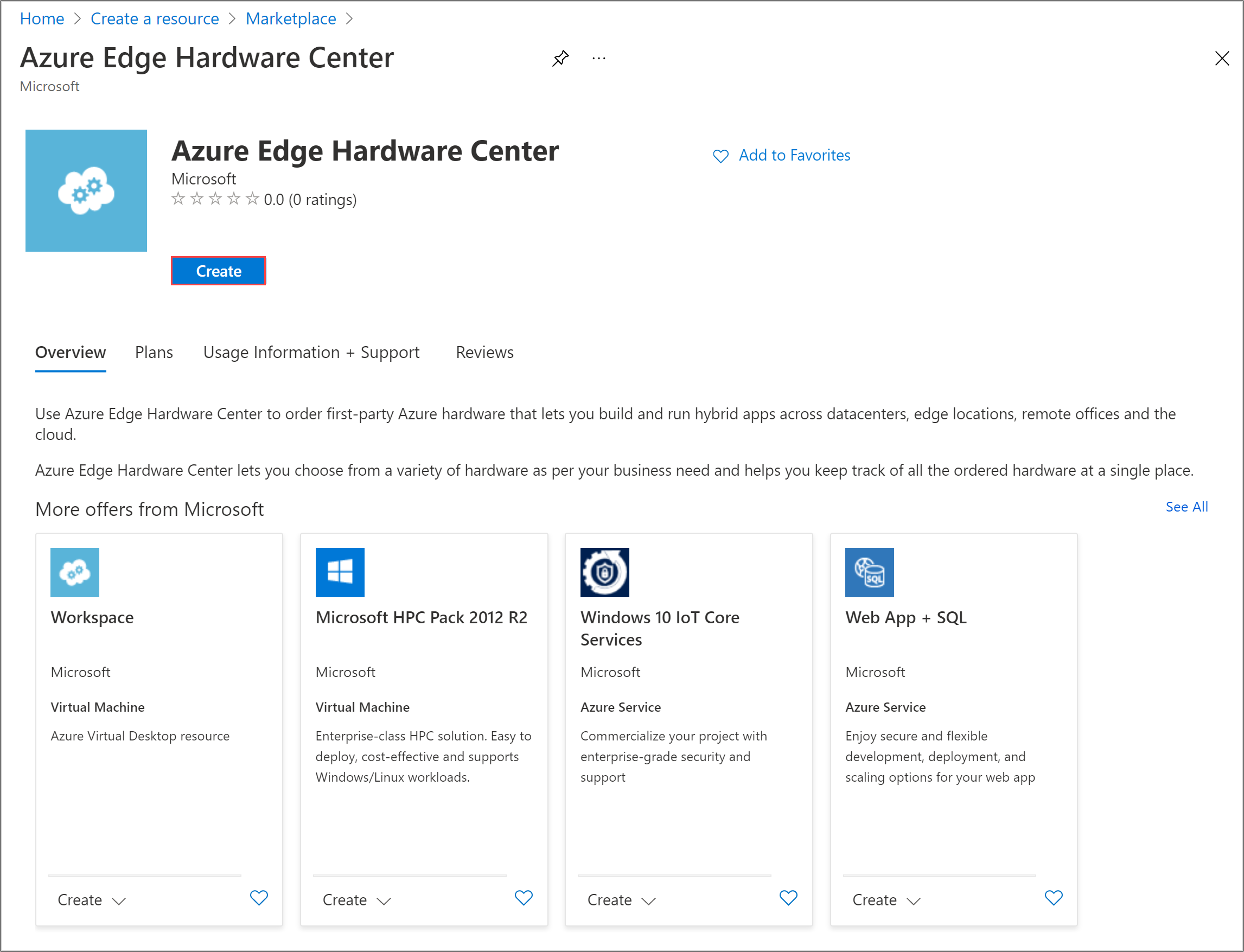
  2. Select + Create a resource. Search for and select Azure Edge Hardware Center. In the Azure Edge Hardware Center, select Create.

    Screenshot of the Azure Stack Edge Hardware Center home page. The Create button is highlighted.

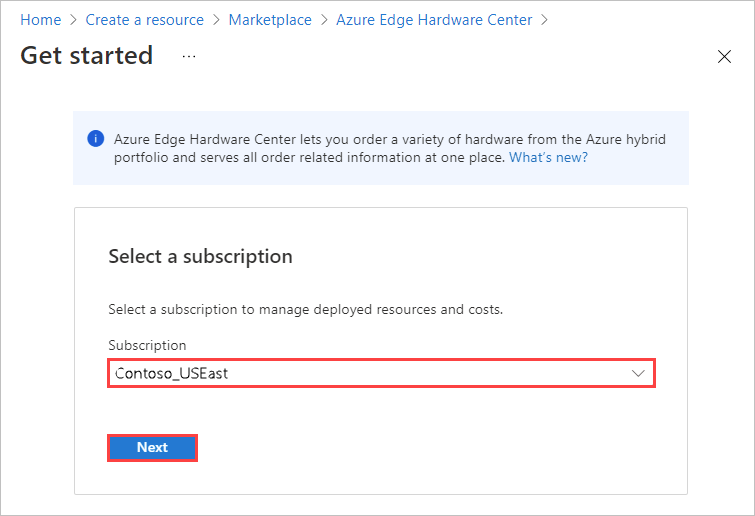
  3. Select a subscription, and then select Next.

    Screenshot of the "Select a subscription" option for an Azure Edge Hardware Center order. The Subscription option and Next button are highlighted.

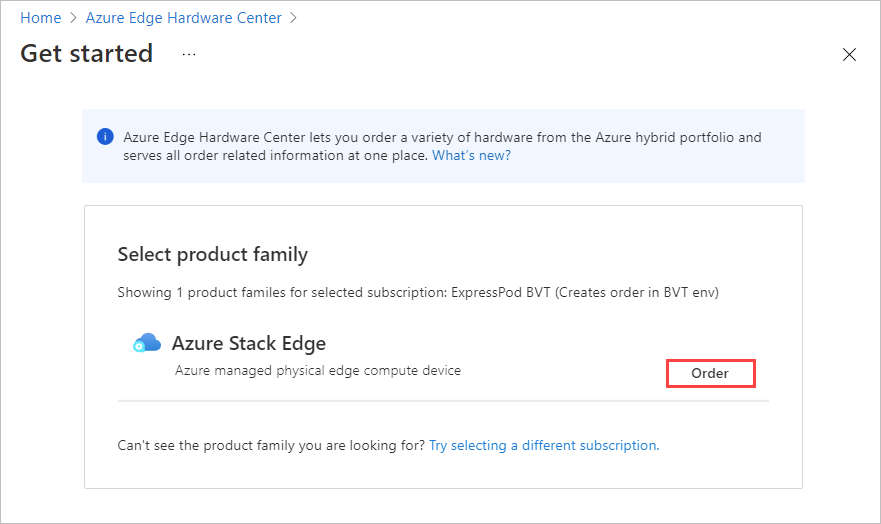
  4. To start your order, select Order beside the product family that you want to order - for example, Azure Stack Edge. If you don't see the product family, you may need to use a different subscription; select Try selecting a different subscription.

    Screenshot for selecting a product family from which to order in Azure Edge Hardware Center. The Order button by a product family is highlighted.

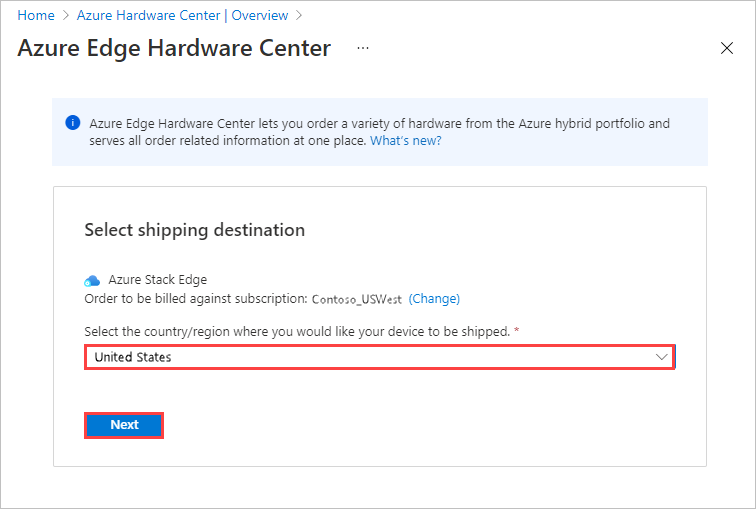
  5. Select the shipping destination for your order.

    Screenshot for selecting a shipping destination for your Azure Edge Hardware Center order. The shipping destination option and Next button are highlighted.

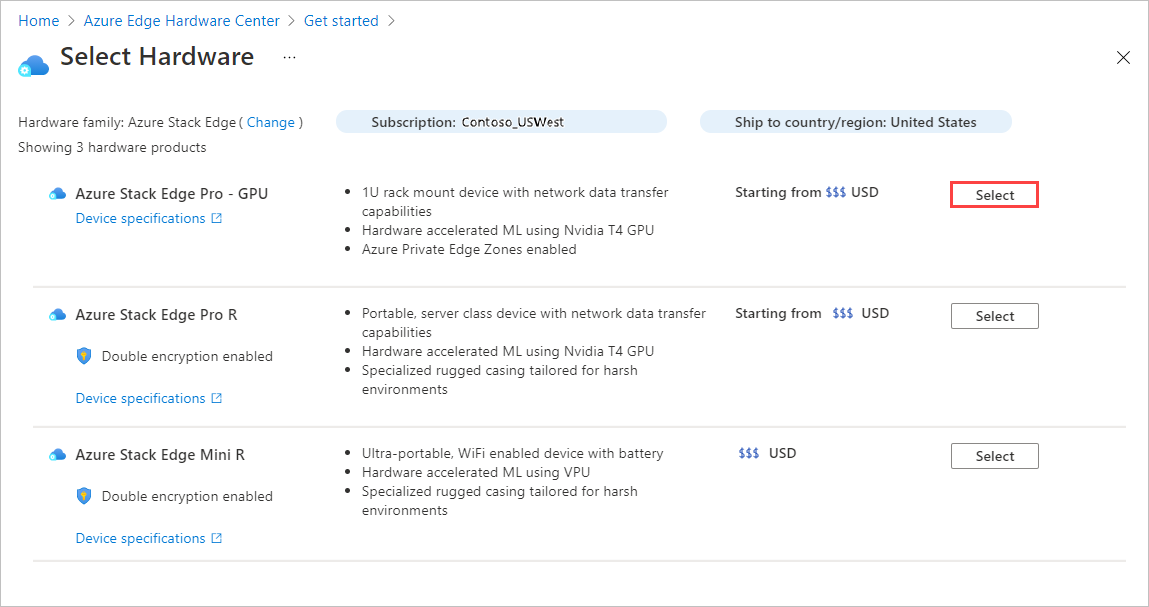
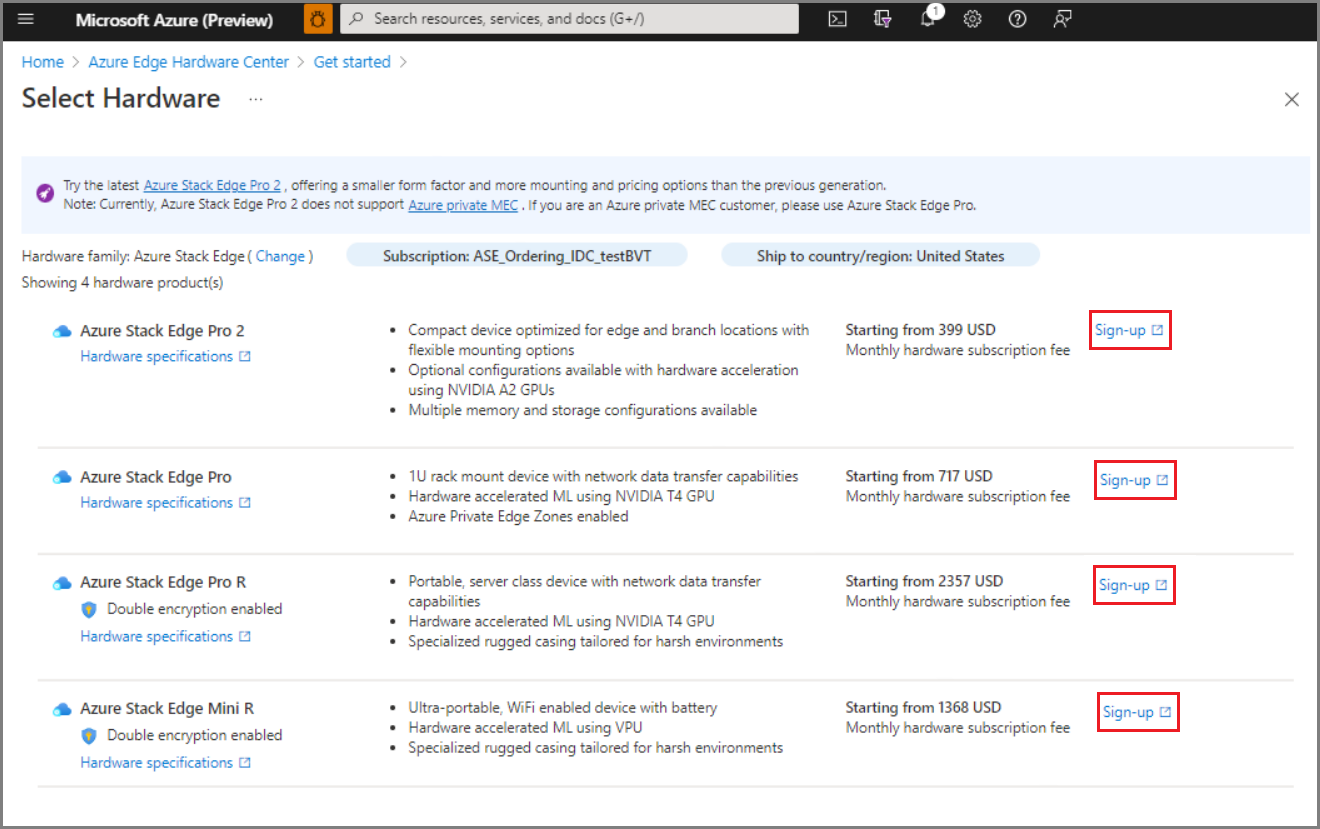
  6. On the Select Hardware page, use the Select button to select the hardware product to order. For example, here Azure Stack Edge Pro - GPU was selected.

    Screenshot for selecting a hardware product for an Azure Edge Hardware Center order. The Select button for a product is highlighted.

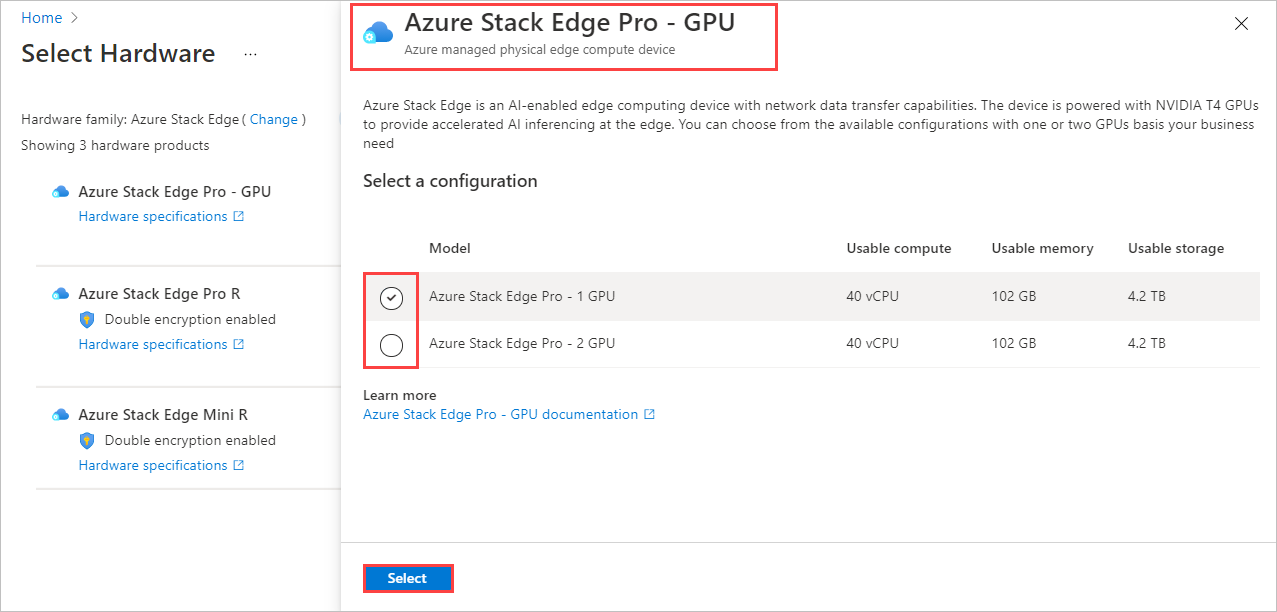
    After you select a hardware product, you'll select the device configuration to order. For example, if you chose Azure Stack Edge Pro - GPU, you can choose from Azure Stack Edge Pro - 1 GPU and Azure Stack Edge Pro - 2 GPU models.

    If you are placing a first-time order for Azure Stack Edge, select Sign-up and fill out the web form as part of the Azure Edge Hardware Center ordering experience.

    The web form collects the following details about your deployment:

    • Total deployment scale
    • Cluster size
    • Hardware requirements
    • Geographic presence

    Microsoft will evaluate the deployment details you provide and may contact you by email for more information. We have certain requirements in place for new customers to ensure that Azure Stack Edge is the right fit for the use case; not all requests will be fulfilled. If you have questions, you can send email to AzureStack1Pinquiry@microsoft.com.

    Screenshot of web form for first-time customer Azure Stack Edge hardware orders. The Sign-up button for a product is highlighted.

  7. Select the device configuration, and then choose Select. The available configurations depend on the hardware you selected. The screen below shows available configurations for Azure Stack Edge Pro - GPU devices.

    If you're ordering Azure Stack Edge Mini R devices, which all have the same configuration, you won't see this screen.

    Screenshot for selecting a hardware configuration for a hardware product in an Azure Edge Hardware Center order. Hardware product and configuration options are highlighted.

    The Create order wizard opens.

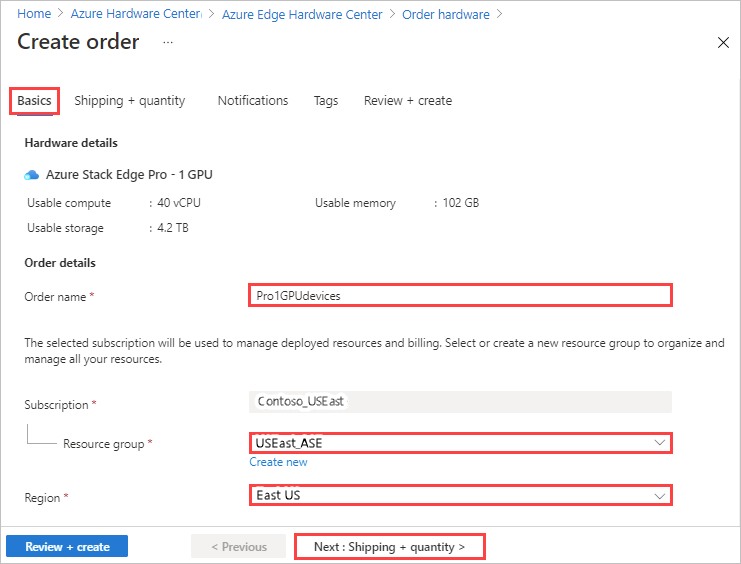
  8. On the Basics tab, provide an Order nameResource group, and Region. Then select Next: Shipping + quantity >.

    Screenshot of the Basics tab for entering an order name, resource group, and region for an Azure Edge Hardware Center order

    Next, you'll add each ship to address you want to send devices to and then specify how many devices to send to each address. You can order up to 20 units (devices) per order.

  9. On the Shipping + quantity tab, add each ship to address to send devices to:

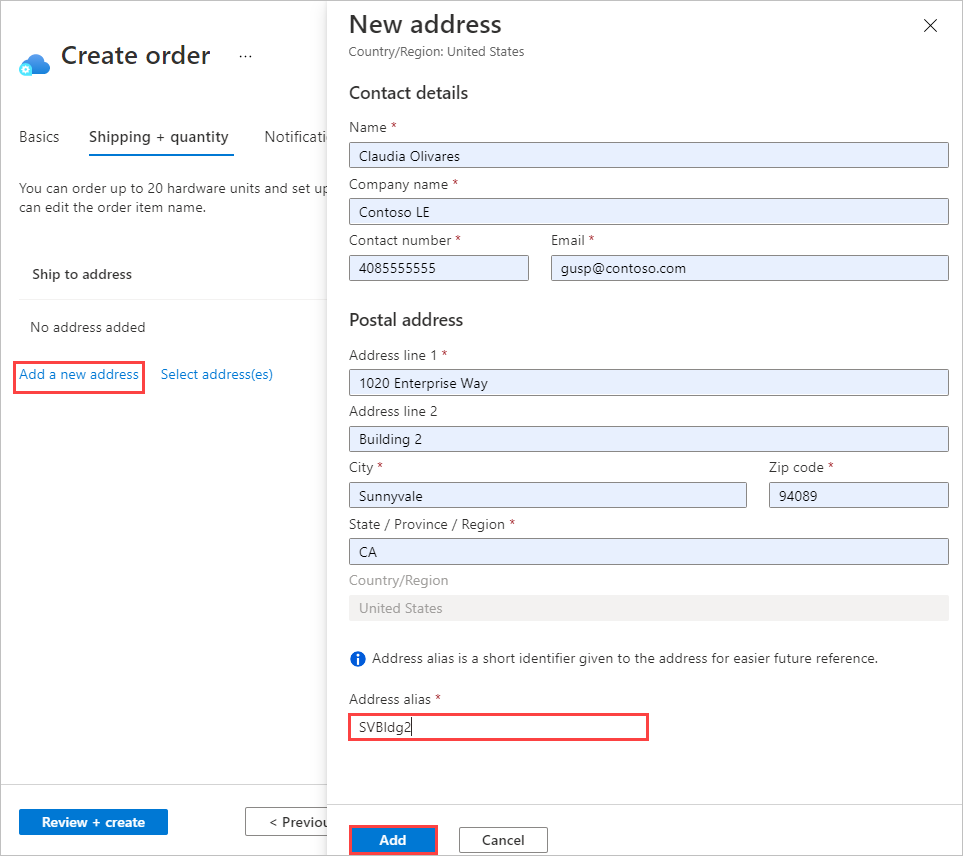
    • To add a new ship to address, select Add a new address.

      A required Address alias field on the New address screen identifies the address for later use. Select Add when you finish filling in the address fields. Then use Select address(es) to add the address to your order.

      Screenshot of New address screen for Azure Edge Hardware Center order. Address alias option and Add button are highlighted.

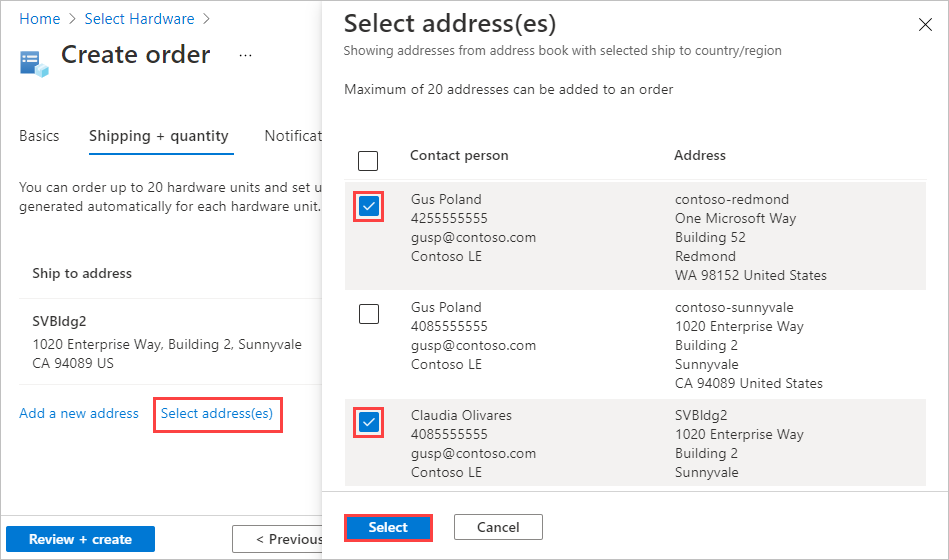
    • To use a ship to address from a previous order, or to use an address that you just added, choose Select address(es). Then, on the Select address(es) screen, select one or more addresses, and choose Select.

      Screenshot of Select Addresses screen for Azure Edge Hardware Center order. "Select addresses" option, two selected addresses, and Select button are highlighted.

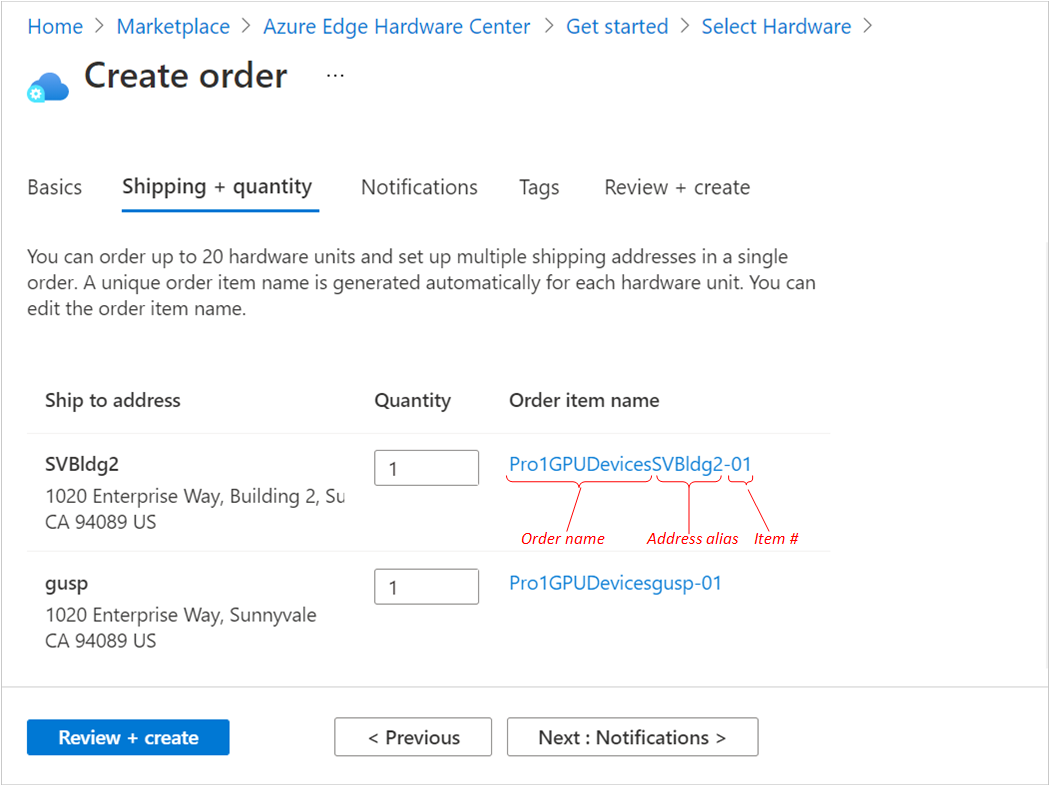
    The Shipping + quantity tab now has a separate item for each ship to address.

    Each order item name includes a name prefix (the order name followed by the address alias), with an item number for each device that is shipped to that address.

    Illustration of Shipping Plus Quantity tab for Azure Edge Hardware Center order with 2 addresses. The parts of an order item name are identified.

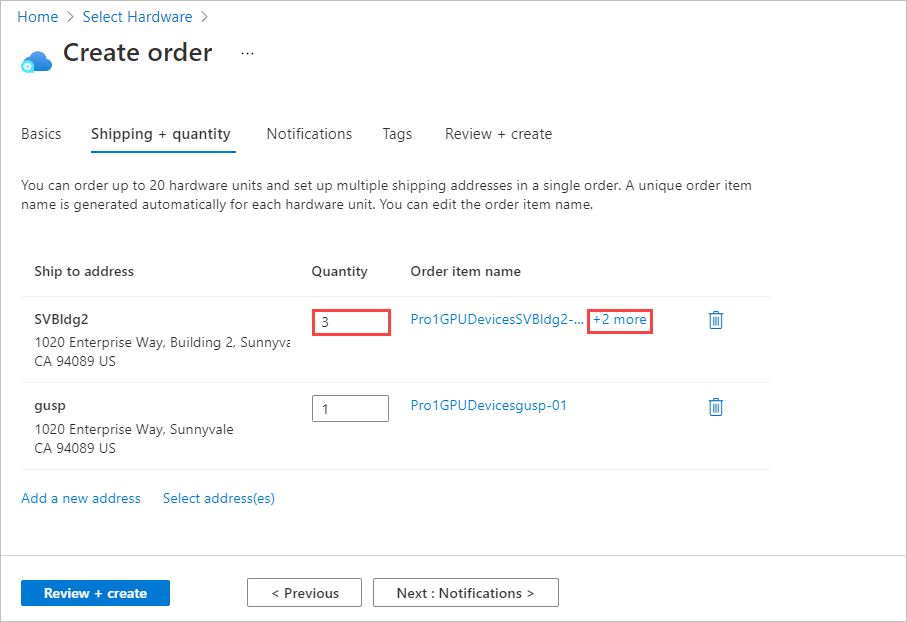
  10. For each address, enter the Quantity of devices to ship on the Shipping + quantity tab.

    When you enter a quantity of more than one, a +n more label appears after the order item name.

    Screenshot showing the Shipping + quantity tab with a Quantity of more than one for an address

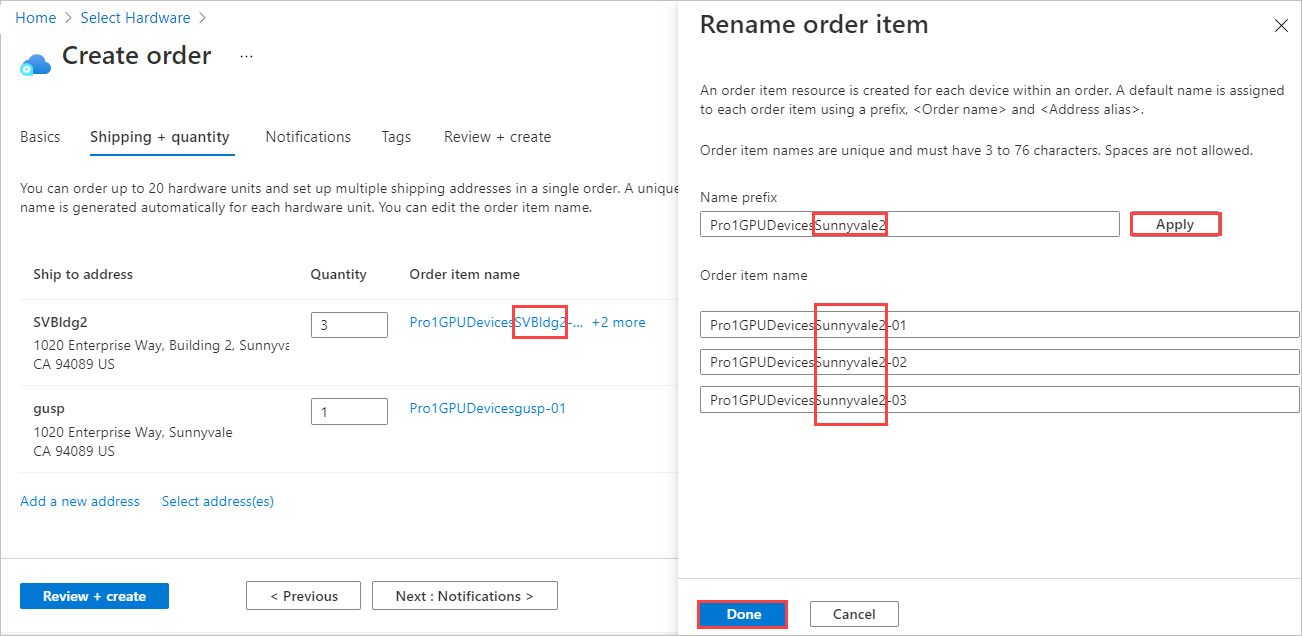
  11. If you want to change the names of order items, select and click the order item name to open the Rename order item pane. If you're shipping more than one item to an address, select +n more.

    You can make two types of name change:

    • To use a different name prefix for all of the order items, edit the Name prefix and then select Apply, as shown on the following screen.

    • You can also edit the name of each order item individually.

    When you finish, select Done.

    Screenshot showing how to rename order items for an Azure Edge Hardware Center order

    Select Next: Notifications > to continue.

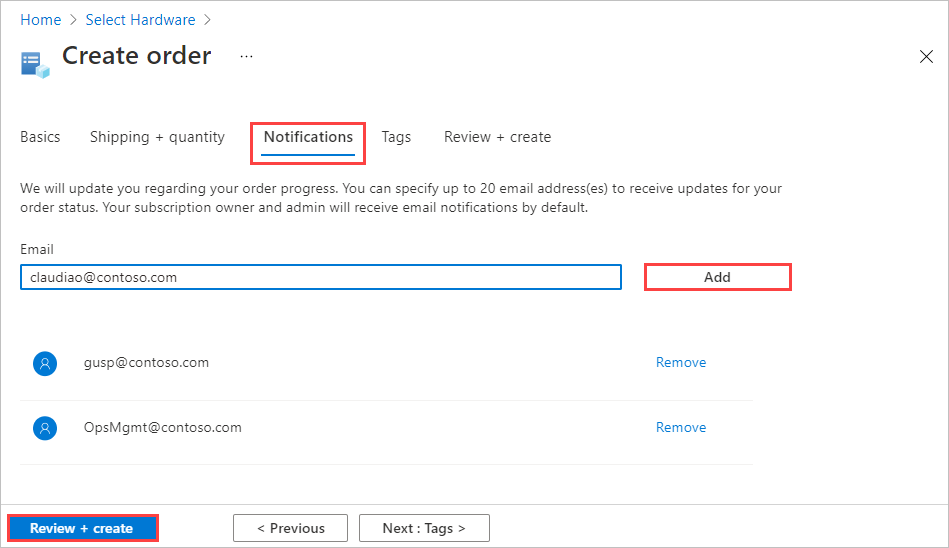
  12. If you want to receive status notifications as your order progresses, enter the email address for each recipient on the Notifications tab.

    To add an email address, enter the address, and select Add. You can add up to 20 email addresses.

    Screenshot of Notifications tab for Azure Edge Hardware Center order. Notifications tab, Add button, and Review Plus Create button are highlighted.

    When you finish, select Review + create to continue.

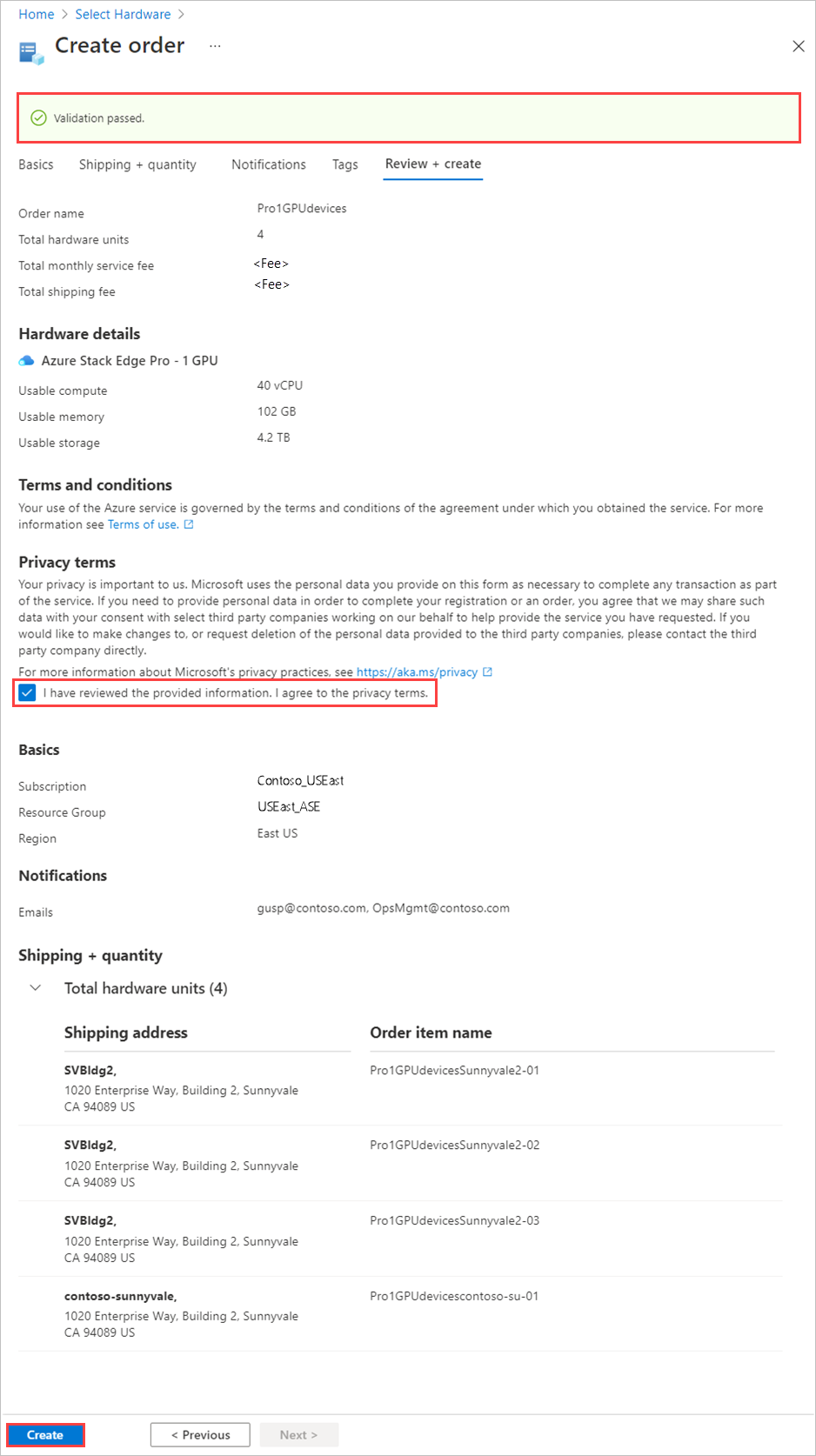
  13. On the Review + create tab:

    1. Review your order. The order is automatically validated when you open this screen. If you see a Validation failed banner, you'll have to fix the issues before you create the order.

    2. Review the Privacy terms, and select the check box to agree to them.

    3. Select Create.

    Screenshot of the Review + create tab for an Azure Edge Hardware Center order

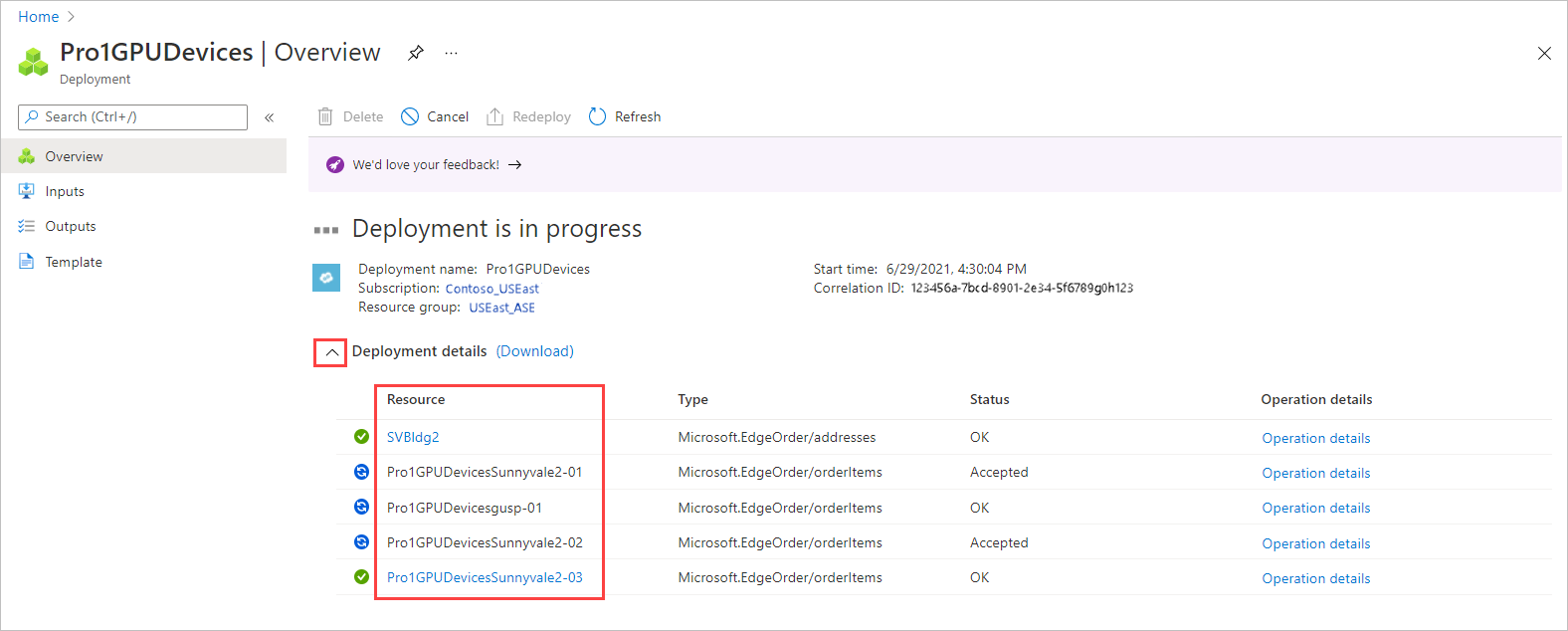
    During deployment, the order opens in the portal, with the status of each order item displayed. After deployment completes, you may need to click the Down arrow by Deployment details to see the status of individual items.

    Screenshot showing Deployment Details while an Azure Edge Hardware Center order is deployed. Resource details are highlighted.

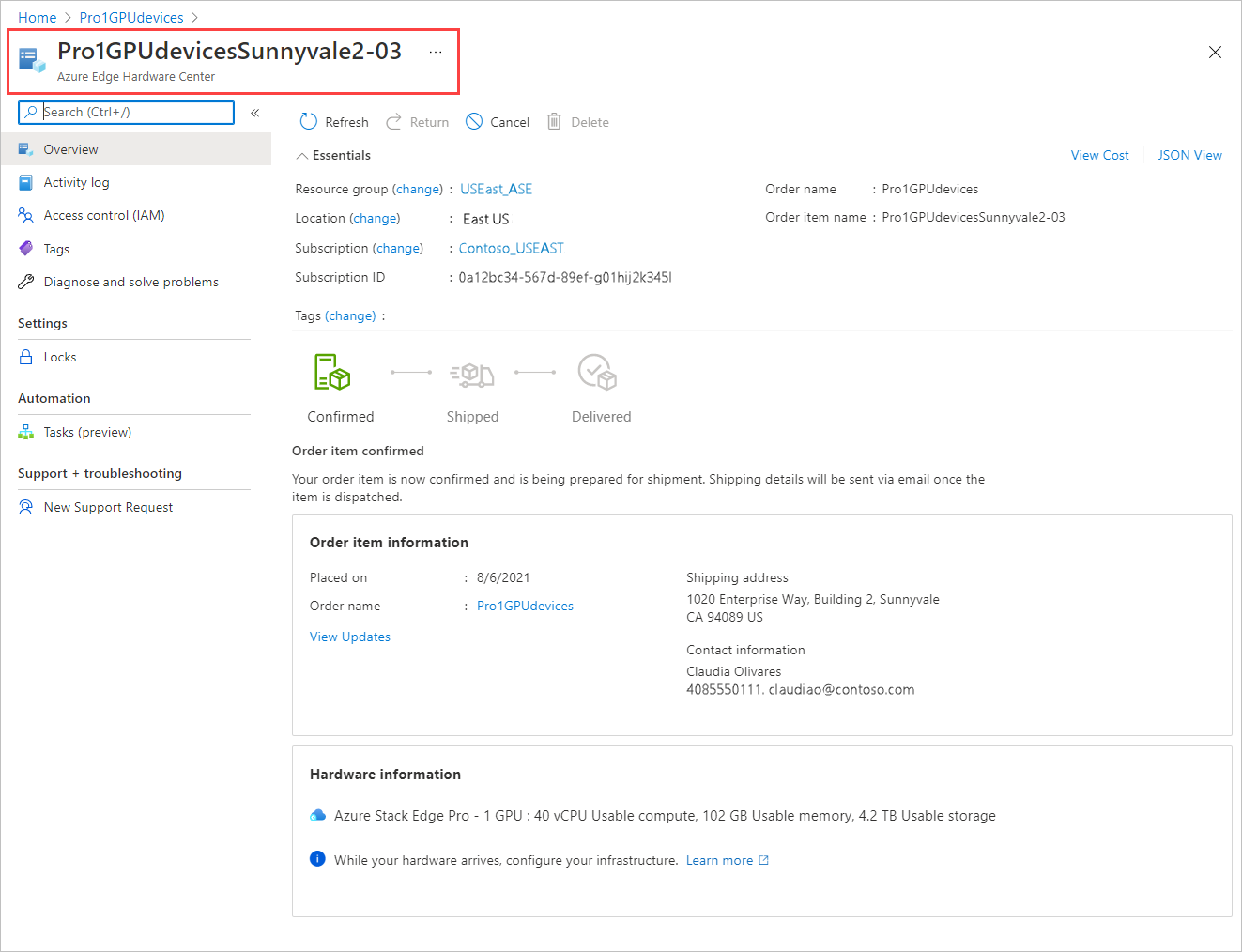
  14. To view details for an order item, shown below, select the item in the Resource column of the deployment details.

    Screenshot showing resource details for a selected resource in an Azure Edge Hardware Center order. Resource name is highlighted.

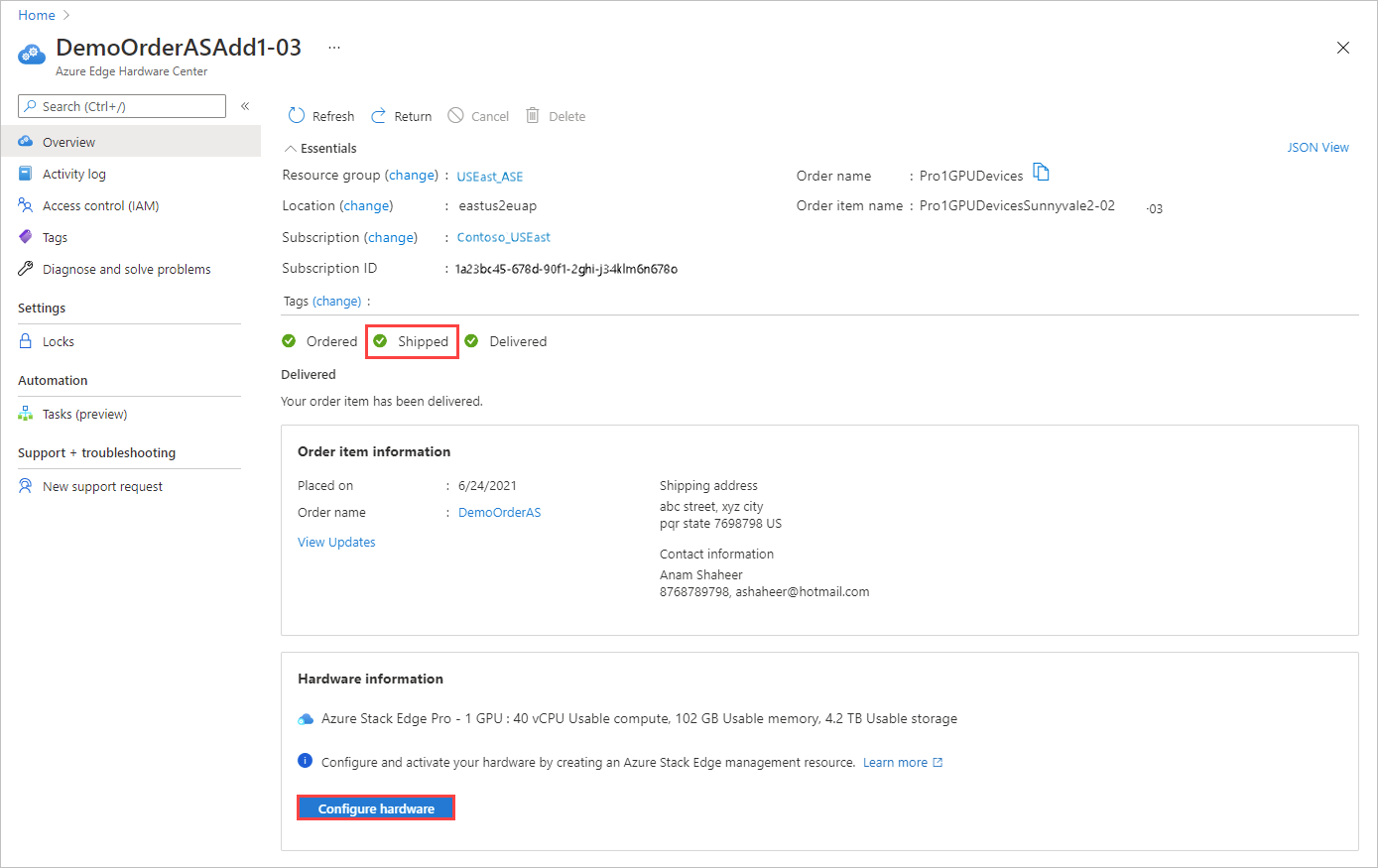
  15. After a device ships (Shipped tag is green), a Configure hardware option is added to the item details. Select that option to create a management resource for the device in Azure Stack Edge.

    Screenshot showing the Configure hardware option for an order item shipped from the Azure Edge Hardware Center.

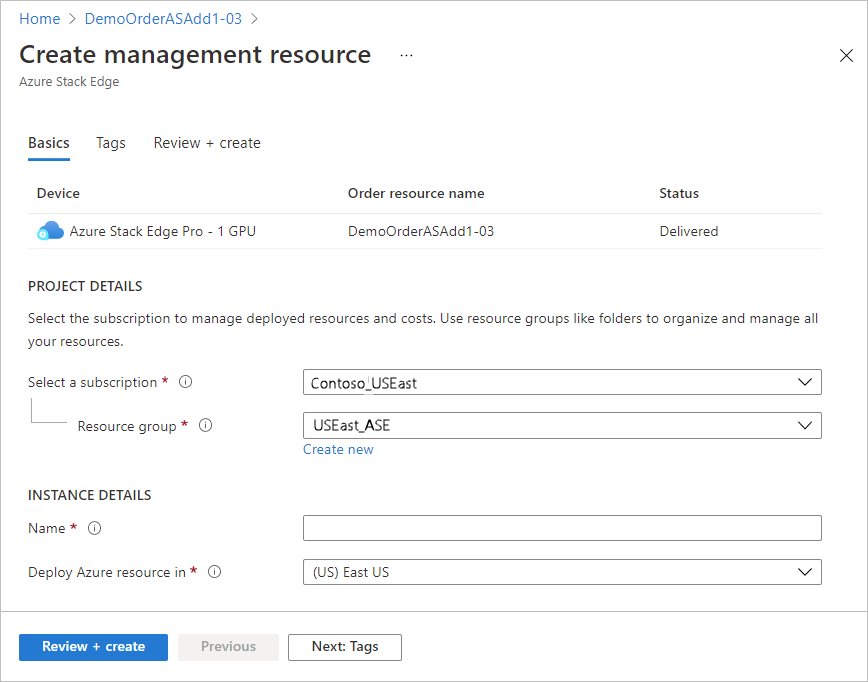
    The subscription, resource group, and deployment area are filled in from the order, but you can change them.

    Screenshot of the Create management resource screen for a shipped order item in an Azure Edge Hardware Center order.

    After you activate the device, you'll be able to open the management resource from the item, and open the order item from the management resource.

Wednesday, 29 May 2024

Azure Container Apps General Availability

 Azure Container Apps General Availability


Next generation apps are cloud-native. Cloud-native apps are often composed of distributed microservices hosted in containers for solutions that are loosely coupled, resilient, manageable, and observable as defined by the Cloud Native Computing Foundation. Azure Container Apps delivers seamless support for cloud-native apps with serverless containers purpose-built for microservices, enabling app modernization in a Kubernetes-based environment. At Microsoft Build, we announced the general availability of Azure Container Apps, and we are looking forward to hosting your production apps!


Azure Container Apps is an app-centric service, empowering developers to focus on the differentiating business logic of their apps rather than on cloud infrastructure management. Azure Container Apps executes app code packaged in any Linux-based container without enforcing opinionated runtimes or programming models.  Scale all the way down to zero or scale out to meet global demand in response to HTTP requests or events. Alternatively, Azure Container Apps supports running apps as always-on background services.


Azure Container Apps is built on the foundation of powerful open-source technology with CNCF projects like Kubernetes Event Driven Autoscaling (KEDA)Distributed Application Runtime (Dapr), and Envoy running on the Azure Kubernetes Service (AKS). Developers can leverage Dapr to encapsulate best practices for microservices and KEDA to achieve event-driven scale without managing complex manifests or Kubernetes operators.  Thanks to this open-source centric approach, teams can onboard their cloud-native apps quickly to Azure without the operational overhead of Kubernetes, all while preserving app portability.


thumbnail image 1 of blog post titled 


							Azure Container Apps General Availability


Sample Scenarios for Azure Container Apps

Following the Azure Container Apps public preview announcement in November, we continued to listen and learn from our customers. The GA release includes many features that directly enable core scenarios developers requested.


Here are a few of the scenarios supported by Azure Container Apps:


1. Microservices

The Azure Container Apps and Dapr integration offers developers an optional set of APIs that simplify the authoring of apps and microservices.  For example, apps can communicate securely and reliably over mTLS through Dapr service invocation or via message passing through Dapr’s pub/sub API. Dapr-enabled apps provide distributed tracing out of the box which can be integrated with Application Insights and can leverage a growing list of pluggable Dapr components. The Dapr component model removes the need to instrument resource-specific SDKs or libraries within app code, empowering teams to achieve app portability and high-fidelity experiences in local development. Individual microservices can scale independently based on demand using any KEDA-supported scale triggers.


2. Event driven processing

Azure Container Apps serverless apps can process events from a growing list of KEDA-supported event sources and can scale based on custom insights for each event type. You can even run event driven or always-on background services.


3. Web apps and public web API endpoints

Azure Container Apps can be configured to enable ingress and make apps publicly available. Azure Container Apps revisions help with managing different app versions and even with distributing incoming HTTPs requests between different versions. Custom domains and certificates can be added to personalize your apps. Serverless scale is driven by the number of concurrent HTTPs requests.


These scenarios are backed by a list of recent announcements. You can enjoy a streamlined Azure portal and Azure CLI experience when managing your Azure Container Apps resources. You can develop in Visual Studio and Visual Studio Code and leverage tailored experiences in these development environments for high productivity.


thumbnail image 2 of blog post titled 


							Azure Container Apps General Availability


You can now secure your apps by deploying to a virtual network, using managed identities to access other Azure Active Directory (Azure AD) protected resources, and configuring integrated Authentication and Authorization for your external ingress-enabled apps. Your apps can be personalized with custom domains and certificatesHealth probes are available for heartbeat, readiness, and startup. The health and performance of your apps can be observed with real time log streaming for stdout and stderr log messages, connecting to container consoles, viewing metrics, and setting alerts.


thumbnail image 3 of blog post titled 


							Azure Container Apps General Availability


Getting Started with Azure Container Apps

We’re looking forward to the apps you and your team will deploy to Azure Container Apps! To learn more: