Wednesday, 29 May 2024

Microsoft Azure Service Fabric standalone


Microsoft Azure Service Fabric standalone

Azure Service Fabric is a distributed systems platform that makes it easy to package, deploy, and manage scalable and reliable microservices and containers.

To build and run Azure Service Fabric applications on your Windows development machine, install the Service Fabric runtime, SDK, and tools. You also need to enable execution of the Windows PowerShell scripts included in the SDK.

I have installed the latest version :

  • Service Fabric SDK and Tools 4.1.409
  • Service Fabric runtime 7.1.409

here you find more information about installing Azure Service Fabric Standalone version for testing
I have installed the Azure Service Fabric Cluster on my Windows10 Machine for testing only.

When you want to great your own Azure Service Fabric Cluster for Production, you have to prepare your self and making a plan before you build.

When you have your Azure Service Fabric Standalone Cluster running, you want to deploy your microservices, apps or containers on it and test your solution. In the following steps I deploy with Visual Studio a Web App to Azure Service Fabric Cluster Standalone version 7.1.409

Here is a Github Sample for Azure Service Fabric.

git clone https://github.com/Azure-Samples/service-fabric-dotnet-quickstart

Here you have your Clone from Github.

To deploy this App to the Azure Service Fabric Cluster we use Microsoft Visual Studio

Once the application is downloaded, you can deploy it to a cluster directly from Visual Studio.

  1. Open Visual Studio
  2. Select File > Open
  3. Navigate to the folder you cloned the git repository to, and select Voting.sln
  4. Right-click on the Voting application project in the Solution Explorer and choose Publish

Click on Publish.

Select connection Endpoint Local Cluster and click on Publish.

The Web App is Published to the Azure Service Fabric Standalone Cluster.

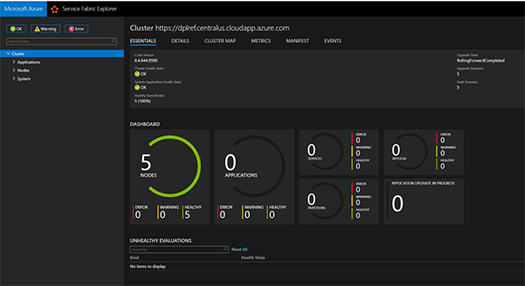
When you open the Azure Service Fabric Explorer you will see your App Running

This sample is for testing only and is not secure for production, just to learn how it works ðŸ˜‰

Of course you can also deploy Containers with Visual Studio to your Azure Service Fabric Standalone Cluster.

Installing Azure Service Fabric Cluster on Windows Server

 Installing Azure Service Fabric Cluster on Windows Server 


Azure Service Fabric is a distributed systems platform that makes it easy to package, deploy, and manage scalable and reliable microservices and containers. Service Fabric also addresses the significant challenges in developing and managing cloud native applications. Developers and administrators can avoid complex infrastructure problems and focus on implementing mission-critical, demanding workloads that are scalable, reliable, and manageable. Service Fabric represents the next-generation platform for building and managing these enterprise-class, tier-1, cloud-scale applications running in containers.

In the following Step-by-Step Guide I created a Standalone Microsoft Azure Service Fabric Cluster
on Windows Server 2019 Insiders Preview for DevOps testing :

First I downloaded the Contents of Service Fabric Standalone package for Windows Server here

Several sample cluster configuration files are installed with the setup package. ClusterConfig.Unsecure.DevCluster.json is the simplest cluster configuration: an unsecure, three-node cluster running on a single computer. Other config files describe single or multi-machine clusters secured with X.509 certificates or Windows security. You don’t need to modify any of the default config settings for this tutorial, but look through the config file and get familiar with the settings.

I made the Unsecure three-node Cluster running on Windows Server 2019 Insiders Preview in my MVPLAB.
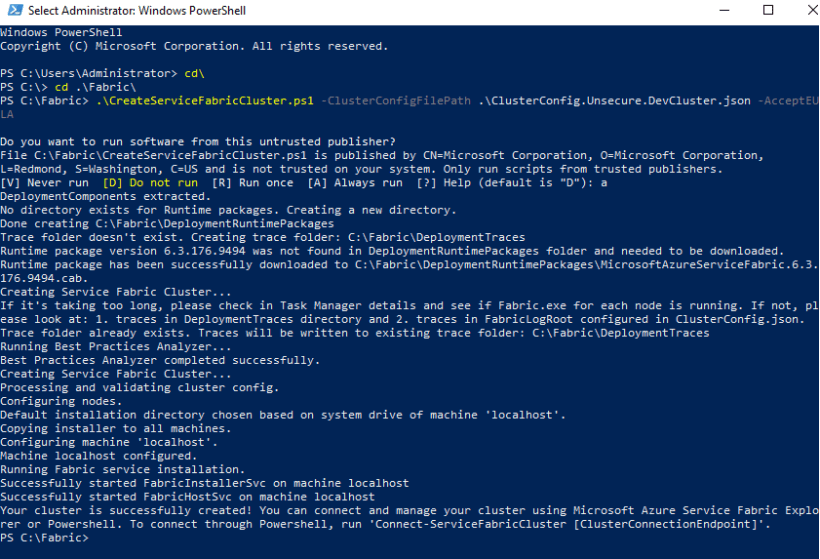
CreateServiceFabricCluster

CreateServiceFabricCluster


Open Powershell in Administrator modus and run the Script :

.\CreateServiceFabricCluster.ps1 -ClusterConfigFilePath .\ClusterConfig.Unsecure.DevCluster.json -AcceptEULA
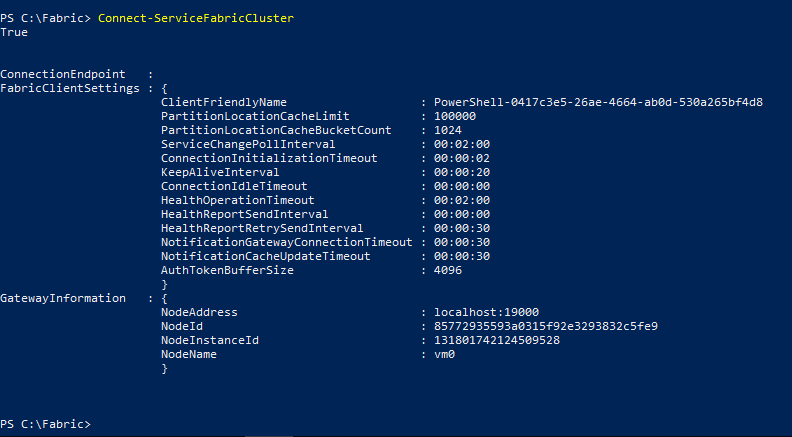
ConnectServiceFabricCluster

ConnectServiceFabricCluster

Connect-ServiceFabricCluster


Service Fabric Explorer (SFX) is an open-source tool for inspecting and managing Azure Service Fabric clusters. Service Fabric Explorer is a desktop application for Windows, macOS and Linux.
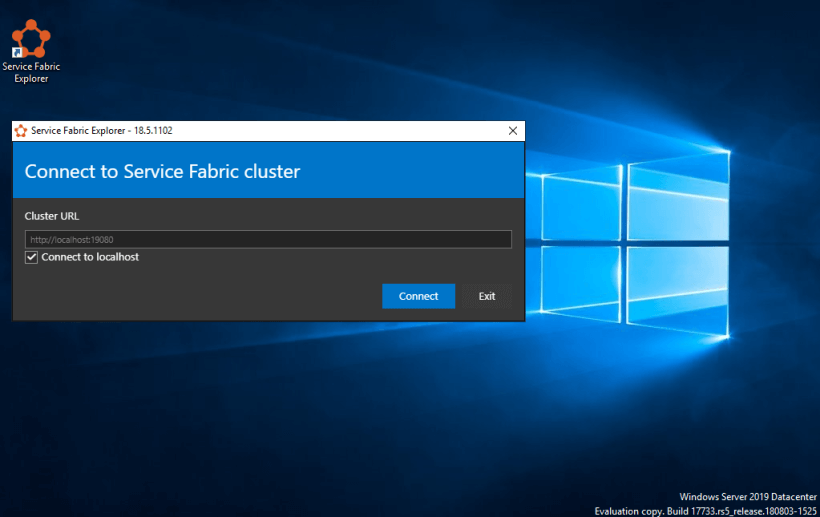
Connect to Service Fabric Cluster

Connect to Service Fabric Cluster

I Installed Azure Service Fabric Explorer to visualize the Cluster.
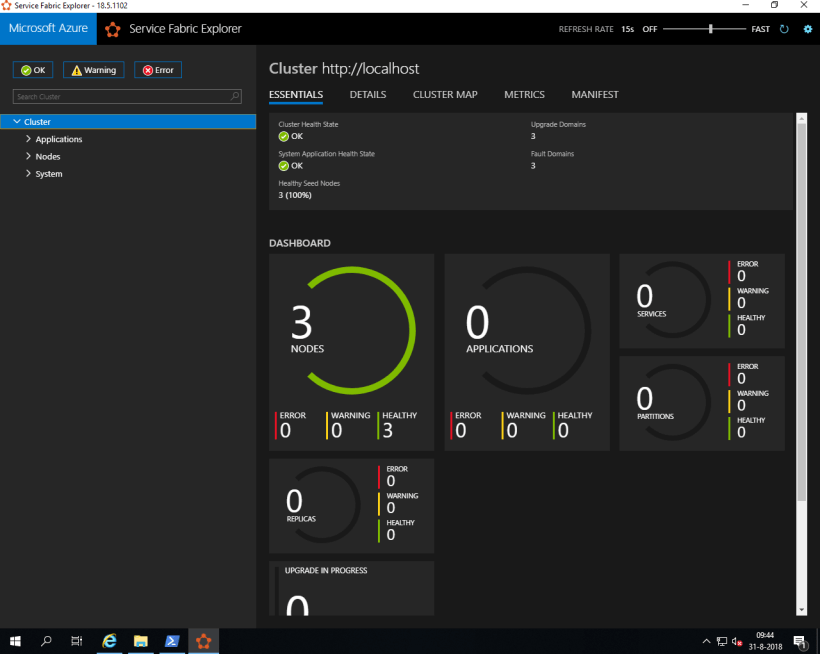
3 Nodes

3 Nodes

Here we got Azure Service Fabric 3-Node Cluster running on Windows Server 2019 Insiders

AZURE SERVICE FABRIC CLI

The Azure Service Fabric command-line interface (CLI) is a command-line utility for interacting with and managing Service Fabric entities. The Service Fabric CLI can be used with either Windows or Linux clusters. The Service Fabric CLI runs on any platform where Python is supported.

Prior to installation, make sure your environment has both Python and pip installed.
The CLI supports Python versions 2.7, 3.5, 3.6, and 3.7. Python 3.x is the recommended version, since Python 2.7 will reach end of support soon.
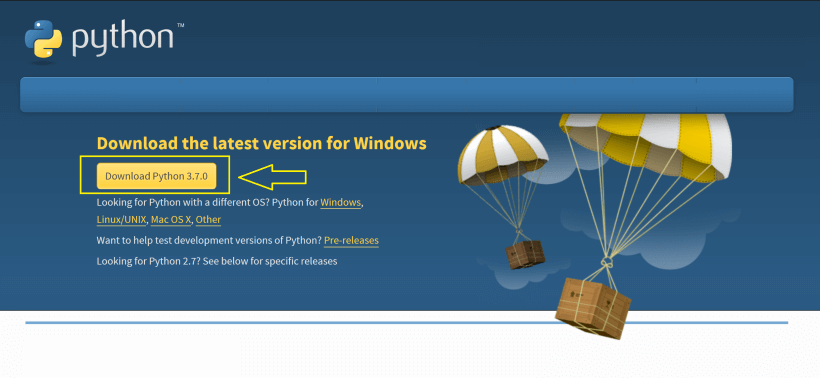
Download Python

Download Python

You can download the latest Python version here
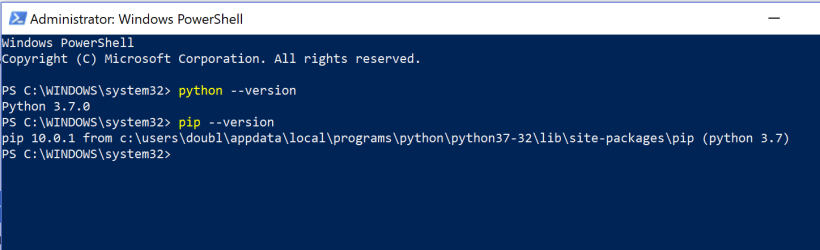
Python version

Python version

Check the Python version and the Pip version by typing :

python –version
Pip –version
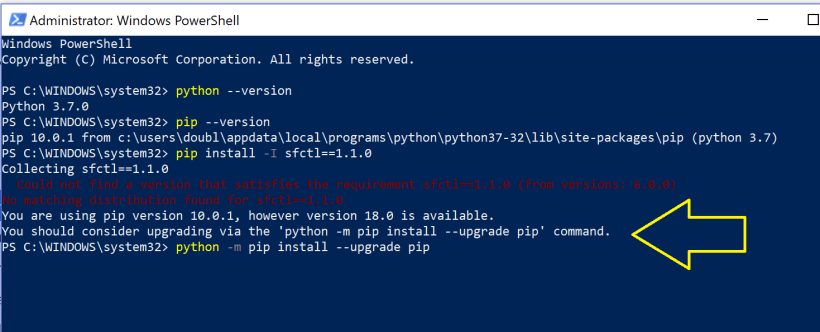
Python version

Python version


The Pip version which is delivered via Python has to be updated with the following command :

python -m pip install –upgrade pip
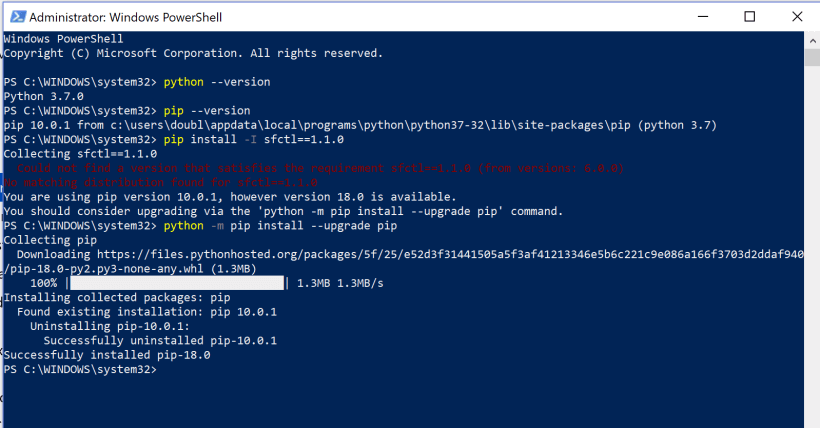
Update with python

Update with python

We now have pip version 18.0 instead of 10.0.1
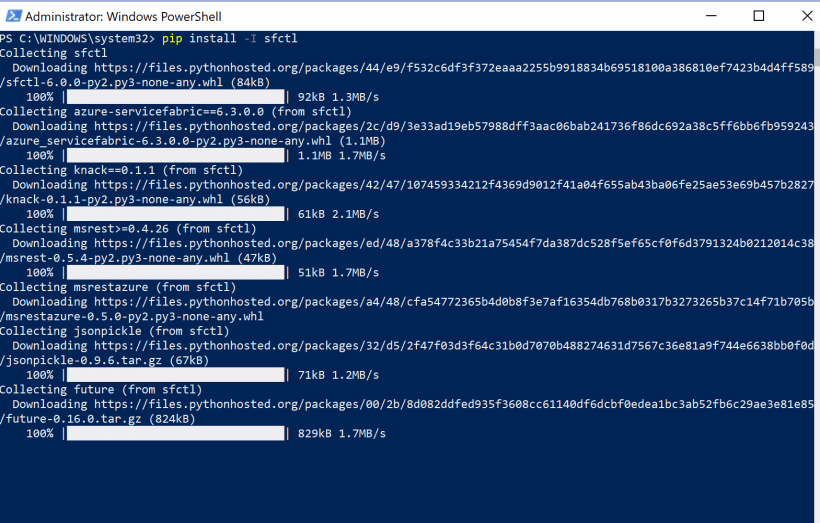
New pip version

New pip version

Installing Service Fabric CLI by command :

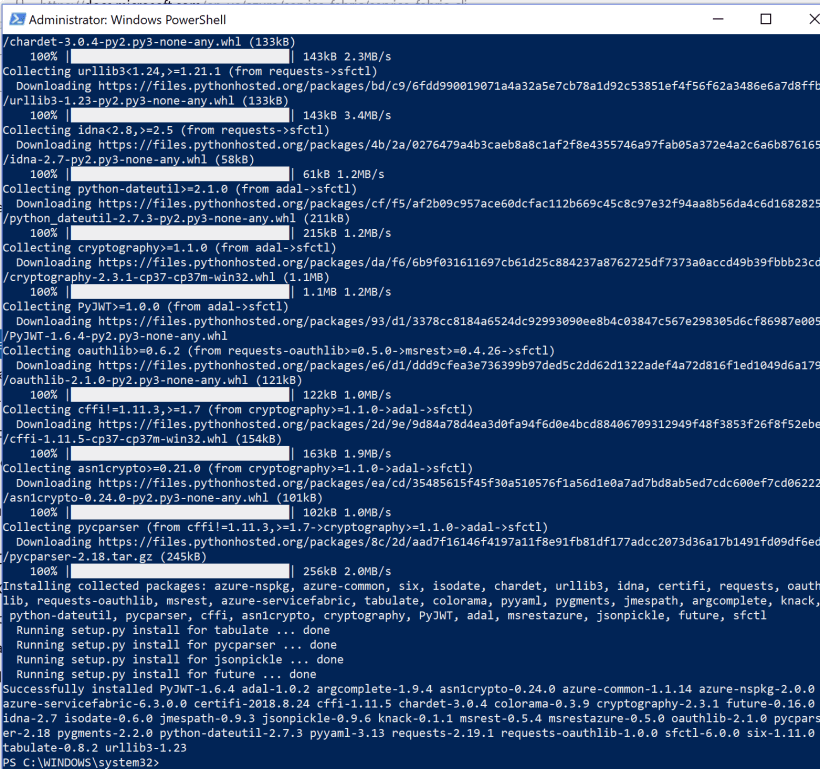
pip install -I sfctl

Pip command

Pip command

Done ! Service Fabric CLI is installed on my Windows 10 Surface.
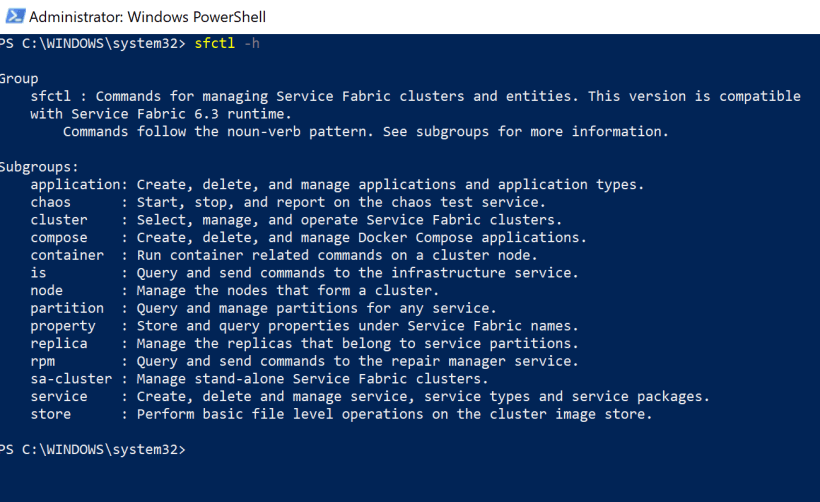
Service Fabric CLI is installed

Service Fabric CLI is installed

sfctl -h 

Now we have installed Microsoft Azure Service Fabric Cluster on Windows Server 2019 Insiders Preview and the Service Fabric CLI on Windows 10, we now can connect to the 3-node Fabric Cluster via CLI.
Because we are working under Windows 10 and not on the host itself we have to set an endpoint connection :
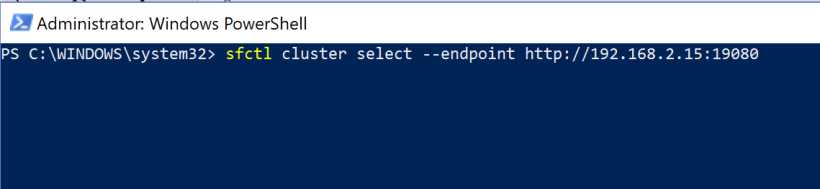
Connect to the 3-node Fabric Cluster via CLI

Connect to the 3-node Fabric Cluster via CLI

sfctl cluster select –endpoint http://192.168.2.15:19080
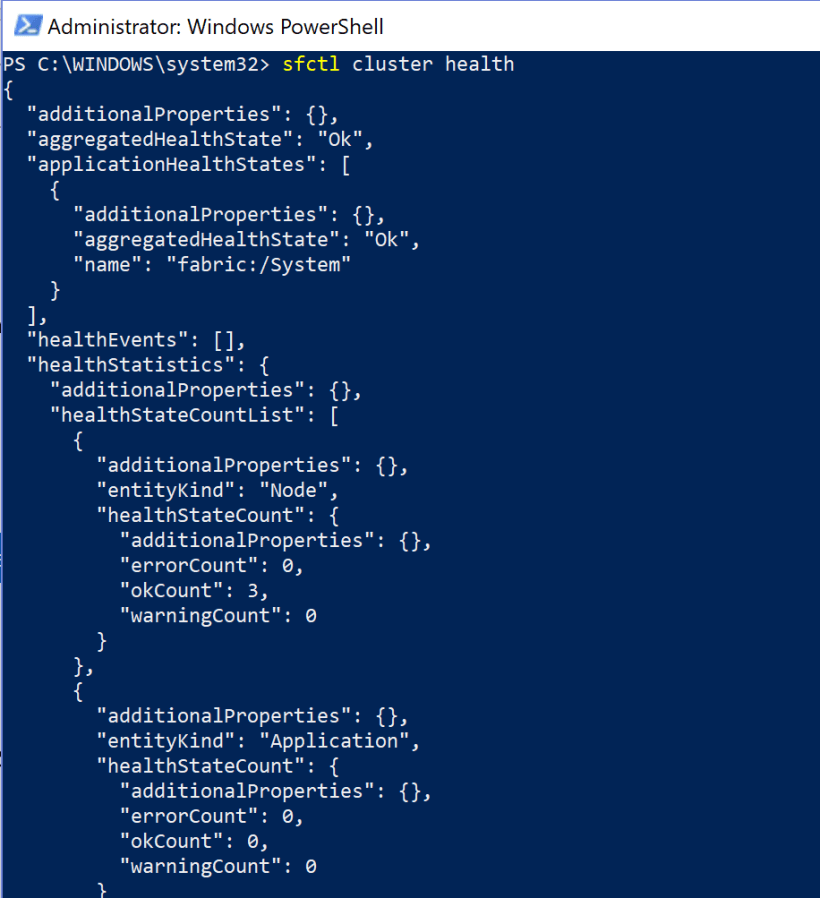
Cluster health

Cluster health

sfctl cluster health

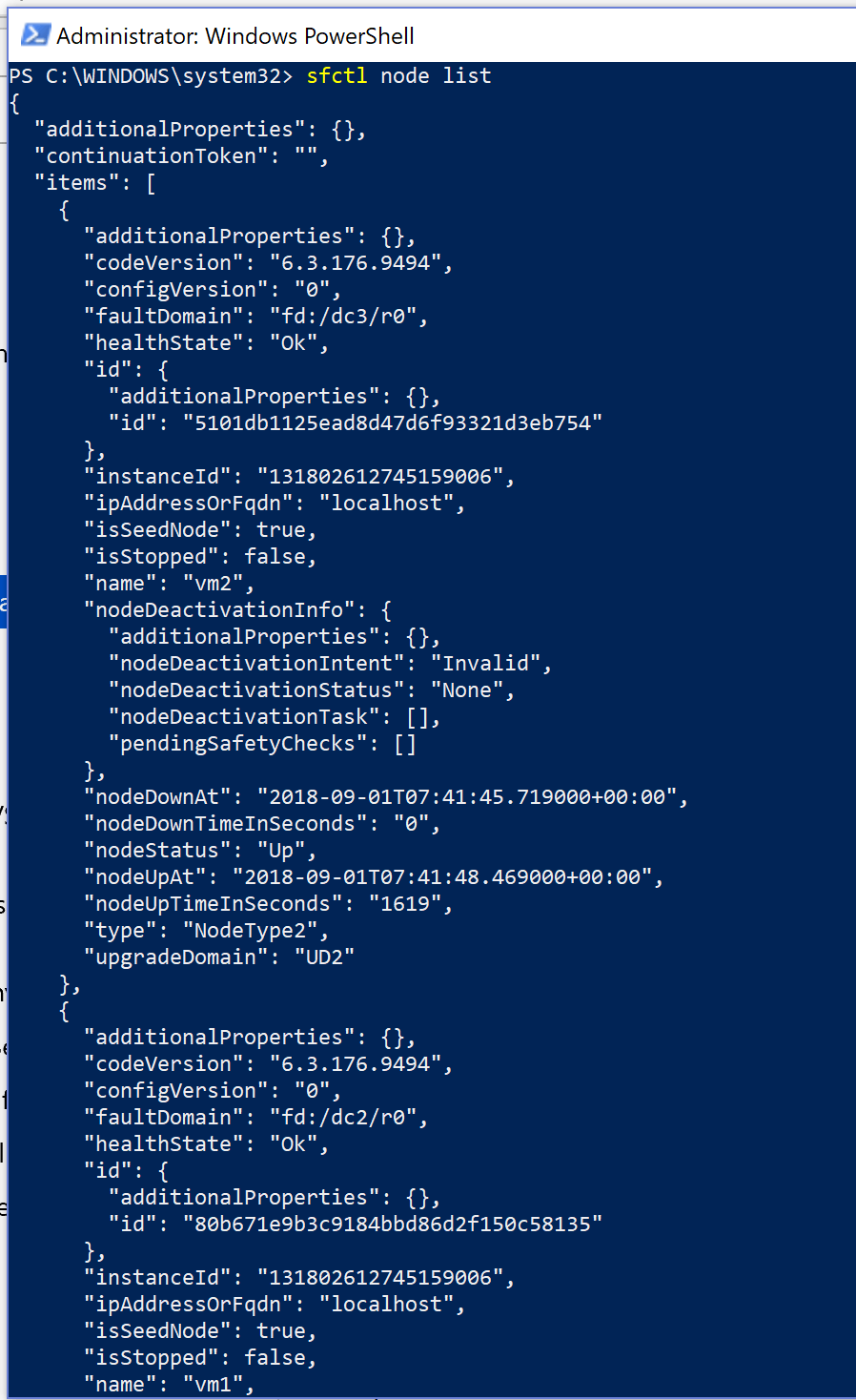
Node list

Node list

sfctl node list

MICROSOFT VISUAL STUDIO 2017 ENTERPRISE AND SERVICE FABRIC SDK

As a Developer or DevOps you like to work from Microsoft Visual Studio to deploy your Apps, Microservices or Containers to the Azure Service Fabric Cluster.

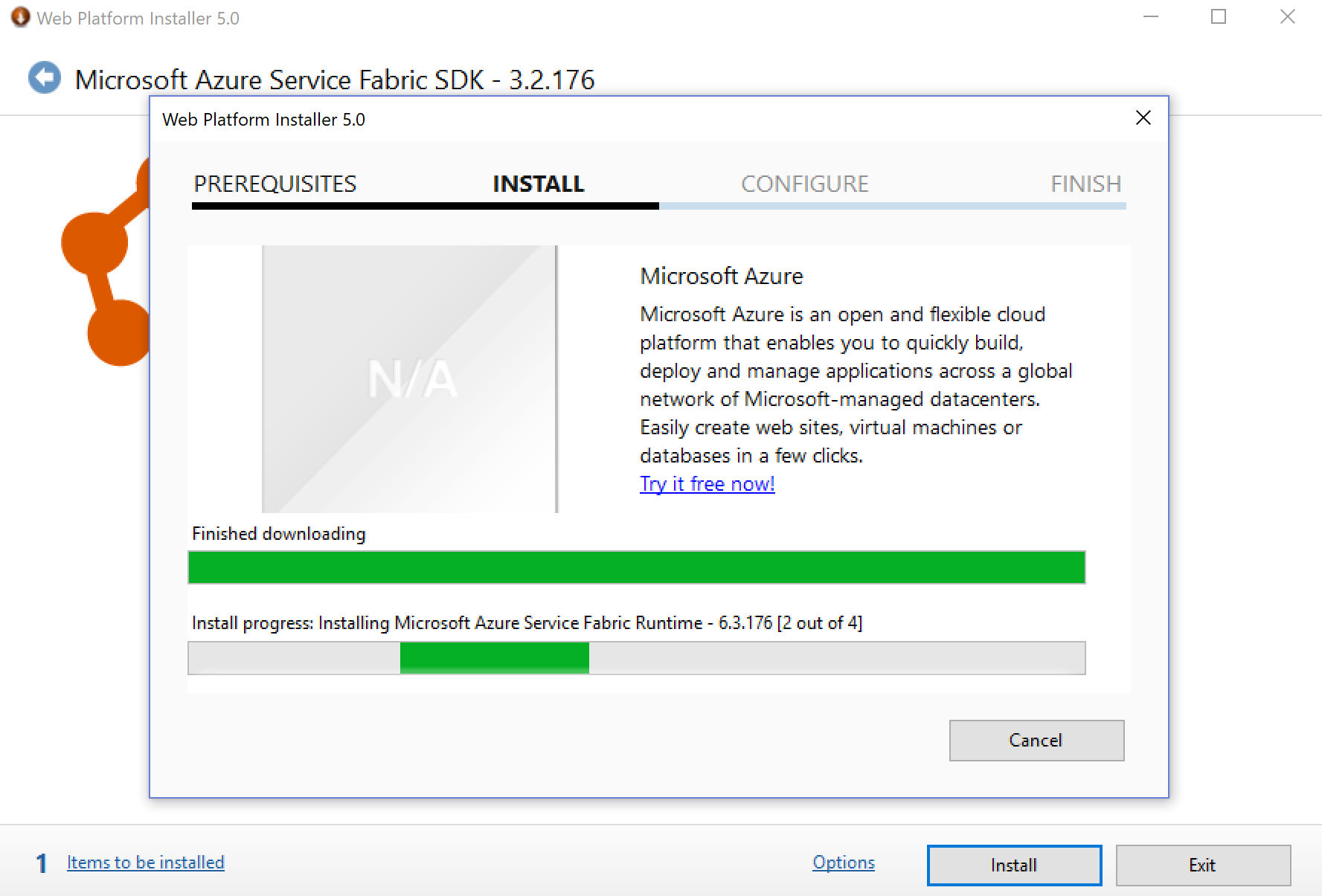
You need to install the Service Fabric SDK in Visual Studio before you can deploy :
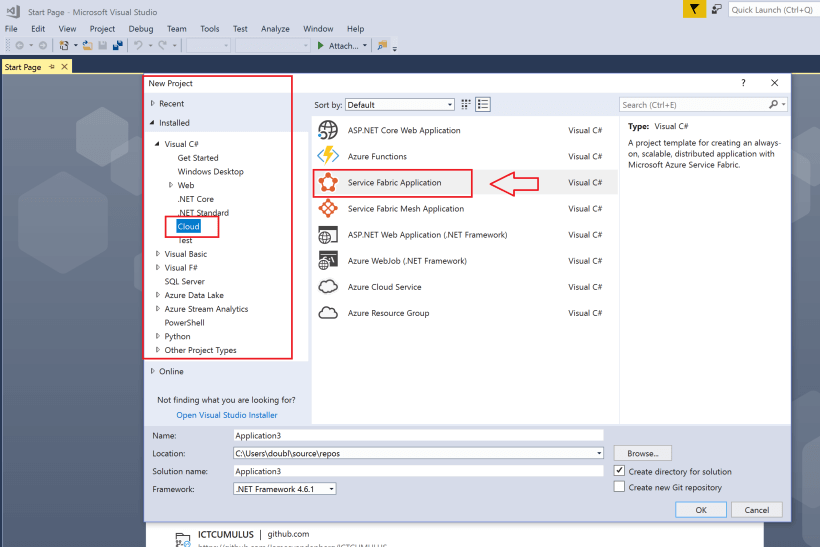
Service Fabric Application

Service Fabric Application

Select Service Fabric Application at New Project
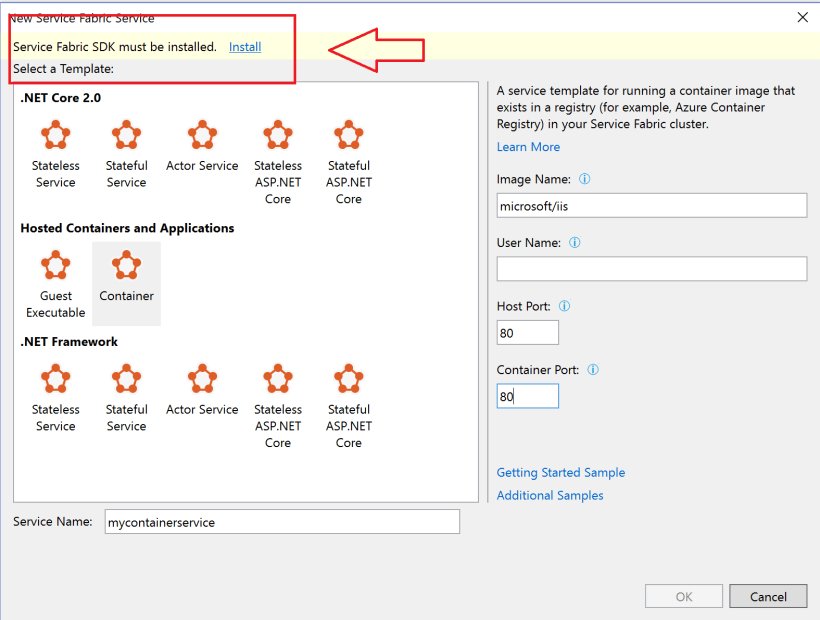
Service Fabric SDK must be installed

Service Fabric SDK must be installed

Visual Studio 2017 Enterprise : Service Fabric SDK must be installed
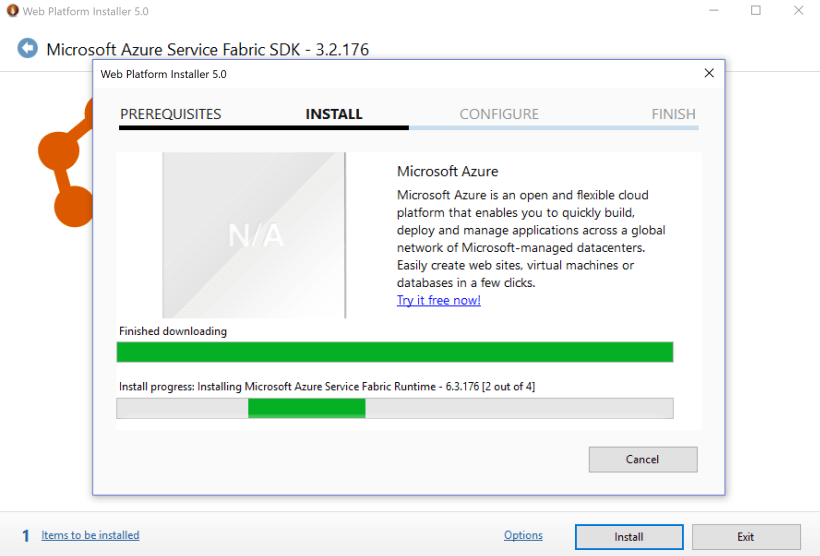
Install

Install

Installing Microsoft Azure Service Fabric SDK
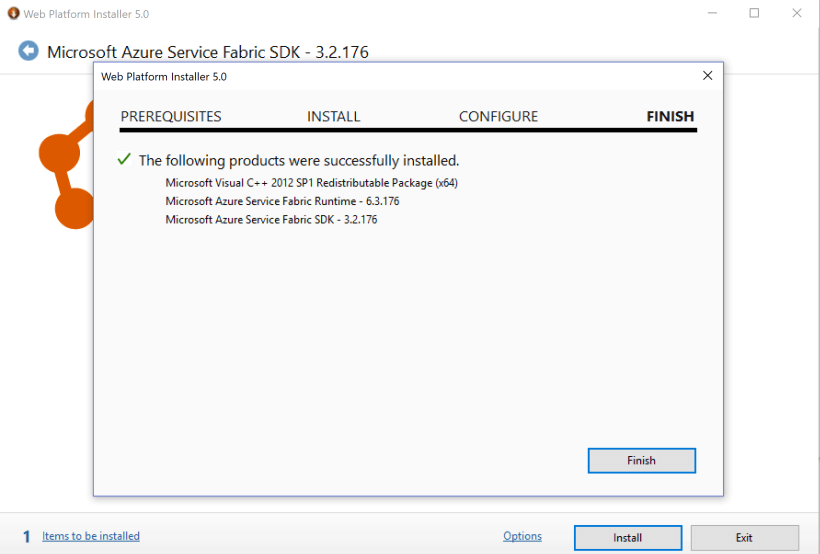
Finish the installation

Finish the installation

Done.

Add your service name


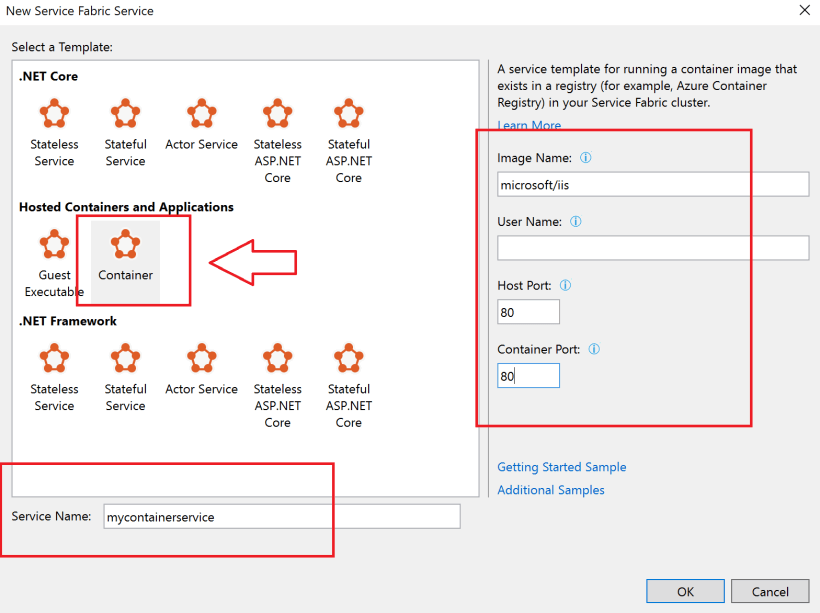
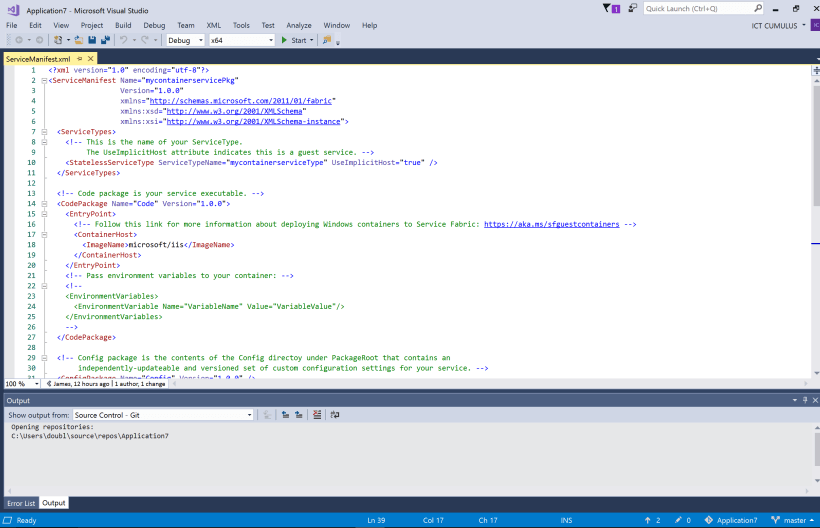
Now you can make your Service Fabric Container.

Make your Service Fabric Conditioner

Provisioning Your First Azure Service Fabric Cluster


Provisioning Your First Azure Service Fabric Cluster


In preparation for an upcoming user group presentation about the benefits of the Service Fabric programming model, I needed to stand up a new cluster in Azure and deploy our demo application to it. Microsoft provides lots of great articles to help with this task, but I had to collect a lot of information to complete what I needed.

In this post, I will do a complete walkthrough of how to provision a new cluster in Azure that is ready to have an application deployed to it.

NOTE: This purpose of this cluster is for testing and demonstration. If creating a production cluster, please follow all security best practices to secure your cluster.

Create a New Cluster in Azure

Log in to the Azure portal, click “Create a resource” in the top left corner, and search for “Service Fabric Cluster”.

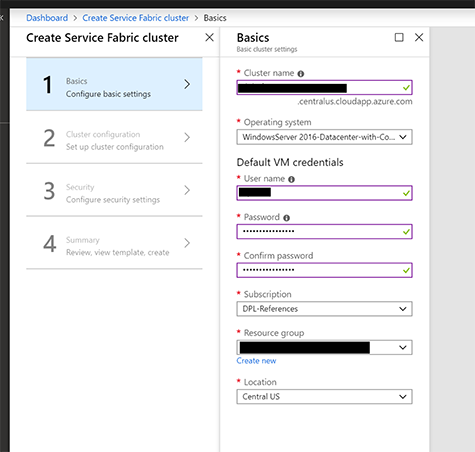
Step 1: Basics

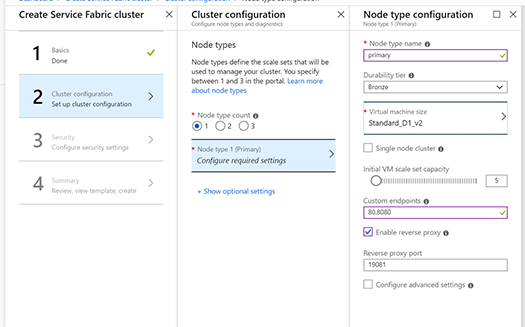
Step 2: Cluster Configuration

Create a Node type “1” to host our primary cluster of five virtual machines.

Custom endpoints are what will be exposed in your load balancer to be redirected to your application being hosted in the Fabric. Additional endpoints can be added later if needed.

Later in the tutorial, we will be deploying a Get Started application from Microsoft that requires the Reverse Proxy port to be enabled.

Virtual machine size in an important selection. Machines with at least 16GB of local disk space are necessary to run the default services of the Fabric. I selected “Standard_D1_v2” for this test cluster.

Here is more information on the virtual machine: https://docs.microsoft.com/en-us/azure/virtual-machines/windows/sizes-general#dv2-series

This page has more information about planning cluster capacity and which level of virtual machine to select: https://docs.microsoft.com/en-us/azure/service-fabric/service-fabric-cluster-capacity

Step 3: Security

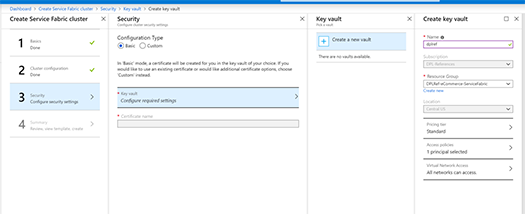
Select the Basic configuration type and create a new Key Vault to store the security certificate.

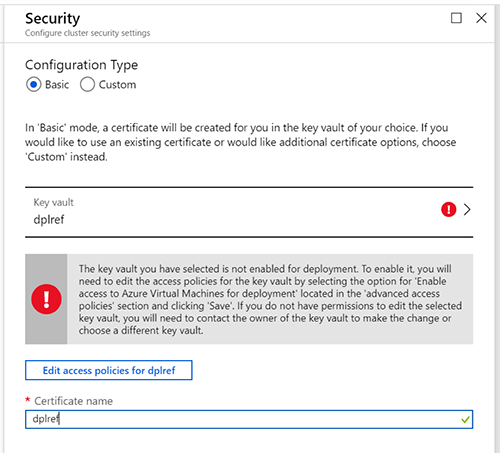
After deployment of the new Key Vault, you will see an error like this:

Click the “Edit access policies for …” button to enable access for your virtual machines.

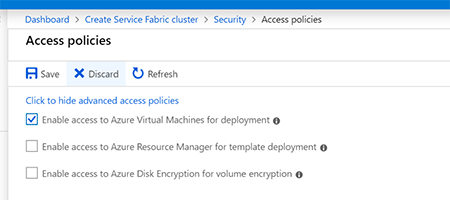
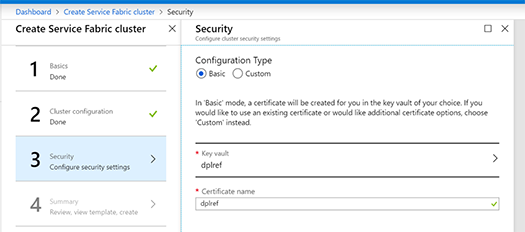
Enable the “Enable access to Azure Virtual Machines for deployment” checkbox and click Save. Then click the ‘x’ in the current blade to close it and return to add a name to the Certificate.

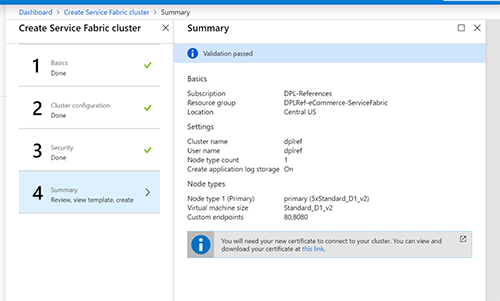
Step 4: Summary

After Running a final validation, the “Create” button will be ready to deploy your Service Fabric cluster.

Click “Create” to deploy the cluster.

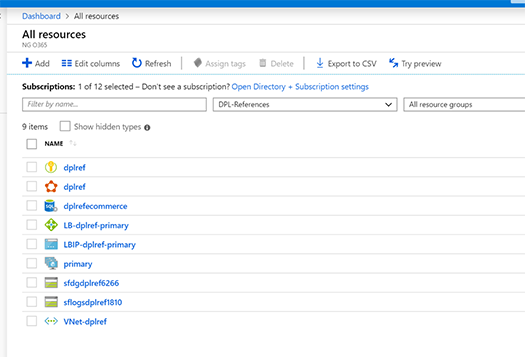
After successful deployment, these resources will be available in your resource group.

Connecting Securely to the Service Fabric Management Console

First, we will need to download our security certificate and get the thumbprint to add it to the cluster to allow us to connect to the management console.

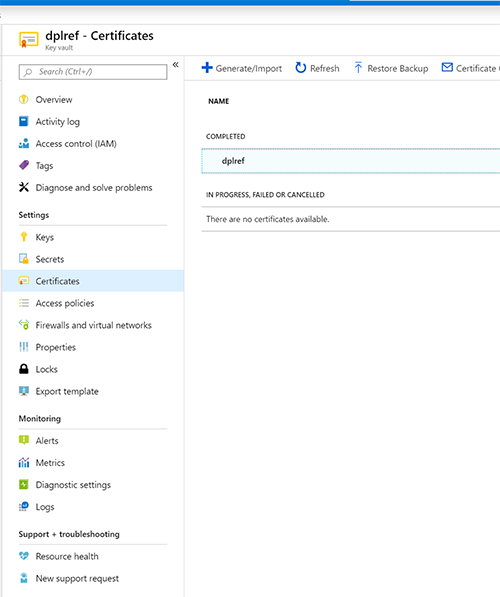
Navigate to “All Resources” in the Azure Management Console and select the Key Vault. Then click the “Certificates” link.

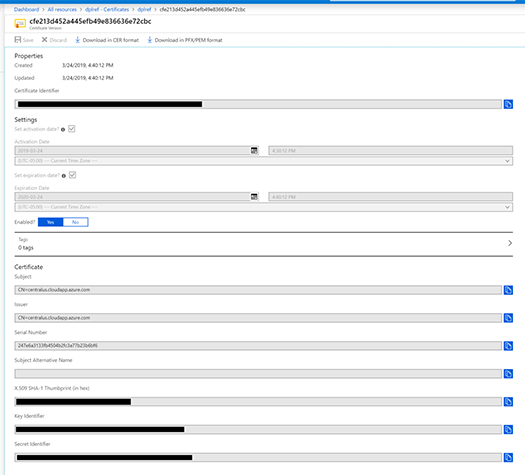
Click on the certificate twice to navigate to details.

Copy the Thumbprint and the Secret Identifier and then click “Download in PFX/PEM format”.

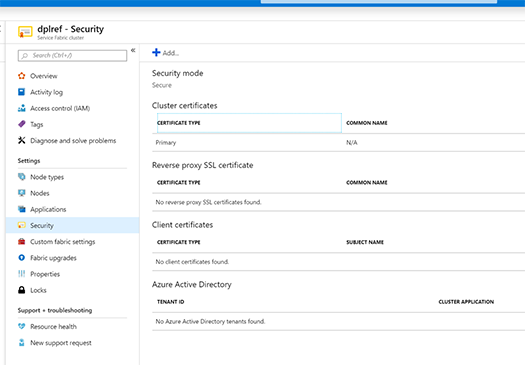
Navigate to your Service Fabric Cluster in the Azure management portal and click on the “Security” blade.

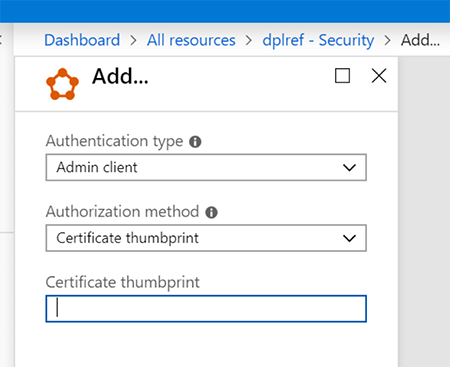
We are going to add the certificate that was created during setup as a Client Certificate. For production clusters, it is strongly recommended to have a separate certificate, but for the purposes of a demo cluster we will use the same certificate.

Click the “Add…” button and copy in the Certificate thumbprint we saved previously. It will take a little time to update the user configuration on the cluster to see the Client Certificate available.

Install Client Certificate on the Local Machine

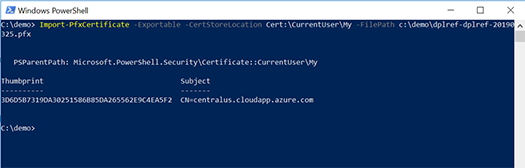
The PowerShell script from the link below will be used to install the certificate on our local development machine. We did not add a password to this certificate, so it’s not needed here. For a real deployment, make sure to password protect your certificate. Here’s some additional information on installing certificates: https://docs.microsoft.com/en-us/azure/service-fabric/service-fabric-connect-to-secure-cluster#connectsecureclustersetupclientcert

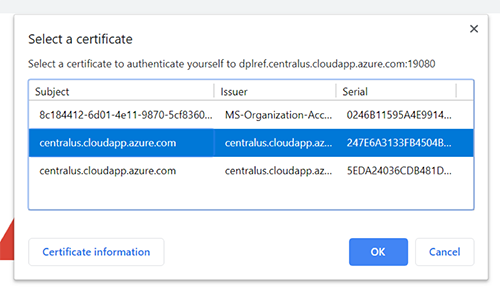
Head back to the Overview page for your Service Fabric Cluster in the Azure Portal and click the “Service Fabric Explorer” link and then select your newly installed certificate in the browser to securely connect to the cluster.

Check out the green dashboard of our new cluster.

Deploying an Application with DevOps to the Cluster

Microsoft provides a Service Fabric quick start application at https://github.com/unter/service-fabric-dotnet-quickstart if you want a first application to deploy to your cluster.

Instructions for deploying this application using Azure DevOps can