Tuesday, 28 May 2024

Deploying a multi-container application to Azure Kubernetes Services


Deploying a multi-container application to Azure Kubernetes SOverview

Azure Kubernetes Service (AKS) is the quickest way to use Kubernetes on Azure. Azure Kubernetes Service (AKS) manages your hosted Kubernetes environment, making it quick and easy to deploy and manage containerized applications without container orchestration expertise. It also eliminates the burden of ongoing operations and maintenance by provisioning, upgrading, and scaling resources on demand, without taking your applications offline. Azure DevOps helps in creating Docker images for faster deployments and reliability using the continuous build option.

One of the biggest advantage to use AKS is that instead of creating resources in cloud you can create resources and infrastructure inside Azure Kubernetes Cluster through Deployments and Services manifest files.

Lab Scenario

This lab uses a Dockerized ASP.NET Core web application - MyHealthClinic (MHC) and is deployed to a Kubernetes cluster running on Azure Kubernetes Service (AKS) using Azure DevOps.

There is a mhc-aks.yaml manifest file which consists of definitions to spin up Deployments and Services such as Load Balancer in the front and Redis Cache in the backend. The MHC application will be running in the mhc-front pod along with the Load Balancer.

The following image will walk you through all the steps explained in this lab

If you are new to Kubernetes, click here for description of terminology used in this lab.

What’s covered in this lab

The following tasks will be performed:

  • Create an Azure Container Registry (ACR), AKS and Azure SQL server

  • Provision the Azure DevOps Team Project with a .NET Core application using the Azure DevOps Demo Generator tool.

  • Configure application and database deployment, using Continuous Deployment (CD) in the Azure DevOps

  • Initiate the build to automatically deploy the application
MS teamsWant additional learning? Check out the Automate multi-container Kubernetes deployments module on Microsoft Learn.

Before you begin

  1. Refer the Getting Started page to know the prerequisites for this lab.

  2. Click the Azure DevOps Demo Generator link and follow the instructions in Getting Started page to provision the project to your Azure DevOps.

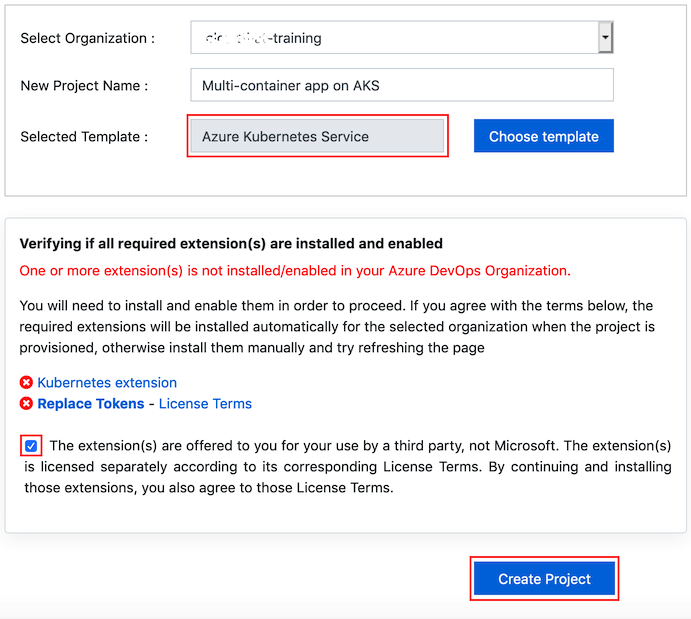
    For this lab the Azure Kubernetes Service template is used which is already selected when you click on the link above. There are some additional extensions required for this lab and can be automatically installed during the process.
    AKStemplate

Setting up the environment

The following azure resources need to be configured for this lab:

Azure resourcesDescription
Azure Container Registry Azure Container RegistryUsed to store the Docker images privately
AKS AKSDocker images are deployed to Pods running inside AKS
Azure SQL Server Azure SQL ServerSQL Server on Azure to host database
  1. Launch the Azure Cloud Shell from the Azure portal and choose Bash.

  2. Deploy Kubernetes to Azure, using CLI:

    i. Get the latest available Kubernetes version in your preferred region into a bash variable. Replace <region> with the region of your choosing, for example eastus.

      version=$(az aks get-versions -l <region> --query 'orchestrators[-1].orchestratorVersion' -o tsv)
    

    ii. Create a Resource Group

      az group create --name akshandsonlab --location <region>
    

    iii. Create AKS using the latest version available

     az aks create --resource-group akshandsonlab --name <unique-aks-cluster-name> --enable-addons monitoring --kubernetes-version $version --generate-ssh-keys --location <region>
  3. Deploy Azure Container Registry(ACR): Run the below command to create your own private container registry using Azure Container Registry (ACR).

     az acr create --resource-group akshandsonlab --name <unique-acr-name> --sku Standard --location <region>
  4. Authenticate with Azure Container Registry from Azure Kubernetes Service : When you’re using Azure Container Registry (ACR) with Azure Kubernetes Service (AKS), an authentication mechanism needs to be established. You can set up the AKS to ACR integration in a few simple commands with the Azure CLI. This integration assigns the AcrPull role to the managed identity associated to the AKS Cluster. Replace the variables $AKS_RESOURCE_GROUP, $AKS_CLUSTER_NAME, $ACR_NAME with appropriate values below and run the command.

     az aks update -n $AKS_CLUSTER_NAME -g $AKS_RESOURCE_GROUP --attach-acr $ACR_NAME
    

    For more information see document on how to Authenticate with Azure Container Registry from Azure Kubernetes Service

  5. Create Azure SQL server and Database: Create an Azure SQL server.

     az sql server create -l <region> -g akshandsonlab -n <unique-sqlserver-name> -u sqladmin -p P2ssw0rd1234
    

    Create a database

     az sql db create -g akshandsonlab -s <unique-sqlserver-name> -n mhcdb --service-objective S0
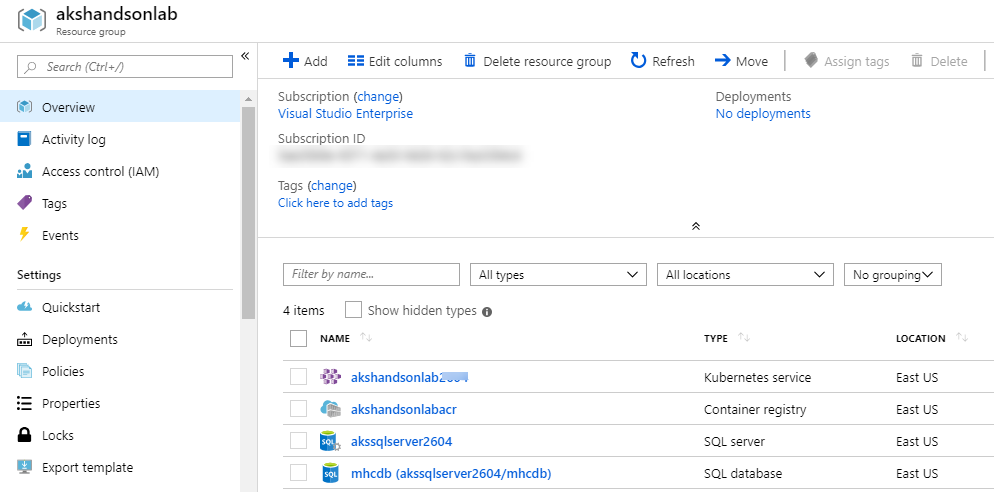
  6. Deploy to Azure

  7. Select the mhcdb SQL database and make a note of the Server name.

    Deploy to Azure

  8. Click on “Set server Firewall” and enable “Allow Azure services …” option.
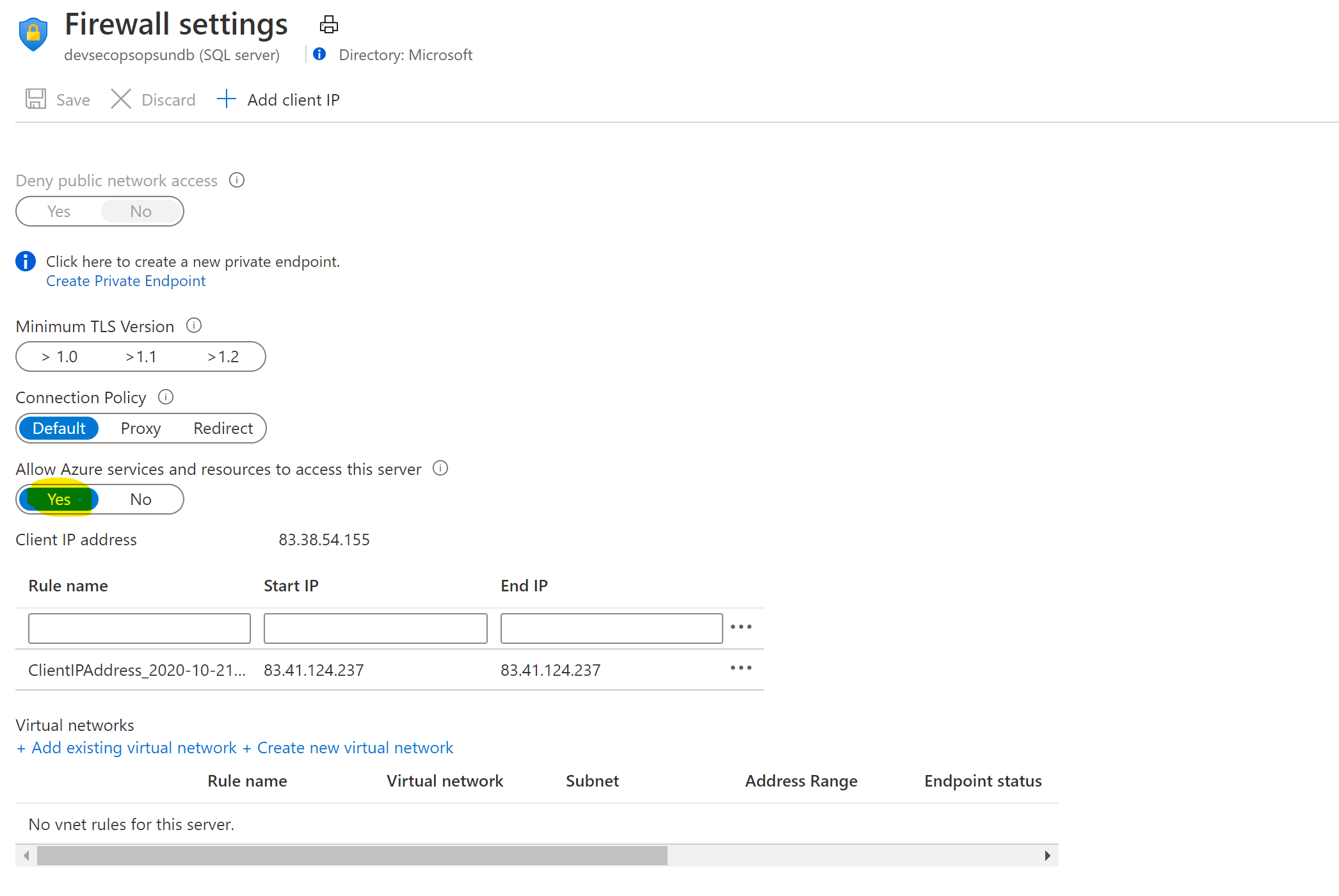
    Allow Services

  9. Navigate to the resource group, select the created container registry and make a note of the Login server name.

    Deploy to Azure

Now you have all the required azure components to follow this lab.

Exercise 1: Configure Build pipeline

Make sure that you have created the AKS project in your Azure DevOps organization through Azure DevOps Demo Generator (as mentioned in pre-requisites). We will manually map Azure resources such as AKS and Azure Container Registry to the build and release definitions.

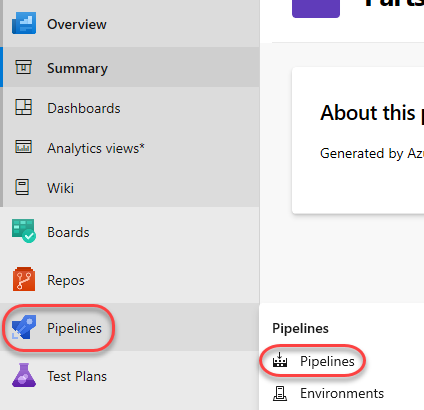
  1. Navigate to Pipelines –> Pipelines.

    build

  2. Select MyHealth.AKS.Build pipeline and click Edit.

    build

  3. In Run services task, select your Azure subscription from Azure subscription dropdown. Click Authorize.
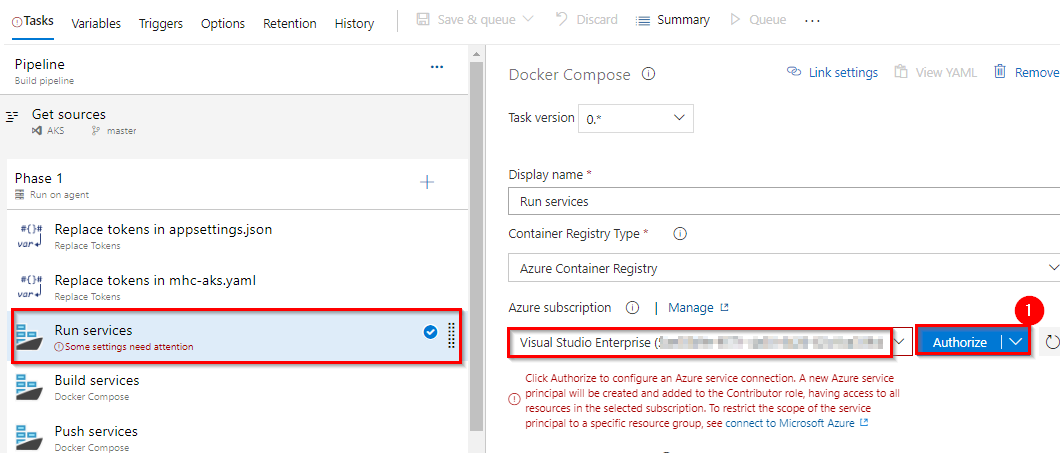
    azureendpoint

    You will be prompted to authorize this connection with Azure credentials. Disable pop-up blocker in your browser if you see a blank screen after clicking the OK button, and please retry the step.

    This creates an Azure Resource Manager Service Endpoint, which defines and secures a connection to a Microsoft Azure subscription, using Service Principal Authentication (SPA). This endpoint will be used to connect Azure DevOps and Azure.

  4. Following the successful authentication, select appropriate values from the dropdown - Azure subscription and Azure Container Registry as shown.

    Repeat this for the Build services, Push services and Lock services tasks in the pipeline.
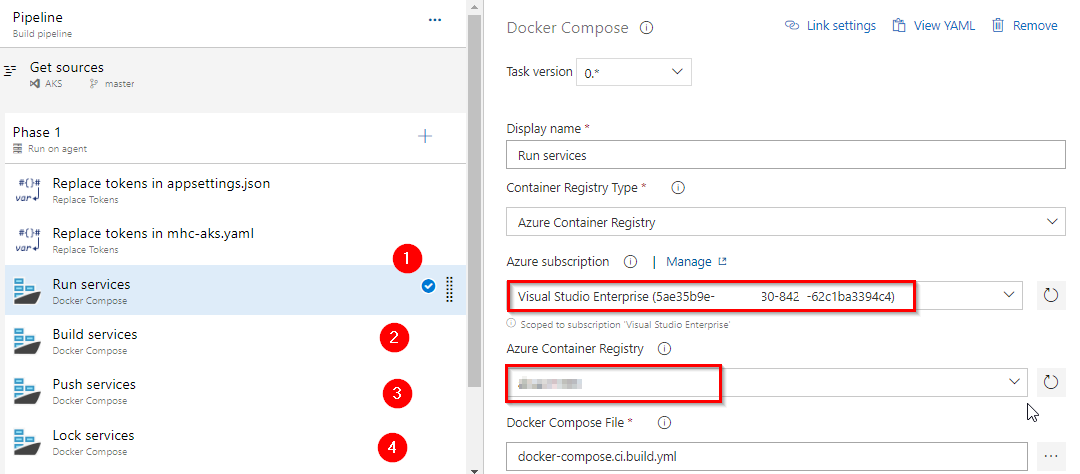
    updateprocessbd

    TasksUsage
    Replace tokensreplace ACR in mhc-aks.yaml and database connection string in appsettings.json
    icon Run servicesprepares suitable environment by pulling required image such as aspnetcore-build:1.0-2.0 and restoring packages mentioned in .csproj
    icon Build servicesbuilds the docker images specified in a docker-compose.yml file and tags images with $(Build.BuildId) and latest
    icon Push servicespushes the docker image myhealth.web to Azure Container Registry
    publish-build-artifacts Publish Build Artifactspublishes mhc-aks.yaml & myhealth.dacpac files to artifact drop location in Azure DevOps so that they can be utilized in Release Definition

    applicationsettings.json file contains details of the database connection string used to connect to Azure database which was created in the beginning of this lab.

    mhc-aks.yaml manifest file contains configuration details of deploymentsservices and pods which will be deployed in Azure Kubernetes Service. The manifest file will look like as below
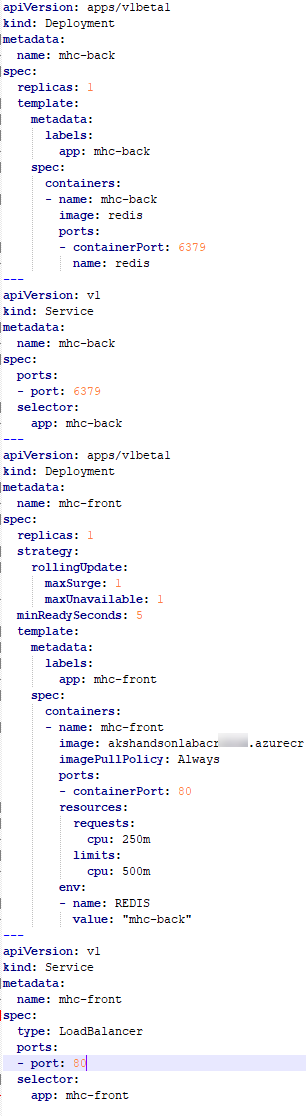
    For more information on the deployment manifest, see AKS Deployments and YAML manifests

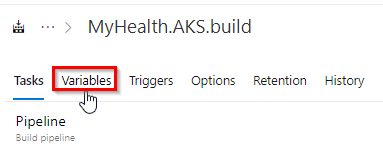
  5. Click on the Variables tab.

    Update ACR and SQLserver values for Pipeline Variables with the details noted earlier while configuring the environment. updateprocessbd
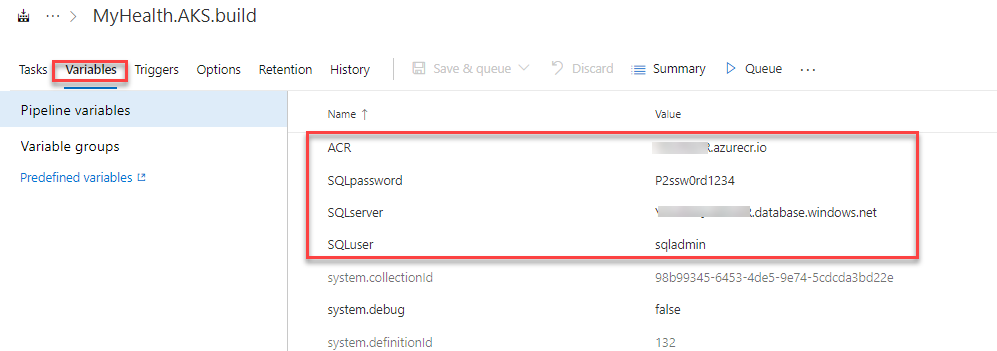
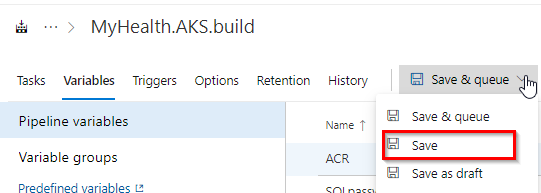
  6. Save the changes.

    updateprocessbd

Exercise 1.1: Configure Build pipeline (YAML) -Optional

We also have a YAML build pipeline if that’s something you’re interested in. To proceed through the YAML pipeline, choose MyHealth.AKS.Build-YAML and click Edit. If you utilize the YAML pipeline, make sure to update the MyHealth.AKS.Release release definition’s artifact link.

  1. Navigate to Pipelines –> Pipelines.

  2. Select MyHealth.AKS.Build - YAML pipeline and click Edit.

    buildyaml

  3. In Run Services task, select settings. Select your Azure subscription from Azure subscription dropdown. Click Authorize.
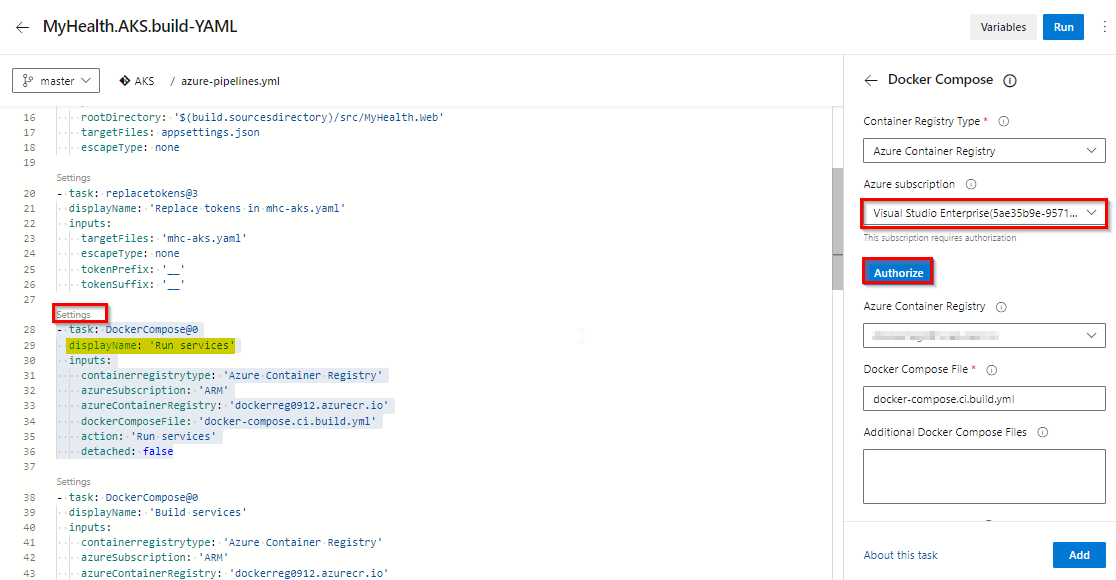
    AzureAuthyaml

    You will be prompted to authorize this connection with Azure credentials. Disable pop-up blocker in your browser if you see a blank screen after clicking the OK button, and please retry the step. This creates an Azure Resource Manager Service Endpoint, which defines and secures a connection to a Microsoft Azure subscription, using Service Principal Authentication (SPA). This endpoint will be used to connect Azure DevOps and Azure.

  4. Following the successful authentication, select appropriate values from the dropdown - Azure subscription and Azure Container Registry as shown and click Add.
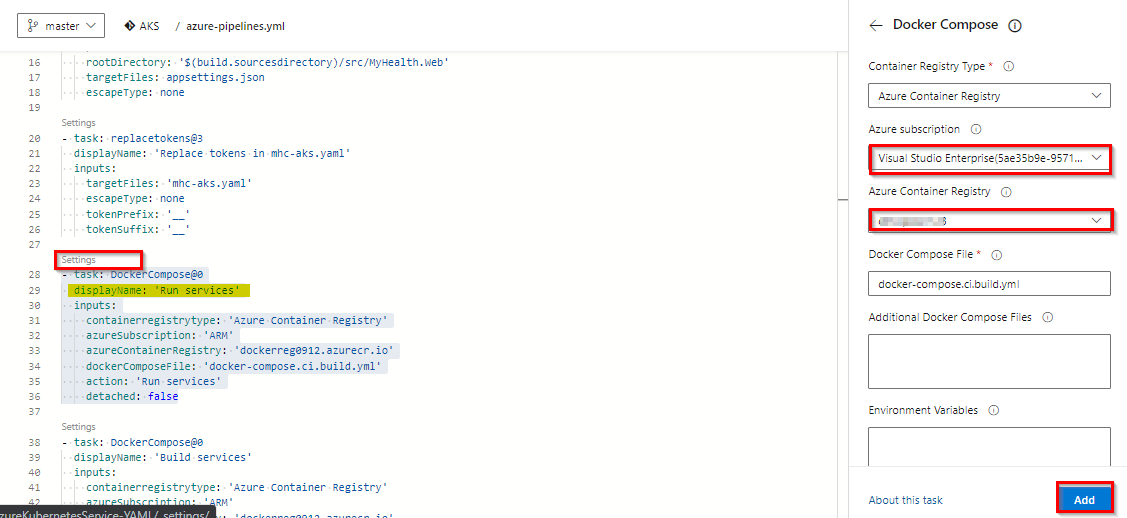
    runservicesyaml

    Repeat this for the Build servicesPush services and Lock services tasks in the pipeline.
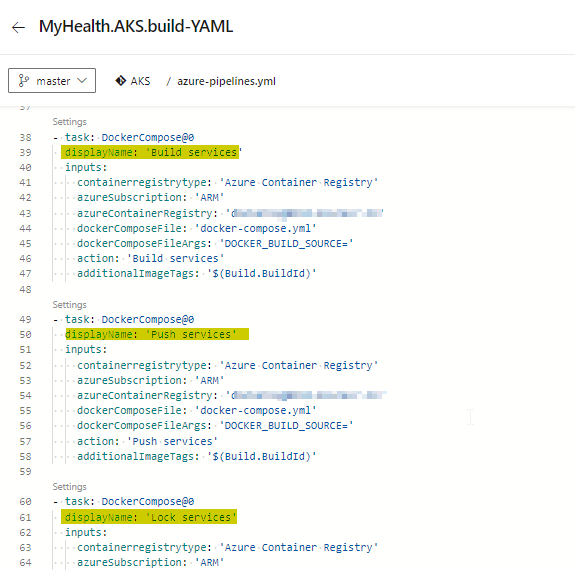
    otherdockercomposeyaml

  5. Click on the Variables tab.

    editvariables

  6. Update ACR and SQLserver values for Pipeline Variables with the details noted earlier while configuring the environment.
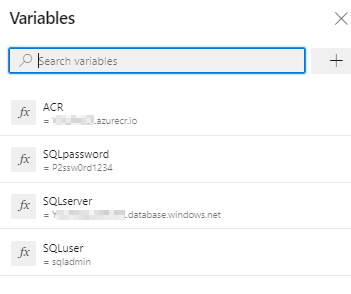
    variablesyaml

Exercise 2: Configure Release pipeline

  1. Navigate to Pipelines | Releases. Select MyHealth.AKS.Release pipeline and click Edit.
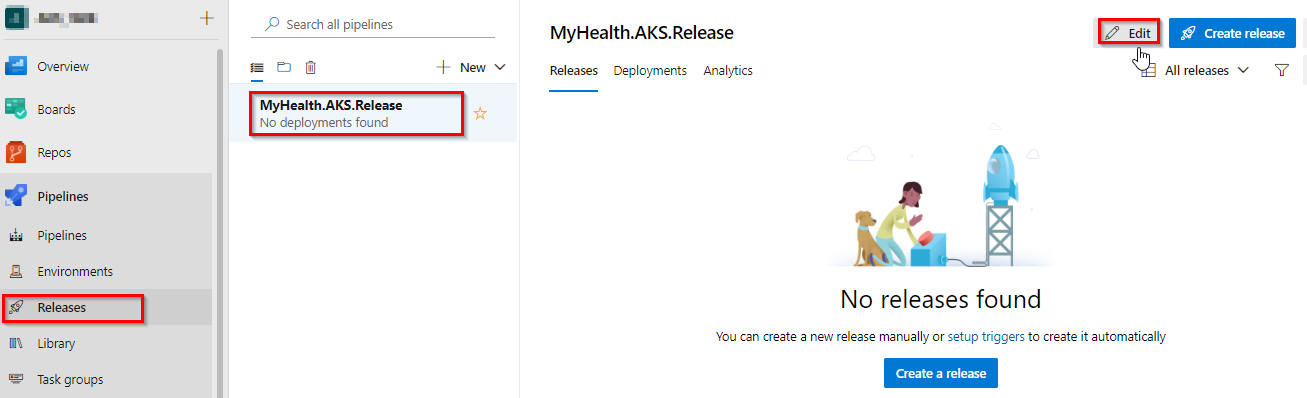
    release

  2. Select Dev stage and click View stage tasks to view the pipeline tasks.
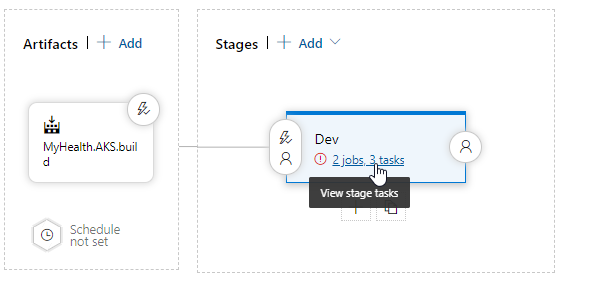
    releasetasks

  3. In the Dev environment, under the DB deployment phase, select Azure Resource Manager from the drop down for Azure Service Connection Type, update the Azure Subscription value from the dropdown for Execute Azure SQL: DacpacTask task.
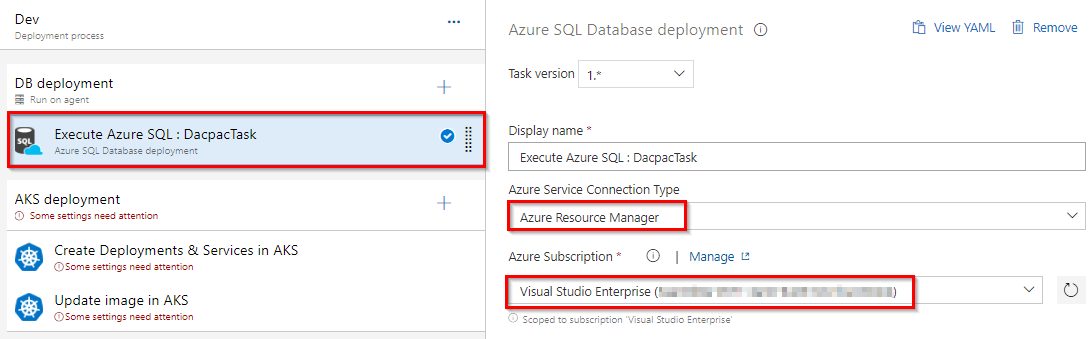
    update_CD3

  4. In the AKS deployment phase, select Create Deployments & Services in AKS task.
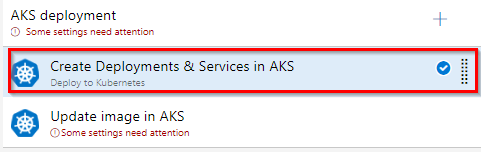
    Update the Azure SubscriptionResource Group and Kubernetes cluster from the dropdown. Expand the Secrets section and update the parameters for Azure subscription and Azure container registry from the dropdown.

    Repeat similar steps for Update image in AKS task.
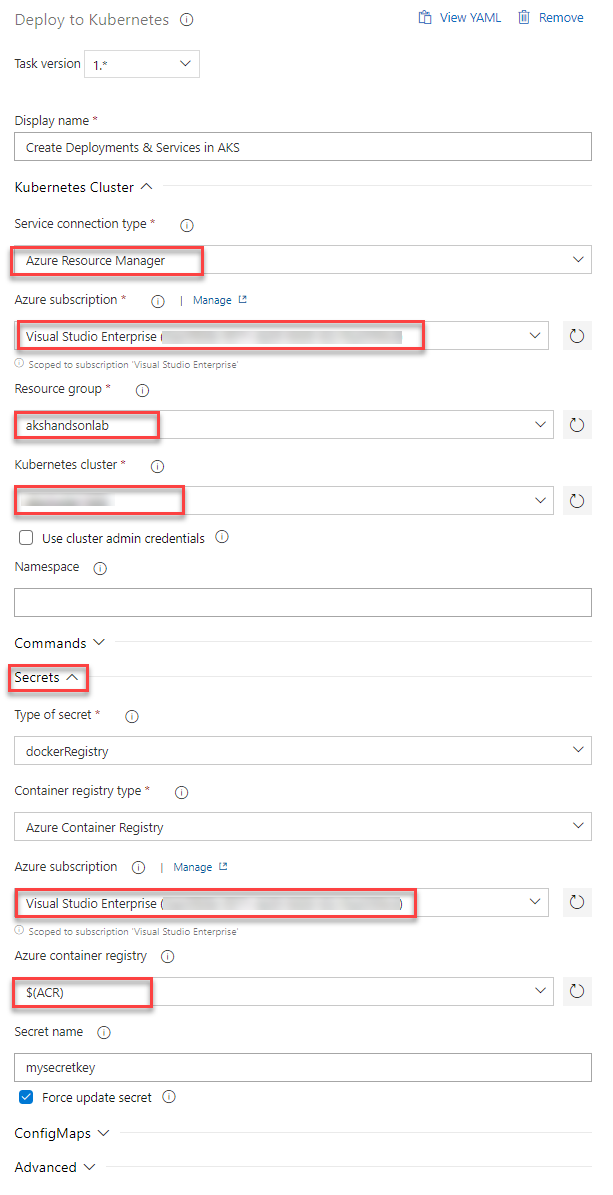
    • Create Deployments & Services in AKS will create the deployments and services in AKS as per the configuration specified in mhc-aks.yaml file. The Pod, for the first time will pull up the latest docker image.

    • Update image in AKS will pull up the appropriate image corresponding to the BuildID from the repository specified, and deploys the docker image to the mhc-front pod running in AKS.

    • A secret called mysecretkey is created in AKS cluster through Azure DevOps by using command kubectl create secret in the background. This secret will be used for authorization while pulling myhealth.web image from the Azure Container Registry.

  5. Select the Variables section under the release definition, update ACR and SQLserver values for Pipeline Variables with the details noted earlier while configuring the environment. Select the Save button.
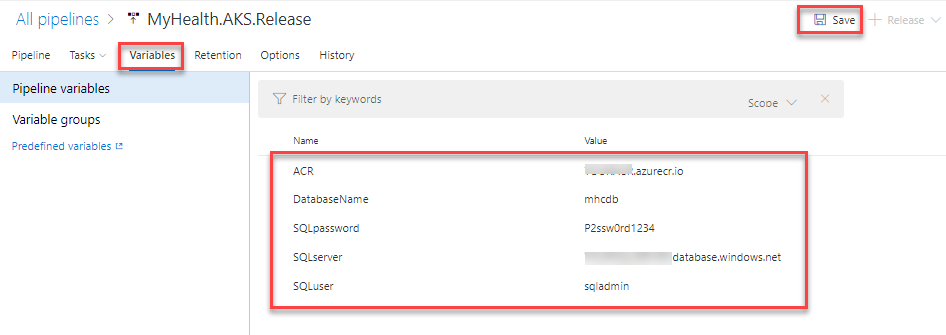
    releasevariables

Exercise 3: Trigger a Build and deploy application

In this exercise, let us trigger a build manually and upon completion, an automatic deployment of the application will be triggered. Our application is designed to be deployed in the pod with the load balancer in the front-end and Redis cache in the back-end.

  1. Select MyHealth.AKS.build pipeline. Click on Run pipeline
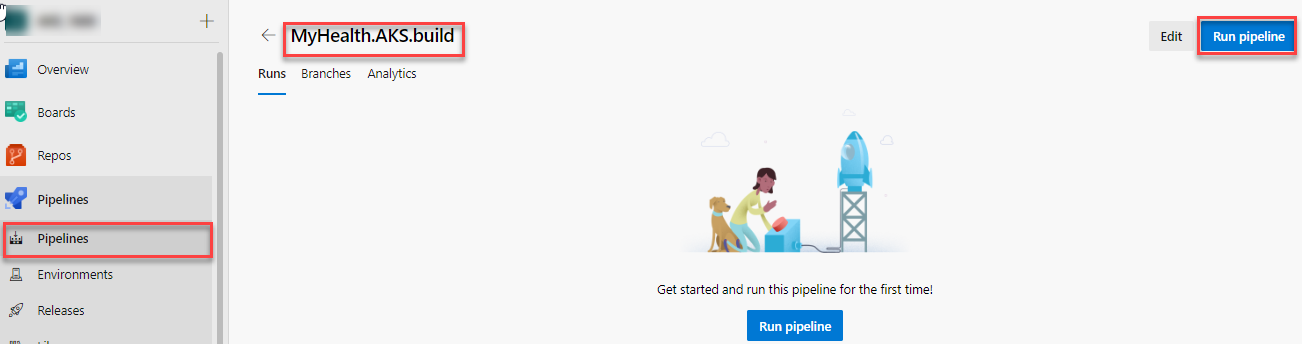
    manualbuild

  2. Once the build process starts, select the build job to see the build in progress.
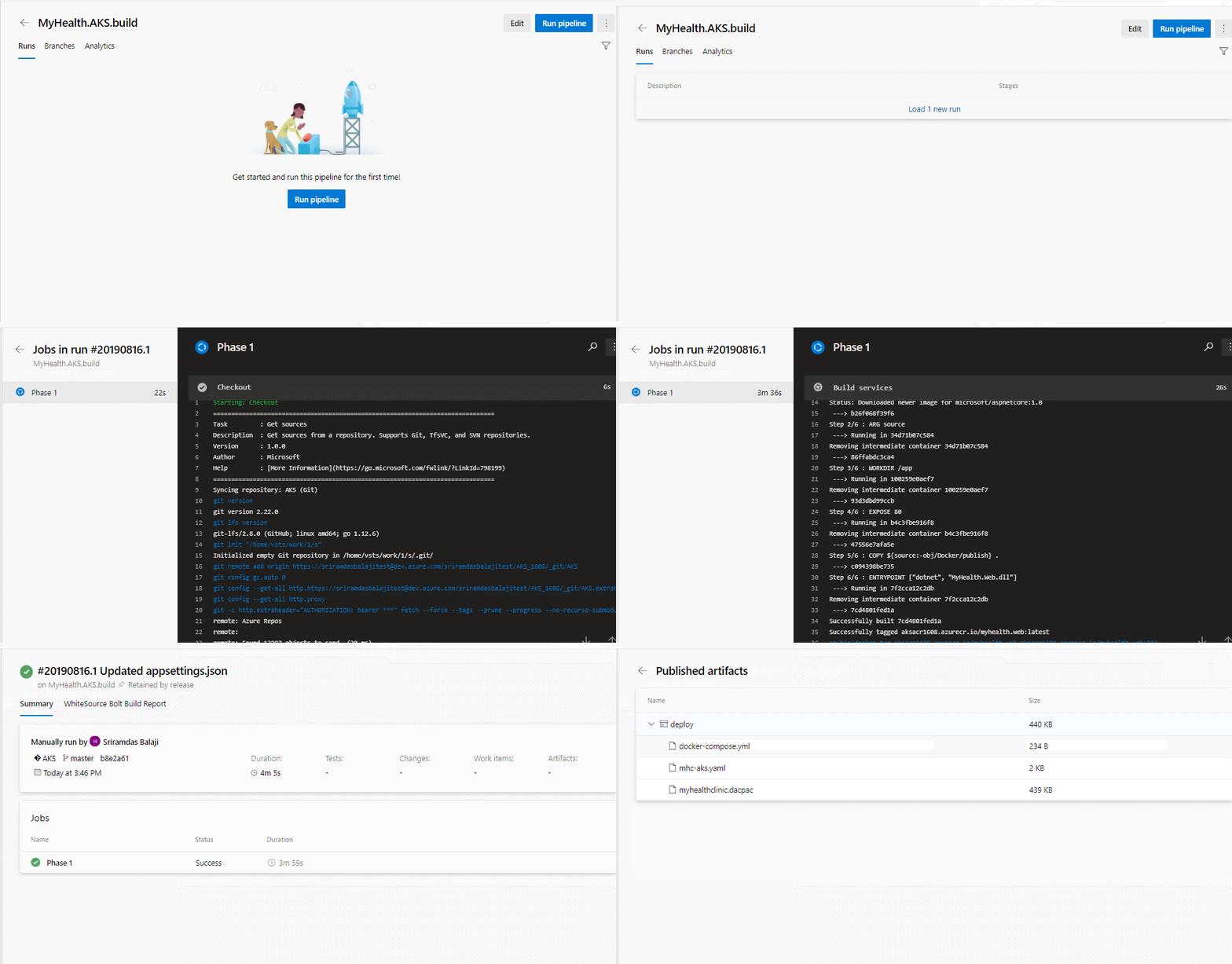
    clickbuild

  3. The build will generate and push the docker image to ACR. After the build is completed, you will see the build summary. To view the generated images navigate to the Azure Portal, select the Azure Container Registry and navigate to the Repositories.
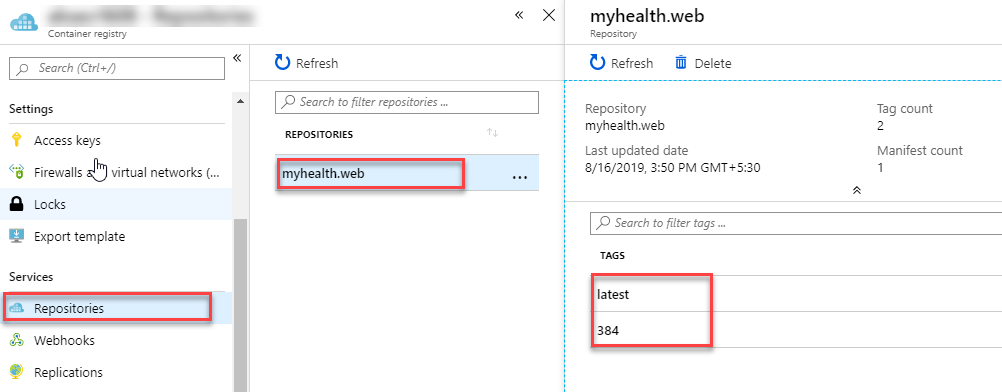
    imagesinrepo

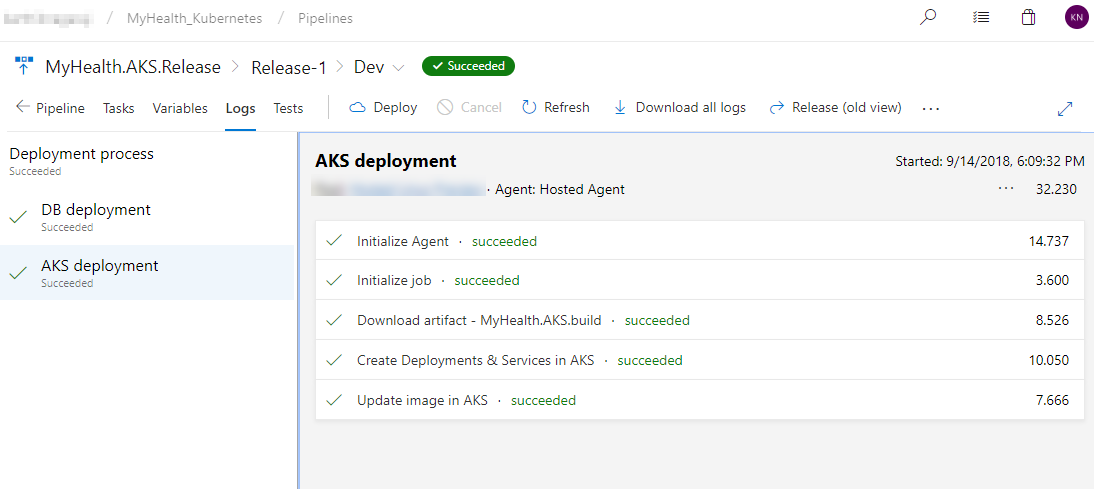
  4. Switch back to the Azure DevOps portal. Select the Releases tab in the Pipelines section and double-click on the latest release. Select In progress link to see the live logs and release summary.
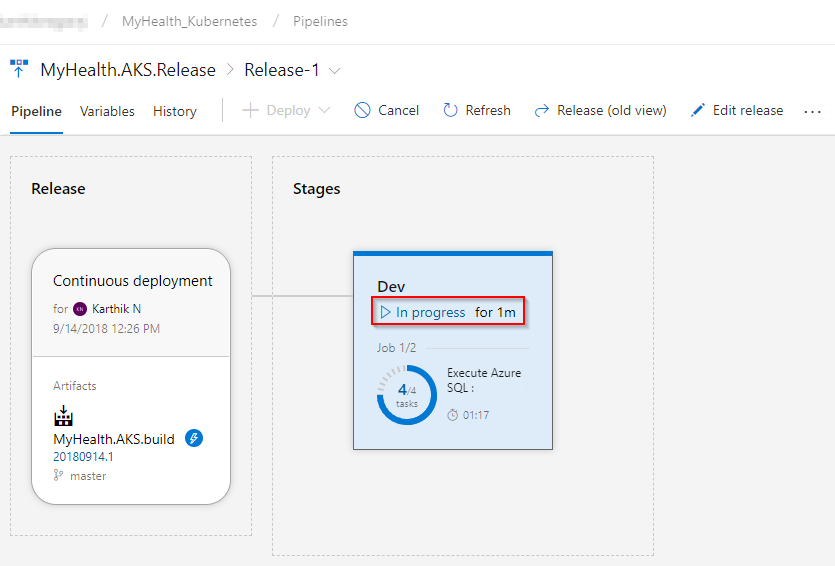
    releaseinprog

    release_summary1

  5. Once the release is complete, launch the Azure Cloud Shell and run the below commands to see the pods running in AKS:

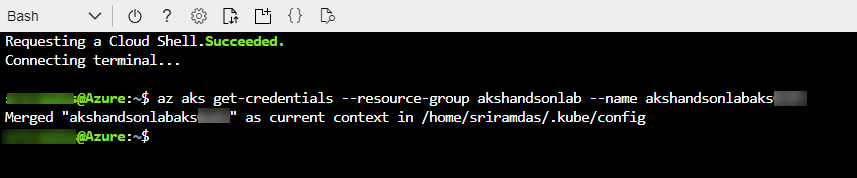
    1. Type az aks get-credentials --resource-group yourResourceGroup --name yourAKSname in the command prompt to get the access credentials for the Kubernetes cluster. Replace the variables yourResourceGroup and yourAKSname with the actual values.

      Kubernetes Service Endpoint

    2. kubectl get pods

      getpods

      The deployed web application is running in the displayed pods.

  6. To access the application, run the below command. If you see that External-IP is pending, wait for sometime until an IP is assigned.

    kubectl get service mhc-front --watch

    watchfront

  7. Copy the External-IP and paste it in the browser and press the Enter button to launch the application.

    finalresult

Kubernetes resource view in the Azure portal (preview)

The Azure portal includes a Kubernetes resource viewer (preview) for easy access to the Kubernetes resources in your Azure Kubernetes Service (AKS) cluster. Viewing Kubernetes resources from the Azure portal reduces context switching between the Azure portal and the kubectl command-line tool, streamlining the experience for viewing and editing your Kubernetes resources. The resource viewer currently includes multiple resource types, such as deployments, pods, and replica sets.

The Kubernetes resource view from the Azure portal replaces the AKS dashboard add-on, which is set for deprecation.
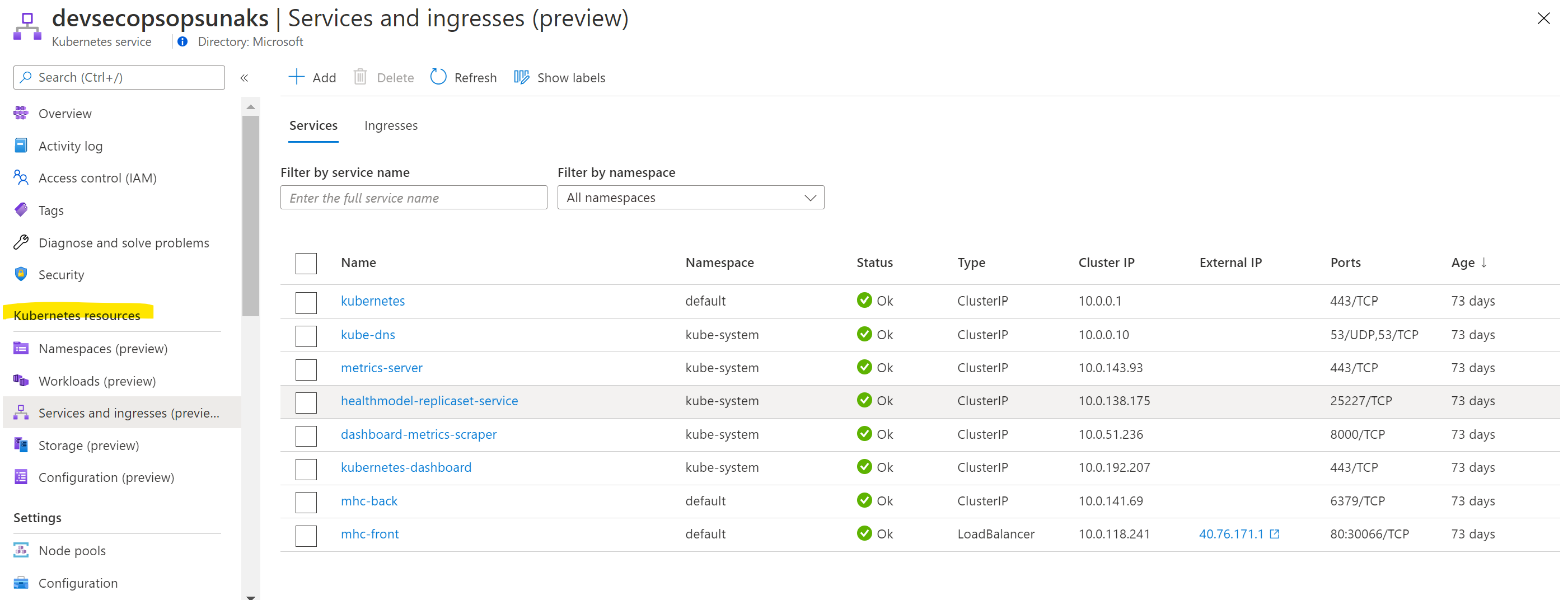
resource review

More information found at: https://docs.microsoft.com/en-us/azure/aks/kubernetes-portal

Summary

Azure Kubernetes Service (AKS) reduces the complexity and operational overhead of managing a Kubernetes cluster by offloading much of that responsibility to the Azure. With Azure DevOps and Azure Container Services (AKS), we can build DevOps for dockerized applications by leveraging docker capabilities enabled on Azure DevOps Hosted Agents.

Orchestrate updates across multiple clusters by using Azure Kubernetes Fleet Manager


Orchestrate updates across multiple clusters by using Azure Kubernetes Fleet Manager

Platform admins managing Kubernetes fleets with large number of clusters often have problems with staging their updates in a safe and predictable way across multiple clusters. To address this pain point, Kubernetes Fleet Manager (Fleet) allows you to orchestrate updates across multiple clusters using update runs, stages, groups, and strategies.

Screenshot of the Azure portal pane for a fleet resource, showing member cluster Kubernetes versions and node images in use across all node pools of member clusters.

Prerequisites

  • Read the conceptual overview of this feature, which provides an explanation of update strategies, runs, stages, and groups references in this document.

  • You must have a fleet resource with one or more member clusters. If not, follow the quickstart to create a Fleet resource and join Azure Kubernetes Service (AKS) clusters as members. This walkthrough demonstrates a fleet resource with five AKS member clusters as an example.

  • Set the following environment variables:

    Bas
    export GROUP=<resource-group>
    export FLEET=<fleet-name>
    
  • If you're following the Azure CLI instructions in this article, you need Azure CLI version 2.53.1 or later installed. To install or upgrade, see Install the Azure CLI.

  • You also need the fleet Azure CLI extension, which you can install by running the following command:

    Azure CLI
    az extension add --name fleet
    

    Run the following command to update to the latest version of the extension released:

    Azure CLI
    az extension update --name fleet
    

 Note

Update runs honor planned maintenance windows that you set at the AKS cluster level. For more information about how update runs handle member clusters that have been configured with planned maintenance windows, see Planned maintenance across multiple member clusters.

Update all clusters one by one

  1. On the page for your Azure Kubernetes Fleet Manager resource, go to the Multi-cluster update menu and select Create.

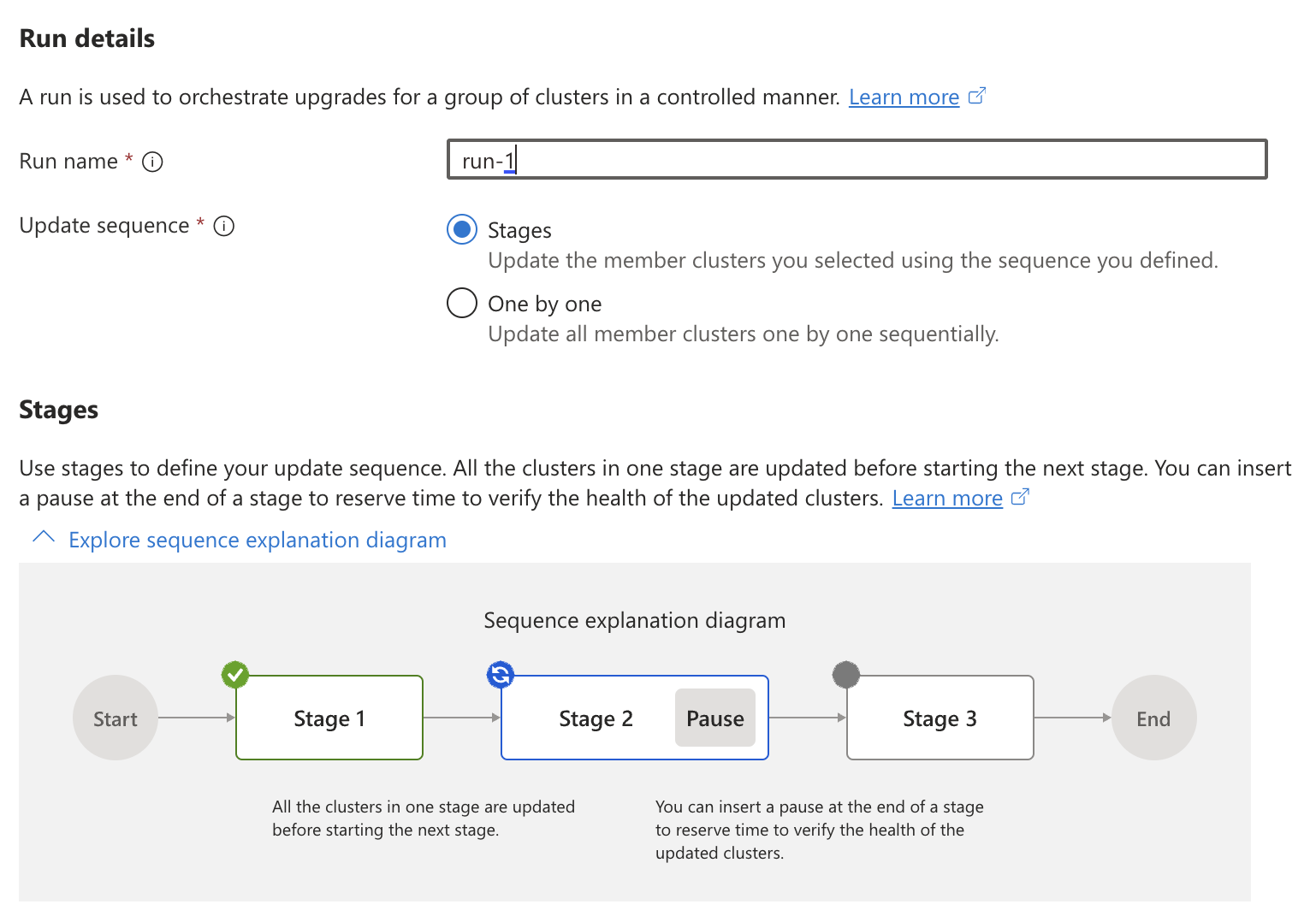
  2. You can choose either One by one or Stages.

    Screenshot of the Azure portal pane for creating update runs that update clusters one by one in Azure Kubernetes Fleet Manager.

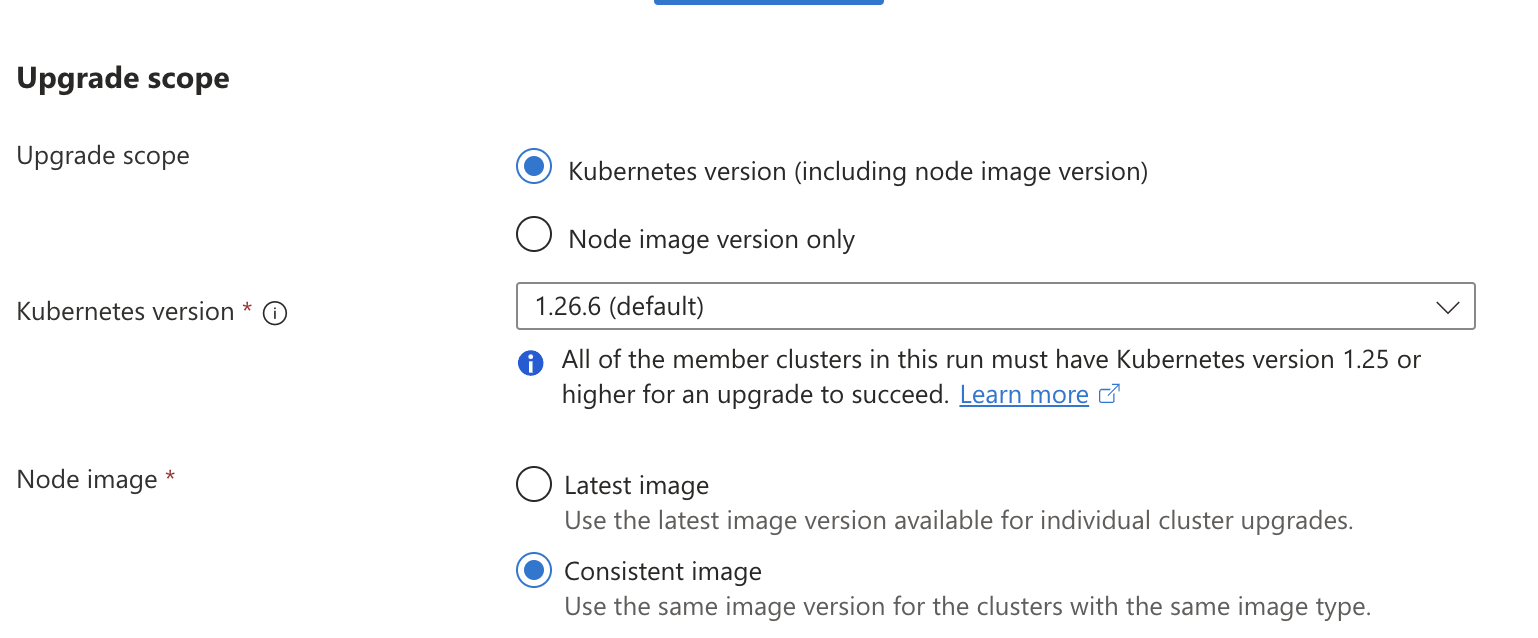
  3. For upgrade scope, you can choose to either update both the Kubernetes version and the node image version or you can update only your Node image version only.

    Screenshot of the Azure portal pane for creating update runs. The upgrade scope section is shown.

    For the node image, the following options are available:

    • Latest: Updates every AKS cluster in the update run to the latest image available for that cluster in its region.
    • Consistent: As it's possible for an update run to have AKS clusters across multiple regions where the latest available node images can be different (check release tracker for more information). The update run picks the latest common image across all these regions to achieve consistency.

Update clusters in a specific order

Update groups and stages provide more control over the sequence that update runs follow when you're updating the clusters. Within an update stage, updates are applied to all the different update groups in parallel; within an update group, member clusters update sequentially.

Assign a cluster to an update group

You can assign a member cluster to a specific update group in one of two ways.

  • Assign to group when adding member cluster to the fleet. For example:
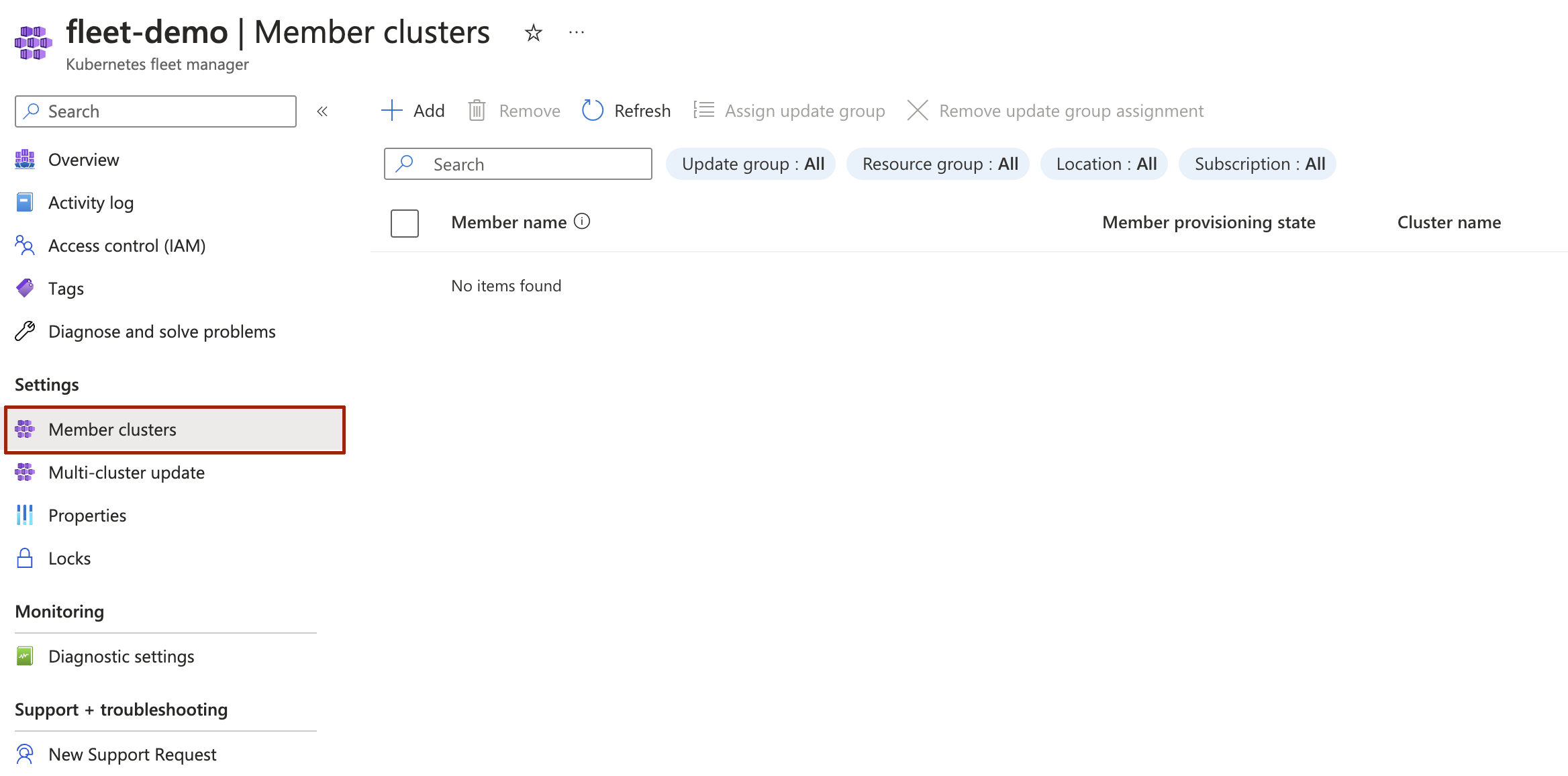
  1. On the page for your Azure Kubernetes Fleet Manager resource, go to Member clusters.

    Screenshot of the Azure portal page for Azure Kubernetes Fleet Manager member clusters.

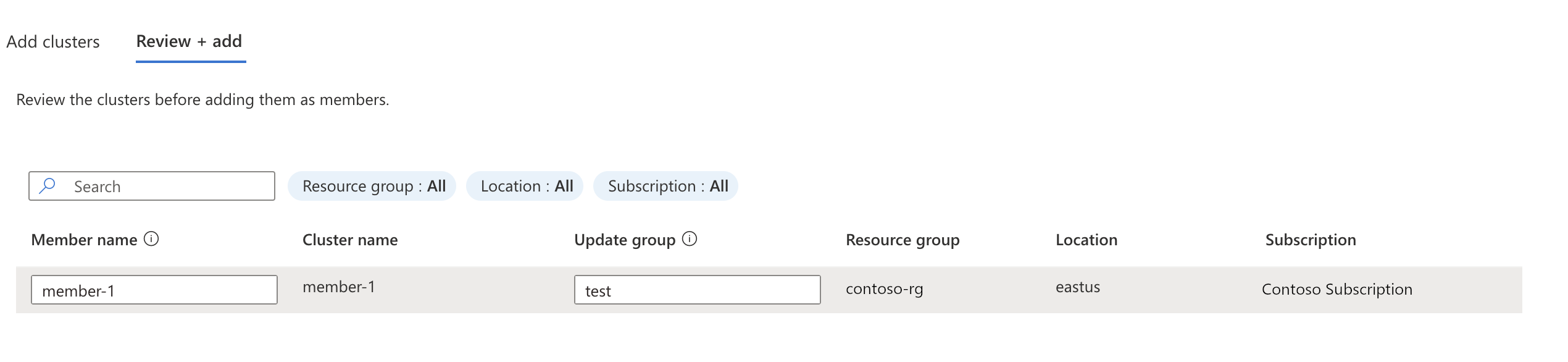
  2. Specify the update group that the member cluster should belong to.

    Screenshot of the Azure portal page for adding member clusters to Azure Kubernetes Fleet Manager and assigning them to groups.

  • The second method is to assign an existing fleet member to an update group. For example:
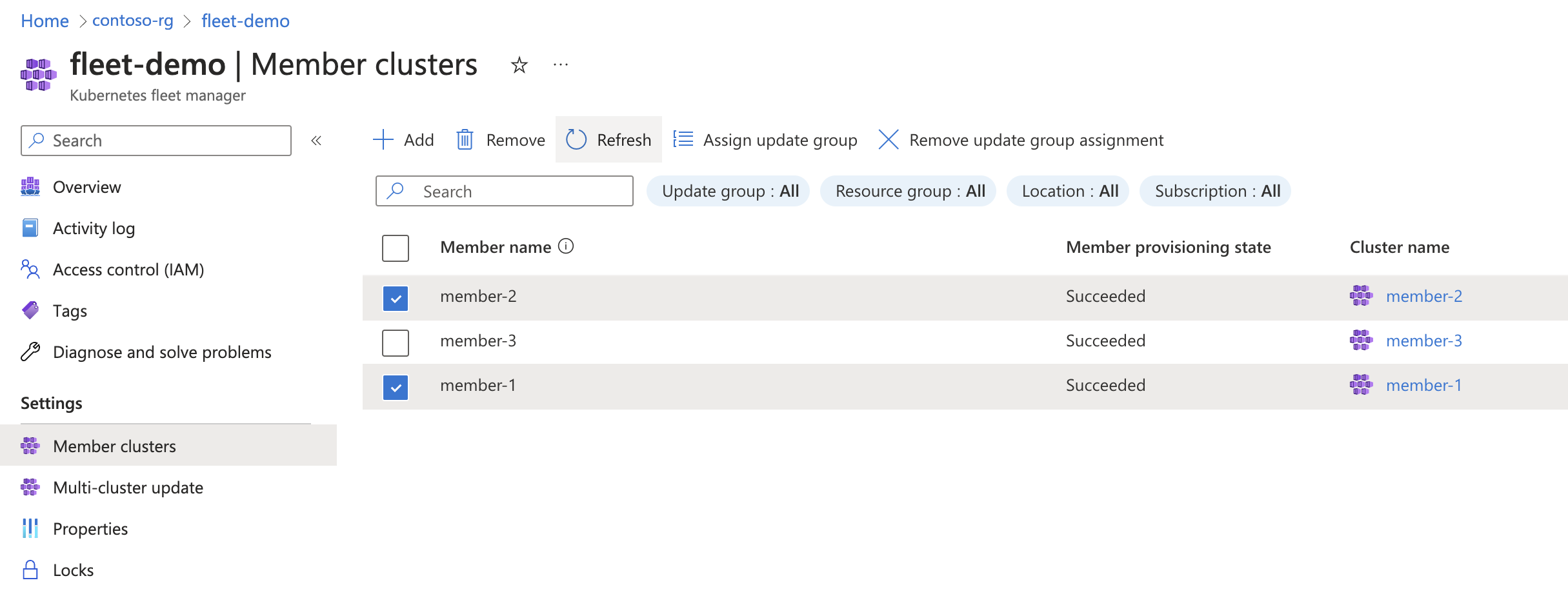
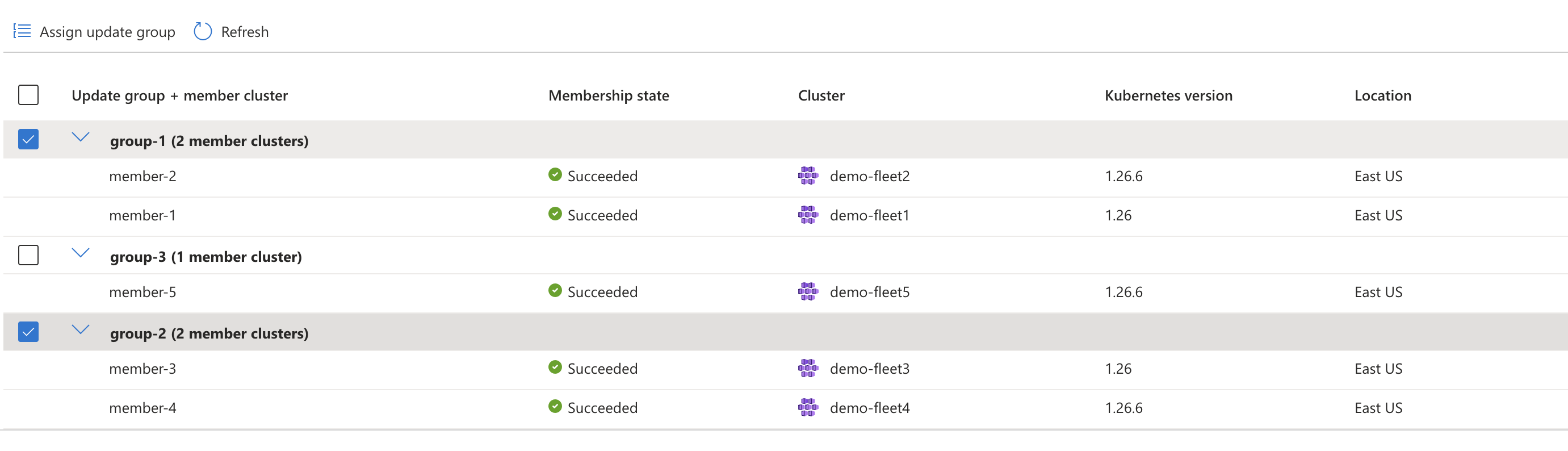
  1. On the page for your Azure Kubernetes Fleet Manager resource, navigate to Member clusters. Choose the member clusters that you want, and then select Assign update group.

    Screenshot of the Azure portal page for assigning existing member clusters to a group.

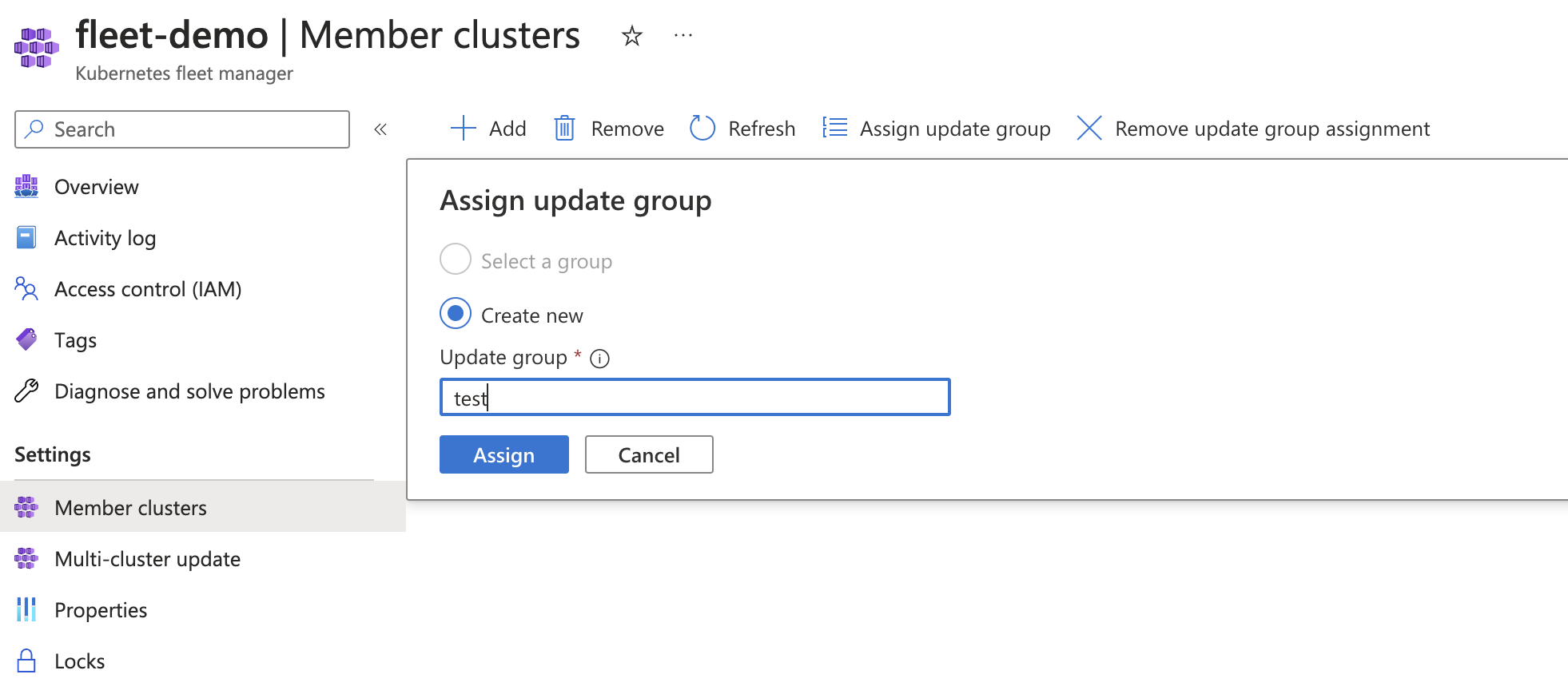
  2. Specify the group name, and then select Assign.

    Screenshot of the Azure portal page for member clusters that shows the form for updating a member cluster's group.

 Note

Any fleet member can only be a part of one update group, but an update group can have multiple fleet members inside it. An update group itself is not a separate resource type. Update groups are only strings representing references from the fleet members. So, if all fleet members with references to a common update group are deleted, that specific update group will cease to exist as well.

Define an update run and stages

You can define an update run using update stages in order to sequentially order the application of updates to different update groups. For example, a first update stage might update test environment member clusters, and a second update stage would then subsequently update production environment member clusters. You can also specify a wait time between the update stages.

  1. On the page for your Azure Kubernetes Fleet Manager resource, navigate to Multi-cluster update and select Create.

  2. Select Stages, and then choose either Node image (latest) + Kubernetes version or Node image (latest), depending on your desired upgrade scope.

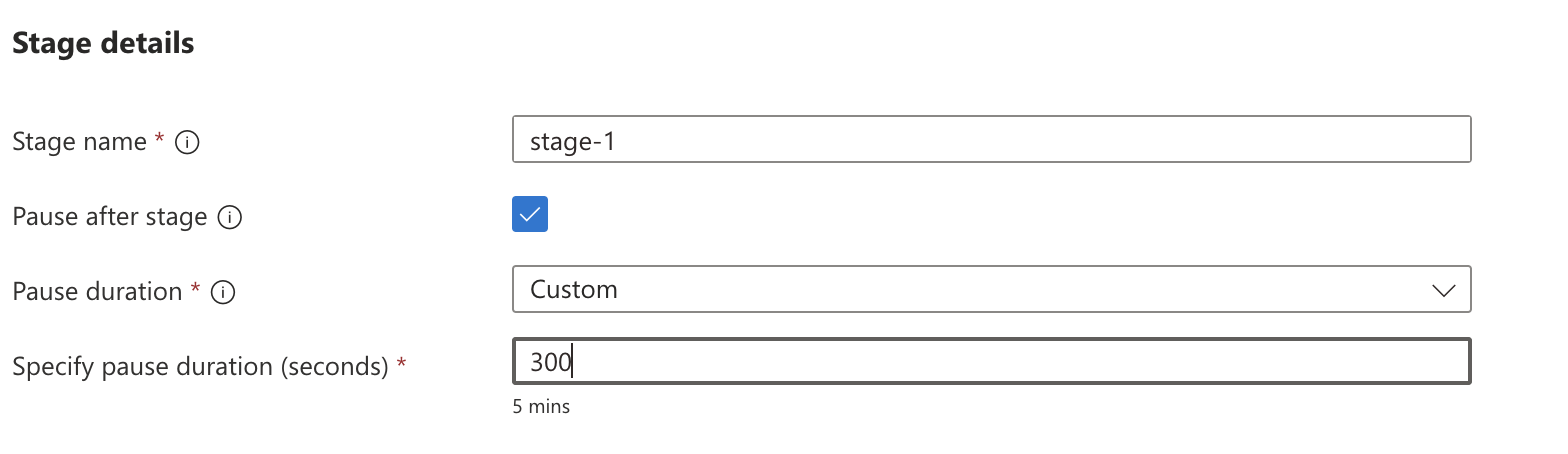
  3. Under Stages, select Create Stage. You can now specify the stage name and the duration to wait after each stage.

    Screenshot of the Azure portal page for creating a stage and defining wait time.

  4. Choose the update groups that you want to include in this stage.

    Screenshot of the Azure portal page for stage creation that shows the selection of upgrade groups.

  5. After you define all your stages and order them by using the Move up and Move down controls, proceed with creating the update run.

  6. In the Multi-cluster update menu, choose the update run and select Start.

Create an update run using update strategies

In the previous section, creating an update run required the stages, groups, and their order to be specified each time. Update strategies simplify this by allowing you to store templates for update runs.

 Note

It is possible to create multiple update runs with unique names from the same update strategy.

When creating your update runs, you are given an option to create an update strategy at the same time, effectively saving the run as a template for subsequent update runs.

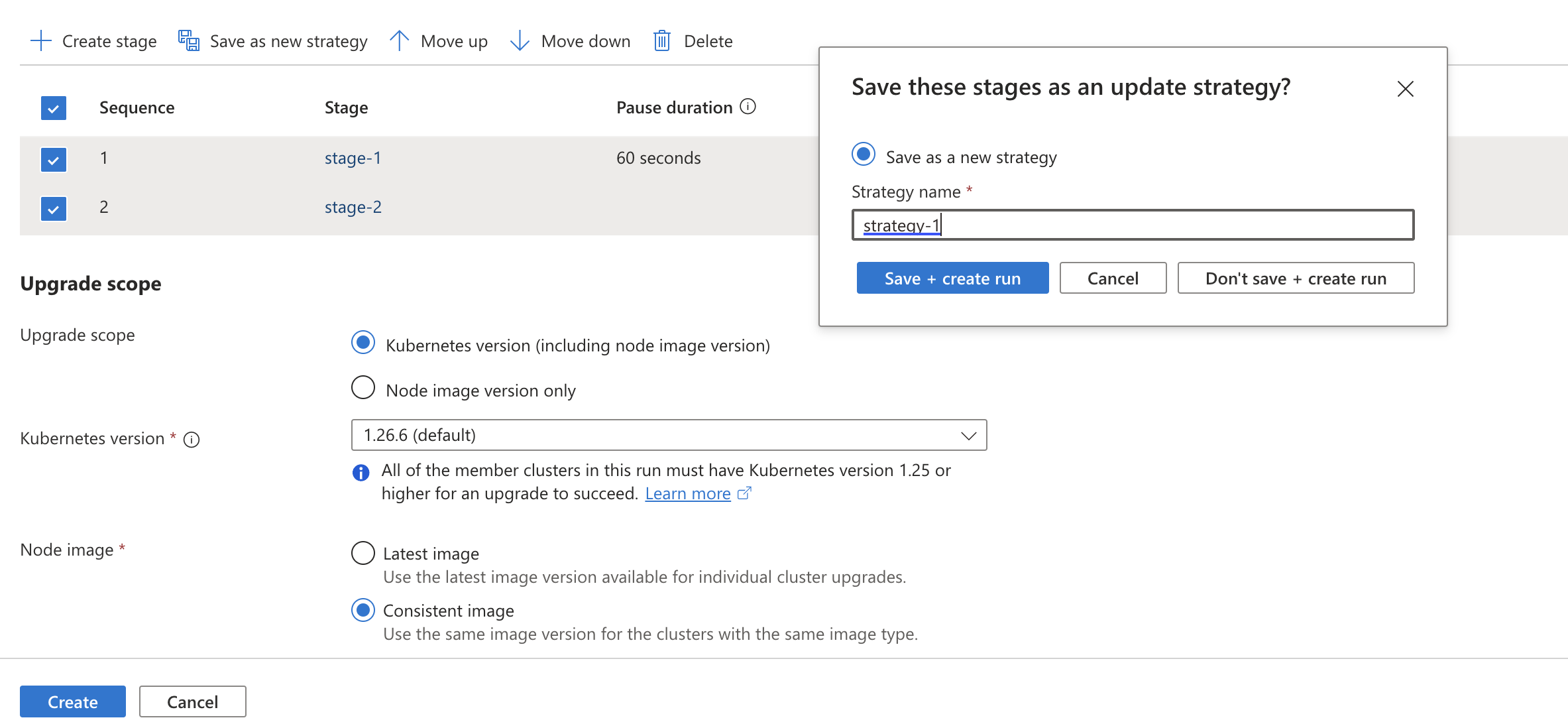
  1. Save an update strategy while creating an update run:

    A screenshot of the Azure portal showing update run stages being saved as an update strategy.

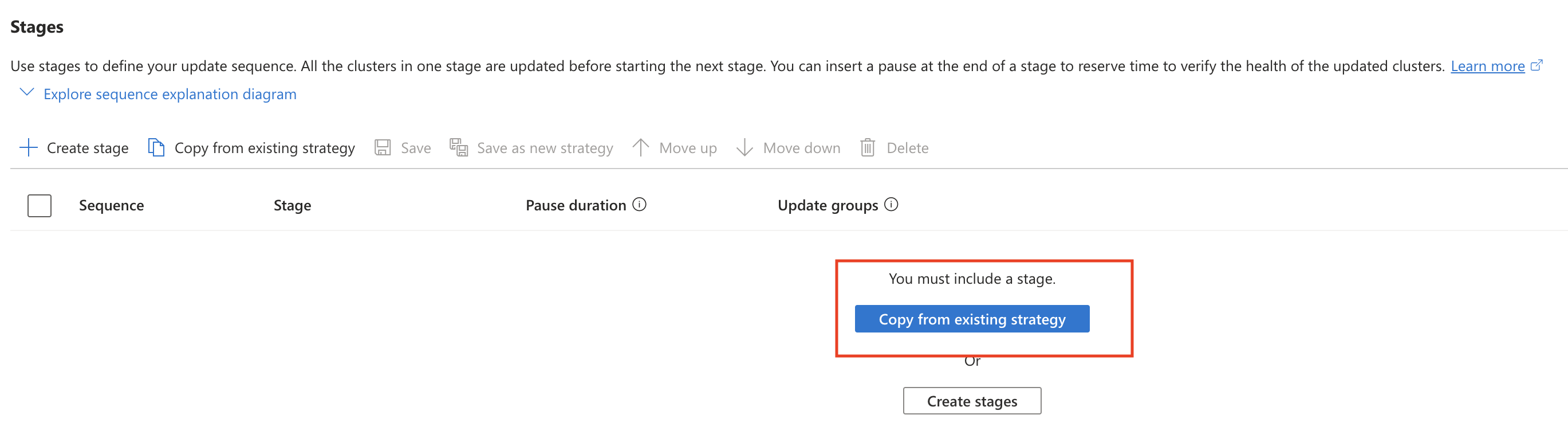
  2. The update strategy you created can later be referenced when creating new subsequent update runs:

    A screenshot of the Azure portal showing the creation of a new update run. The 'Copy from existing strategy' button is highlighted.

Challenges of managing multiple Azure Kubernetes Service (AKS) clusters


Challenges of managing multiple Azure Kubernetes Service (AKS) clusters

Back in the day, when virtualization took off, virtual machines were provisioned right and left. It led to a new term called “VM sprawl.” Similarly, the same problem can develop with the proliferation of Kubernetes clusters in the cloud across different regions, availability zones, etc. As organizations using Microsoft Azure and Azure Kubernetes Services (AKS) continue to provision AKS clusters, these numbers can grow and expand.

Businesses that are starting to scale up the number of AKS clusters may see the following challenges:

  • AKS clusters that exist in multiple subscriptions, including Dev, Staging, QA, Testing, and Production
  • Clusters existing across different regions
  • Lifecycle management across multiple clusters in different environments
  • Configuration management across AKS clusters
  • Consistent containerized app scheduling
  • Exposing the same app across multiple clusters and regions
  • Monitoring the health of apps across multiple clusters
  • Monitoring the health of the AKS clusters themselves
  • Without a centralized management solution to manage different AKS clusters across different environments and regions, it is not easy to meet the challenges and business objectives mentioned above.

What is Azure Kubernetes Fleet Manager Preview?

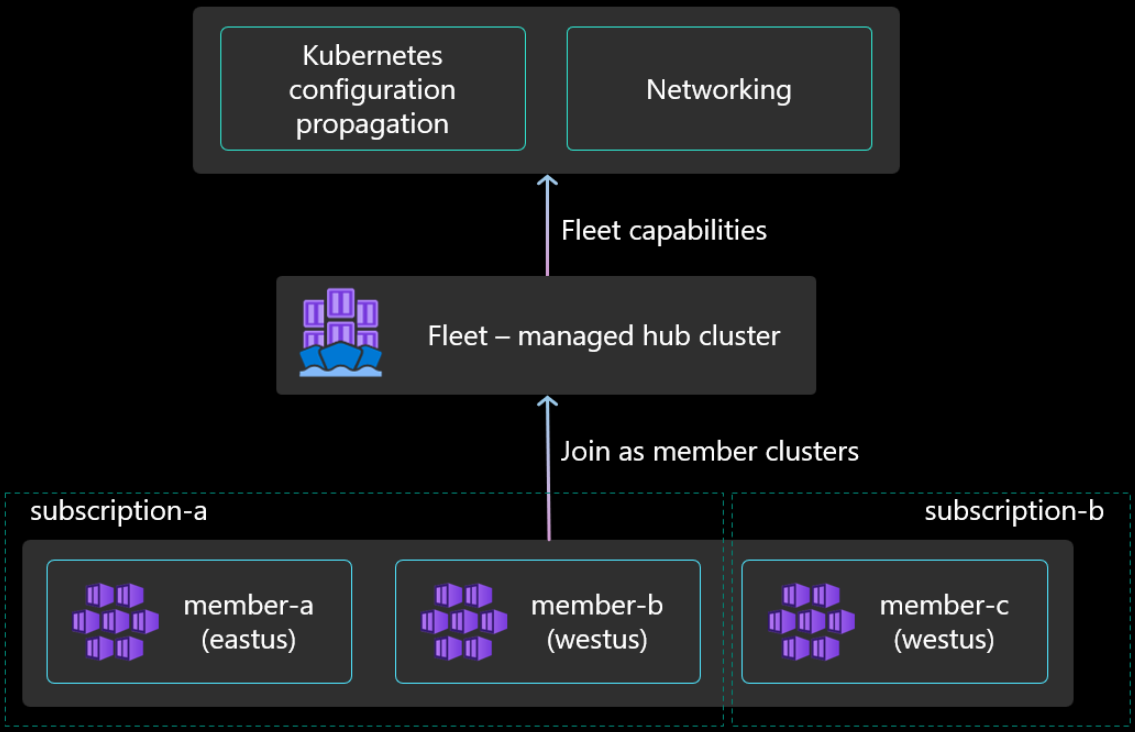
The new Azure Kubernetes Fleet Manager Preview is a new solution that helps to address the challenges of multiple AKS clusters across various environments and regions. It is meant to solve the at-scale and multi-cluster problems across the Azure Kubernetes Service (AKS) environment. The Azure Kubernetes Fleet Manager resource creates a Fleet Resource cluster that manages all other member clusters.

The Azure Kubernetes Fleet Manager Preview works by creating a Fleet Resource cluster that takes care of the management activities of the other member clusters in the AKS Fleet. So, the Fleet Manager is a Kubernetes cluster that provides the Hub Kubernetes API for orchestrating operations through your Fleet of Kubernetes clusters. You can export services from member clusters to the Fleet resource, synced to the Hub. Once the resource is synced, it can be consumed by any other member clusters in the Fleet.

Architectural overview of Azure Kubernetes Fleet Manager

Types of clusters you can join and limitations

Note the following AKS clusters you can provision as member clusters:

  • AKS clusters across the same or different resource groups within the same subscription
  • AKS clusters across different subscriptions of the same Azure AD tenant
  • AKS clusters from different regions but within the same tenant

As a point to note, the solution in its Preview form currently limits the number of AKS clusters you can join to the same fleet resource at 20 member clusters.

Azure Kubernetes Fleet Manager Benefits

Note the following capabilities and benefits of the new Azure Kubernetes Fleet Manager Preview:

  • Centralized Management of all clusters at scale
  • Managed hub cluster
  • Kubernetes configuration propagation
  • Multi-cluster load balancing

Centralized Management of all clusters at scale

In addition, it helps organize and manage your AKS clusters from a centralized management and control plane. You can join your existing Azure Kubernetes Service (AKS) clusters as member servers to the cluster Fleet. When you join your existing AKS clusters to the Fleet, it opens the door to using the cluster metadata for scenarios where you can benefit from multi-cluster scenarios, including resource propagation and multi-cluster load balancing, which we will describe below.

In addition, Azure Kubernetes Fleet Manager supports joining your AKS clusters from various sources. These include different regions, subscriptions, and resource groups. The only requirement is the AKS resources need to be part of the same Azure AD tenant.

The Azure Kubernetes Fleet Manager is the single-pane-of-glass interface allowing you to manage all your clusters from one location. In addition, using the Kubernetes Fleet Manager enables treating all the clusters as a single logical cluster by sharing metadata between them and exposing fleet operations.

Managed Hub Cluster

As mentioned earlier, the Azure Kubernetes Fleet Manager creates a Managed Hub Cluster. This cluster serves as a management cluster for the AKS member clusters that are part of the Azure Kubernetes Fleet resource. In addition, since the Managed Hub Cluster is a Kubernetes cluster itself, Kubernetes information can be shared between the Hub cluster and the member clusters.

The Hub Cluster exposes a single Hub cluster API that allows orchestrating Kubernetes tasks through the management cluster for all the member clusters as part of the AKS Fleet. Instead of managing and carrying out tasks directly for each cluster, it allows a much more streamlined management interface for operational tasks.

Kubernetes Configuration Propagation

One of the challenges that existed before Azure Kubernetes Fleet for AKS admins is Kubernetes resource propagation. Before the AKS Fleet solution, AKS admins would have to create Kubernetes namespaces once application teams detailed these requirements manually. They would also have to figure out which clusters would meet the namespace requirements and even create new clusters to configure new namespaces.

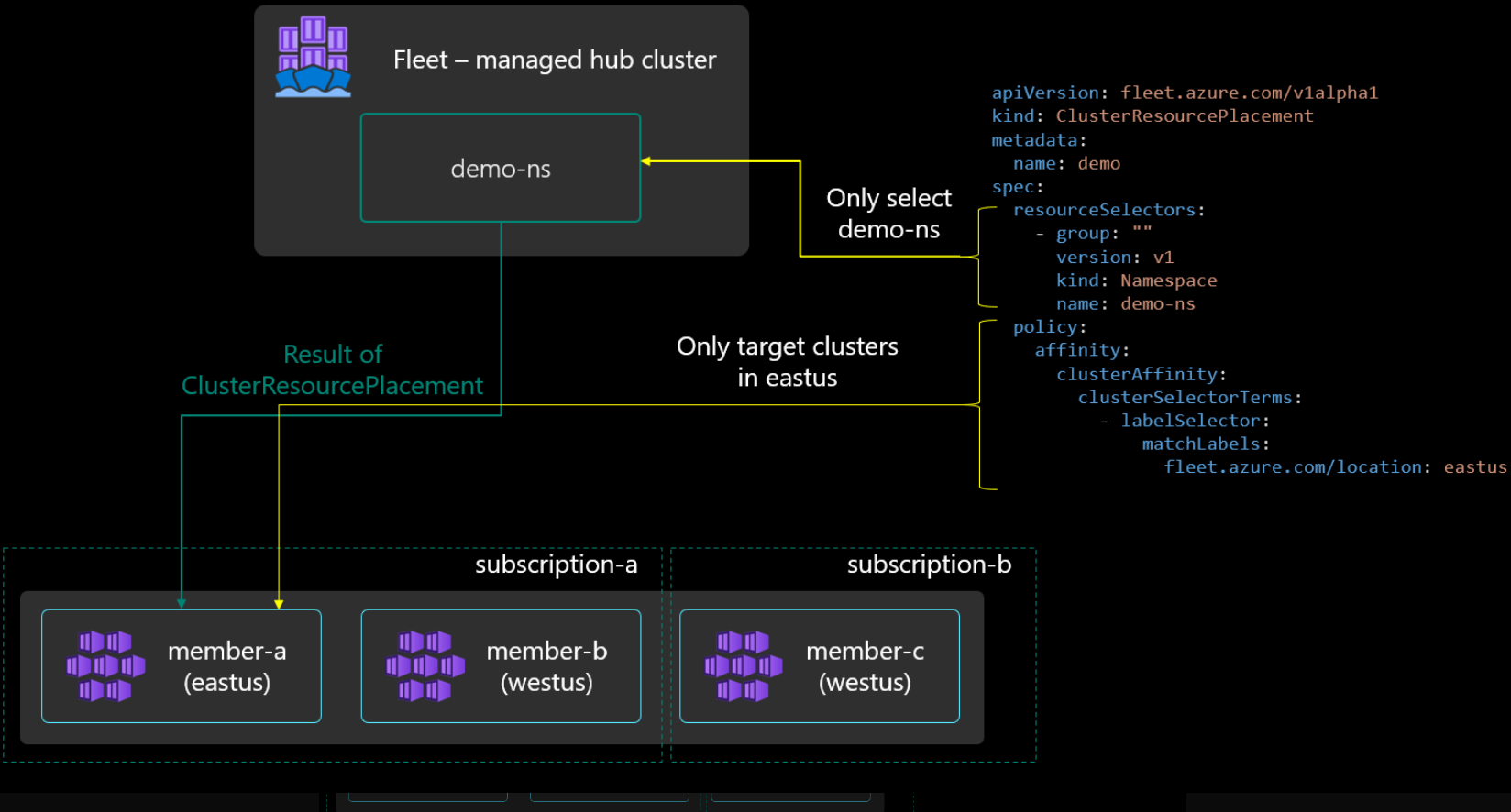
With Azure Kubernetes Fleet Manager, AKS admins now have something called ClusterResourcePlacement. This construct controls how cluster-scoped resources are propagated to member clusters. It includes two components:

  1. Resource selection – AKS admins can granularly pick which resources get propagated between Kubernetes cluster members in the Fleet based on metadata from each member cluster

2. Target cluster selection – AKS admins can also choose which member clusters they want to propagate resources. They can select all clusters or a subset of member clusters based on defined characteristics as part of a policy.

Azure Kubernetes Fleet Manager resource propagation

Multi-cluster load balancing

One of the driving reasons for deploying resources to cloud environments is the ultra-resiliency and availability offered by cloud environments. Azure Kubernetes Service (AKS) provides resiliency and availability backed by robust Azure infrastructure resources.

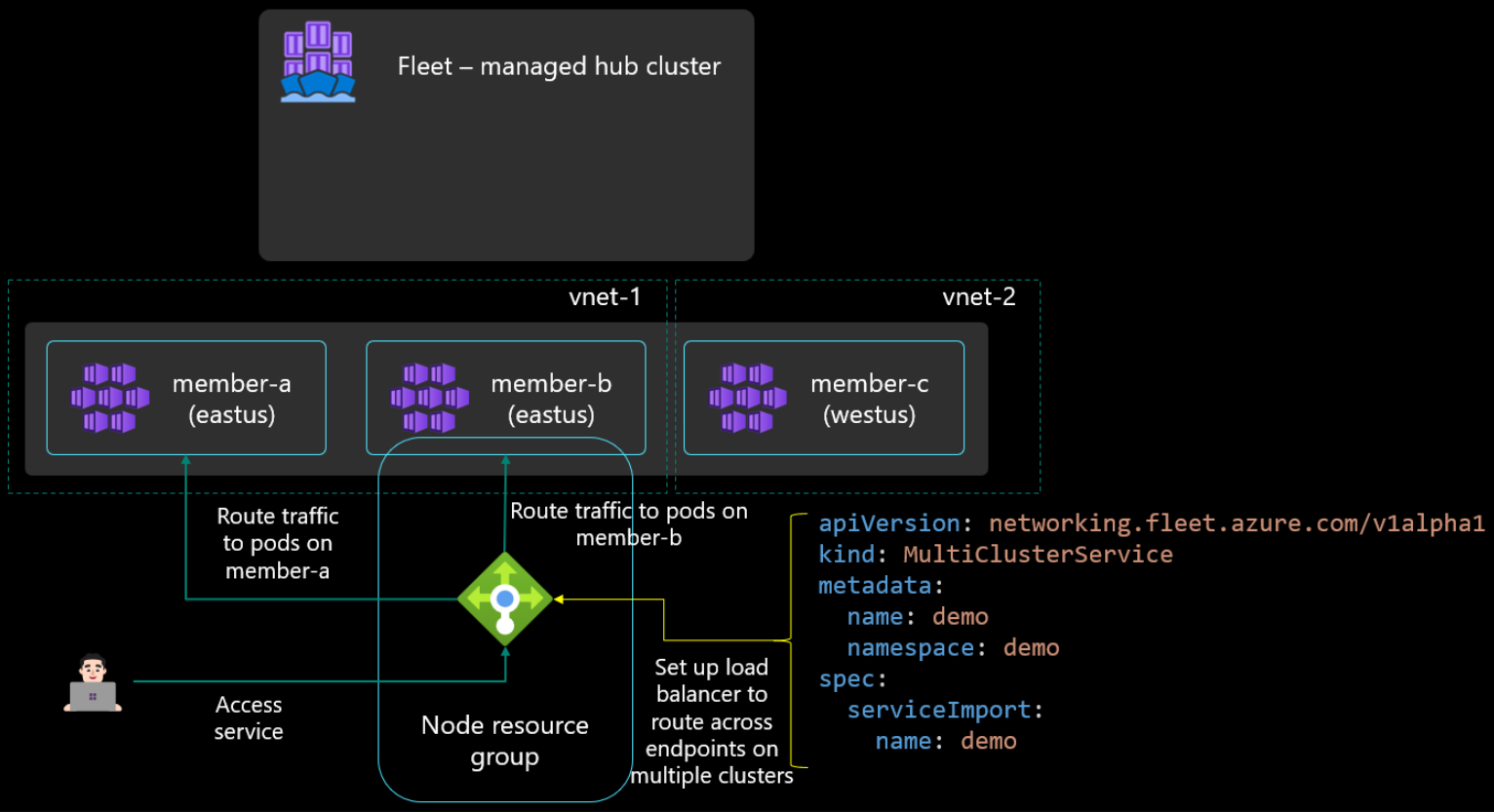
Building on those capabilities, organizations deploying large-scale AKS deployments want to have the ability to load-balance incoming traffic across multiple AKS clusters, often located in different regions. This configuration helps to provide resiliency in the event of a cluster failure or if an entire region’s resources go down.

Azure Kubernetes Fleet Manager provides the ability to configure Layer 4 multi-cluster load-balancing for incoming traffic across multiple clusters for workloads and services.

Multi-cluster load balancing