Tuesday, 28 May 2024

Azure Container Instances Tutorial


Azure Container Instances Tutorial

Let’s get started! I’m going to show you how to run an application in a container locally and then publish that to Azure Container Instances. I’ll do this using Docker containers. To get started on Windows 10, you need the following:

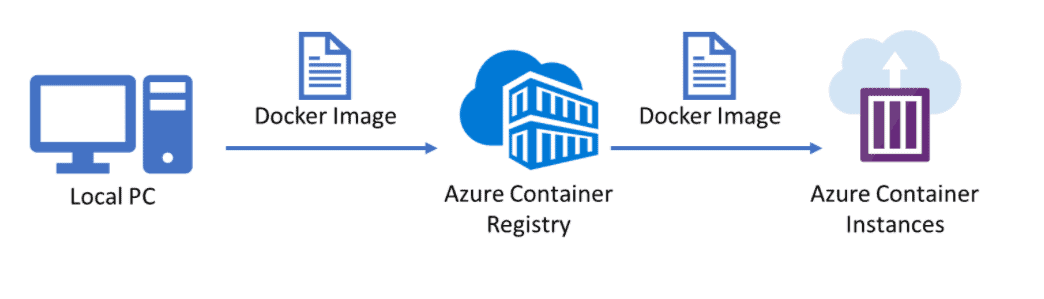
To get a local container into Azure Container Instances, I need to first put it into an intermediary repository that can be accessed by Container Instances. This can be Docker Hub or something else, like the Azure Container Registry. This is a place that houses container images. This would make our workflow look like this.
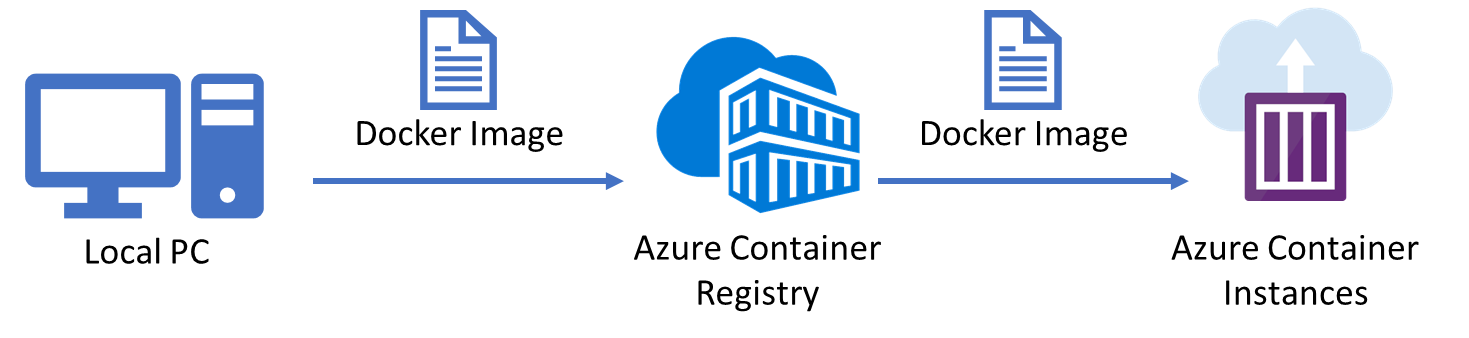
container images workflow

Step 1: Adding Docker support to an ASP.NET Core application

I already have an ASP.NET Core application and want to run it in a Docker container. Visual Studio makes this easy for us. Once you have your ASP.NET Core project opened, you can just add Docker support by selecting it from the project menu in Visual Studio. Alternatively, there is a checkbox to enable Docker support for new ASP.NET Core projects.
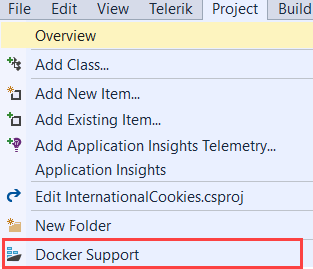
Adding Docker support to an ASP.NET Core application

Once you do, the resulting solution looks like this:
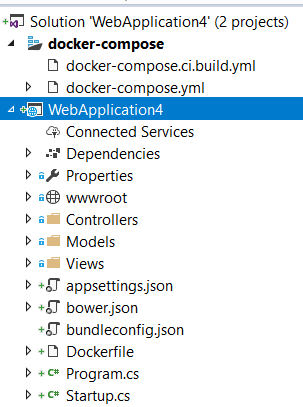
Docker Support

There’s now a new project, called docker-compose. This contains the Docker compose files that will build the image for your web application. Also, there is a Dockerfile file in the web application. This is the actual Docker file that is used to build the Docker image. When you open it, you see that it is based on the microsoft/aspnetcore:2.0 image and adds the application to it. Also, you’ll see that the application is exposed to port 80.

FROM microsoft/aspnetcore:2.0
ARG source
WORKDIR /app
EXPOSE 80
COPY ${source:-obj/Docker/publish} .
ENTRYPOINT ["dotnet", "WebApplication4.dll"]

You need to do one more thing in order to build and run the application locally. You need to change the local Docker server to run Windows-based containers. Find the Docker server running on your machine in your applications tray (near the clock), right click on it and click Switch to Windows containers, which I already did (that’s why it says switch to Linux containers in the image below).  Unfortunately, this will result in a restart of your system.
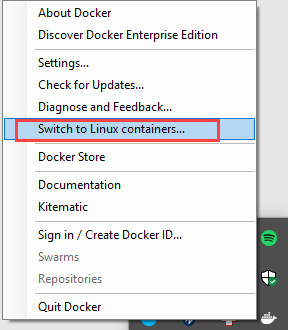
 click Switch to Windows containers, which I already did (that’s why it says switch to Linux containers in the image below).

That’s it! Now build and run your solution and you’ll see that the web application will be built,  the docker image will be composed, and the application will run locally in a Docker container.

Step 2: Push the local image to Azure Container Registry

We now have the application running in a container on our local machine. Now, we need to get this image somewhere so that it can be used by the Azure Container Instances service. We’ll put it in Azure Container Registry, which is a private container repository, hosted in Azure. It is nothing more than a storage space for containers.

First, we’ll create an Azure Container Registry:

  1. In the Azure Portal, click the Create a resource button (green plus in the left-upper corner)
  2. Next, search for azure container registry
  3. Pick the Azure Container registry from the search results and click Create

The Create container registry wizard appears:

  1. Fill in a name
  2. Create a new resource group or pick an existing one
  3. Pick a location
  4. Select Enable for the Admin user setting (this enables us to easily authenticate to the registry later on)
  5. Leave the SKU to Standard
  6. Click Create

And now the registry will be created. Once it is done, we can move on to the next steps.

In order to publish the local Docker image to the registry, we want it to be a release version of the application. So first of all, change the build configuration of the application to Release. A handy way of making sure this works, is to navigate to the Configuration Manager when right-clicking the solution file, and selecting the release configuration. Once that is done, build the solution again.
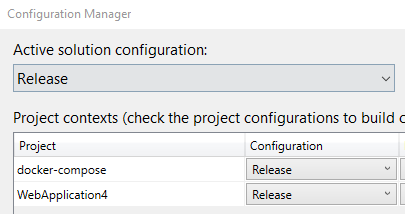
navigate to the Configuration Manager when right-clicking the solution file, and selecting the release configuration. Once that is done, build the solution again.

Open a command prompt to see which images are available after the build.  Type in the following in the command prompt:

docker images

This results in a list of local docker images, like this:

This results in a list of local docker images, look like this.

In my case, the webapplication4 image is the one we want. The one tagged latest was just added after the release build. Now we need to push this image to the Azure Container Registry. In order to do that, we first need to login to the container registry, like this:

docker login CONTAINERREGISTRYURL -u CONTAINERREGISTRYNAME -p CONTAINERREGISTRYPASSWORD

You can find this information in the Access Keys tab of the Container Registry. Here is what this looks like for me (don’t bother to try these credentials, I’ve deleted the repository already).

docker login barriescontainerregistry.azurecr.io -u barriescontainerregistry -p DEen2rwlgnYM2sT7W/y57MKNU8iyTqZk+

After logging in, we need to tag the image before pushing it:

docker tag webapplication4 barriescontainerregistry.azurecr.io/demos/webapp4

Now that we have created the tag, we can push the image to the registry:

docker push barriescontainerregistry.azurecr.io/demos/webapp4

That’s it. The image is now in the Azure Container Registry and can now be used by the Azure Container Instance service.

[adinserter block=”33″]

Step 3: Use the image in Azure Container Instances

The image is now in the Azure Container Registry. Let’s create a new Azure Container Instance with the image to see if it will run in the cloud.

  1. In the Azure Portal, click the Create a resource button (green plus in the left-upper corner)
  2. Next, search for azure container instance and click Create
  3. Now, fill in the first step of the wizard like in the image below. Again, you can find the information for the Container Registry in the Access Keys tab of the Container Registry
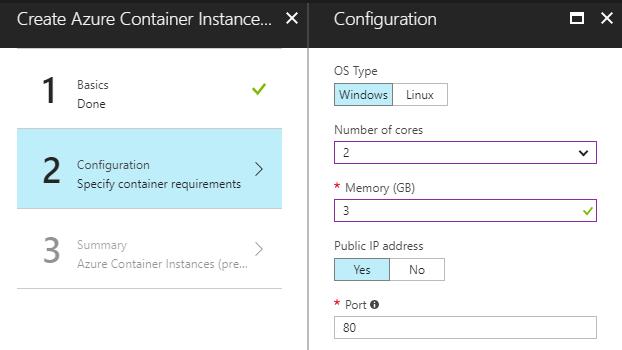
  4. Now for step 2 of the wizard. Fill it in like in the image below. Be sure to select Windows for the OS type
  5. In step 3 of the wizard, everything will be summarized.
  6. Click Create

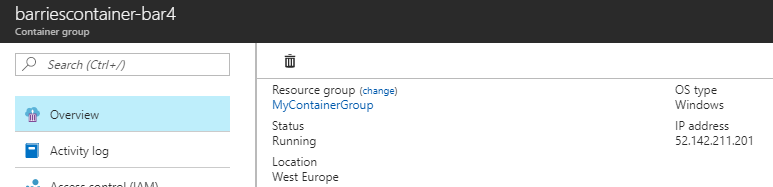
The Container Instance will now be created. When it is done, you can find an IP address in its overview in the Azure Portal.
The Container Instance will now be created. When it is done, you can find an IP address in its overview in the Azure Portal.

When you navigate to that address, you’ll see the ASP.NET Core application that is exposed on port 80.
When you navigate to that address, you’ll see the ASP.NET Core application that is exposed on port 80.

Something to consider: automation

The steps I took to build the container image, push it to Azure Container Registry and get it running in Azure Container Instances are a bit much, if you ask me. First of all, I would love to see the tooling evolve to provide us a first-class Visual Studio experience to build images locally and push them to where they need to be – I’m confident that Microsoft will deliver on that.

And secondly, these steps should ideally be automated. You can use something like Visual Studio Team Services to perform the application build steps and compose the image and then push it to Azure Container Registry and to Container Instances. You can read how to do this in the tutorial here. The article describes pushing to Azure Container Services instead of Container Instances, but the concepts remain the same.

Azure Container Instances vs App Service

Azure Container Instances vs App Service


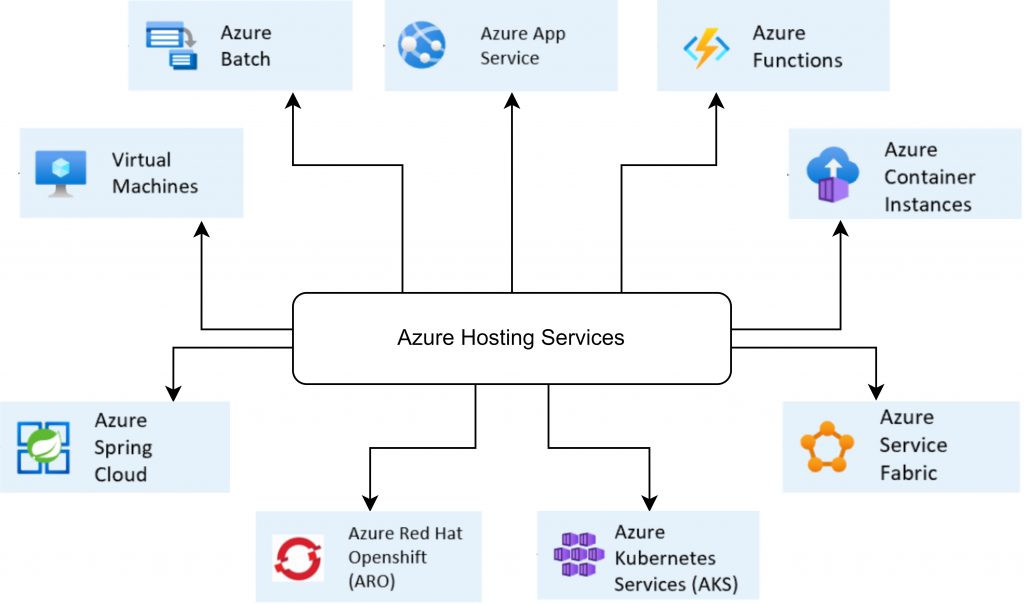
 Considering the multiplicity of available solutions – it is worth being aware of different hosting services (so-called Azure Compute Services, Hosting Services) details. This knowledge will greatly improve our ability to make a choice that matches our needs in terms of architectural decisions.

Hosting services are categorized into groups because of different hosting models.

We can indicate following models:

  • IaaS (Infrastructure as a service)
  • PaaS (Platform as a Service)
  • SaaS (Software as a service)

which determine the way of how the resources are being used in the cloud and what their usage scope is.

There are plenty of factors that can (and potentially should) affect our decisions, but during the early phase of research it can be crucial to answer questions such as:

  • How much control do we need?
  • Where do we want to use our application? (on-premise, hybrid cloud, public cloud)
  • What will be the main way of usage? (continuous or on-demand usage)

Solutions from the IaaS group usually provide more control with simultaneous increased responsibility for created resources. On the other hand – SaaS solutions gives less control while freeing us from most resource-management related tasks.

The final choice targeting production should be always preceded by an analysis of different Azure services capabilities versus main goal and scope of designed software.

In this article I would like to discuss features, pros, cons, as well as differences between two Azure Hosting PaaS services used during development and deployment processes of containerized applications:

  • Azure Container Instances (ACI)
  • Azure App Service

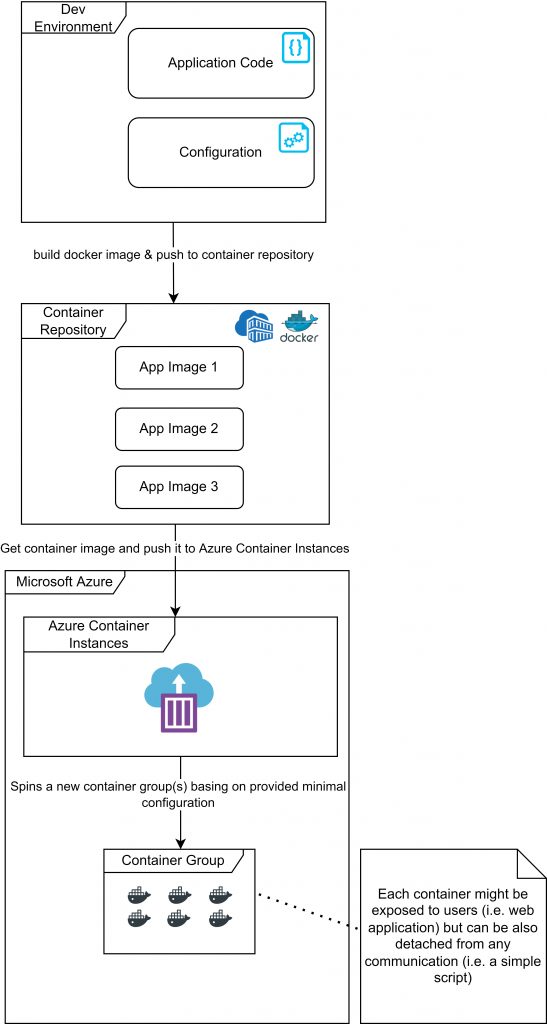
This service was created primarily with ease of use in mind. It supports both Windows and Linux containers. ACI provides very basic functionalities for creating and managing a group of containers. If our main target is to quickly start a new container with our application without going too deep into details related to configuration and orchestration – this will be the most common choice.

In most cases, using Azure Container Instances requires only:

  • Providing a docker container image,
  • Specifying base configuration (number of required CPU cores or memory size)

Among key advantages of this service we can indicate:

  • Fast startup time (usually couple seconds),
  • Billing only for real usage (payment per second of service activeness) without any initial costs,
  • No need for complex orchestration implementation,
  • Providing container isolation level similar to security level provided by running applications on different virtual machines,
  • Availability of public IP addresses for containers which can be accessible from Internet using FQDN (Fully Qualified Domain Name),
  • Option to integrate with Azure Kubernetes Service,
  • Option to deploy a group of containers (ACI Container Groups) on one host machine using shared storage space, shared network and other resources between containers working together towards one goal

Some of ACI disadvantages are:

  • Limited scalability – in terms of scaling up – ACI provides options to define resources allocated for a container. However, scaling out requires manual creation and management of ACI instances. It also does not provide auto-scaling.
  • Basic configuration – in certain scenarios it becomes a drawback (i.e. lack of port mapping functionality can force us to modify the code of the container to make it play well with ACI).

Below you can see a simplified diagram presenting a deployment process of application using Azure Container Instances:

It is a service often called a „fully-featured” offering for hosting applications. 

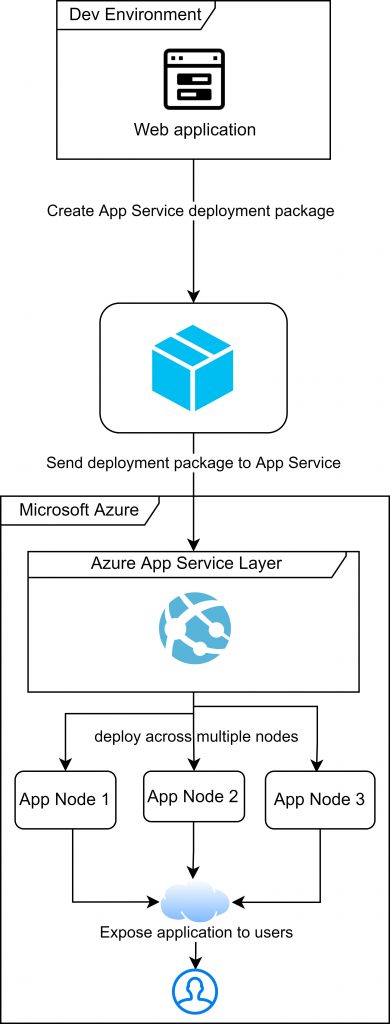
Azure App Service provides access to every tool needed during development and deployment processes of web applications that are growing, and which business scope is constantly changing over time.

It offers a lot of integration capabilities in terms of other Azure services. Running containers with applications is only a small subset of overall App Services functionalities.

We can think of this service as a framework providing us with necessary tooling for the whole software development cycle.

Azure App Service advantages worth mentioning are:

  • High availability (guaranteed 99.5% availability basing on SLA contracts),
  • Automatic or manual scaling in and out with option to specify the scaling rules,
  • Load-balancing
  • Built-in security mechanisms related to authentication and authorization processes (i.e. two-factor authentication)
  • Support for many programming languages,
  • Built-in SSL certificates management
  • Great integration with IDE tools for deploying apps,
  • Deployment Slots functionality which is free, and allows environment duplication – commonly used for testing application before going live,
  • Support for code, container or even binaries based deployments

Some of this service disadvantages are:

  • Complexity – forcing to learn about many details related with service operation,
  • Dedicated mostly for web applications, other types of apps support is limited,
  • Usage of services delivered by one cloud provider (in this case Azure) not always translates into universal skills

Below you can see a simplified diagram presenting deployment process of application using Azure App Service:

After analyzing the key features of both presented services, one can get an impression that they have some common parts. However, they were built for other purposes.

Azure Container Instances is a lightweight hosting service allowing us to quickly spin up a new container with our application. Its scope is usually well-known, and functionalities are rather basic. ACI might be a good choice if plans on expanding and scaling the application do not play a huge role, due to its predictable use.

For comparison – Azure App Service is some kind of an ecosystem providing suitable tools and elasticity. Similarly to ACI, it uses containerization for running applications but in addition focuses on the whole software development process, and will work perfectly for complex web applications that are growing constantly. Factors such as high availability, scalability or plenty of possible out of the box integrations are the top priority.

Implement Azure Container Instances(LAB)


Implement Azure Container Instances

Lab introduction

In this lab, you learn how to implement and deploy Azure Container Instances.

This lab requires an Azure subscription. Your subscription type may affect the availability of features in this lab. You may change the region, but the steps are written using East US.

Estimated timing: 15 minutes

Lab scenario

Your organization has a web application that runs on a virtual machine in your on-premises data center. The organization wants to move all applications to the cloud but doesn’t want to have a large number of servers to manage. You decide to evaluate Azure Container Instances and Docker.

Interactive lab simulations

There are interactive lab simulations that you might find useful for this topic. The simulation lets you to click through a similar scenario at your own pace. There are differences between the interactive simulation and this lab, but many of the core concepts are the same. An Azure subscription is not required.

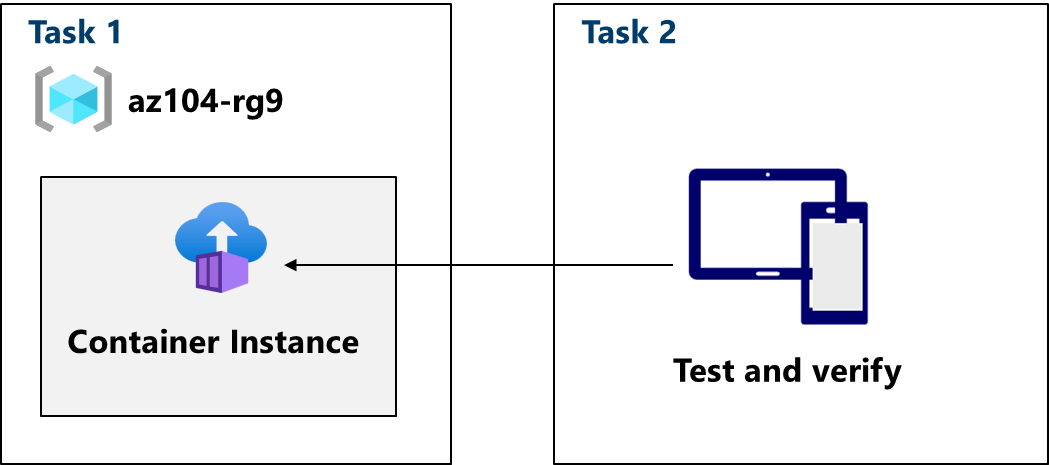
Architecture diagram

Diagram of the tasks.

Job skills

  • Task 1: Deploy an Azure Container Instance using a Docker image.
  • Task 2: Test and verify deployment of an Azure Container Instance.

Task 1: Deploy an Azure Container Instance using a Docker image

In this task, you will create a simple web application using a Docker image. Docker is a platform that provides the ability to package and run applications in isolated environments called containers. Azure Container Instances provides the compute environment for the container image.

  1. Sign in to the Azure portal - https://portal.azure.com.

  2. In the Azure portal, search for and select Container instances and then, on the Container instances blade, click + Create.

  3. On the Basics tab of the Create container instance blade, specify the following settings (leave others with their default values):

    SettingValue
    SubscriptionSelect your Azure subscription
    Resource groupaz104-rg9 (If necessary, select Create new)
    Container nameaz104-c1
    RegionEast US (or a region available near you)
    Image SourceQuickstart images
    Imagemcr.microsoft.com/azuredocs/aci-helloworld:latest (Linux)
  4. Click Next: Networking > and specify the following settings (leave others with their default values):

    SettingValue
    DNS name labelany valid, globally unique DNS host name

    Note: Your container will be publicly reachable at dns-name-label.region.azurecontainer.io. If you receive a DNS name label not available error message, specify a different value.

  5. Click Next: Advanced >, review the settings without making any changes.

  6. Click Review + Create, ensure that the validation passed and then select Create.

Task 2: Test and verify deployment of an Azure Container Instance

In this task, you review the deployment of the container instance. By default, the Azure Container Instance is accessible over port 80. After the instance has been deployed, you can navigate to the container using the DNS name that you provided in the previous task.

  1. On the deployment blade, click the Go to resource link.

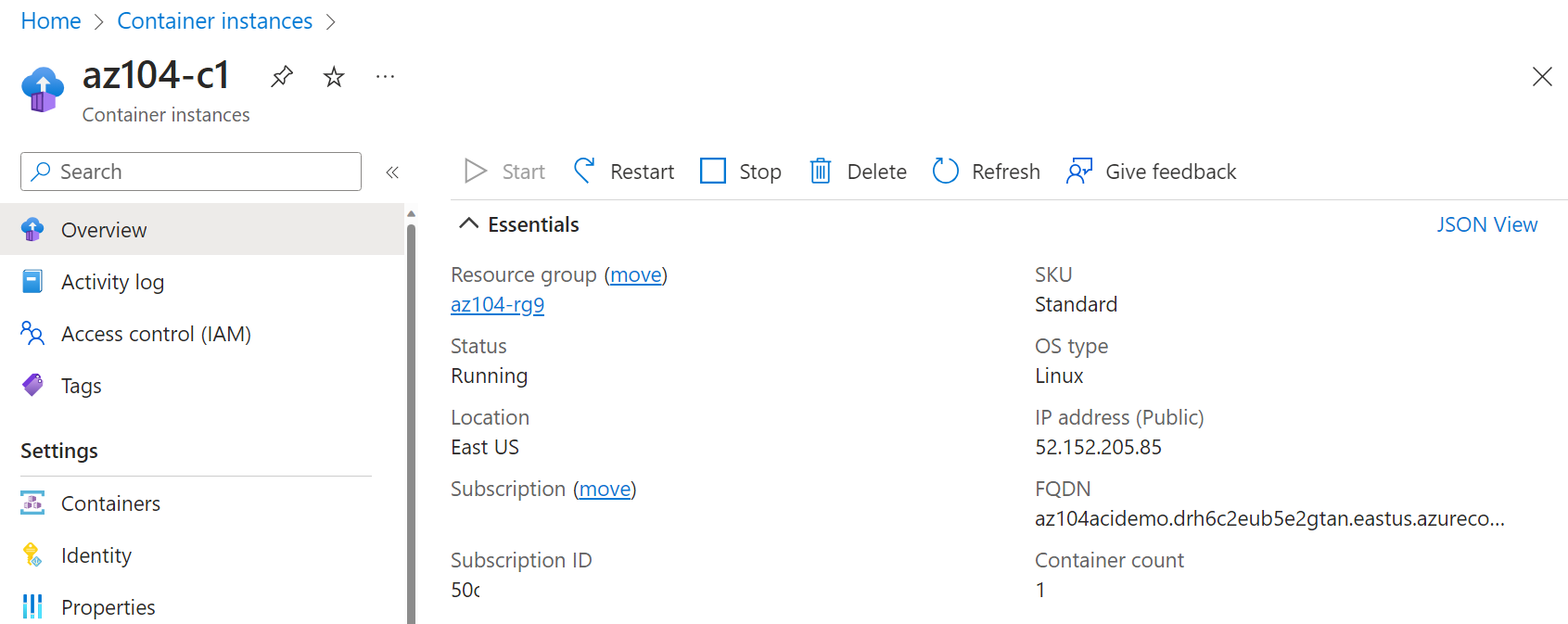
  2. On the Overview blade of the container instance, verify that Status is reported as Running.

  3. Copy the value of the container instance FQDN, open a new browser tab, and navigate to the corresponding URL.

    Screenshot of the ACI overview page in the portal.

  4. Verify that the Welcome to Azure Container Instance page is displayed. Refresh the page several times to create some log entries then close the browser tab.

  5. In the Settings section of the container instance blade, click Containers, and then click Logs.

  6. Verify that you see the log entries representing the HTTP GET request generated by displaying the application in the browser.

Azure Kubernetes Service & Azure Container Instances For Beginners

 Azure Kubernetes Service & Azure Container Instances For Beginners


Kubernetes is an open-source platform for managing containerized workloads and services in this we need to manage master & worker. Azure provides managed Kubernetes service Azure Kubernetes Service in which azure manages the master nodes and end-user needs to manage the worker nodes.

What is Azure Container Instances (ACI)

Azure Container Instances (ACI) is Microsoft PaaS (Platform as service) solution that offers the fastest and simplest way to run a container in Azure, without having to manage any underlying infrastructure. For container orchestration in Azure (build, manage, and deploy multiple containers) use Azure Kubernetes Service (AKS). You can deploy Azure Container Instances using Azure Portal, Azure CLI, Powershell, or ARM Template. Same as the docker registry we can push our images to Azure Container Registry (ACR) which is a private secure registry propose by the Azure platform.


Azure-Container-Instances

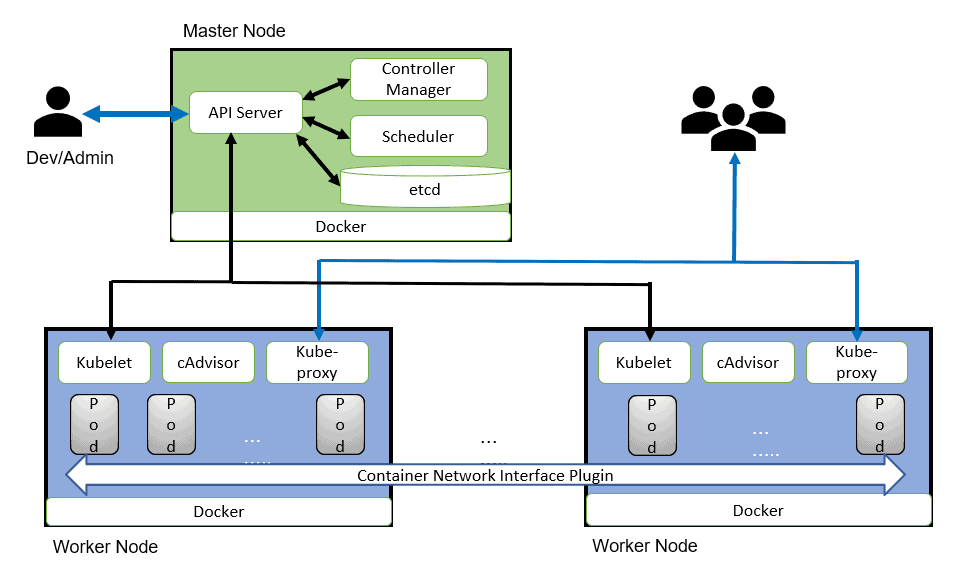
What Is Kubernetes? 

In organizations, multiple numbers of containers running on multiple hosts at a time so it is very hard to manage all the containers together we use Kubernetes. Kubernetes is an open-source platform for managing containerized workloads and services. Kubernetes takes care of scaling and failover for your application running on the container

Kubernetes_Architecture


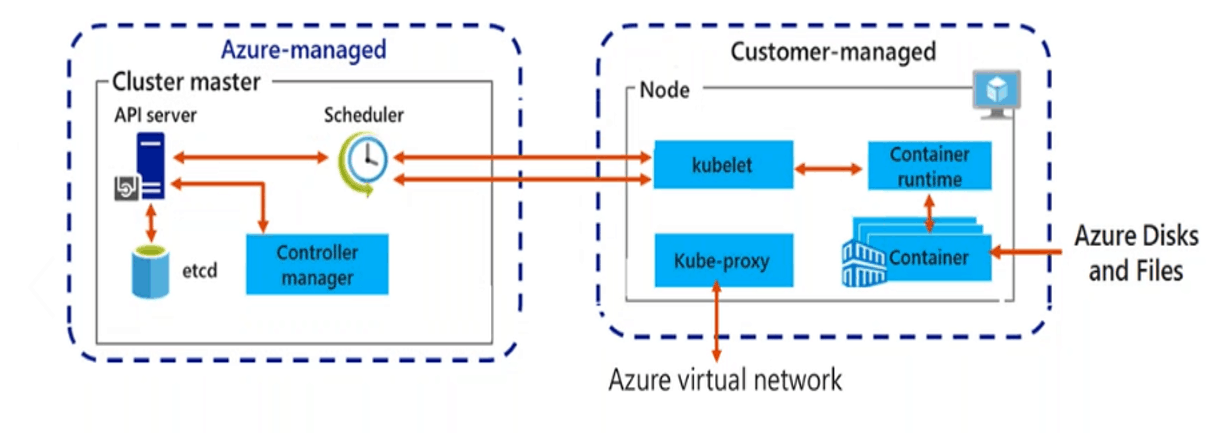
Azure Kubernetes Service (AKS)

Azure Kubernetes Service (AKS) is a managed Kubernetes service in which the master node is managed by Azure and end-users manages worker nodes. Users can use AKS to deploy, scale, and manage Docker containers and container-based applications across a cluster of container hosts. As a managed Kubernetes service AKS is free – you only pay for the worker nodes within your clusters, not for the masters. You can create an AKS cluster in the Azure portal, with the Azure CLI, or template-driven deployment options such as Resource Manager templates and Terraform.


Azure Kubernetes Service

ACI vs AKS

Pricing

ACI charges are based on the runtime of container groups, with pricing determined by the allocated vCPUs and memory resources. For instance, in the Central US region, Linux VMs cost $0.0000135 per vCPU per second and $0.0000015 per GB of RAM per second. If a container group utilizes 10 vCPUs and 100 GB of RAM, the memory resources would cost $0.009 per hour, and the vCPUs would cost $0.0081 per hour, resulting in a total of $0.0171 per hour.

On the other hand, AKS does not impose any additional charges for managing your Kubernetes environment. The billing is based on the VMs running your worker nodes, along with the associated storage and networking resources used by your clusters. The costs incurred are the same as running the equivalent VMs without AKS. To estimate expenses accurately, you need to consider the VM type, the number of required nodes, and their duration of operation. For up-to-date pricing information for Azure VMs, it is recommended to refer to Azure’s official documentation.

Scale

ACI employs container groups to facilitate scaling, where multiple containers operate on the same host and share resources, networks, and storage volumes. This concept resembles a Kubernetes pod, where containers within the group have synchronized lifecycles.

In contrast, AKS leverages the scaling functionalities provided by Kubernetes. Users have the flexibility to manually scale their AKS pods or utilize horizontal pod autoscaling (HPA), which automatically adjusts the number of pods in a deployment based on metrics like CPU utilization or other specified criteria.

Security

ACI offers the ability to utilize Azure Virtual Networks, which enable secure networking for Azure resources and on-premises workloads. By deploying container groups into Virtual Networks, ACI allows for secure communication between ACI containers and various entities, such as other container groups within the same subnet, databases located in the same Virtual Network, and on-premises resources accessed through a VPN gateway or ExpressRoute.

On the other hand, AKS provides access to the comprehensive security features of native Kubernetes, augmented by Azure capabilities like network security groups and orchestrated cluster upgrades. Keeping software components up to date is crucial for security, and AKS automatically ensures that clusters run the latest versions of operating systems and Kubernetes, including necessary security patches. Additionally, AKS prioritizes the security of sensitive credentials and the traffic within pods, ensuring secure access to these resources.

When to Use ACI

Azure Container Instances (ACI) is a suitable choice in several scenarios, including:

  1. Quick application development and testing: ACI allows for rapid deployment of containers without the need to manage underlying infrastructure. It is ideal for short-lived development and testing environments, enabling quick iteration and experimentation.
  2. Bursting workloads: ACI provides the ability to scale up or down rapidly based on workload demands. It is useful for handling peak traffic periods or sudden spikes in workload, allowing you to quickly scale your containerized applications without the need for long-term resource commitments.
  3. Task and batch execution: ACI is well-suited for running individual tasks or batch jobs that need to be executed without the overhead of managing a full-fledged container orchestration platform. It simplifies running one-off tasks, scheduled jobs, or data processing tasks.
  4. Microservices deployment: ACI can be used to deploy and manage individual microservices that require isolation and independent scaling. It allows you to run different microservices as separate container groups, providing flexibility and granular control over their resource allocation and lifecycles.
  5. Event-driven workloads: ACI can be integrated with various event-driven architectures and serverless computing models. It can serve as the execution environment for event-driven functions or as a component within a serverless architecture, allowing you to respond to events and triggers with container-based workloads.

Remember, ACI is a lightweight container execution environment and does not provide all the features of a full container orchestration platform like Azure Kubernetes Service (AKS). If you require advanced orchestration, scheduling, and management capabilities or have complex multi-container applications, AKS might be a more suitable choice.

When to use AKS

Azure Kubernetes Service (AKS) is an excellent choice in several scenarios, including:

  1. Containerized application deployment: AKS is designed for deploying and managing containerized applications at scale. If you have complex multi-container applications that require orchestration, scaling, and management capabilities, AKS provides a robust platform for running and managing these workloads.
  2. Production-grade workloads: AKS is well-suited for running production workloads that require high availability, scalability, and resilience. It offers features like automated scaling, load balancing, self-healing, and rolling updates, ensuring that your applications can handle production-level traffic and demands.
  3. Microservices architecture: AKS supports the deployment of microservices-based applications. It allows you to break down your application into smaller, decoupled services that can be independently deployed, scaled, and managed. AKS offers advanced networking capabilities, service discovery, and load balancing, enabling seamless communication and coordination between microservices.
  4. Continuous integration and deployment (CI/CD): AKS integrates well with popular CI/CD tools and provides a streamlined workflow for building, testing, and deploying containerized applications. It allows you to automate the deployment process, easily roll out updates, and ensure a consistent and reliable delivery pipeline.
  5. DevOps collaboration: AKS promotes collaboration between development and operations teams. It provides a consistent environment across development, testing, and production stages, enabling seamless collaboration and smoother application lifecycle management.
  6. Hybrid and multi-cloud deployments: AKS supports hybrid and multi-cloud scenarios, allowing you to run your Kubernetes workloads on both Azure and on-premises infrastructure. It offers integration with Azure Arc, enabling you to manage and govern your Kubernetes clusters across different environments from a centralized location.

Create Azure Kubernetes Cluster

Azure Kubernetes Service (AKS) is a managed Kubernetes service that lets you quickly deploy and manage master and worker nodes in clusters.

We can Deploy Azure Kubernetes cluster In Three ways:

A) Azure Portal B) Azure CLI C) Azure power shell


Service Types In K8S

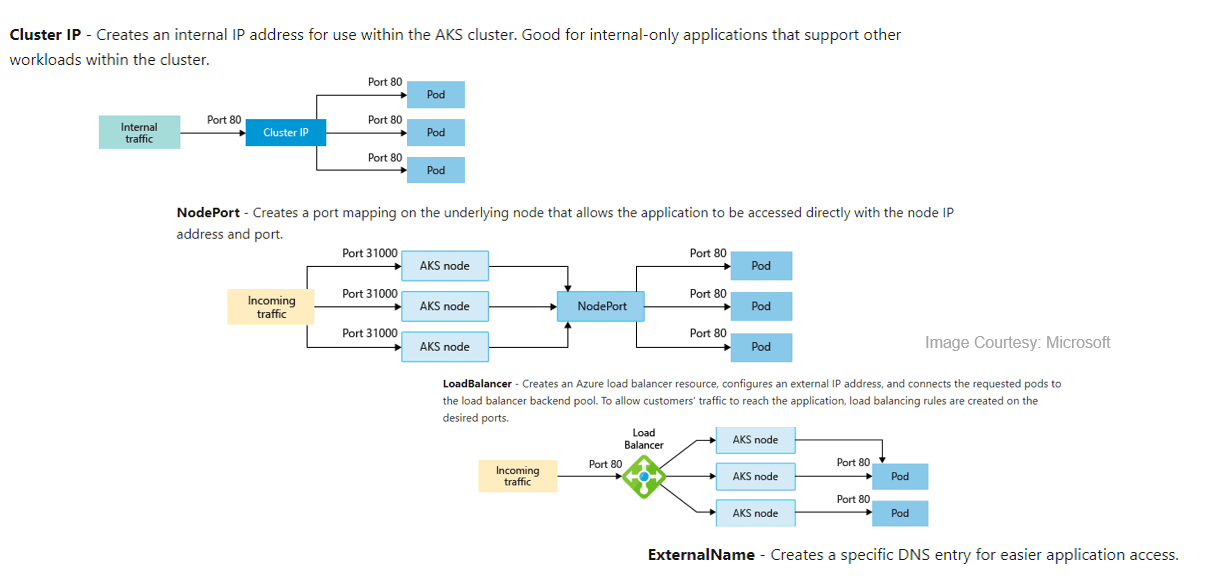
To simplify the network configuration for application workloads, Kubernetes uses Services to logically group a set of pods together and provide network connectivity.

We can Deploy Azure Kubernetes cluster In Three ways:

A) Cluster IP B) NodePort C) LoadBalancer D) ExternalName

Services

Azure Kubernetes Service Networking

In AKS, we can deploy a cluster using the following networking models:

A) kubenet (Basic Networking)

B) CNI (Advanced Networking)


AKS kubenet (Basic Networking)

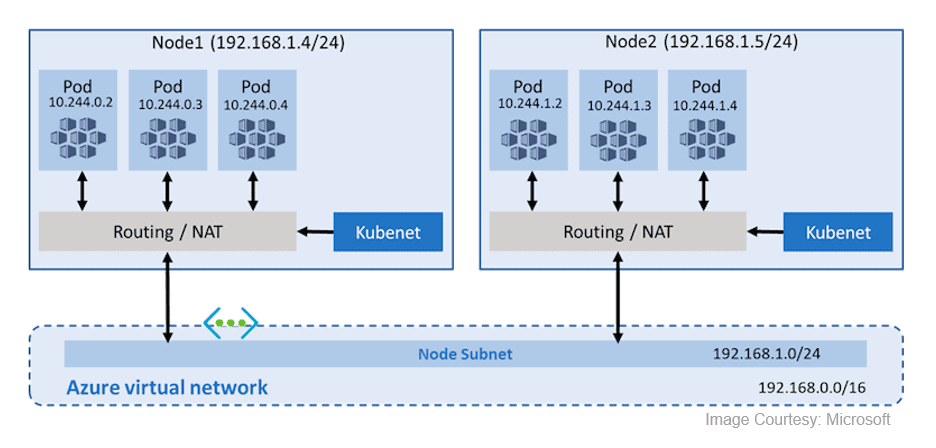
By default, Azure Kubernetes Service (AKS) clusters use kubenet, and this will create an Azure virtual network and subnet for you. Using kubenet, only the nodes receive an IP address in the virtual network subnet and pods can’t communicate directly with each other. Instead, User Defined Routing (UDR) and IP forwarding are used for connectivity between pods across nodes. In basic networking pod, IP natted inside subnet. Network address translation (NAT) is used so that the pods can reach resources on the Azure virtual network.

kubenet (Basic Networking)


AKS CNI (Advanced Networking)

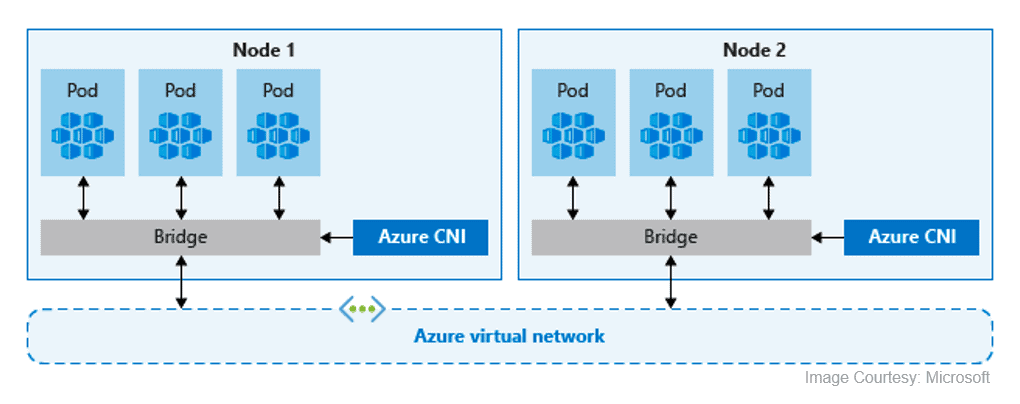
In Azure Container Networking Interface (CNI) every pod gets an IP address from the subnet and can be accessed directly via their private IP address from connected networks. These IP addresses must be unique across your network space.  These IP’s must be planned in advance. Advance networking requires more planning if all IP addresses used then we need to rebuild clusters in a larger subnet as your application demands.

Note: To read more about the Networking in AKS, click here.

CNI (Advanced Networking)


Azure Kubernetes Service Storage

In AKS, There are two types of storage options available:

A) Azure Disk

B) Azure Files

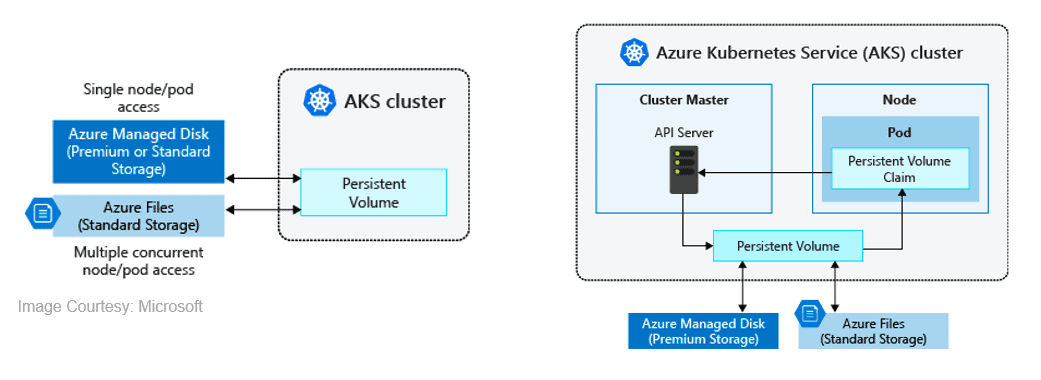
These stores are used to provide persistent storage to store data and images persistently. Azure disks can be used to create a Kubernetes DataDisk resource and mounted as ReadWrite, so the disks are only available to a single pod. we can’t share this with multiple pods. Azure Files are SMB based shared file system mounted across different machines. Using Azure files we can share data across multiple nodes and pods.


Also Read: Our blog post on Aks Cluster. Click here

Azure Kubernetes Service Security

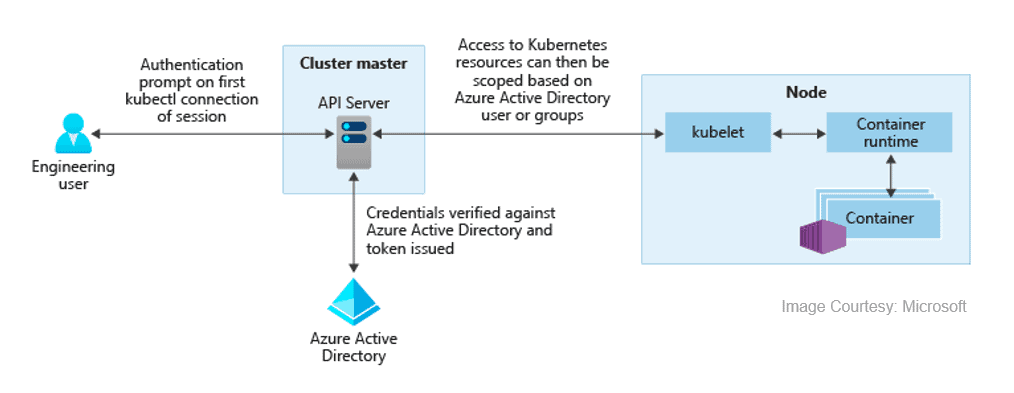
Azure Active Directory with AKS, We can integrate Azure Kubernetes with Azure Active Directory so the users in Azure Active Directory for user authentication. Using this user in Azure Active Directory can access the AKS cluster using an Azure AD authentication token. we can also configure Kubernetes role-based access control (RBAC) based on a user’s identity. Azure AD legacy integration can only be enabled during cluster creation.

Note: To read more about the Azure Kubernetes Service Security, click here.

Azure Active Directory

Also Check: How to Create Virtual Machine in Azure. Click here

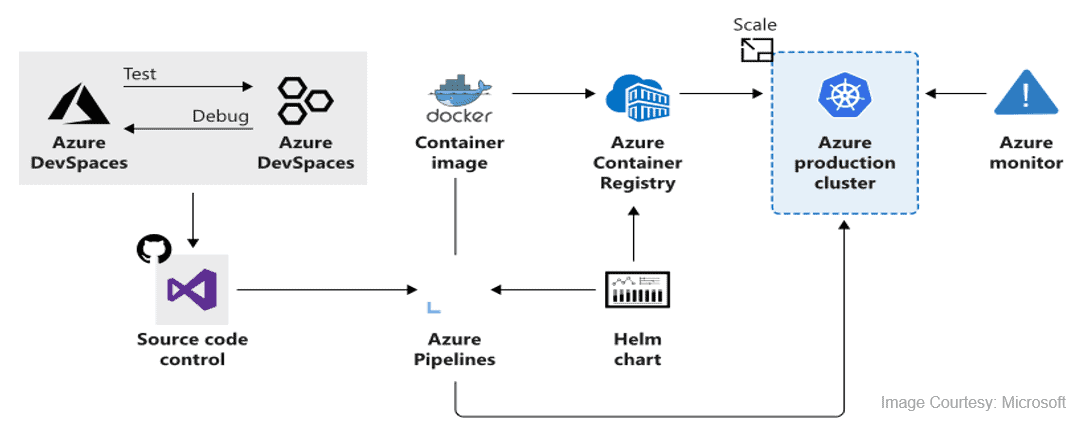
Azure Kubernetes Service With CI/CD

We can deploy AKS in CI/CD environment, using this we can continuously build and deploy applications in Azure Kubernetes Service. By deploying these using Azure Kubernetes Service (AKS), we can achieve replicable, manageable clusters of containers.

Note: Read More about the CI/CD in detail 


AKS_CI/CD