Monday, 27 May 2024

Use Container for Azure Batch Service


Use Container for Azure Batch Service


Azure Batch service is one of great choice to run your program in parallel.

In this article, I will explain how to use container as your batch program.

Why container?

The service is nothing special but uses bunch of VMs as compute pool and run your program in parallel. This means that these VM should have all required components to run your application.

You can register "applications" to share the components between VMs, but it still require some pre-work.

If you have too much dependencies or version conflict between VM OS components and your program, container is the best solution to simplify the issue, as container includes everything you need and deployed as a whole.

Azure Batch with Container

If you are a programmer or prefer coding to GUI, refer to official doc: container workloads where you can find detail explanation with sample python/C# code.

I will use Azure Portal (GUI) instead as some IT folks prefer GUI, including me.

Azure resources

I provisioned following resources for the scenario.

  • Azure Batch Account
  • Azure Storage Account
  • Azure Container Registry (ACR)

Alt Text

Obtain ACR key

I need credential information for ACR when configuring Azure Batch pool.

1. Go to ACR | Access keys and enable "Admin user".

Alt Text

2. Copy Login server, username and password for following steps.

Create pool

Next, create Azure Batch computer pool with container support.

1. Go to Azure Batch service account | Pools and click "Add".
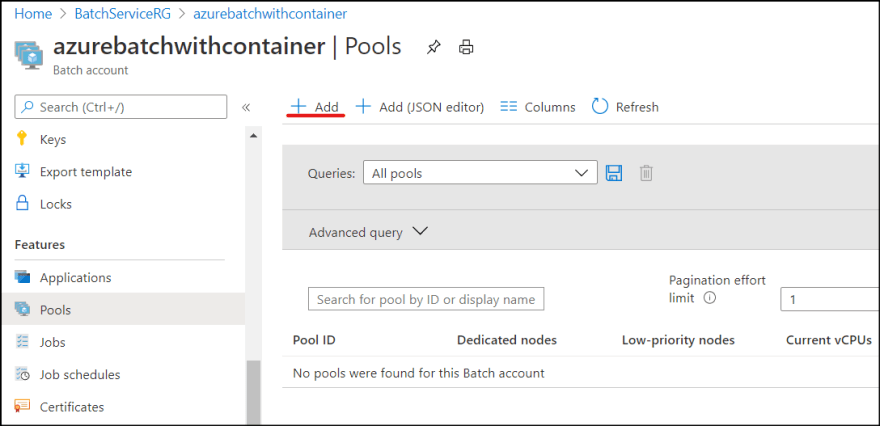
Alt Text

2. Start creating pool. You can use different image as long as it supports container. See here for more detail.

I configured with following settings.

  • Pool ID: You can set whatever you want
  • Image Type: Market place
  • Publisher: microsoft-azure-batch
  • Offer: ubuntu-server-container
  • SKU: 16-04-lts

3. At "Container configuration, select Custom and click "Container registries".

Alt Text

4. Click "Add" and enter registry information obtained above and click "OK".
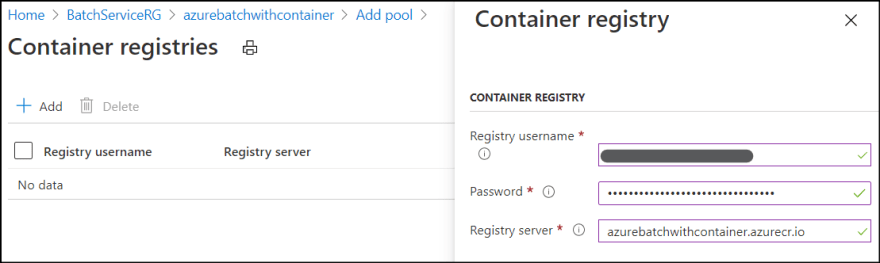
Alt Text

5. Select added registry and click "Select".

6. I keep "Container image names" blank for now as I don't have any image yet.

7. Select VM size and Scale to fit your needs. I selected the smallest VM with 2 low-priority nodes.

Alt Text

Register image

Let's add a sample program and push to ACR. You can create any docker image as you want. As I am C# developer, I created C# console app which simply print "Hello" with first argument.

Program.cs

using System;

namespace samplebatch
{
    class Program
    {
        static void Main(string[] args)
        {
            Console.WriteLine($"Hello {args[0]}");
        }
    }
}

Dockerfile

FROM mcr.microsoft.com/dotnet/core/runtime:3.1-buster-slim AS base
WORKDIR /app

FROM mcr.microsoft.com/dotnet/core/sdk:3.1-buster AS build
WORKDIR /src
COPY ["samplebatch/samplebatch.csproj", "samplebatch/"]
RUN dotnet restore "samplebatch/samplebatch.csproj"
COPY . .
WORKDIR "/src/samplebatch"
RUN dotnet build "samplebatch.csproj" -c Release -o /app/build

FROM build AS publish
RUN dotnet publish "samplebatch.csproj" -c Release -o /app/publish

FROM base AS final
WORKDIR /app
COPY --from=publish /app/publish .
#ENTRYPOINT ["dotnet", "samplebatch.dll"]

As I don't need the container to auto run the program, I commented out ENTRYPOINT.

I run the container locally and it worked as expected.

Alt Text

Upload the image to ACR. I tagged it "v1".

Alt Text

Create job and task

Finally, create Azure Batch job and task(s).

1. Go back to Azure Batch account | Jobs and click "Add".

Alt Text

2. Create job.

  • Job ID: any name you want
  • Pool: select created pool which supports container

Alt Text

3. Select created job, then click "Add" in Tasks.

Alt Text

4. Give any name for Task ID.

5. Enter "dotnet samplebatch.dll ken" to command line. This command will be executed inside the docker container.

6. Enter full name for image name. In my case, it is "azurebatchwithcontainer.azurecr.io/samplebatch:v1".

7. Add "--rm --workdir /app" to "Container run options".

8. Click Submit.

Confirm the result

Wait until the task state becomes "Completed", then I can confirm the result.

1. Make sure the state becomes "Completed".

Alt Text

2. Open the task and open "stdout.txt".

Alt Text

3. Confirm the result.

Alt Text

What's important

There are several places I stuck when I tried this.

  • image name needs to be full name including server name and tag.
  • command line is executed inside the docker image.
  • if working directory is not root, use --workdir option.
  • When update code, use different tag, otherwise the pool won't download the new one as it reuses cache if name is same.

You can still use "ENTRYPOINT" and just specify argument if you want, so just play with it to figure out.

Additional information

In addition to what I explained here, you can use other Azure Batch features.

  • Resource files
  • Environment Settings
  • Saved output files, etc.

The main difference is that you need to use container support pool and specify **Container settings" when creating task.

Access Resource files

When I assign resources files into a task, these files are stored in Node, not in the container. But when Azure Batch service instantiate the container instance, it maps all folder in the node to the container.

You can find environment variables by following tutorial here and the wd folder path is stored in AZ_BATCH_TASK_WORKING_DIR environment variable.

For example, I can read all text files from the directory.

var batch_working_dir = Environment.GetEnvironmentVariable("AZ_BATCH_TASK_WORKING_DIR");
// Read text file
foreach (string file in Directory.EnumerateFiles(batch_working_dir, "*.txt", SearchOption.AllDirectories))
{
    string contents = File.ReadAllText(file);
    Console.WriteLine(contents);
}

Same apply for other files and outputs.

Summary

If you struggle with pre-task and environment setup for Azure Batch, try container to simplify it!

Set Up the Azure Batch Computation Provider

 Set Up the Azure Batch Computation Provider

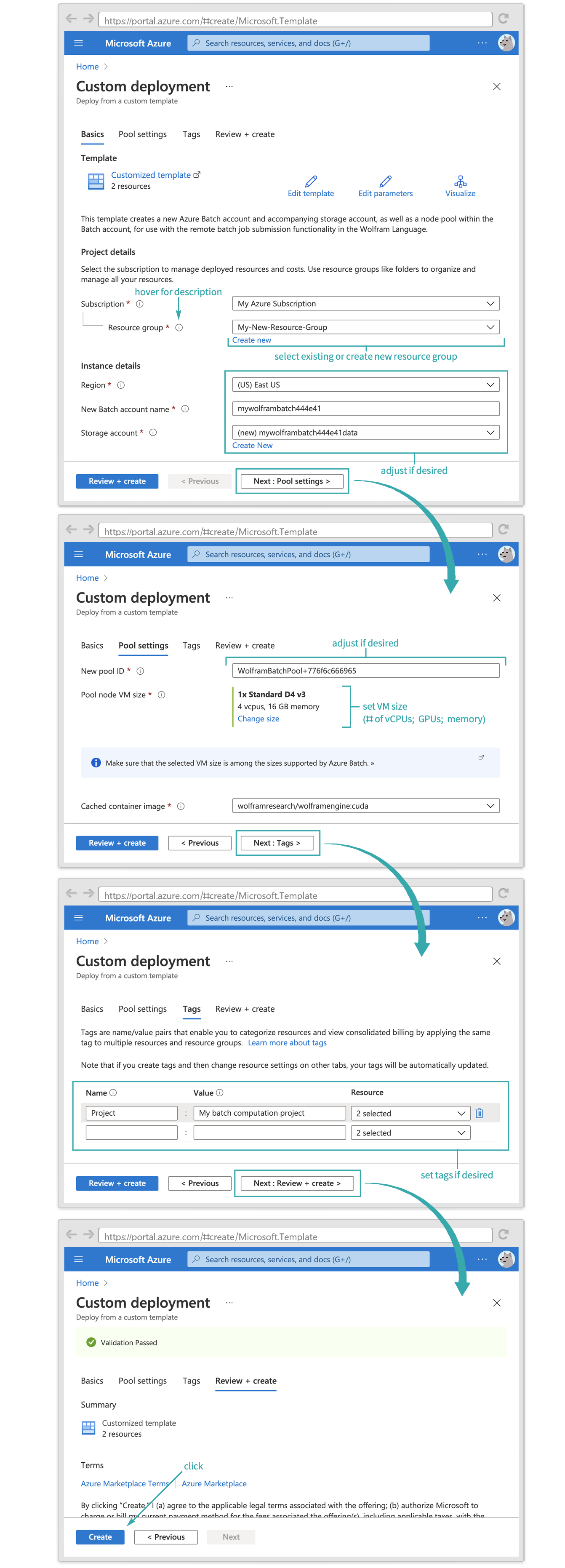
Configure your Microsoft Azure subscription with an Azure Batch account and other resources needed to submit batch jobs.

Sign up for an Azure subscription

If you do not already have an Azure account and subscription, you can create a free trial account on this page.

Create a Batch account and node pool

Click this link to open an Azure Resource Manager (ARM) template in the Azure portal. Fill in the template parameters according to the descriptions in the deployment creation form:

  • The selected node VM size must be among the sizes supported by Azure Batch. See Microsoft's documentation for a list.
  • Azure Batch enforces quotas on the number of running vCPUs allowed within a Batch account. If your accounts quota is insufficient to run nodes of the selected VM size, your node pool will fail to scale up. See Microsoft's documentation for more information about quotas and requesting a quota increase.
  • If you wish to examine or modify the ARM template source, you can download it directly at this link.
  • To create an additional node pool in an existing Batch account, use this link. (To examine or modify the template source, download it at this link.)
  • To create a new Batch account without creating a node pool, use this link. (To examine or modify the template source, download it at this link.)

Copy the submission environment expression

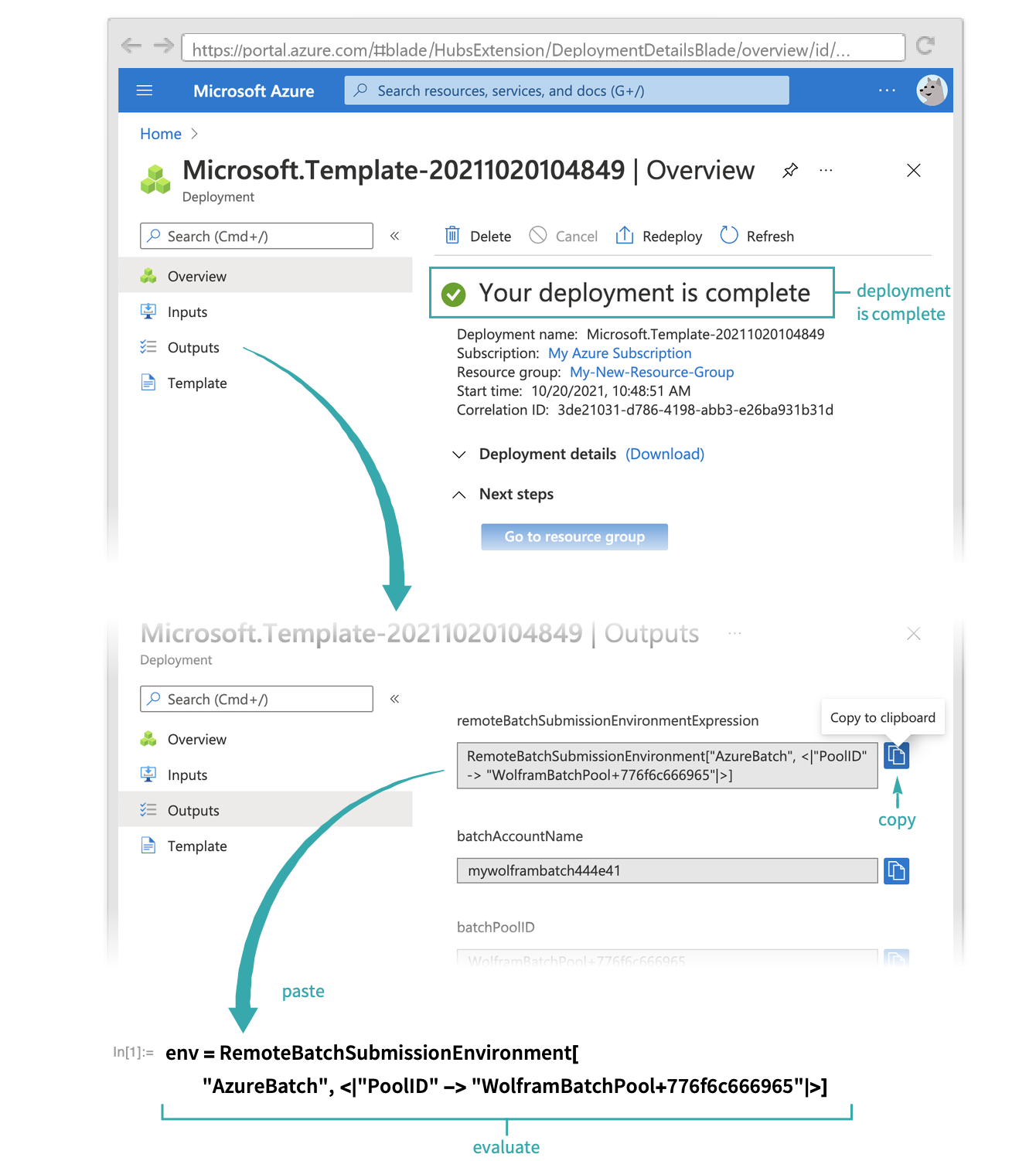
Once the deployment has completed, navigate to the Outputs tab and copy the submission environment output to a notebook:

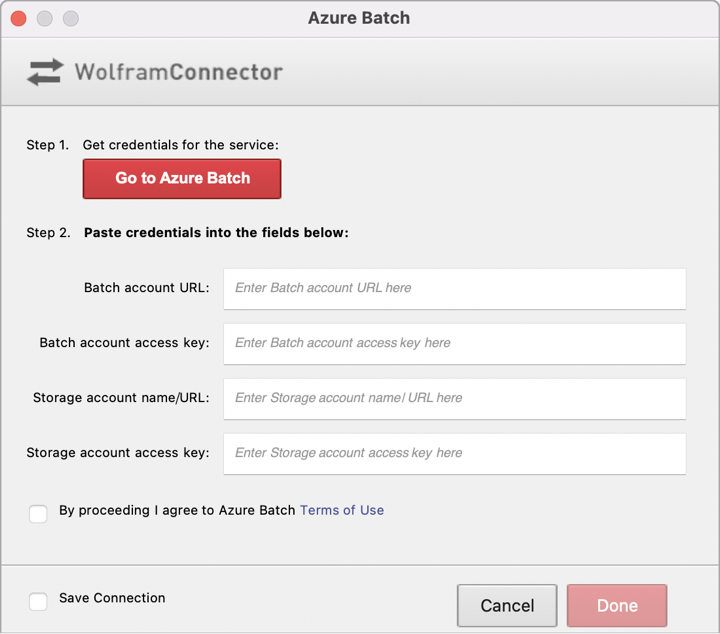
If you have not previously saved credentials for Azure Batch, evaluating RemoteBatchSubmissionEnvironment["AzureBatch",] will produce an authentication dialog box:

In the next step, you will obtain Azure Batch credentials to enter in this dialog box.

  • If you have already saved credentials for a different Azure Batch account, you can force RemoteBatchSubmissionEnvironment to prompt for new credentials for the new account by specifying the environment setting "ServiceObject""New" , like: RemoteBatchSubmissionEnvironment["AzureBatch",<|"PoolID""","ServiceObject""New"|>]

Obtain credentials for the Batch account

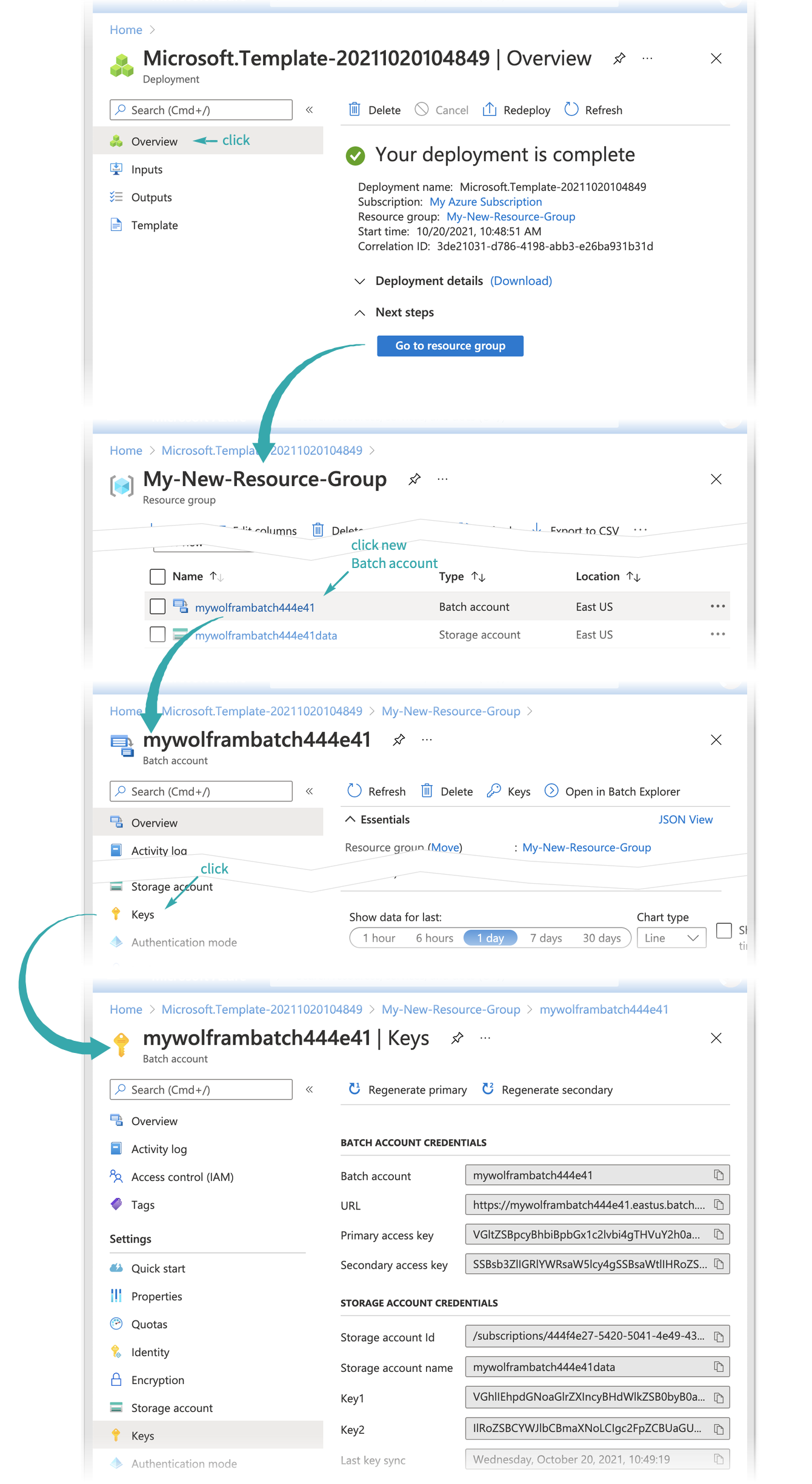
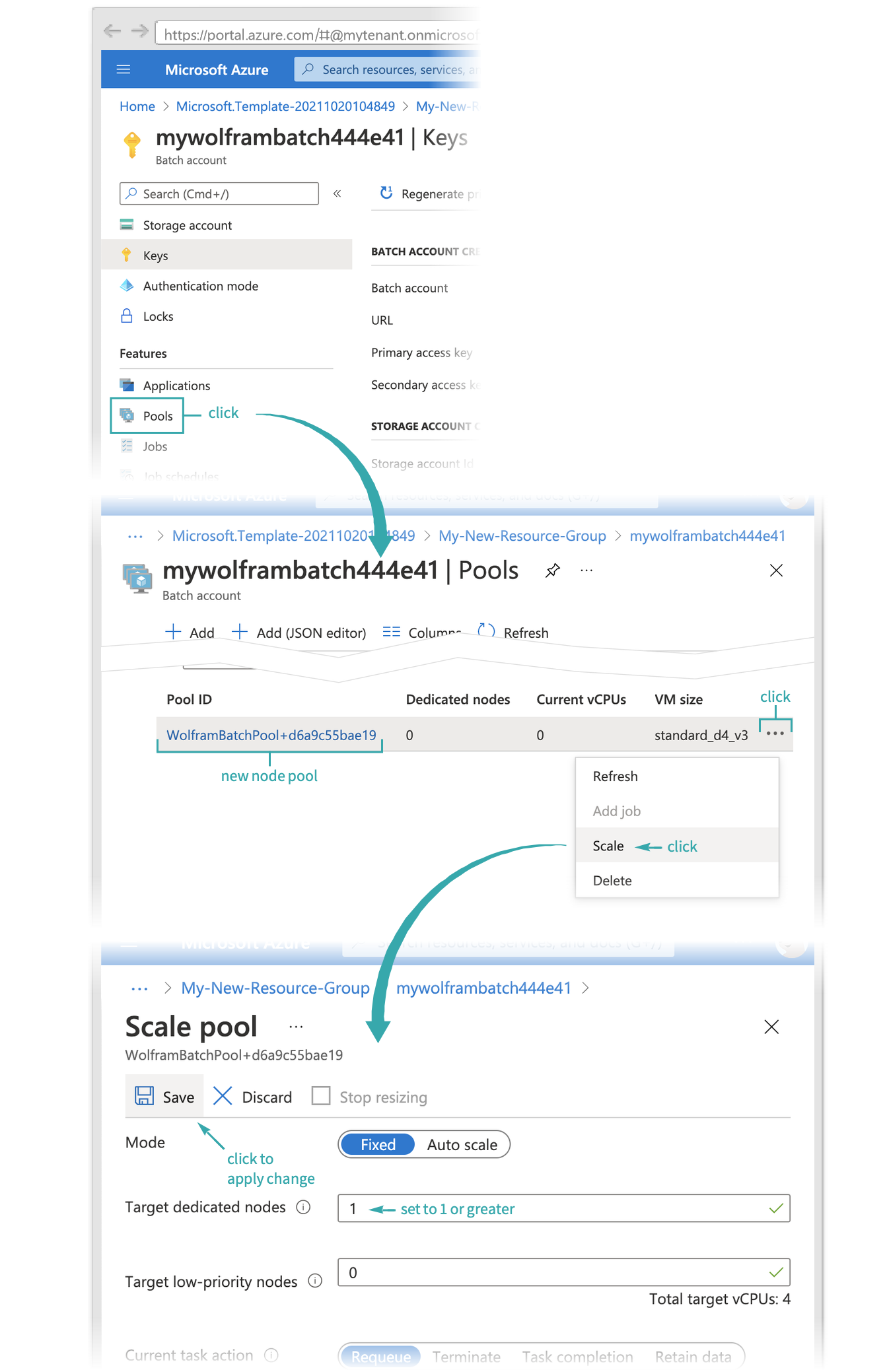
Return to the Overview tab and locate the Keys page for the new Batch account:

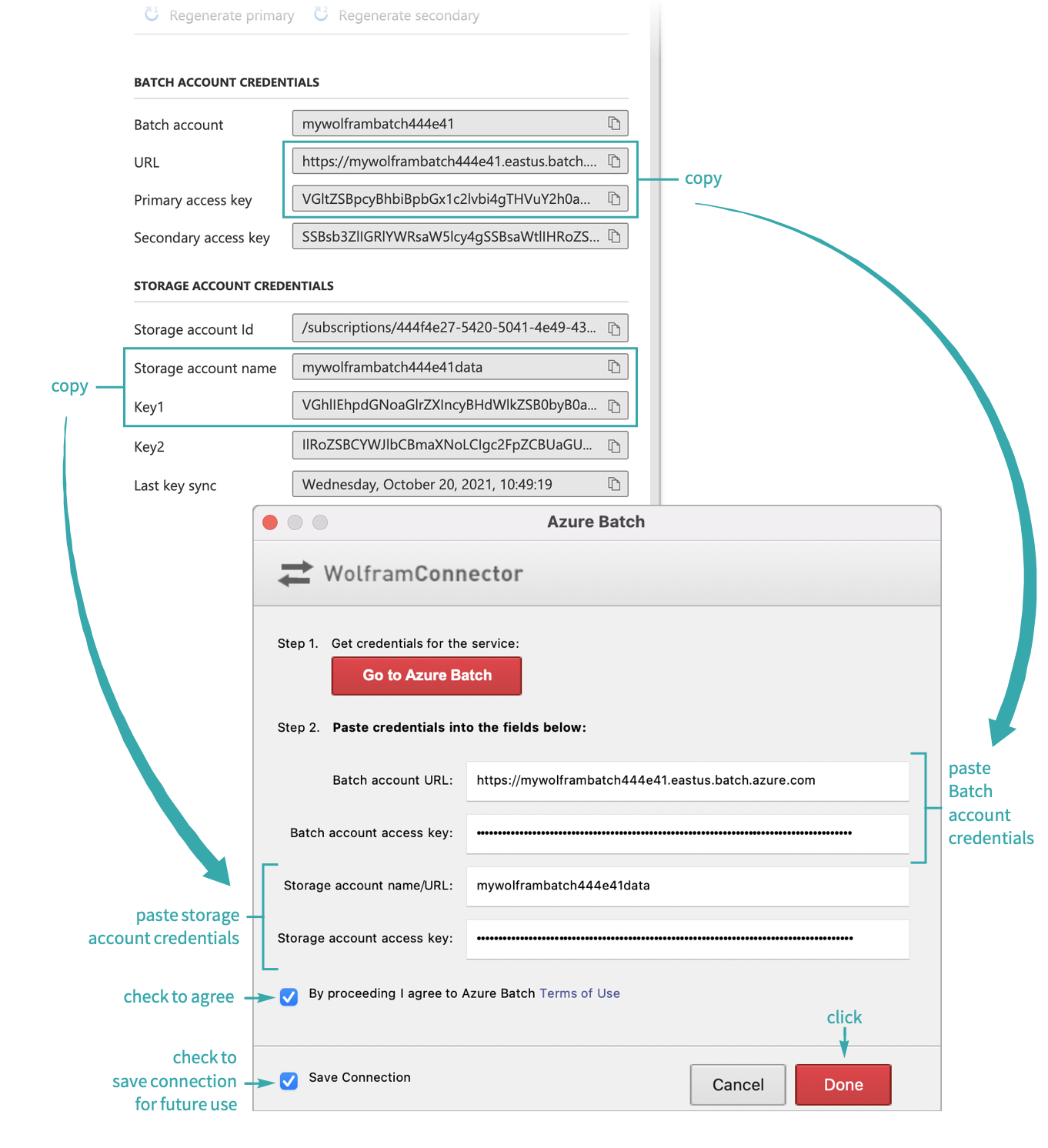
Enter the Batch account and storage account credentials into the authentication dialog from step 3 and click Done, returning a RemoteBatchSubmissionEnvironment[] expression:

Out[1]=

Scale up the Azure Batch pool

By default, the node pool in your new Batch account will be configured for manual scaling with no running nodes. Before submitting a job, the pool must be scaled up so that at least one node is running:

  • Azure Batch will keep the specified number of nodes active until the pool is manually scaled down, regardless of whether any jobs are being run.
  • In the event that your Batch accounts vCPU quota for the VM series selected during pool creation is insufficient to run the requested number of nodes, an AccountVMSeriesCoreQuotaReached error message will be displayed on the Pools page. See Microsoft's documentation for more information about quotas and requesting a quota increase.

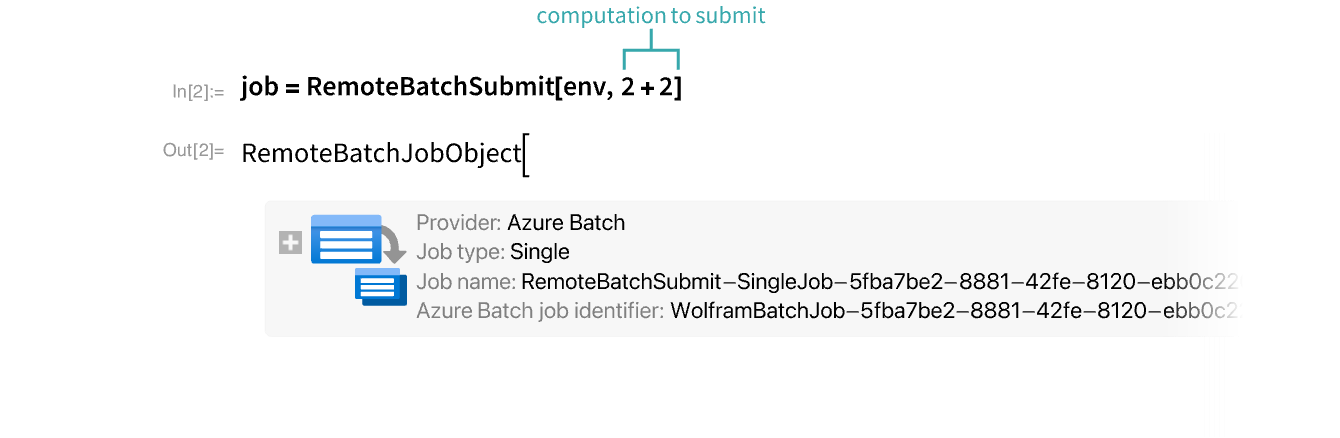
The submission environment from steps 3 and 4 can now be used to submit batch jobs:

Use the Azure portal to create a Batch account and run a job


 Use the Azure portal to create a Batch account and run a job

This quickstart shows you how to get started with Azure Batch by using the Azure portal. You create a Batch account that has a pool of virtual machines (VMs), or compute nodes. You then create and run a job with tasks that run on the pool nodes.

After you complete this quickstart, you understand the key concepts of the Batch service and are ready to use Batch with more realistic, larger scale workloads.

Prerequisites

 Note

For some regions and subscription types, quota restrictions might cause Batch account or node creation to fail or not complete. In this situation, you can request a quota increase at no charge. For more information, see Batch service quotas and limits.

Create a Batch account and Azure Storage account

You need a Batch account to create pools and jobs. The following steps create an example Batch account. You also create an Azure Storage account to link to your Batch account. Although this quickstart doesn't use the storage account, most real-world Batch workloads use a linked storage account to deploy applications and store input and output data.

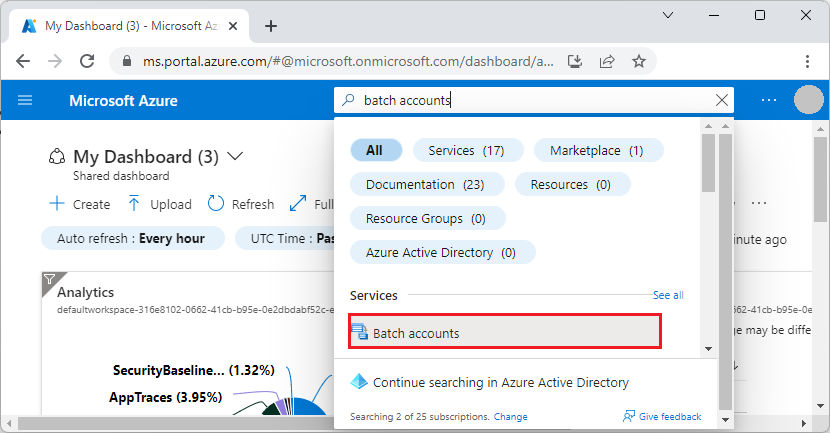
  1. Sign in to the Azure portal, and search for and select batch accounts.

    Screenshot of selecting Batch accounts in the Azure portal.

  2. On the Batch accounts page, select Create.

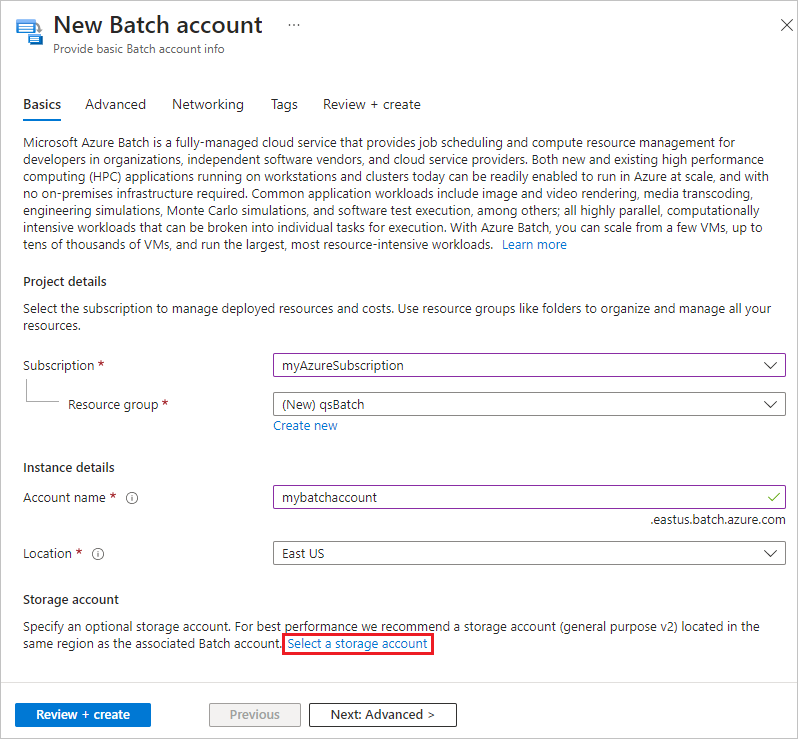
  3. On the New Batch account page, enter or select the following values:

    • Under Resource group, select Create new, enter the name qsBatch, and then select OK. The resource group is a logical container that holds the Azure resources for this quickstart.
    • For Account name, enter the name mybatchaccount. The Batch account name must be unique within the Azure region you select, can contain only lowercase letters and numbers, and must be between 3-24 characters.
    • For Location, select East US.
    • Under Storage account, select the link to Select a storage account.

    Screenshot of the New Batch account page in the Azure portal.

  4. On the Create storage account page, under Name, enter mybatchstorage. Leave the other settings at their defaults, and select OK.

  5. Select Review + create at the bottom of the New Batch account page, and when validation passes, select Create.

  6. When the Deployment succeeded message appears, select Go to resource to go to the Batch account that you created.

Create a pool of compute nodes

Next, create a pool of Windows compute nodes in your Batch account. The following steps create a pool that consists of two Standard_A1_v2 size VMs running Windows Server 2019. This node size offers a good balance of performance versus cost for this quickstart.

  1. On your Batch account page, select Pools from the left navigation.

  2. On the Pools page, select Add.

  3. On the Add pool page, for Name, enter myPool.

  4. Under Operating System, select the following settings:

    • Publisher: Select microsoftwindowsserver.
    • Sku: Select 2019-datacenter-core-smalldisk.
  5. Scroll down to Node size, and for VM size, select Standard_A1_v2.

  6. Under Scale, for Target dedicated nodes, enter 2.

  7. Accept the defaults for the remaining settings, and select OK at the bottom of the page.

Batch creates the pool immediately, but takes a few minutes to allocate and start the compute nodes. On the Pools page, you can select myPool to go to the myPool page and see the pool status of Resizing under Essentials > Allocation state. You can proceed to create a job and tasks while the pool state is still Resizing or Starting.

After a few minutes, the Allocation state changes to Steady, and the nodes start. To check the state of the nodes, select Nodes in the myPool page left navigation. When a node's state is Idle, it's ready to run tasks.

Create a job

Now create a job to run on the pool. A Batch job is a logical group of one or more tasks. The job includes settings common to the tasks, such as priority and the pool to run tasks on. The job doesn't have tasks until you create them.

  1. On the mybatchaccount page, select Jobs from the left navigation.

  2. On the Jobs page, select Add.

  3. On the Add job page, for Job ID, enter myJob.

  4. Select Select pool, and on the Select pool page, select myPool, and then select Select.

  5. On the Add job page, select OK. Batch creates the job and lists it on the Jobs page.

Create tasks

Jobs can contain multiple tasks that Batch queues and distributes to run on the compute nodes. Batch provides several ways to deploy apps and scripts to compute nodes. When you create a task, you specify your app or script in a command line.

The following procedure creates and runs two identical tasks in your job. Each task runs a command line that displays the Batch environment variables on the compute node, and then waits 90 seconds.

  1. On the Jobs page, select myJob.

  2. On the Tasks page, select Add.

  3. On the Add task page, for Task ID, enter myTask1.

  4. In Command line, enter cmd /c "set AZ_BATCH & timeout /t 90 > NUL".

  5. Accept the defaults for the remaining settings, and select Submit.

  6. Repeat the preceding steps to create a second task, but enter myTask2 for Task ID.

After you create each task, Batch queues it to run on the pool. Once a node is available, the task runs on the node. In the quickstart example, if the first task is still running on one node, Batch starts the second task on the other node in the pool.

View task output

The tasks should complete in a couple of minutes. To update task status, select Refresh at the top of the Tasks page.

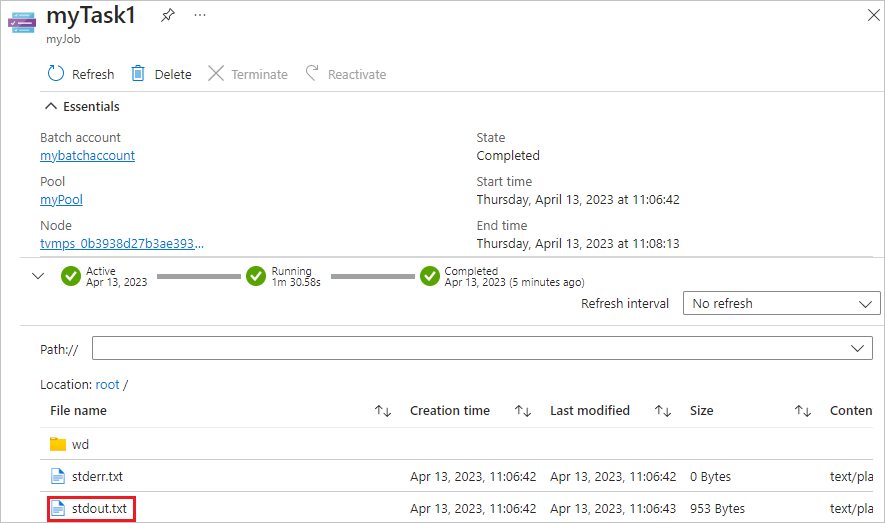
To view the output of a completed task, you can select the task from the Tasks page. On the myTask1 page, select the stdout.txt file to view the standard output of the task.

Screenshot of a task page for a completed Batch job.

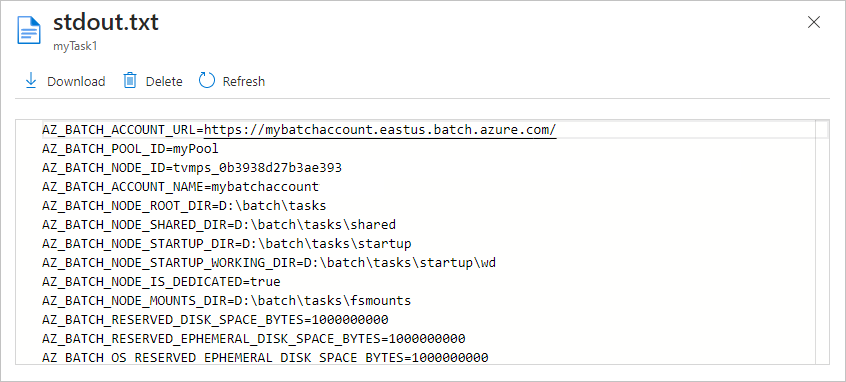
The contents of the stdout.txt file are similar to the following example:

Screenshot of the standard output file from a completed task.

The standard output for this task shows the Azure Batch environment variables that are set on the node. As long as this node exists, you can refer to these environment variables in Batch job task command lines, and in the apps and scripts the command lines run.

Clean up resources

If you want to continue with Batch tutorials and samples, you can use the Batch account and linked storage account that you created in this quickstart. There's no charge for the Batch account itself.

Pools and nodes incur charges while the nodes are running, even if they aren't running jobs. When you no longer need a pool, delete it.

To delete a pool:

  1. On your Batch account page, select Pools from the left navigation.
  2. On the Pools page, select the pool to delete, and then select Delete.
  3. On the Delete pool screen, enter the name of the pool, and then select Delete.

Deleting a pool deletes all task output on the nodes, and the nodes themselves.

When you no longer need any of the resources you created for this quickstart, you can delete the resource group and all its resources, including the storage account, Batch account, and node pools. To delete the resource group, select Delete resource group at the top of the qsBatch resource group page. On the Delete a resource group screen, enter the resource group name qsBatch, and then select Delete.