Thursday, 23 May 2024

A Comprehensive Introduction to Setting Up and Managing Your Web App in the Cloud

 A Comprehensive Introduction to Setting Up and Managing Your Web App in the Cloud


Azure App Services

Azure App Services is a fully managed Platform-as-a-Service (PaaS) offering from Microsoft that allows developers to host web-based services, including web apps, REST APIs, and mobile backends. This service is built on top of Azure and provides a wide range of features to help developers build and deploy their applications quickly and easily.

One of the key features of Azure App Services is its support for many different languages, including .NET, Java, Node.js, Python, and PowerShell. This makes it easy for developers to use their preferred language to build and deploy their applications. Additionally, the service also includes DevOps optimization tools, which allow developers to easily manage and scale their applications across multiple platforms.

Another key feature of Azure App Services is its support for containerization. This allows developers to easily deploy their applications using Docker containers, and also supports multi-container applications. This makes it easy to build and deploy applications in a consistent and repeatable way, regardless of the underlying infrastructure.

Azure App Services also includes built-in support for global scale and high availability. This allows applications to be easily scaled up or down as needed, either manually or automatically. Additionally, the service also supports serverless code, which allows developers to easily build and deploy functions as needed, without having to worry about the underlying infrastructure.

In addition to these features, Azure App Services also includes a wide range of application templates that can be used to quickly deploy common application scenarios. These templates can be found in the Azure Marketplace and can be used to quickly deploy applications, such as web apps, REST APIs, and more.

Security is another important aspect of Azure App Services. The service includes support for many compliance standards, and can be integrated with Azure Active Directory for additional security. Additionally, IP restrictions can be used to control access to the application.

Azure App Services also includes built-in support for connecting to SaaS platforms and on-premises data, as well as more than 50 connectors. This allows developers to easily connect their applications to other services, such as Azure Hybrid Connections and virtual networks, providing a seamless experience for their users. Payment for Azure App Services is determined by the subscription plan.

App Service Application Types

  • Web App is the most common type of App Service application and it’s perfect for hosting web sites and web applications in an enterprise-grade environment. The service supports multiple languages such as .NET, Java, Node.js, Python, and PowerShell, making it easy for developers to use their preferred language for building and deploying applications. Web App also includes DevOps optimization tools, which allow developers to manage and scale their applications across different platforms.
  • API App is designed for hosting RESTful APIs and it provides a simple and secure way to access and control access to the APIs. The service comes with automatic SDK generation and seamless integration with Logic Apps, allowing developers to build, test, and deploy APIs in a consistent and repeatable way. It also supports multiple languages such as .NET, Java, Node.js, and Python.
  • Logic App is a powerful tool for automating business processes and system integration. It enables developers to share data across cloud services and automate workflows using a simple visual designer. This eliminates the need for custom code and makes it easy for developers to build and deploy complex business logic. Logic App also comes with built-in support for various connectors, including SharePoint, SQL Server, and Salesforce, making it easy to integrate with other systems.
  • Mobile App is a powerful tool for hosting mobile app backends. It allows mobile apps to work with various Azure services, including Azure Storage, Azure Notification Hubs, and Azure Active Directory. This makes it easy for developers to build and deploy mobile apps that can take advantage of the full power of Azure. Mobile App also supports multiple languages such as .NET, Java, Node.js, and Python, making it easy for developers to build and deploy mobile apps in a wide range of languages.

App Service Plans

There are two types of App Service Plans to choose from: Linux-based and Windows-based. The main difference between the two is the operating system that your app will run on. If you’re more familiar with Linux, you might want to choose the Linux-based plan, and if you’re more comfortable with Windows, you might want to choose the Windows-based plan.

Once you’ve chosen an App Service Plan, you can then create an app service. An app service is the actual place where your app will run, and it’s created within the context of an App Service Plan. This means that the resources and features of your app service are determined by the App Service Plan you’ve chosen.

One of the key features of Azure App Services is the ability to have multiple app services within a single App Service Plan. Each app service can have different deployment slots, which are essentially different versions of your app that you can test and deploy. This allows you to easily test and deploy new features and updates to your app without disrupting the main version of your app.

When you create an App Service Plan, you specify the region where you want the compute resources to be created, so all the apps you put in that App Service Plan are hosted on those resources. Additionally, you also choose the Operating System and the number and size of VM instances that you need. The pricing tier and region are also chosen when creating an App Service Plan. With deployment slots, it is easy to test new updates and features in a staging environment before making them live in production.

Deployment slot

A deployment slot is a feature of Azure App Service that allows you to run different versions of your app, called slots, in different environments. Each slot is exposed through a publicly available endpoint and you can swap instances assigned to the slot on demand. This feature allows you to test new updates and features in a staging environment before making them live in production.

Scale Applications

Azure App Service provides several options to scale your applications as per your requirements. The two main options for scaling your apps are Scale Up and Scale Out.

  • Scale Up is the process of increasing the amount of resources like RAM, CPU, or storage that your app service uses. This option is best for monolithic applications that have a high demand for resources. By scaling up, you are increasing the amount of resources available to your app, which can help it to handle more traffic or perform more complex tasks.
  • Scale Out on the other hand, is the process of adding more instances of your app service to handle more traffic. This option is best for apps that can adopt to auto-scaling. By scaling out, you are increasing the number of instances of your app service, which can help it to handle more traffic by distributing the load among multiple instances.

Pricing Tiers

Azure App Service offers different pricing tiers for your app service plans to help you choose the right one based on your needs. The three main pricing tiers are:

  • Shared Compute: This is the most basic and cost-effective pricing tier. It is best for small or low-traffic apps that don’t require a lot of resources. In this tier, your app shares the resources with other apps on the same machine.
  • Dedicated Compute: This pricing tier provides your app with dedicated resources and is best for medium or high-traffic apps that require more resources. In this tier, your app has its own machine and resources that are not shared with other apps.
  • Isolated: This pricing tier provides the highest level of isolation and resources for your app. It’s best for large, high-traffic apps or apps that require a high level of security. In this tier, your app is hosted in a dedicated virtual network, and you have control over the underlying infrastructure.

Hands-On Demonstration

In this demonstration, you will learn how to host a web application using Azure App Service and Visual Studio Code. To start, you will need to create an App Service Plan in Azure which will provide the compute resources for your web application. Once the App Service Plan is created, you can use Visual Studio Code to create a new web application project. Then, you can use the Azure App Service extension in Visual Studio Code to deploy the application to the App Service Plan.

After deploying the application, you can then test it by visiting the publicly available endpoint for your App Service Plan. By the end of this demonstration, you will have a basic understanding of how to use Azure App Service and Visual Studio Code to host a web application.

STEPS:

Step 1: Create an App Service Plan in Azure

  • Log in to the Azure portal and navigate to the App Service Plans section
  • Click on the “+ Create” button to create a new App Service Plan
  • Provide a name and select the appropriate subscription, resource group, and operating system for your plan
  • Choose a pricing tier that fits your needs, and select the desired region for your App Service Plan
  • Click on the “Review + create” button to review your App Service Plan settings and then click on “Create” button to create it.
  • Once the App Service Plan is created, navigate to the App Services section in the Azure portal.
  • Click on the “Create” button to create a new App Service
  • Provide a name for the App Service, select the subscription, resource group, and App Service Plan that you created in step 1. Click next with the default values.
  • In the “Review + Create” tab, click on “Create” button to create it. Refer below screenshots.

Step 2: Create a new web application project in Visual Studio Code

  • Open Visual Studio Code and create a new project by selecting “File” -> “DOTNET_TEST”
  • Open the terminal in Visual Studio Code by selecting “View” -> “Terminal”
  • Create a new web application by running below commands:
dotnet new mvc
dotnet run

(Once you run above command you can check the created sample web app in local host too.)

Step 3: Deploy the application to Azure App Service

  • Install the Azure App Service extension and azure account in Visual Studio Code by searching for “Azure” in the Extensions marketplace
  • Right-click on the project in the Explorer pane and select “Deploy to Web App”
  • In the next pop up window click on “Deploy” button to start the deployment process

Step 4: Test the application

  • Once the deployment is complete, you will be provided with a publicly available endpoint for your App Service Plan
  • Open your browser and navigate to the endpoint to test your application

Azure Web Apps Azure App Services


Azure Web Apps

Azure App Services provide a hosting service that developers can use to develop mobile or web apps. Apart from this, developers can also use it to build API apps or Logic apps, which provide integration with SaaS. It replaces several separate Azure services, which include Azure Website, Azure Mobile Services, and Azure BizTalk Services, and gives you a single product called Azure App Services.

App Service not only adds the security, load balancing, auto-scaling, and automated management features of Microsoft Azure to your application. It also has DevOps features including continuous deployment via Azure DevOps, GitHub, Docker Hub, and other sources, package management, staging environments, custom domains, and TLS/SSL certificates.

Want to become a Microsoft certified Azure Professional? Check Intellipaat Azure Administrator certification now!

Azure Web Apps

  • Azure Web Apps provides a platform to build an app in Azure without having to deploy, configure and maintain your own Azure VM’s.
  • You can build Web App using the ASP.NET, PHP, Node.js and Python.
  • They also integrate common development environments like Visual Studio and GitHub.
  • You need to pay for the Azure compute resources you use.

Azure Web Apps Features

  • Multiple Languages and Frameworks: Web Apps supports multiple languages and frameworks, including ASP.NET, ASP.NET Core, Java, Ruby, Node.js, PHP, and Python. Azure PowerShell and other scripts or executables can also be used as background services.
  • Global Scale and Availability: Manually or automatically scale up or down. With Web Apps, you can host your apps anywhere in Microsoft’s global datacenter infrastructure.
  • Easy Deployment: We may use DevOps features with Web apps and deploy our applications straight from source code repositories such as Visual Studio Team Services, GitHub Bitbucket, and others.
  • Security and Compliance: App Service complies with ISO, SOC, and PCI standards. Users can log in using their Azure Active Directory, Google, Facebook, Twitter, or Microsoft accounts.
  • Visual Studio Integration: Dedicated tools in Visual Studio and Visual Studio Code make it easier to create, deploy, and debug code.
  • API and Mobile Features: App Service simplifies mobile app scenarios by enabling authentication, offline data sync, push notifications, and more, as well as providing turn-key CORS support for RESTful API scenarios.
  • Serverless Code: Run a code snippet or script whenever you want, without needing to provision or manage infrastructure, and only pay for the compute time your code really requires.
  • Managed Production Environment: The OS and language frameworks are automatically patched and maintained via App Service.
  • Application Templates: In the Azure Marketplace, you may choose from a variety of application templates, including WordPress, Joomla, and Drupal.

If you want to go back and learn Azure from scratch, here is a blog that will help you: What Is Microsoft Azure?

Azure Web Apps: Deploying Web Apps

You can deploy your web apps by using several methods

  • Copying files manually by using FTP
  • Synchronizing files and folders to App Service from a cloud storage service, such as OneDrive or Dropbox

Azure App Service also supports deployments by using the Web Deploy technology. This approach is available with Visual Studio, WebMatrix, and Visual Studio Team Services. If you want to perform deployments by using Git or FTP, you must configure deployment credentials. Knowledge of deployment credentials will allow you to upload the web app’s code and content to the new web app, to make it available for browsing.

Get certified from top Azure course in London Now!

How to deploy a Web App?

The step by step process in deploying a Web App is as follows:

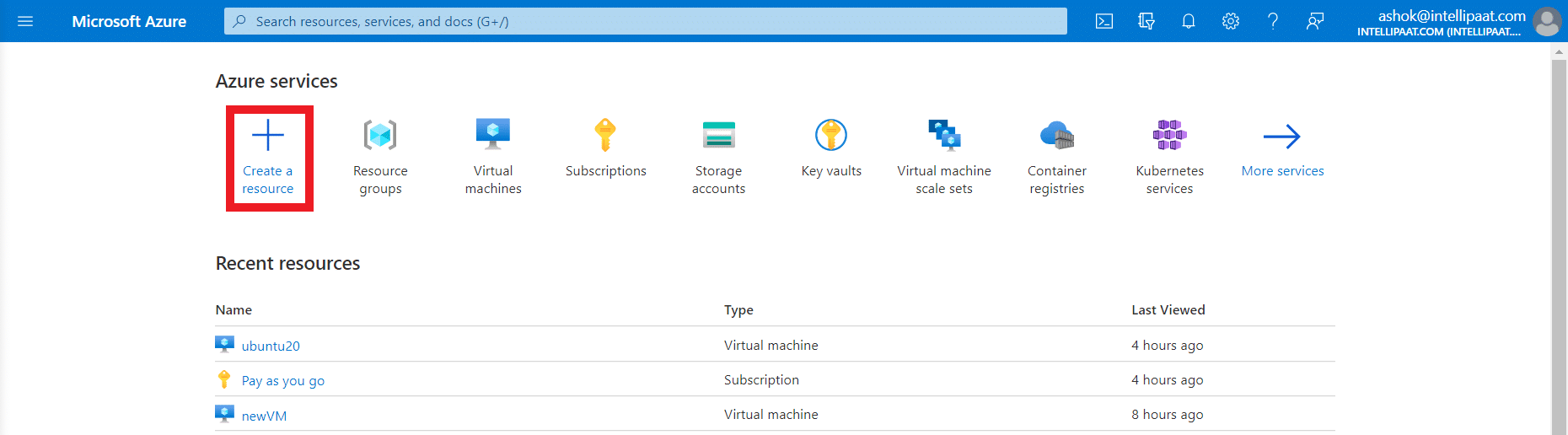
  • Login to the Azure portal and click on + Create a resource

Create a resource

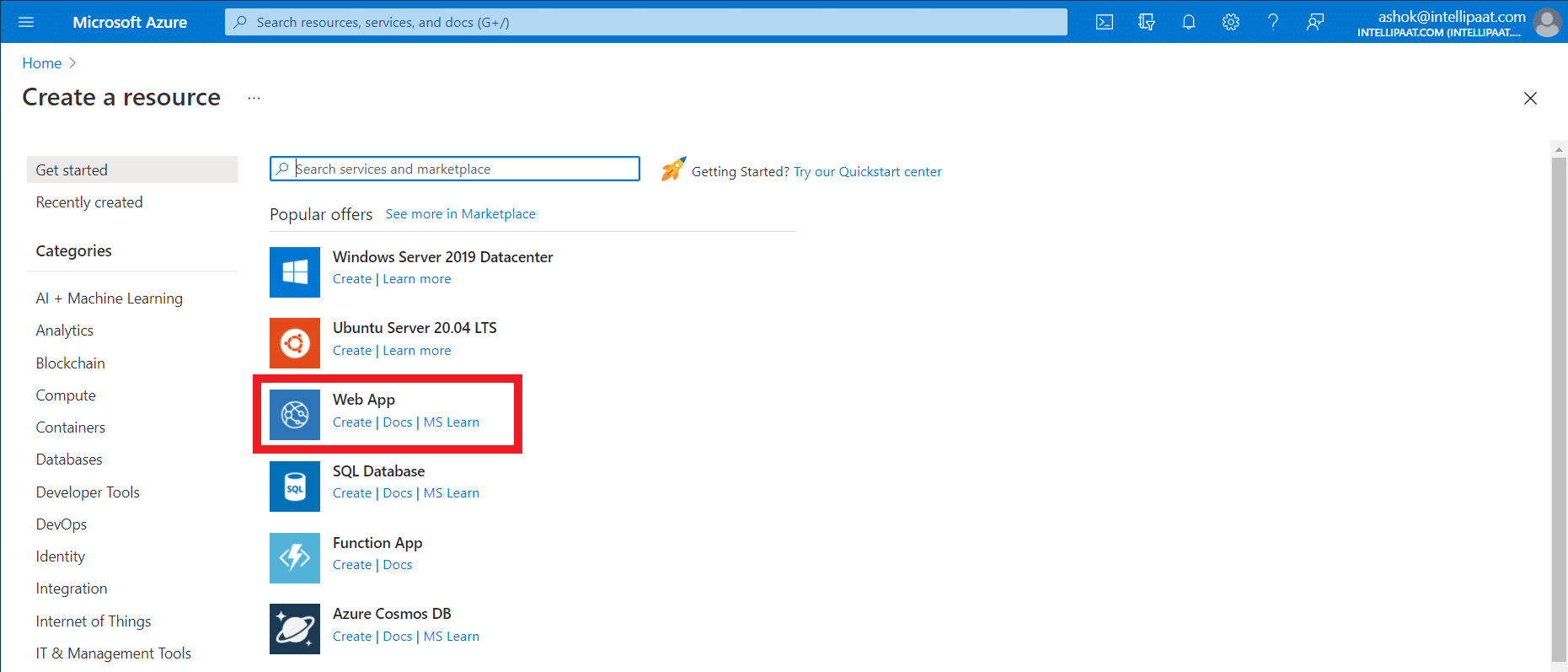
  • Click on Web App to create a new Web App resource.

Search Web App

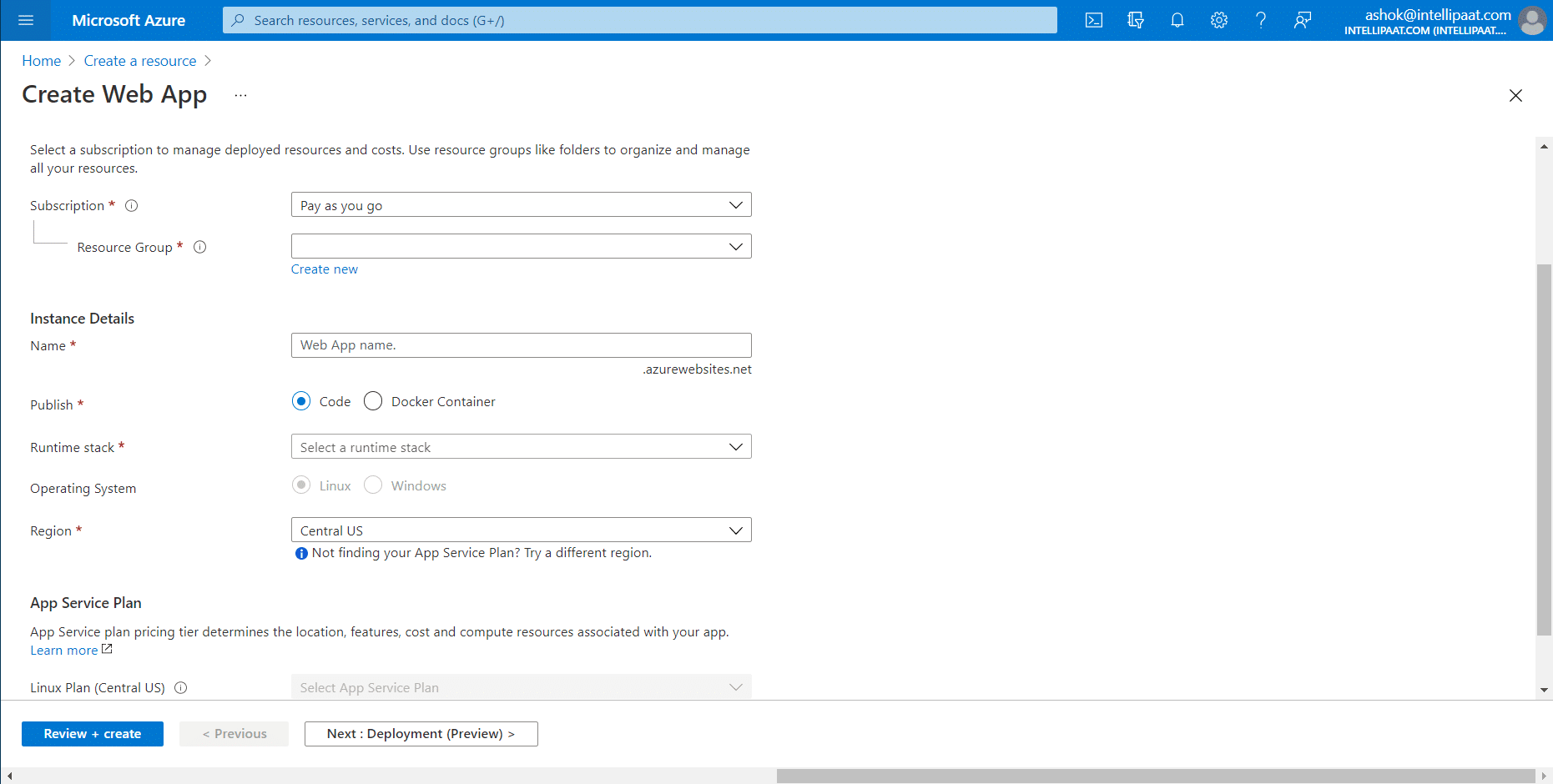
  • Then the name, resource group, and app service plan should all be filled up.

Fill details of Web App

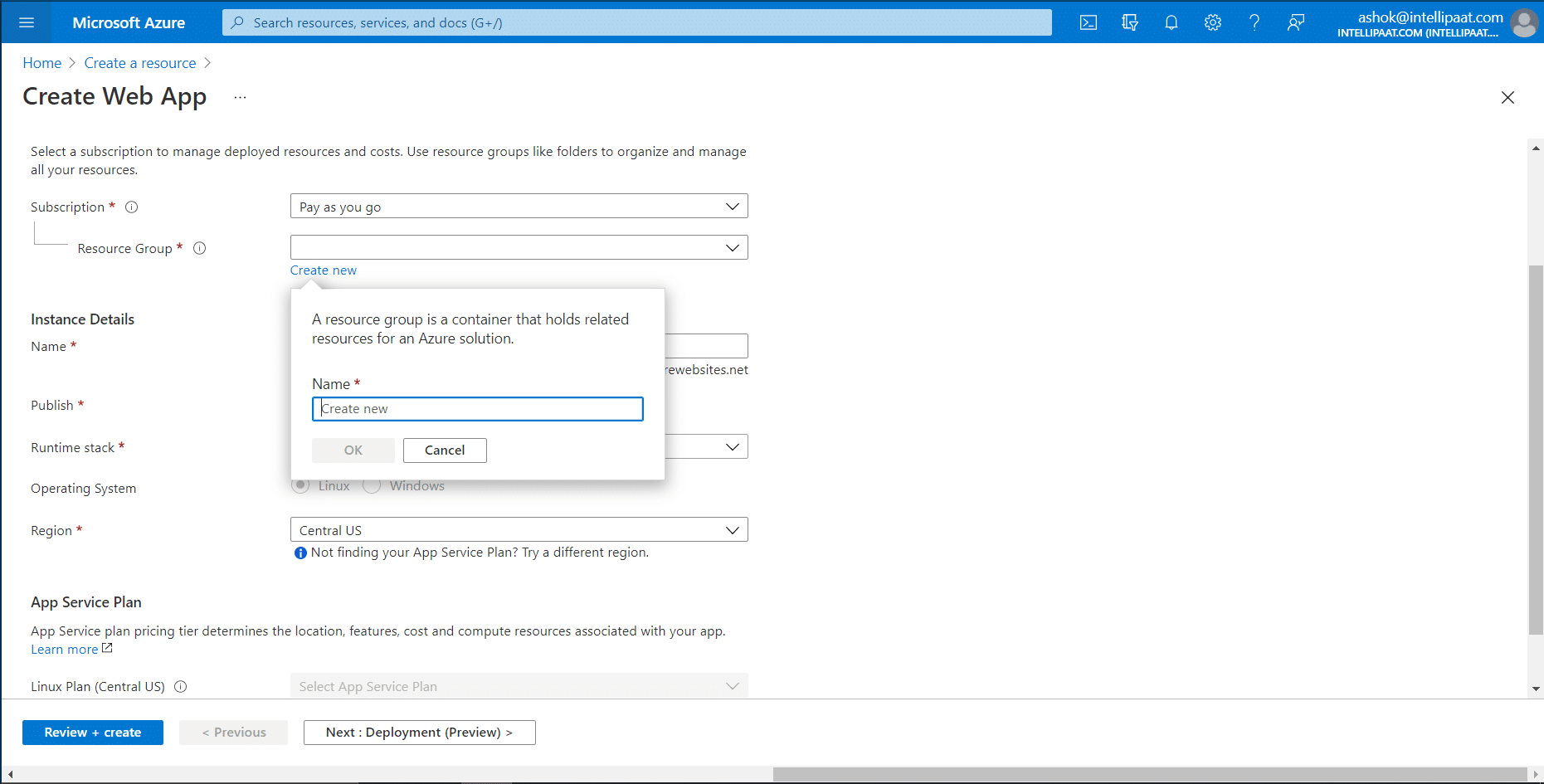
  • Select Subscription type and resource group if it already exists or create a new resource group.

Create new resource group

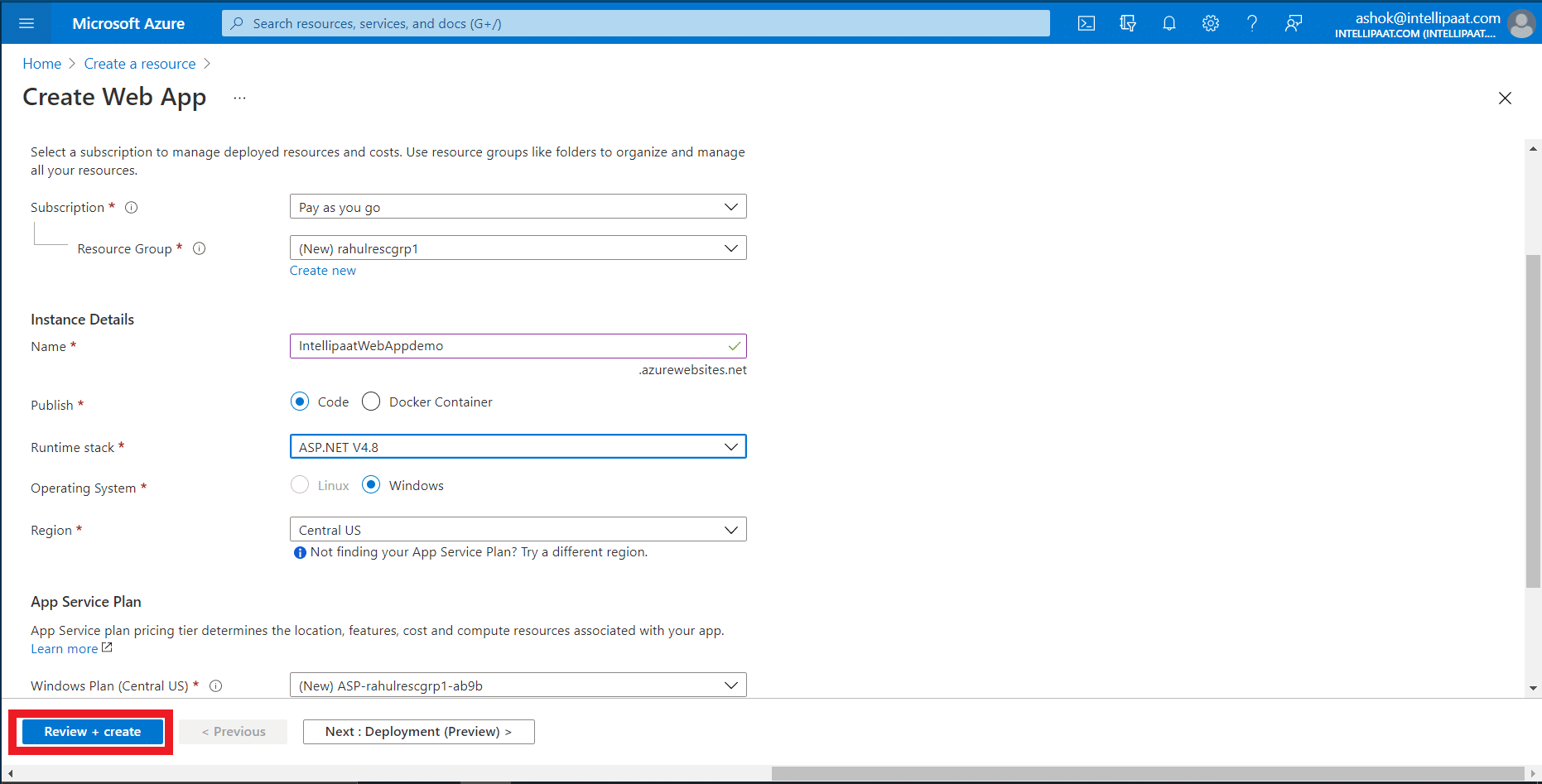
  • Fill all the details as per your requirement and click on Review + create.

Click on Review + create

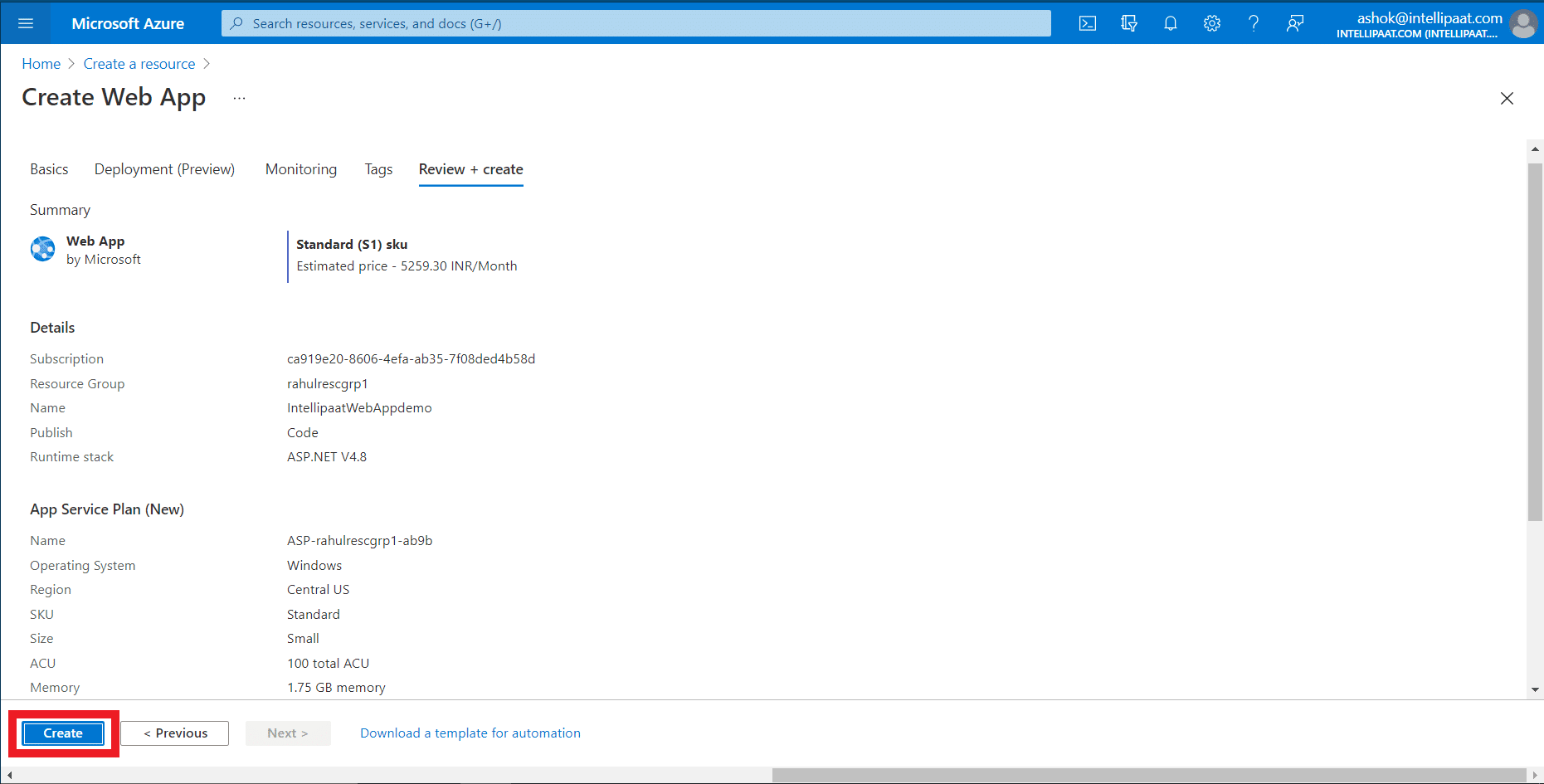
  • Review all the details entered and then click on Create.

Create Web App

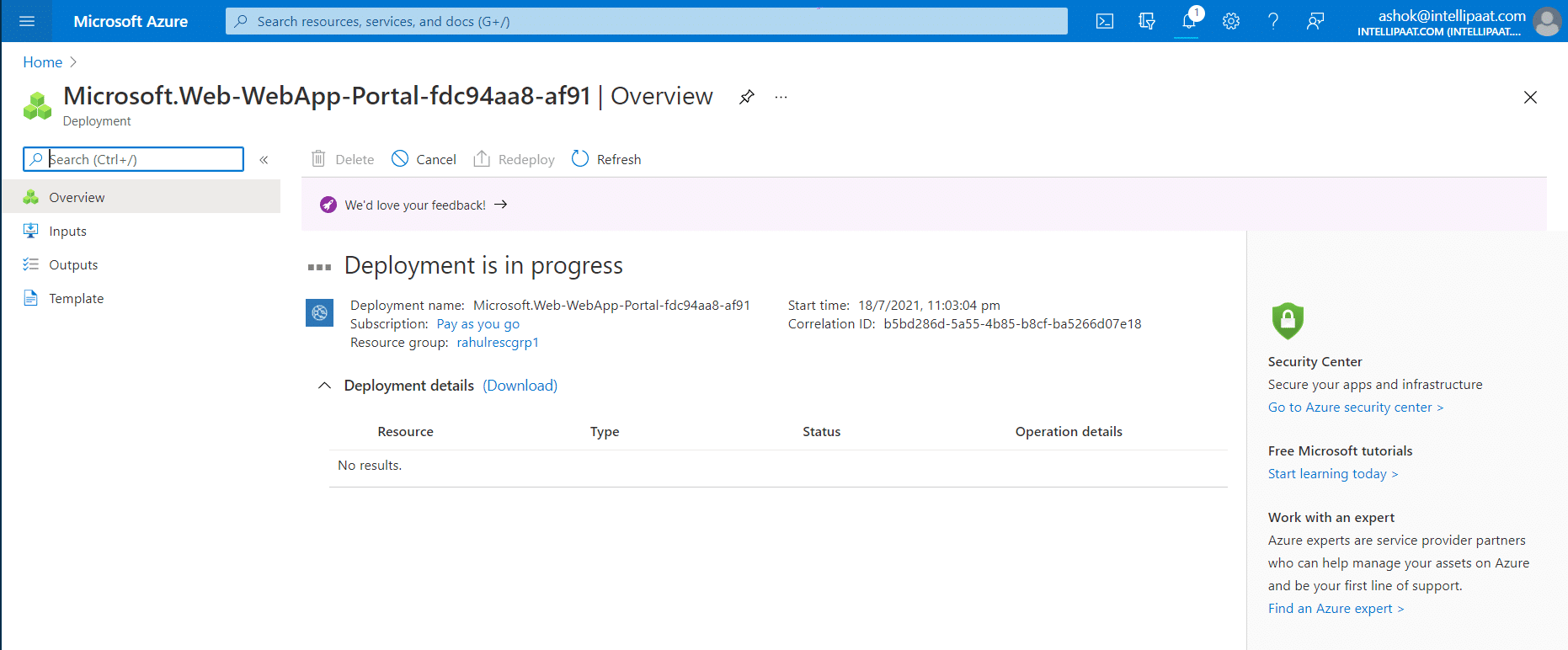
  • After clicking on create it will start deploying the Web App resource.

Deployment in progress

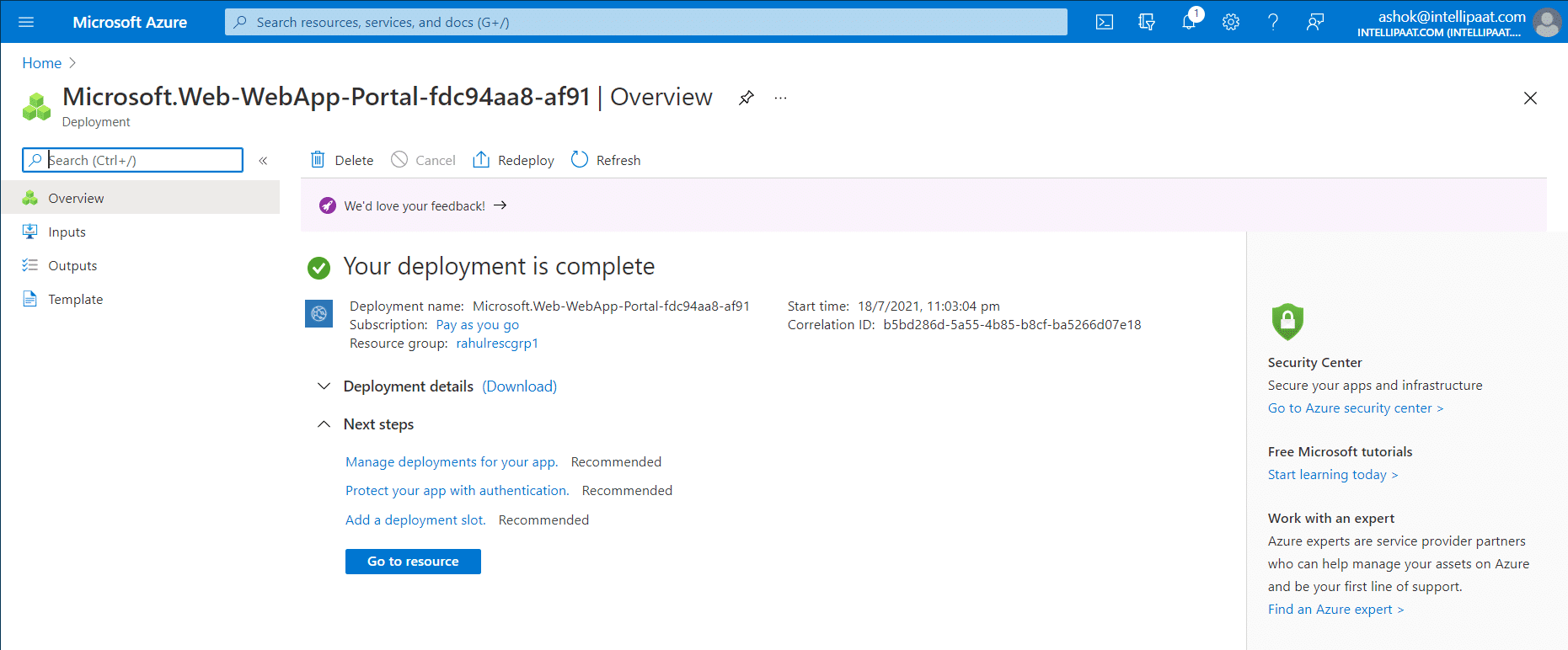
  • Once deployment is complete the portal will display:

Deployment complete

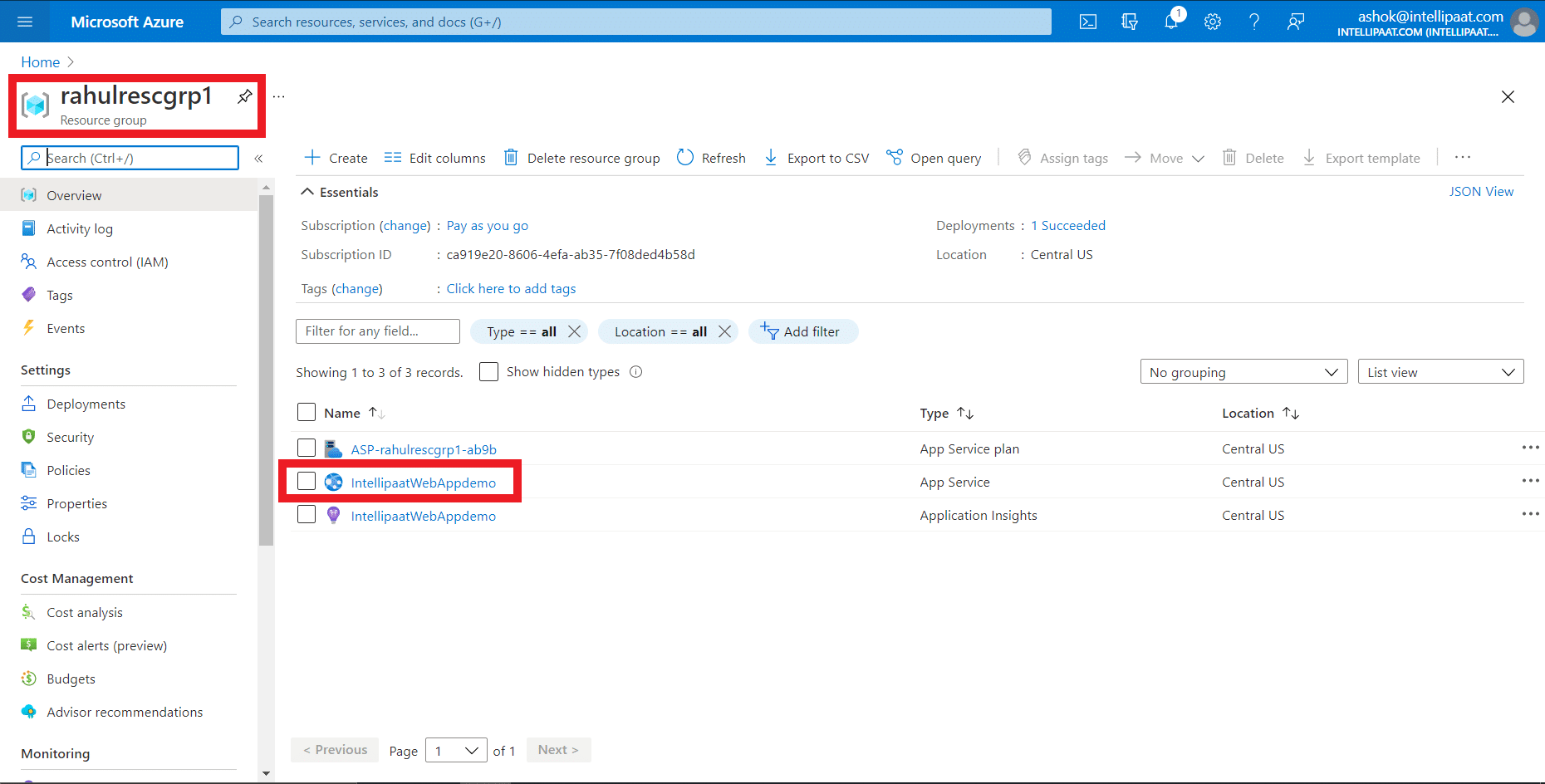
  • Then go to the resource group in which the Web App was created and click on the created Web App.

Opening the created Web App resource

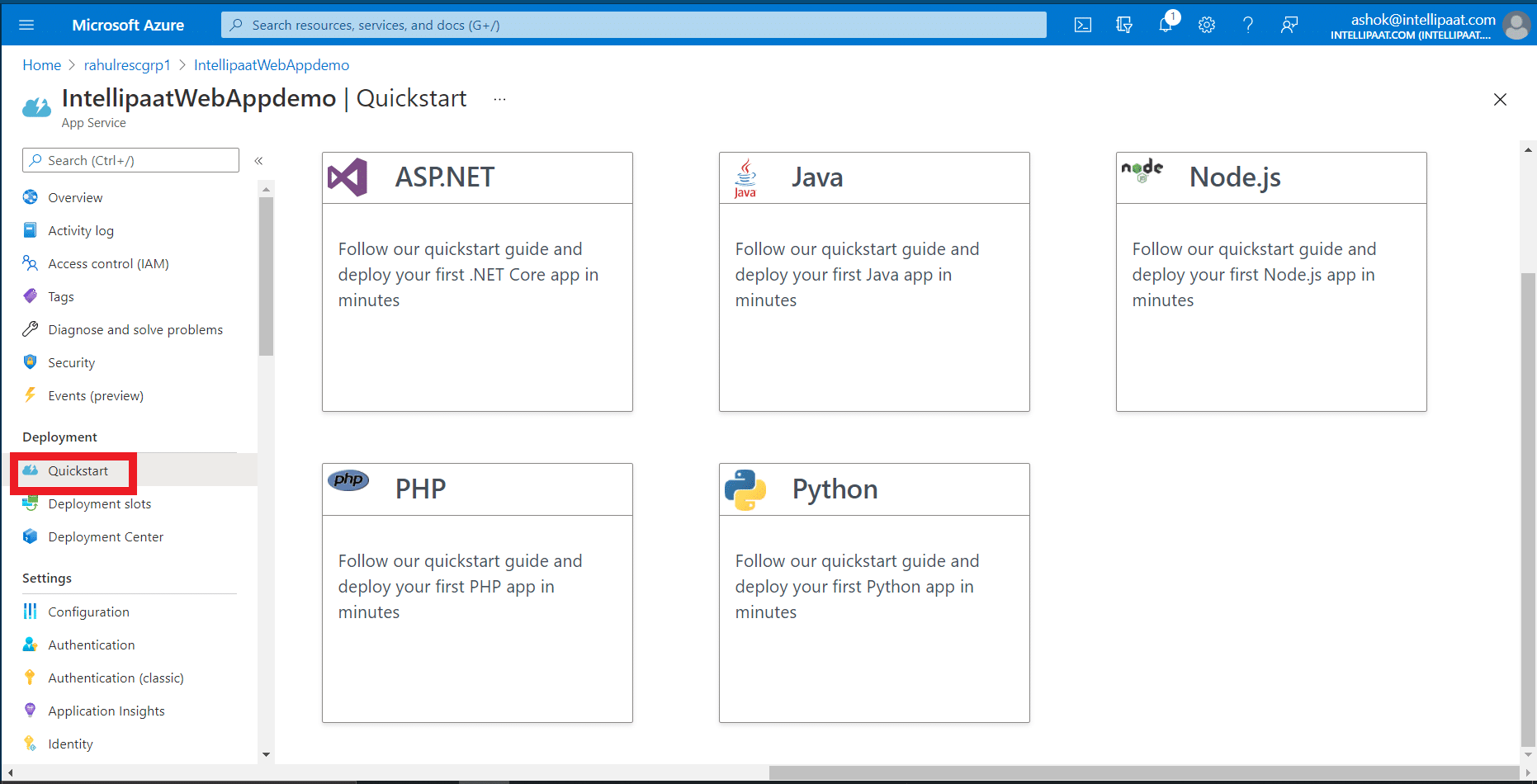
  • Click on Quickstart in Deployment to select the deployment method of your choice.

Deploying

Watch this Azure Active Directory video

Azure Mobile Apps

It provides a platform to build mobile applications like storing and accessing your data recieving notifications. Mobile Apps help developers to tackle challenging requirements for modern mobile devices apps which include,

  • Storing and accessing structured data
  • Receiving notification in response to custom defined events
  • Authenticating and authorizing users based on Facebook, Twitter, Microsoft account
  • Incorporating business logic

It allows developers to build cross-platform apps that can run on Windows, IOS, or Android similar to AWS Amplify or GitHub. These apps can operate exclusively in the cloud or connect with your on-premises infrastructure for authentication. They can also benefit from the built-in push notification engine that can send personalized push notifications to almost any mobile device that is using iOS, Android, or Windows

If you have any doubts or queries related to Azure, do post on Azure Community.

Azure Logic Apps

  • Azure Logic Apps automate business processes by linking together cloud- based apps such as Office 365, Google Services and Salesforce
  • With the Logic Feature you can use a visual designer to combine connectors available from Azure Marketplace for different integration scenarios.
  • Logic Apps uses a workflow engine to implement business processes that you designed and relies on connectors to provide user access
  • Each step in the workflow is an action that accesses data through a connector

Azure App Service Environment

  • Business critical apps often require highly scalable, isolated and dedicated environments
  • To accommodate this requirement, you can use the Azure App service Environment
  • Azure App Service Environment can be used to host web apps, mobile apps and API apps that require highly scalable compute resources, isolation and direct virtual network connectivity.

Azure App Services


Azure App Services

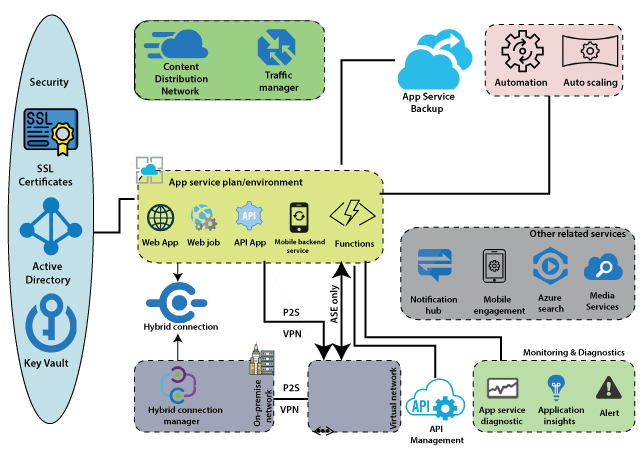
The most fundamental building block of Azure App Service is the App Service plan or App Service environment.

Azure App Services

There are two types of hosting environments within App Service. App Service plan and App Service environment. App Service Environment is a more sophisticated version of the App Service plan and comes with a lot more features when compared to the App Service plan. Within these, we can host several Apps like - web applications, web jobs, batches, APIs, and mobile backend services that can be consumed from our mobile Front-End.

Other related services are closely related to these apps within the App service plan. Those related services are a notification hub that we can use to push notifications into mobile devices. We can use Mobile engagement to carry out Mobile analytics.

Apart from these related services, there is one more service, which is very important when it comes to APIs, which is API management. API management can act as a wrapper around our API apps when we're exposing those APIs to the outside world. It comes with a lot of features such as throttling, security, and it will be beneficial if we want to commoditize our APIs and sell it to the outside world.

To enable communication between apps in the App Service plan and apps installed on virtual machines within the virtual network. There are two ways we can do it. One way is to establish Point-to-site VPN between apps in the App Service plan and virtual network via which the apps can communicate with each other. And the second way is if we have the App service environment. Because it will get deployed into a virtual machine by itself, the Apps within that App Service environment can seamlessly communicate with the apps installed on virtual machines within the virtual network.

And finally, there are two important things. The first one is security, and the second one is monitoring to secure and control the App services environment.

App Service plan

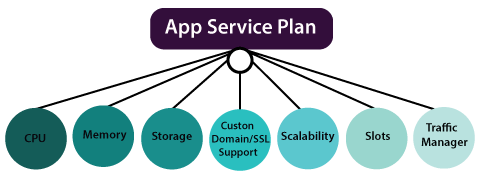
An app service plan denotes a set of features and capacity that we can share across multiple apps in the same subscription and geographical region. A single or dual app can be configured to run on the same computing resources.

Azure App Services

Each App Service plan defines:

  • Region (West US, East US, etc.)
  • Number of VM instances
  • Size of VM instances (Small, Medium, Large)
  • Pricing tier
    • Shared compute: Free and shared, the two basic tiers, runs an app over the same Azure VM as other App Service app runs, including apps of different customers.
    • Dedicated compute: Basic, Standard, Premium, and PremiumV2 tiers run apps on a fixed Azure VM.
    • Isolated: This tier runs dedicated Azure VMs on dedicated Azure Virtual Networks, which provides network isolation on top of computing isolation to your apps.
    • Consumption: It is only available to function apps. It scales the functions dynamically, depending on the workload.

Environment features

  • Development frameworks: App Service supports a variety of development frameworks, including ASP.NET, classic ASP, node.js, PHP, and Python- all of which run as extensions within IIS.
  • File access
    • Local drives - Operating system drive (D:\drive), an application drive and user drive (the C:\ drive)
    • Network drives - Each customer's subscription has a reserved directory structure on a specific UNC share within a data center.
  • Network access: The application code can use TCP/IP and UDP based protocols to make outbound network connections to access Internet endpoints that expose external services.

Web apps Overview

Azure App Service Web Apps is a service for hosting web applications. The key feature of App Service Web Apps.

  • Multiple language and frameworks
  • DevOps optimizations
  • Security & Compliance
  • Application template
  • Visual Studio integration

Creating App Service Plan in Azure Portal

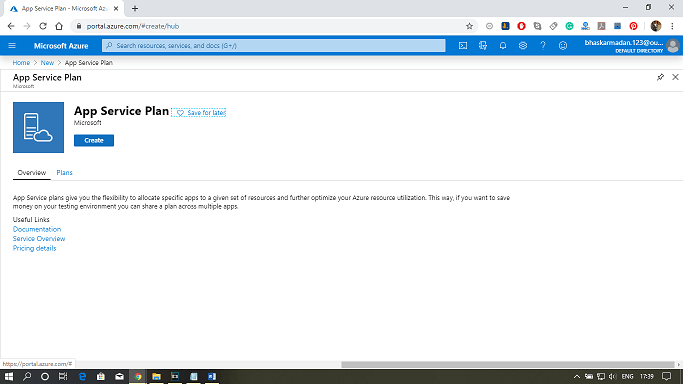
Step 1: Click on create a new resource and search for App Service Plan to create it.

Azure App Services

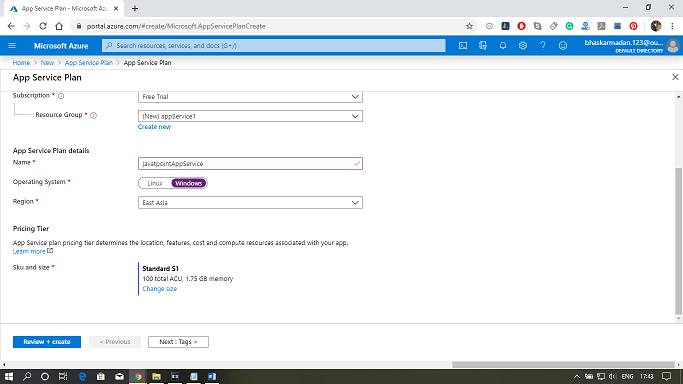
Step 2: Fill-in all the required details and select the SKU size, as shown in the figure below. Then click on create.

Azure App Services

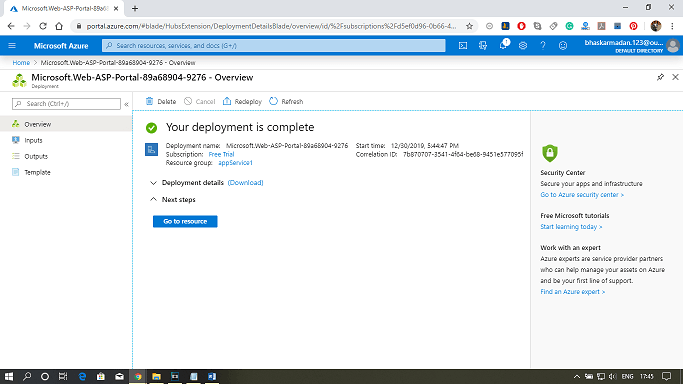
Step 3: Your app service plan will be created. You can now explore and modify it as per your requirement.

Azure App Services