Wednesday, 22 May 2024

Manage labs in Azure Lab Services when using lab accounts


Manage labs in Azure Lab Services when using lab accounts

This article describes how to create and delete a lab. It also shows you how to view all the labs in a lab account.

Prerequisites

To set up a lab in a lab account, you must be a member of the Lab Creator role in the lab account. The account you used to create a lab account is automatically added to this role. A lab owner can add other users to the Lab Creator role by using steps in the following article: Add a user to the Lab Creator role.

Create a lab

  1. Navigate to Lab Services web portal: https://labs.azure.com.

  2. Select Sign in and enter your credentials. Select or enter a user ID that is a member of the Lab Creator role in the lab account, and enter password. Azure Lab Services supports organizational accounts and Microsoft accounts.

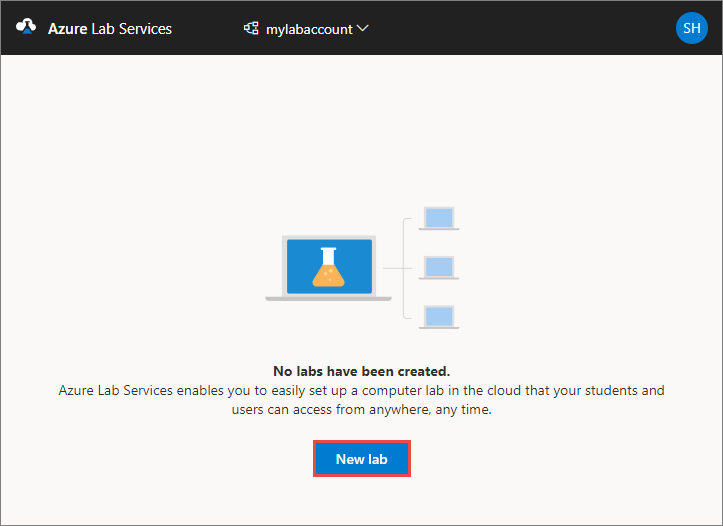
  3. Select New lab.

    Screenshot that shows how the Azure Lab Services website, highlighting the New lab button.

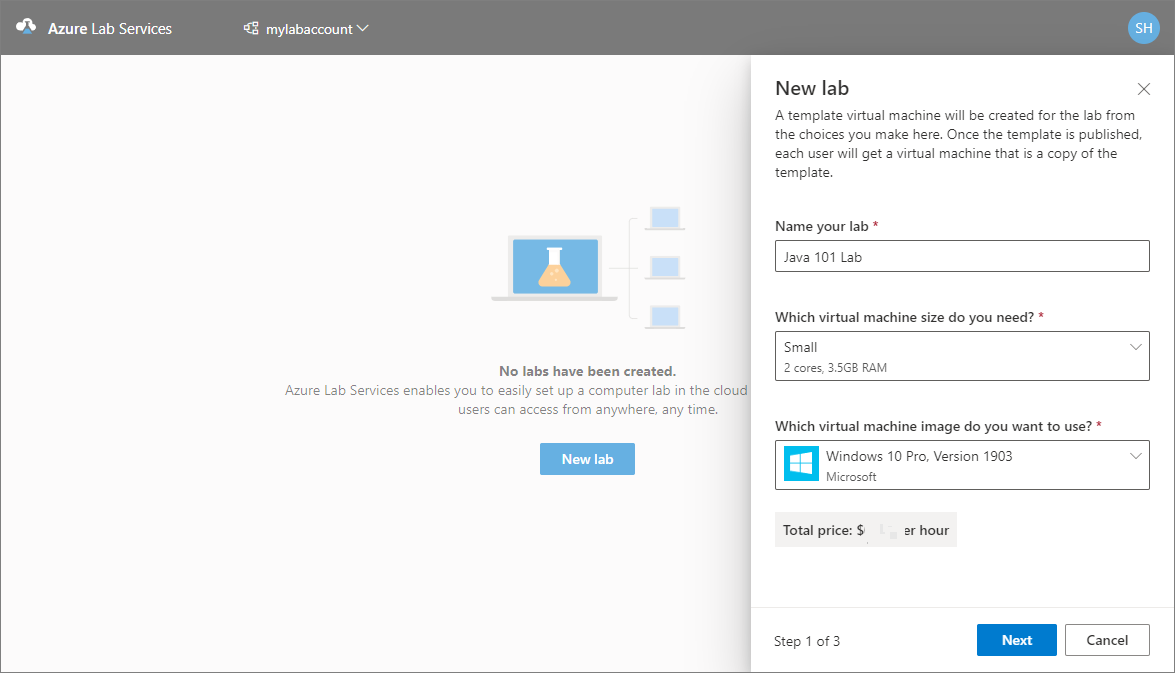
  4. In the New Lab window, do the following actions:

    1. Specify a name for your lab.

    2. Select the size of the virtual machines you need for the class. For the list of sizes available, see the VM Sizes section.

    3. Select the virtual machine image that you want to use for the lab. If you select a Linux image, you see an option to enable remote desktop connection. For details, see Enable remote desktop connection for Linux.

    4. Review the total price per hour displayed on the page.

    5. Select Save.

      Screenshot that shows the New lab window.

       Note

      You see an option to select a location for your lab if the lab account was configured to allow lab creator to pick lab location option.

  5. On the Virtual machine credentials page, specify default credentials for all VMs in the lab.

    1. Specify the name of the user for all VMs in the lab.

    2. Specify the password for the user.

       Important

      Make a note of user name and password. They won't be shown again.

    3. Disable Use same password for all virtual machines option if you want students to set their own passwords. This step is optional.

      An educator can choose to use the same password for all the VMs in the lab, or allow students to set passwords for their VMs. By default, this setting is enabled for all Windows and Linux images except for Ubuntu. When you select Ubuntu VM, this setting is disabled and students are prompted to set a password when they sign in for the first time.
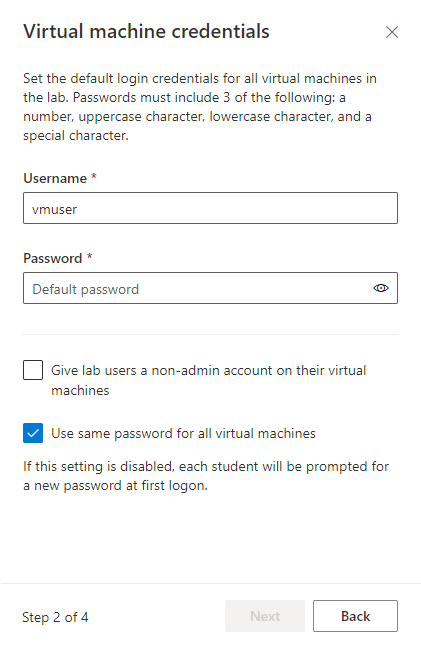
      Screenshot that shows the Virtual machine credentials page of the New lab wizard.

    4. Then, select Next on the Virtual machine credentials page.

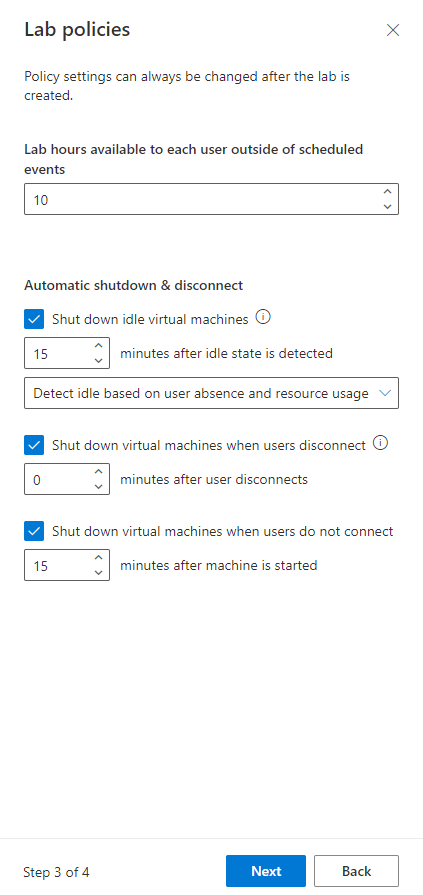
  6. On the Lab policies page, do the following steps:

    1. Enter the number of hours allotted for each user (quota for each user) outside the scheduled time for the lab.

    2. For the Auto-shutdown of virtual machines option, specify whether you want the VM to be automatically shut down when user disconnects. You can also specify how long the VM should wait for the user to reconnect before automatically shutting down. For more information, see Enable automatic shutdown of VMs on disconnect.

    3. Then, select Finish.

      Screenshot that shows the Lab policies page of the New lab wizard.

  7. You should see the following screen that shows the status of the template VM creation. The creation of the template in the lab takes up to 20 minutes.
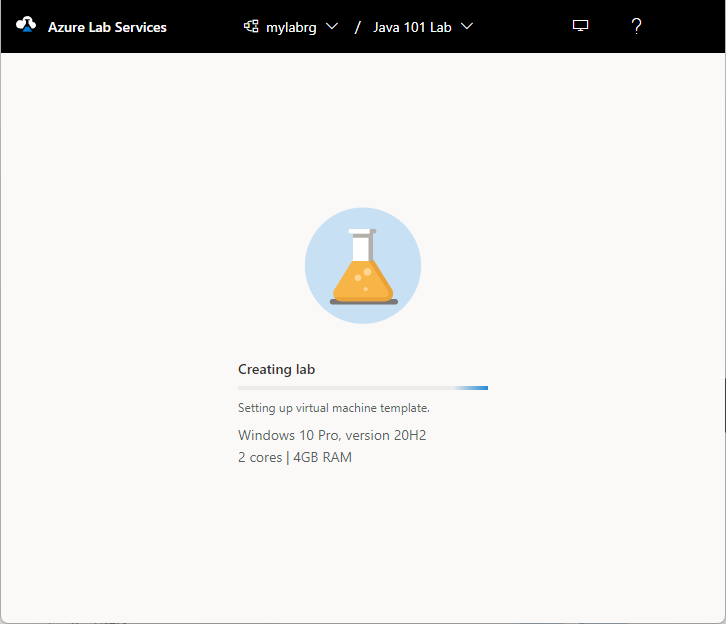
    Screenshot of the Azure Lab Services lab creation progress page.

  8. On the Template page, do the following steps: These steps are optional for the tutorial.

    1. Start the template VM.
    2. Connect to the template VM by selecting Connect. If it's a Linux template VM, you choose whether you want to connect using an SSH terminal or a graphical remote desktop. Additional setup is required to use a graphical remote desktop. For more information, see Enable graphical remote desktop for Linux virtual machines in Azure Lab Services.
    3. Select Reset password to reset the password for the VM. The VM must be running before the reset password button is available.
    4. Install and configure software on your template VM.
    5. Stop the VM.
  9. On Template page, select Publish on the toolbar.
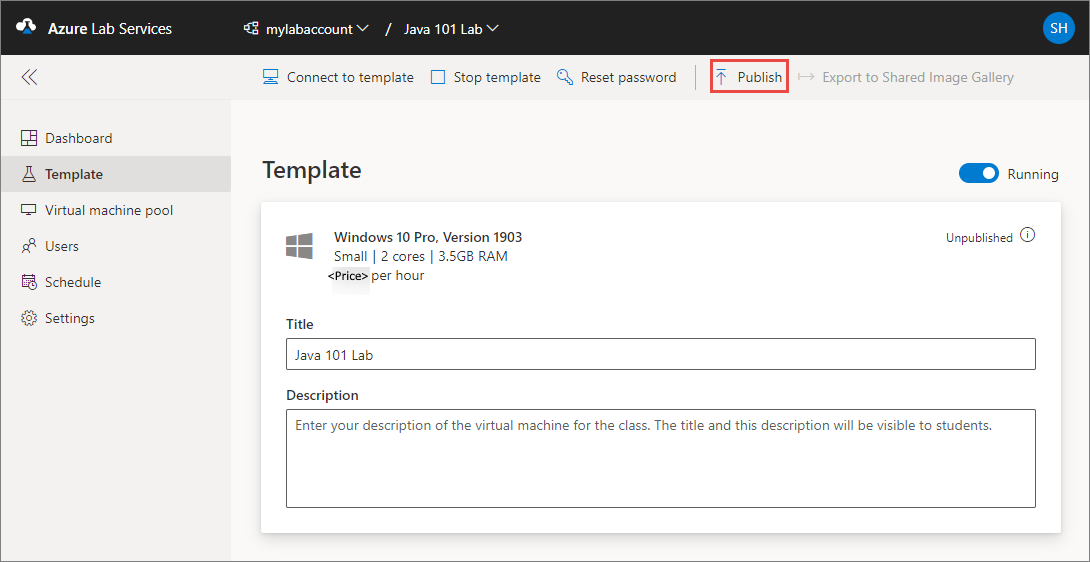
    Screenshot that shows the Template window in the Azure Lab Services website, highlighting the Publish template button.

     Warning

    Once you publish, you can't unpublish.

  10. On the Publish template page, enter the number of virtual machines you want to create in the lab, and then select Publish.
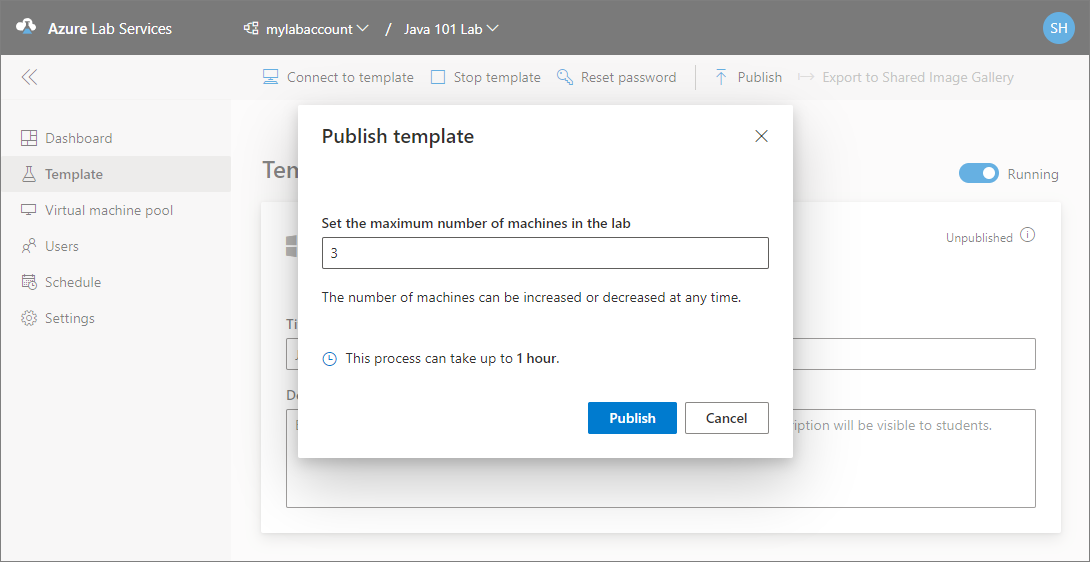
    Screenshot of the Publish template window, requesting the number of VMs for the lab.

  11. You see the status of publishing the template on page. This process can take up to an hour.
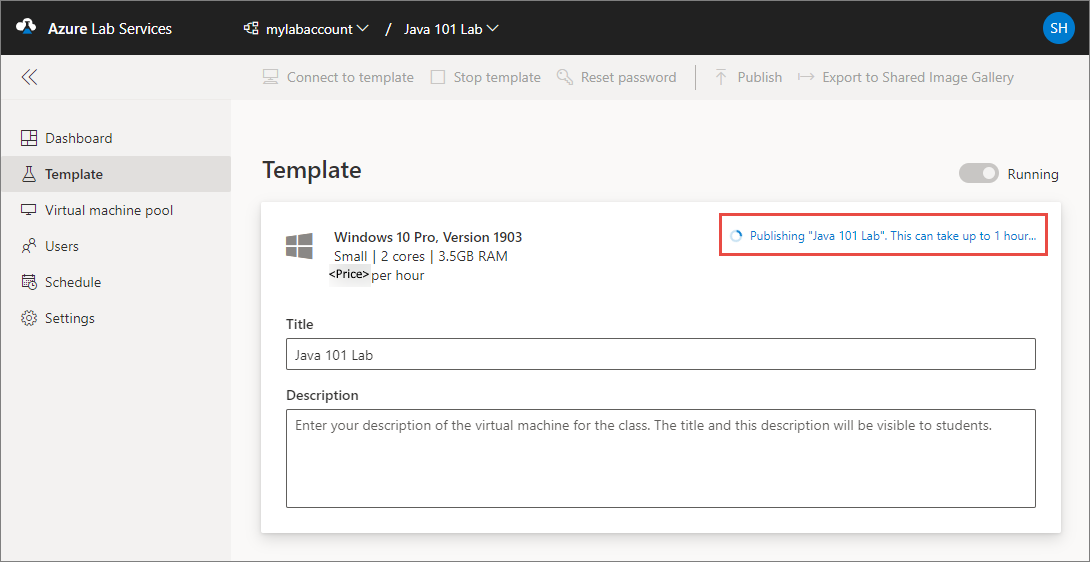
    Screenshot that shows the Template page, highlighting the publishing progress.

  12. Switch to the Virtual machines pool page by selecting Virtual machines on the left menu or by selecting Virtual machines tile. Confirm that you see virtual machines that are in Unassigned state. These VMs aren't assigned to students yet. They should be in Stopped state. You can start a student VM, connect to the VM, stop the VM, and delete the VM on this page. You can start them in this page or let your students start the VMs.
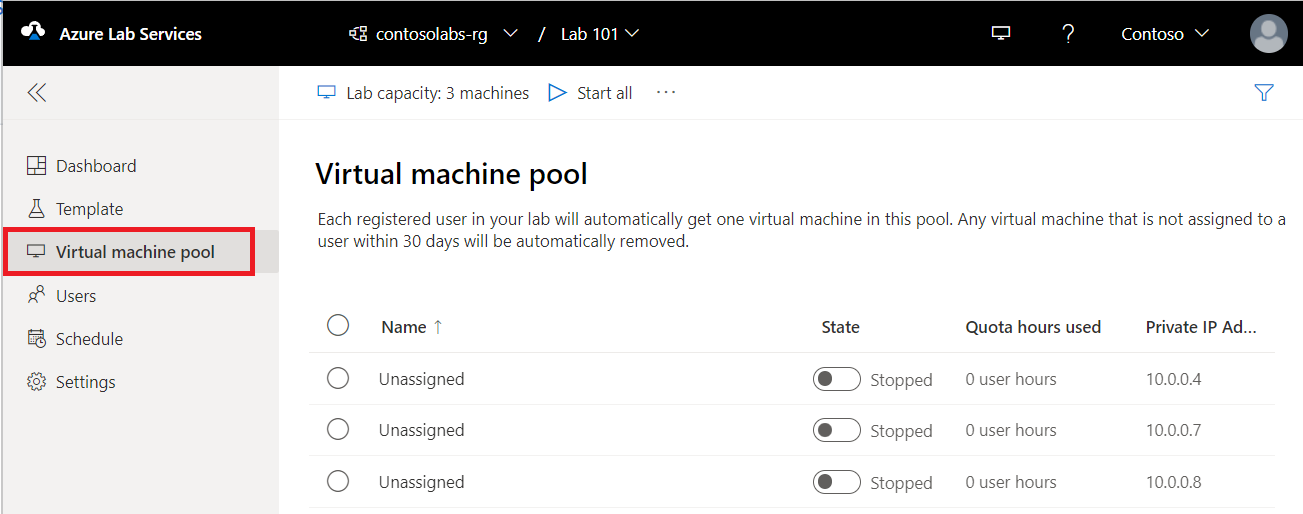
    Screenshot that shows the Virtual machine pool window, showing the lab VMs in the stopped state.

    You do the following tasks on this page (don't do these steps for the tutorial. These steps are for your information only.):

    1. To change the lab capacity (number of VMs in the lab), select Lab capacity on the toolbar.
    2. To start all the VMs at once, select Start all on the toolbar.
    3. To start a specific VM, select the down arrow in the Status, and then select Start. You can also start a VM by selecting a VM in the first column, and then by selecting Start on the toolbar.

VM sizes

For information on VM sizes and their cost, see the Azure Pricing Calculator.

 Note

You may not see some of the expected VM sizes in the list when creating a lab. The list is populated based on the current capacity of the lab's location. If the lab account creator allows lab creators to pick a location for the lab, you may try choosing a different location for the lab and see if the VM size is available.

View all labs

  1. Navigate to Lab Services web portal: https://labs.azure.com.

  2. Select Sign in. Select or enter a user ID that is a member of the Lab Creator role in the lab account, and enter password. Azure Lab Services supports organizational accounts and Microsoft accounts.

    If you have an Administrator or Lab Owner role in two or more Microsoft Entra tenants, you can switch between tenants in the Lab Services web portal (https://labs.azure.com) by selecting the control at the upper right, as shown in the following screenshot:
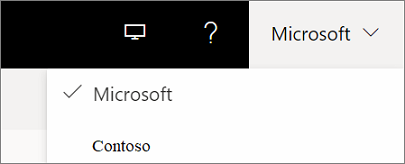
    Screenshot of the control for switching between tenants in the Azure Lab Services portal.

  3. Confirm that you see all the labs in the selected lab account. On the lab's tile, you see the number of virtual machines in the lab and the quota for each user (outside the scheduled time).
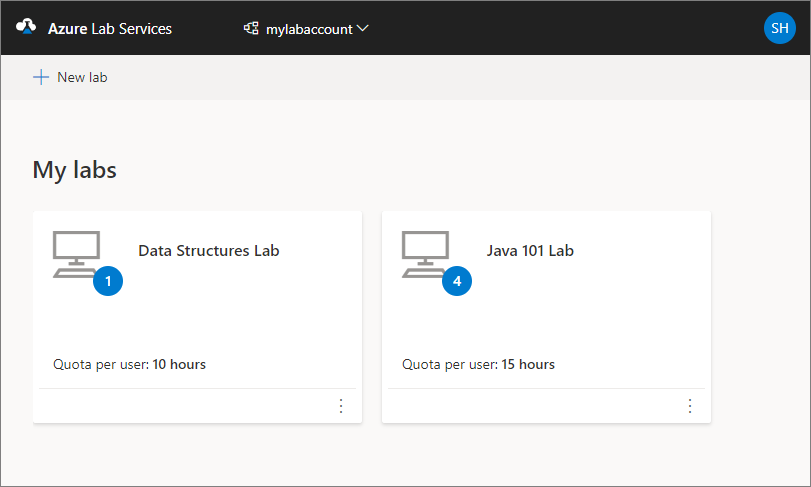
    Screenshot that shows the Azure Lab Services website, showing the My labs page.

  4. Use the drop-down list at the top to select a different lab account. You see labs in the selected lab account.

Delete a lab

  1. On the tile for the lab, select three dots (...) in the corner, and then select Delete.
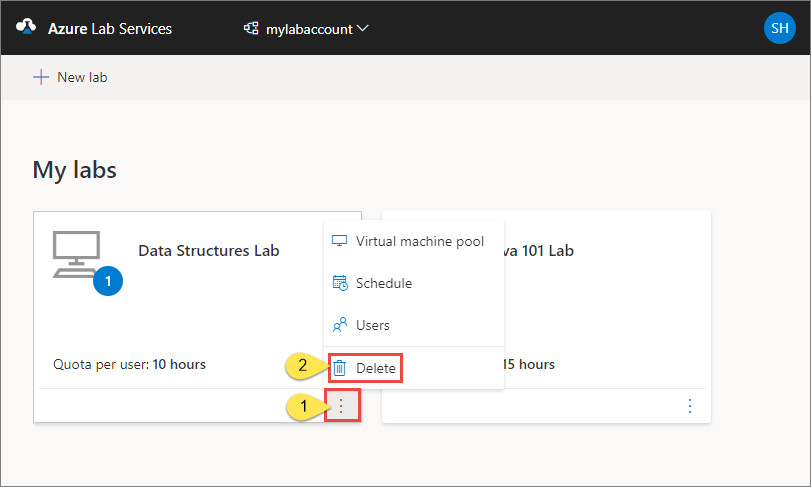
    Screenshot that shows the My Labs page in the Azure Lab Services website, highlighting the Delete button.

  2. On the Delete lab dialog box, select Delete to continue with the deletion.

Switch to another lab

To switch to another lab from the current, select the drop-down list of labs in the lab account at the top.
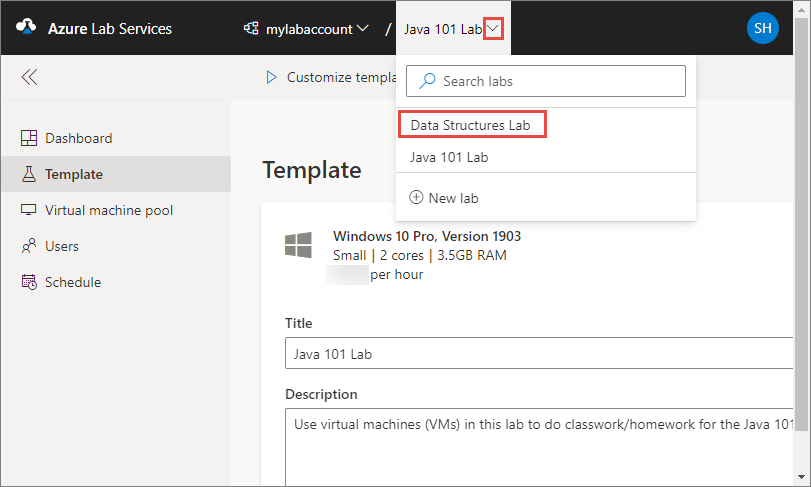
Screenshot that shows the Azure Lab Services website, highlighting the drop-down to switch to another lab.

You can also create a new lab using the New lab in this drop-down list.

 Note

You can also use the Az.LabServices PowerShell module to manage labs. For more information, see the Az.LabServices home page on GitHub.

To switch to a different lab account, select the drop-down next to the lab account and select the other lab account.

Troubleshooting

Lab creation fails because of insufficient IP addresses

Lab creation can fail if the lab account is peered to a virtual network but has too narrow of an IP address range. You can run out of space in the address range if there are too many labs in the lab account (each lab uses 512 addresses).

For example, if you have a block of /19, this address range can accommodate 8192 IP addresses and 16 labs (8192/512 = 16 labs). In this case, lab creation fails on the 17th lab creation.

Set up a lab account with Azure Lab Services


 Set up a lab account with Azure Lab Services

 Important

Azure Lab Services lab plans replace lab accounts. Learn how you can get started by creating a lab plan. For existing lab account customers, we recommend that you migrate from lab accounts to lab plans.

In Azure Lab Services, a lab account serves as the central resource in which you manage your organization's labs. In your lab account, give permission to others to create labs, and set policies that apply to all labs under the lab account. In this tutorial, learn how to create a lab account by using the Azure portal.

In this tutorial, you do the following actions:

  • Create a lab account
  • Add a user to the Lab Creator role

Prerequisites

  • An Azure account with an active subscription. If you don't have an Azure subscription, create a free account before you begin.

Create a lab account

The following steps illustrate how to use the Azure portal to create a lab account with Azure Lab Services.

  1. Sign in to the Azure portal.

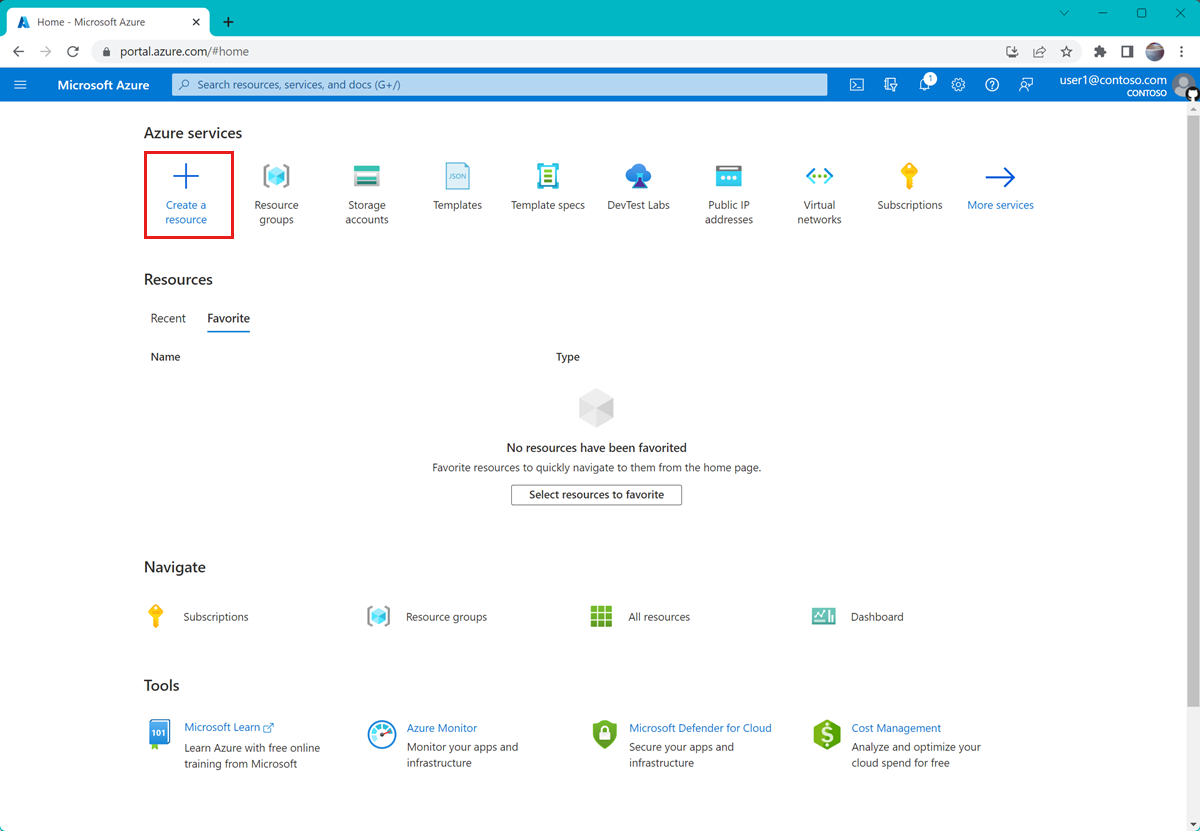
  2. Select Create a resource in the upper left-hand corner of the Azure portal.

    Screenshot that shows the Azure portal home page, highlighting the Create a resource button.

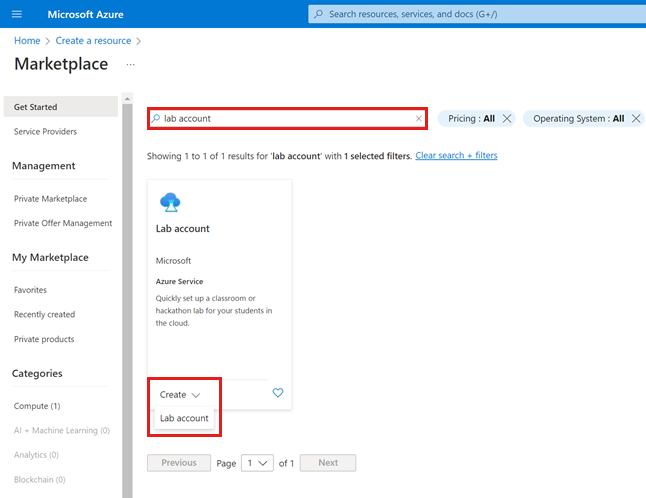
  3. Search for lab account. (Lab account can also be found under the DevOps category.)

  4. On the Lab account tile, select Create > Lab account.

    Screenshot of how to search for and create a lab account by using the Azure Marketplace.

  5. On the Basics tab of the Create a lab account page, provide the following information:

    FieldDescription
    SubscriptionSelect the Azure subscription that you want to use to create the resource.
    Resource groupSelect an existing resource group or select Create new, and enter a name for the new resource group.
    NameEnter a unique lab account name.
    For more information about naming restrictions, see Microsoft.LabServices resource name rules.
    RegionSelect a geographic location to host your lab account.
  6. After you're finished configuring the resource, select Review + Create.

    Screenshot that shows the Basics tab to create a new lab account in the Azure portal.

  7. Review all the configuration settings and select Create to start the deployment of the lab account.

  8. To view the new resource, select Go to resource.

    Screenshot that shows the resource deployment completion page in the Azure portal.

  9. Confirm that you see the lab account Overview page.

    Screenshot that shows the lab account overview page in the Azure portal.

You've now successfully created a lab account by using the Azure portal. To let others create labs in the lab account, you assign them the Lab Creator role.

Add a user to the Lab Creator role

To set up a lab in a lab account, you must be a member of the Lab Creator role in the lab account. To grant people the permission to create labs, add them to the Lab Creator role.

Follow these steps to assign Azure roles using the Azure portal.

 Note

Azure Lab Services automatically assigns the Lab Creator role to the Azure account you use to create the lab account. If you plan to use the same user account to create a lab in this tutorial, skip this step.

  1. On the Lab Account page, select Access control (IAM).

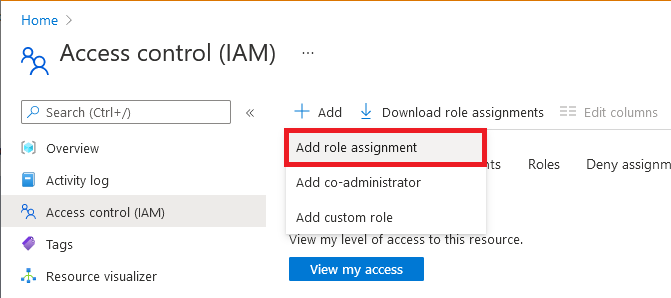
  2. From the Access control (IAM) page, select Add > Add role assignment.

    Screenshot that shows the Access control (I A M) page with Add role assignment menu option highlighted.

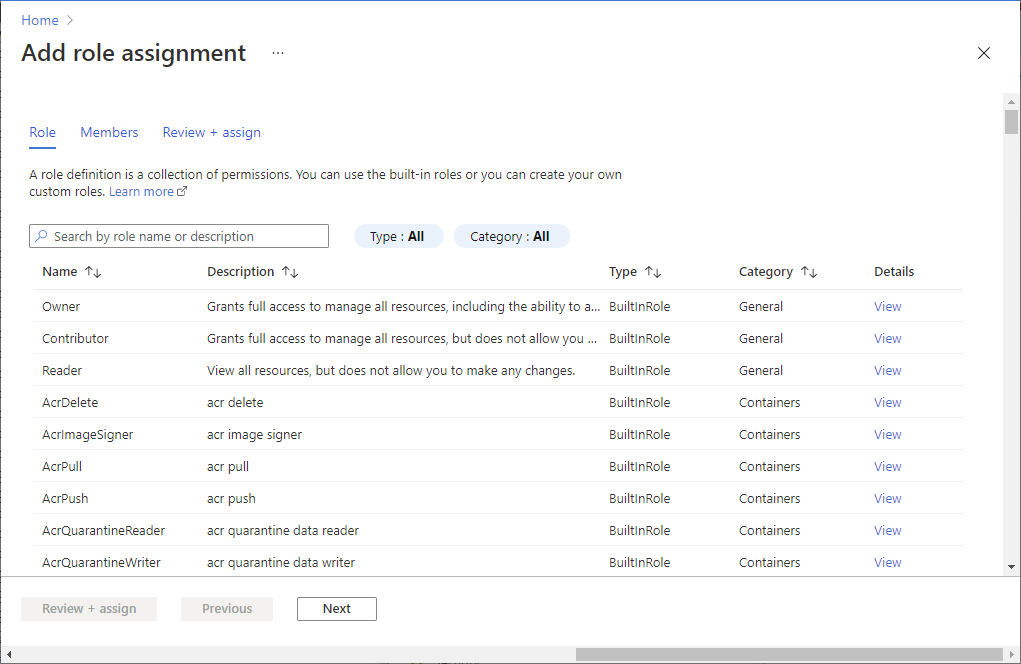
  3. On the Role tab, select the Lab Creator role.

    Screenshot that shows the Add roll assignment page with Role tab selected.

  4. On the Members tab, select the user you want to add to the Lab Creators role.

  5. On the Review + assign tab, select Review + assign to assign the role.

Troubleshooting

Lab creation fails because of insufficient IP addresses

Lab creation can fail if the lab account is peered to a virtual network but has too narrow of an IP address range. You can run out of space in the address range if there are too many labs in the lab account (each lab uses 512 addresses).

For example, if you have a block of /19, this address range can accommodate 8192 IP addresses and 16 labs (8192/512 = 16 labs). In this case, lab creation fails on the 17th lab creation.
Create and manage lab accounts


Create and manage lab accounts


In Azure Lab Services, a lab account is a container for labs. An administrator creates a lab account with Azure Lab Services and provides access to lab owners who can create labs in the account. This article describes how to create a lab account, view all lab accounts, and delete a lab account.

Create a lab account

The following steps illustrate how to use the Azure portal to create a lab account with Azure Lab Services.

  1. Sign in to the Azure portal.

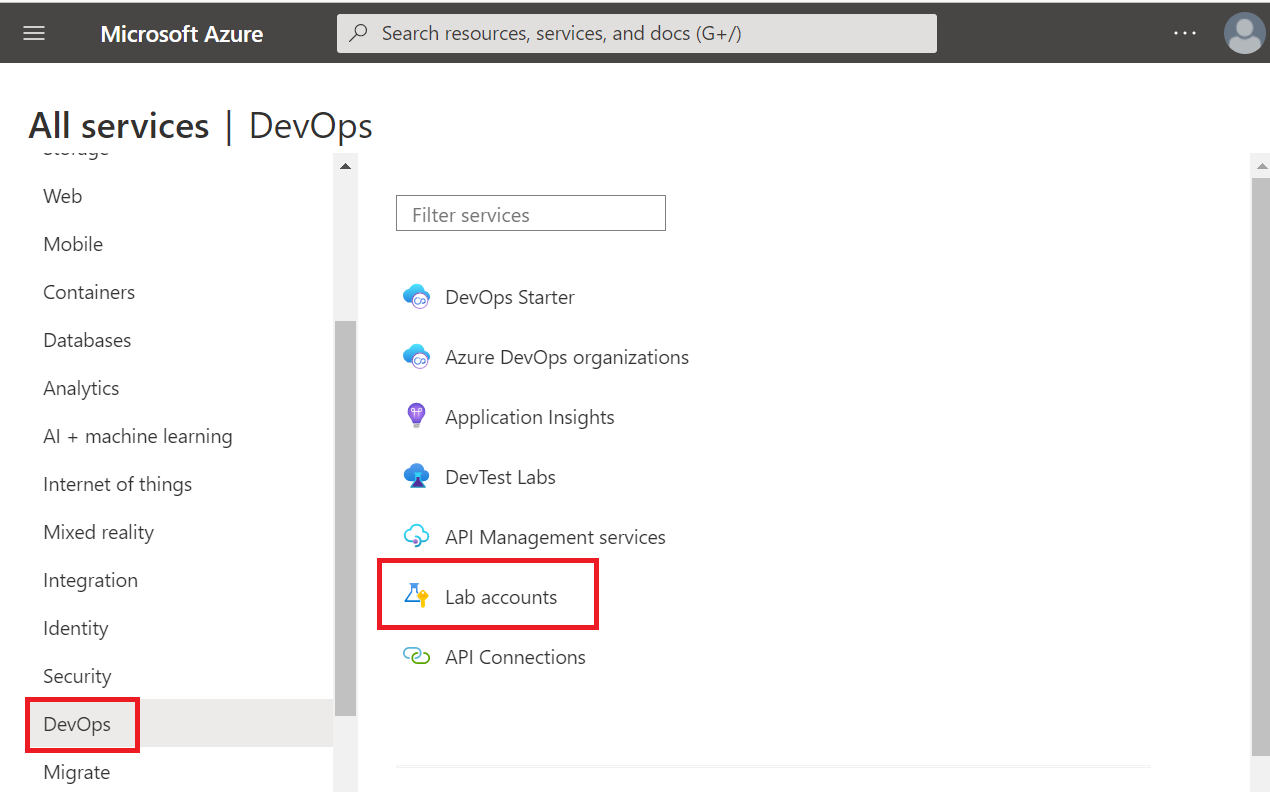
  2. Select All services on the left menu. Select the DevOps category. Select the Lab accounts tile.

    Screenshot of All services page in the Azure portal.  The Dev Ops category and DevTest Labs items are highlighted.

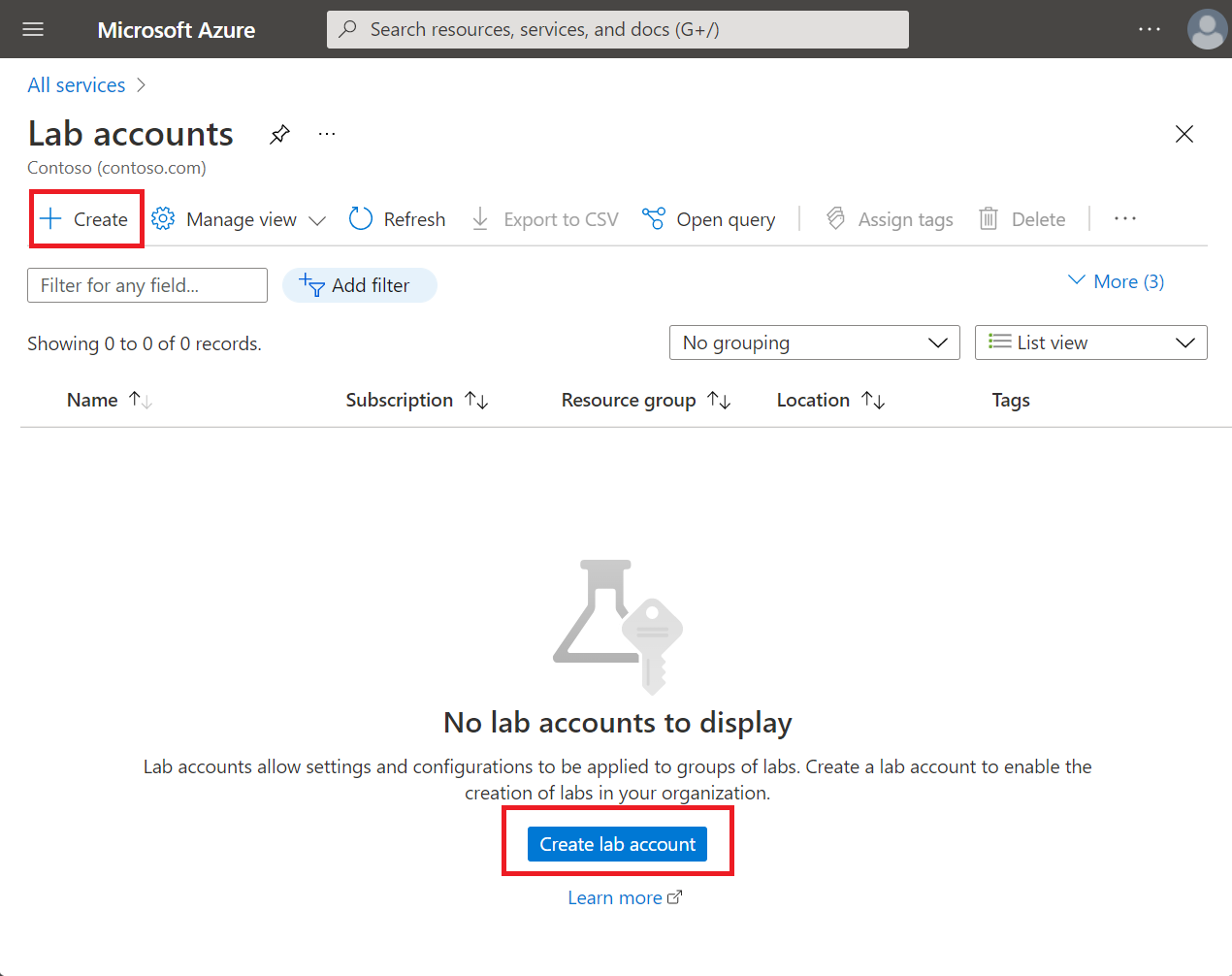
  3. On the Lab Accounts page, select Create on the toolbar or Create lab account on the page.

    Screenshot of lab account resources in the Azure portal.  The Create button and Create lab account buttons are highlighted.

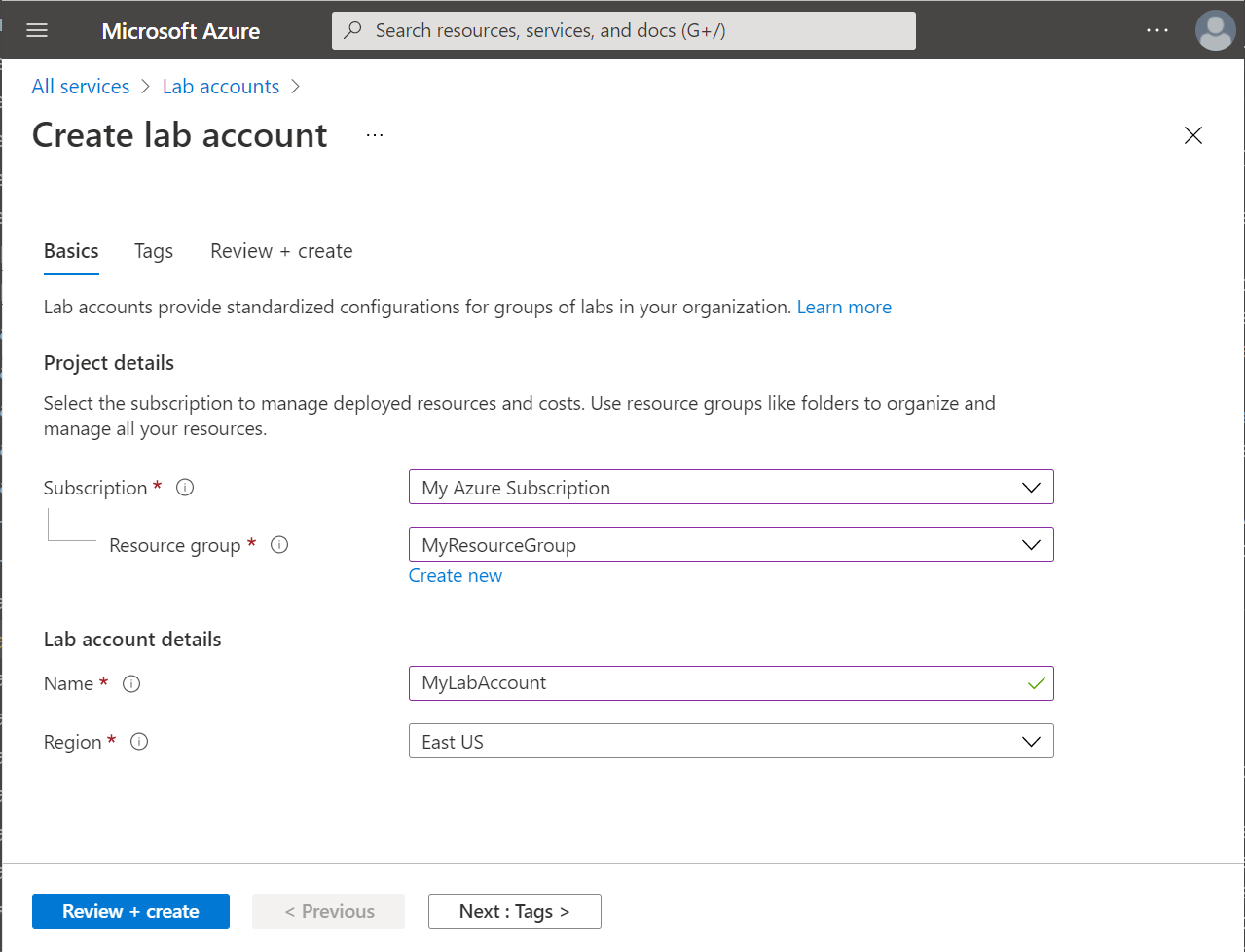
  4. On the Basics tab of the Create a lab account page, do the following actions:

    1. Select the Azure subscription in which you want to create the lab account.

    2. For Resource group, select Create new, and enter a name for the resource group.

    3. For Lab account name, enter a name.

    4. For Location, select a location/region in which you want the lab account to be created.

      Screenshot of the Basics tab in Create lab account wizard.

  5. Select Next: Tags.

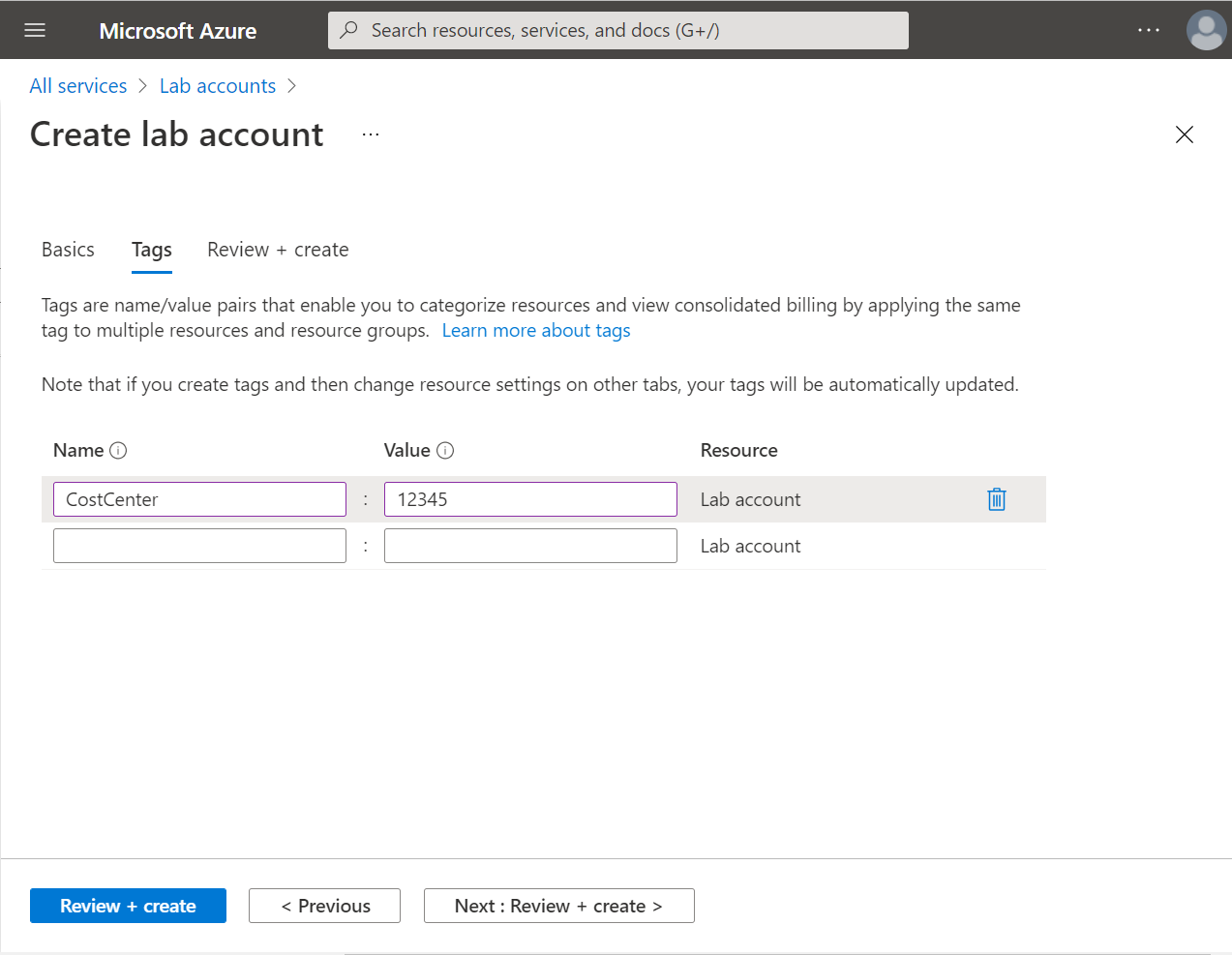
  6. On the Tags tab, add any tags you want to associate with the lab account. Tags are name/value pairs that enable you to categorize resources and view consolidated billing by applying the same tag to multiple resources and resource groups. For more information, see Use tags to organize your Azure resources.

    Screenshot that shows the Tags tab of the Create lab account wizard.

  7. Select Next: Review + create.

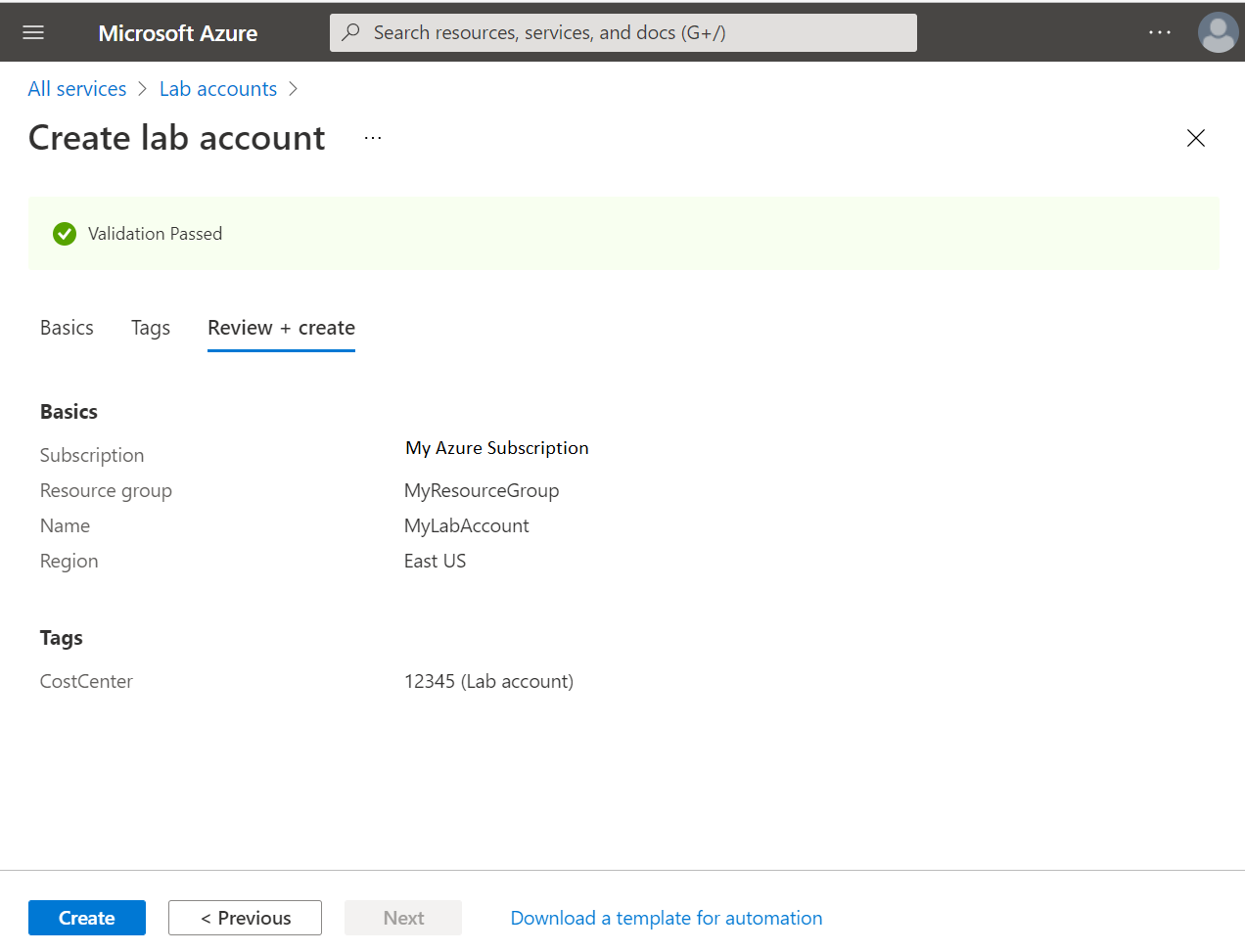
  8. Wait for validation to pass. Review the summary information on the Review + create page, and select Create.

    Screenshot that shows the Review and create tab of the Create lab account wizard

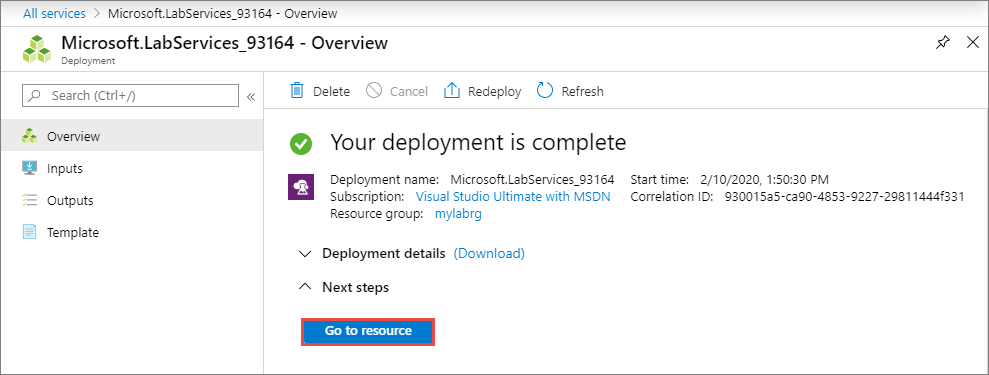
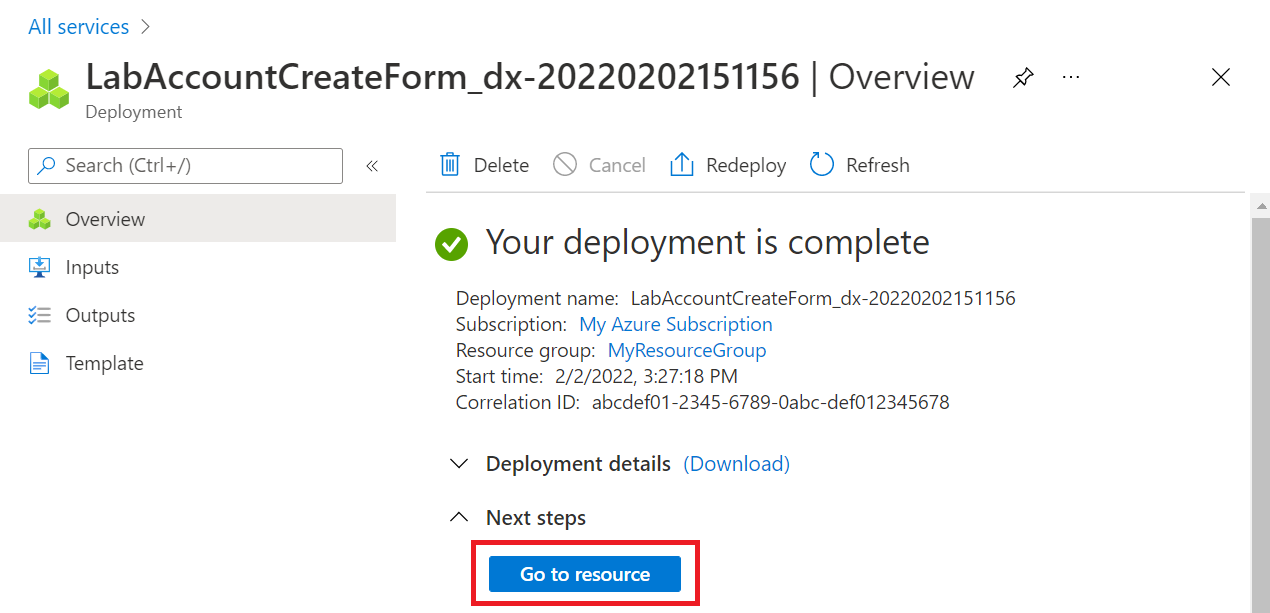
  9. Wait until the deployment is complete, expand Next steps, and select Go to resource.

    You can also select the bell icon on the toolbar (Notifications), confirm that the deployment succeeded, and then select Go to resource.

    Screenshot that shows the deploy resource page for the lab account.  The Go to resource button is highlighted.

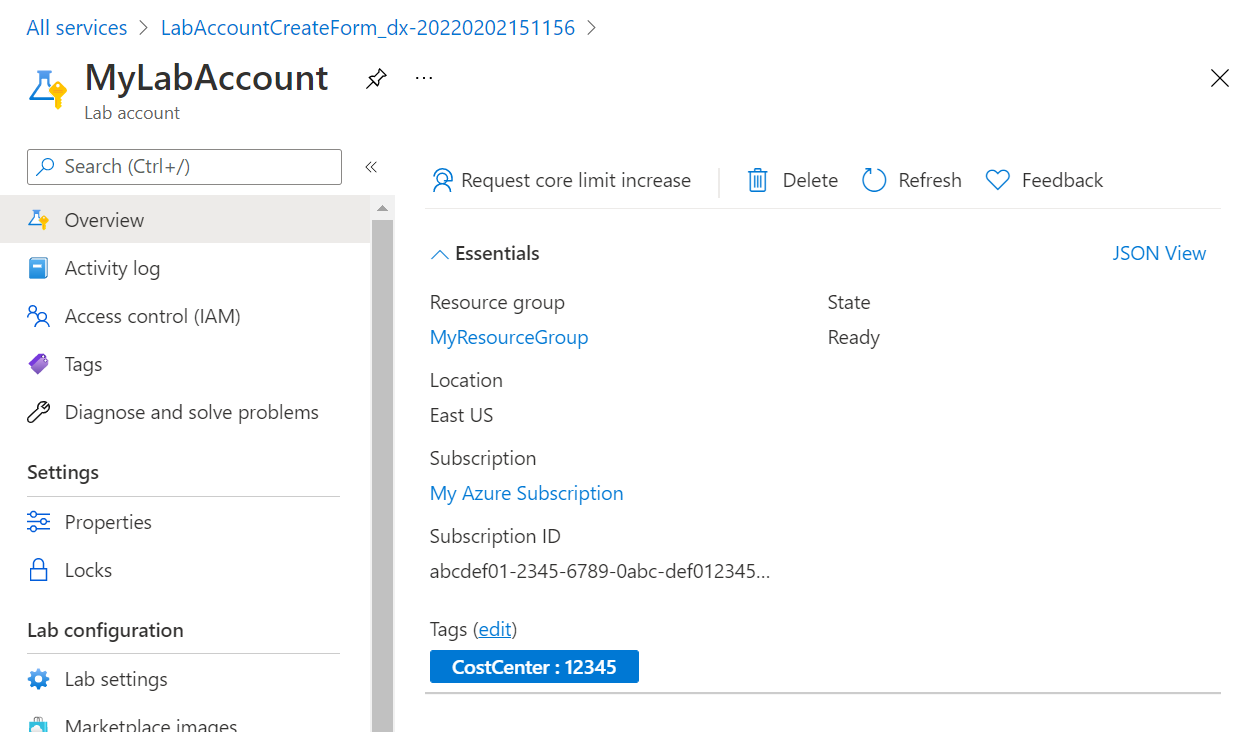
  10. You'll see the Overview page for the lab account.

    Screenshot that shows overview page of a lab account.

View lab accounts

  1. Sign in to the Azure portal.

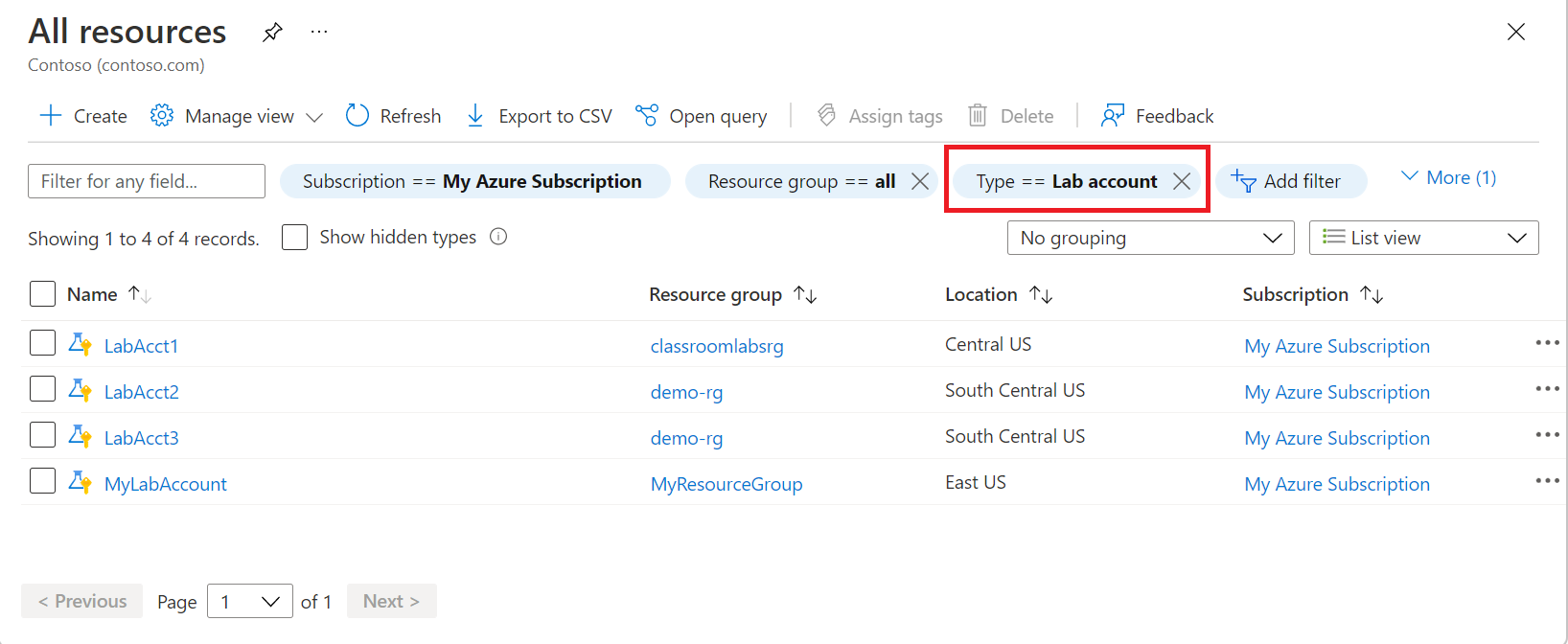
  2. Select All resources from the menu.

  3. Select Lab Accounts for the type. You can also filter by subscription, resource group, locations, and tags.

    Screenshot that shows All resources page in the Azure portal.  The resource type filter is highlighted and set to show resources of type lab accounts.

Delete a lab account

Follow instructions from the previous section that displays lab accounts in a list. Use the following instructions to delete a lab account:

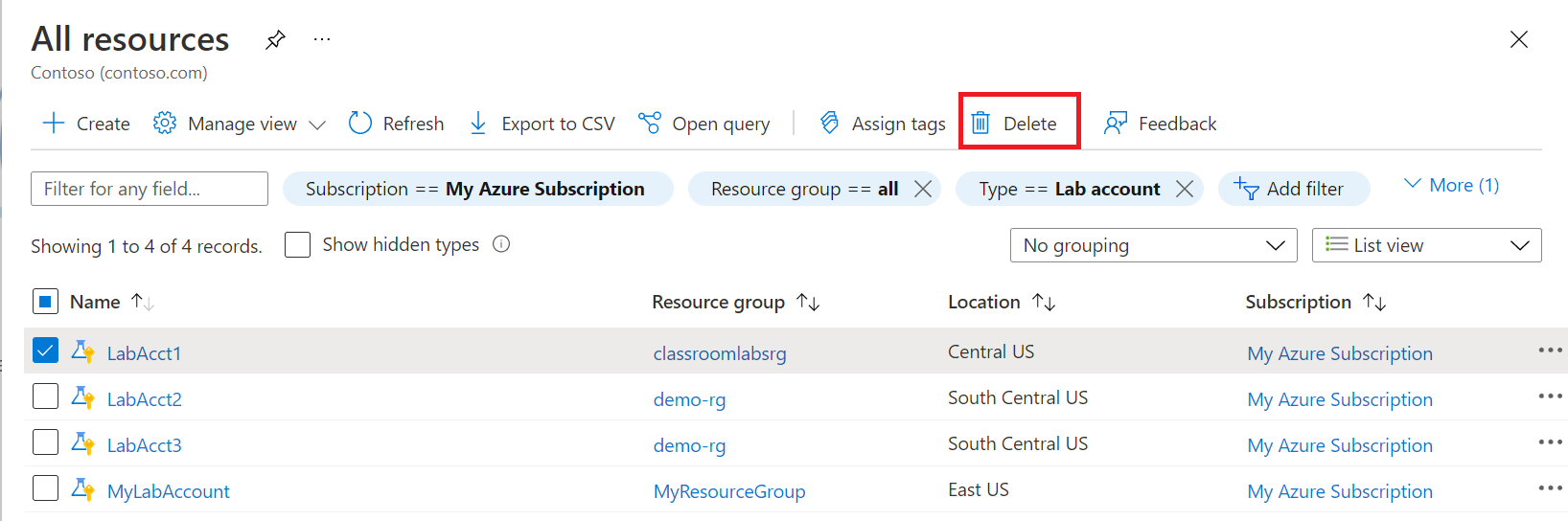
  1. Select the lab account that you want to delete.

  2. Select Delete from the toolbar.

    Screenshot that shows All resources page in the Azure portal with resources filtered to list lab accounts.  The delete button on the toolbar is highlighted.

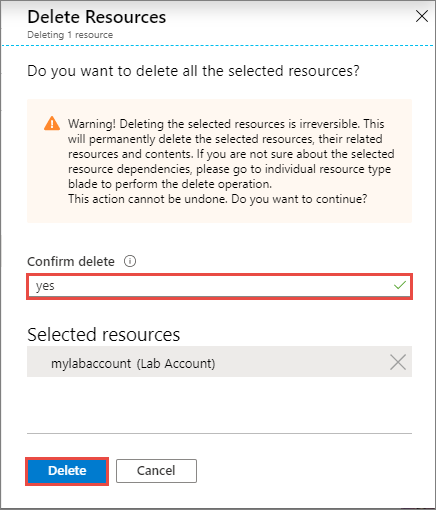
  3. Type yes for confirmation.

  4. Select Delete.

    Screenshot that shows delete confirmation page.

Automatic shutdown settings

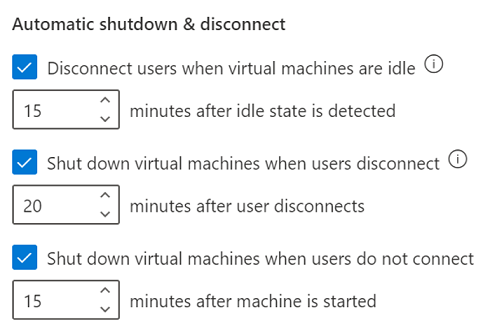
Automatic shutdown features enable you to prevent wasted VM usage hours in the labs. The following settings catch most of the cases where users accidentally leave their virtual machines running:

Screenshot that shows the three automatic shutdown settings.

You can configure these settings at both the lab account level and the lab level. If you enable them at the lab account level, they're applied to all labs within the lab account. For all new lab accounts, these settings are turned on by default.

Automatically disconnect users from virtual machines that the OS deems idle

 Note

This setting is available only for Windows virtual machines.

When the Disconnect users when virtual machines are idle setting is turned on, the user is disconnected from any machines in the lab when the Windows OS deems the session to be idle (including the template virtual machines). The Windows OS definition of idle uses two criteria:

  • User absence: no keyboard or mouse input.
  • Lack of resource consumption: All the processors and all the disks were idle for a certain percentage of time.

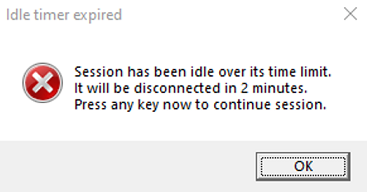
Users will see a message like this in the VM before they're disconnected:

Screenshot that shows a warning message that a session has been idle over its time limit.

The virtual machine is still running when the user is disconnected. If the user reconnects to the virtual machine by signing in, windows or files that were open or work that was unsaved before the disconnect will still be there. In this state, because the virtual machine is running, it still counts as active and accrues cost.

To automatically shut down idle Windows virtual machines that are disconnected, use the combination of Disconnect users when virtual machines are idle and Shut down virtual machines when users disconnect settings.

For example, if you configure the settings as follows:

  • Disconnect users when virtual machines are idle: 15 minutes after the idle state is detected.
  • Shut down virtual machines when users disconnect: 5 minutes after the user disconnects.

The Windows virtual machines will automatically shut down 20 minutes after the user stops using them.

Diagram that illustrates the combination of settings resulting in automatic VM shutdown.

Automatically shut down virtual machines when users disconnect

The Shut down virtual machines when users disconnect setting supports both Windows and Linux virtual machines. When this setting is on, automatic shutdown will occur when:

  • The Remote Desktop (RDP) connection is disconnected for Windows or Linux VMs.
  • The Secure Shell (SSH) connection is disconnected for a Linux VM.


You can specify how long the virtual machines should wait for the user to reconnect before automatically shutting down.

Automatically shut down virtual machines that are started but users don't connect

In a lab, a user might start a virtual machine but never connect to it. For example:

  • A schedule in the lab starts all virtual machines for a class session, but some students don't show up and don't connect to their machines.
  • A user starts a virtual machine but forgets to connect.

The Shut down virtual machines when users do not connect setting will catch these cases and automatically shut down the virtual machines.