Friday, 25 March 2022

Google Cloud Functions


  • A pay-as-you-go function as a service (FaaS) to run your code with zero server management.

Features

  • There is no need to provision, manage, or upgrade servers.
  • Cloud Functions can be written using:
    • Node.js
    • Python 3
    • Go
    • Java
  • Automatically scales based on load without thinking about the infrastructure.
  • Built-in security at role and per function level based on the least privilege principle.
  • Allows you to trigger your code from Google Cloud, Firebase, and Google Assistant or call it directly from any web, mobile, or backend application via HTTP.
  • To act on events, you shall define a trigger. Binding a function to a trigger enables you to act on events. The most common triggers are:
    • Google Cloud Storage
    • Supported HTTP request types like: POST, PUT, GET, DELETE, and OPTIONS.
    • Pub/Sub

Pricing

  • Cloud Functions is priced according to:
    • how long your function runs
    • how many times it is invoked
    • how many resources you provision for the function

Cloud Run


  • Is a managed compute platform that enables you to run stateless HTTP containers that are invokable via web requests or Pub/Sub events.

Features

  • Cloud Run is serverless which means it abstracts away all the infrastructure management and maintenance so you can focus more on building your application.
  • In Cloud Run, your application must be run in containers that contain everything that your software needs to run including code, runtime, and system libraries.
  • It automatically scales up or down from zero to N depending on traffic.
  • It is a regional service and is automatically replicated across multiple zones.

Cloud Run for Anthos

  • Cloud Run for Anthos abstracts complex Kubernetes concepts to allow developers to leverage the benefits of Kubernetes and serverless together. It provides access to custom machine types, additional networking support, and Cloud Accelerators.

What images you can deploy

Cloud Run

You can deploy container images stored in Container Registry or Artifact Registry. The following are the types of container images that can be deployed on Cloud Run:

  • Container images stored in the same project as the one you want to deploy to.
  • Images are found on other Google Cloud Projects provided your account has the IAM permissions set.
  • Public container images from Container Registry and Artifact Registry

Cloud Run for Anthos

  • You can use container images stored from any container registry, like Dockerhub.

Pricing

  • You can use the Google Cloud Platform Pricing Calculator to estimate the cost of using Cloud Run.
  • Cloud Run (fully managed) charges you only for the resources you use, rounded up to the nearest 100 milliseconds.
  • Cloud Run for Anthos on Google Cloud is an add-on for Google Kubernetes Engine. Workloads running in a cluster are included in Google Kubernetes Engine pricing.

Google Kubernetes Engine (GKE)


  • Secured and managed Kubernetes services with auto-scaling and multi-cluster support

Features

  • Can be configured to automatically scale node pool and clusters across multiple node pools based on changing workload requirements.
  • Auto-repair can be enabled to do health checks on node
  • Choose clusters tailored to your requirements based on:
    • Availability
    • Version Stability
    • Isolation
    • Pod Traffic requirements
  • Enable Cloud Logging and Cloud Monitoring via simple checkbox configurations.
  • Kubernetes version can be enabled to auto-upgrade with the latest release patch.
  • Supports Docker container format.
  • Integrates with Google Container Registry so you can easily access your private Docker images.

Kubernetes Cluster Architecture

  • kubectl
    • Is the main CLI tool for running commands and managing Kubernetes clusters.
  • Cluster
    • All of the Kubernetes objects that represent your containerized applications run on top of a cluster.
  • Node
    • Nodes are the worker machines that run your containerized applications and other workloads.
    • A cluster typically has one or more nodes,
    • Kubernetes runs your workload by placing containers into Pods to run on Nodes.
  • Node Pool
    • A node pool is a set of nodes within a cluster that have similar configurations.
  • Cluster Autoscaler
    • Cluster Autoscaler automatically resizes the number of nodes in a given node pool, based on the demands of your workloads.
  • Horizontal Pod Autoscaling
    • HPA automatically scales the number of pods in response to
      • your workload’s CPU or memory consumption
      • custom metrics reported from within Kubernetes
      • customer metrics reported externally.
    • Cannot be used for workloads that cannot be scaled, such as DaemonSets.

Kubernetes API Objects

  • Pods
    • Are the smallest deployable units of computing that you can create and manage in Kubernetes.
    • Every pod has its own IP address.
  • Deployment
    • You describe the desired state in a Deployment, and the Deployment Controller changes the actual state to the desired state at a controlled rate.
  • Service
    • Serves as a load balancer to balance traffic across a set of Pods
    • You are allowed to specify which type of Service you would like to use:
      • ClusterIP: Exposes the Service on a cluster-internal IP.
      • NodePort: Exposes the Service on each Node’s IP at a static port (the NodePort).
      • LoadBalancer: Exposes the Service externally using a cloud provider’s load balancer.
  • Daemon Set
    • A DaemonSet ensures that all (or some) Nodes run a copy of a Pod.
  • ConfigMaps
    • ConfigMaps enable you to separate your configurations from your Pods and components, which helps keep your workloads portable.

GKE Sandbox

  • Provides a second layer of security between containerized workloads on GKE.
  • GKE Sandbox uses gVisor.
  • You cannot enable GKE Sandbox on a default node pool.
  • When using Sandbox, you must have at least 2 node pools.
  • It is not possible to use accelerators such as GPUs or TPUs

Pricing

Pricing for Cluster Management

  • One zonal cluster (single-zone or multi-zonal) per billing account is free.
  • The fee is flat, irrespective of cluster size and topology—whether it is a single-zone cluster, multi-zonal cluster or regional cluster, all accrue the same flat fee per cluster.
  • Billing is computed on a per-second basis for each cluster. The total amount is rounded to the nearest cent, at the end of each month.
  • The fee does not apply to Anthos GKE clusters.

Pricing for worker node

  • GKE uses Compute Engine instances for worker nodes in the cluster. You are billed for each of those instances according to Compute Engine’s pricing, until the nodes are deleted. Compute Engine resources are billed on a per-second basis with a one-minute minimum usage cost.

Google App Engine


  • A highly scalable fully managed serverless platform for developing and hosting web applications.

Features

  • A fully managed environment to allow you to concentrate on deploying your application.
  • Custom runtimes allow you to bring any library and framework to App Engine by supplying a Docker container.
  • Application versioning is available to easily host different versions of your application and create development, test, staging, and production environments.
  • Allows you to split traffic between different application versions to perform A/B testing.
  • You can only create a single App Engine on each project.

App Engine Standard Environment

    • Is based on container instances running on Google’s infrastructure.
    • Containers are preconfigured with one of the several available runtimes.
    • Supports applications written on Node.js, Java, Ruby, C#, Go, Python, PHP.

App Engine Flexible Environment

    • Enables you to manage the underlying compute infrastructure.
    • Supports applications written on Node.js, Java, Ruby, C#, Go, Python, PHP as well as custom runtimes.

Types of Scaling

You can specify what type of scaling you want to implement on your App Engine

  • Basic
    • Creates instances when your application receives requests.
    • Each instance will be shut down when the application becomes idle.
  • Automatic Scaling
    • Creates instance based on request rate, response latencies, or other application metrics that you specify.
  • Manual Scaling
    • Allows you to manually specify the number of instances that continuously run regardless of the load level.

Pricing

Pricing is different for apps in the standard environment and the flexible environment.

App Engine Standard Environment

    • Apps in the standard environment have a free quota for App Engine resources. Any use of App Engine resources beyond the free quota incurs charges as described in this section.

App Engine Flexible Environment

    • App Engine does not provide free quota in the flexible environment.
    • Apps running in the flexible environment are deployed to virtual machine types that you specify. These virtual machine resources are billed on a per-second basis with a 1-minute minimum usage cost.

Google Compute Engine (GCE)


  • Linux-based and Windows-based virtual machines
  • Each instance you create belongs to a project
  • A project can have one or more instances

Configurations

  • Generally, when you create an instance, you should specify the following.
    • Zone
    • Operating System
    • Machine type
      • General purpose (E2, N1, N2, N2D) – provides a good balance of price and performance
      • Compute optimized (C2) – offers high-end vCPU performance for compute-intensive workloads
      • Memory optimized (M2) – offers the highest memory and are great for in-memory databases
      • Accelerator optimized (A2) – these machines are based on the A100 GPU, for very demanding applications
      • You can also create custom machine types depending on your infrastructure need.
    • Storage Options
      • Zonal persistent disk: Efficient, reliable block storage.
      • Regional persistent disk: Regional block storage replicated in two zones.
      • Local SSD: High performance, transient, local block storage.
      • Cloud Storage buckets: Affordable object storage.
      • Filestore: High-performance file storage for Google Cloud users.

Instance Templates

  • Instance templates are a convenient way to save a VM instance’s configuration so you can use it later to create VMs or groups of VMs.
  • You can use instance templates to provision a MIG or create individual VMs.
  • An instance template is a global resource that is not attached solely to a zone or a region. However, since you need to specify some zonal resources in an instance template, this restricts the template to the zone where that resource is located.

Instance Groups

  • An instance group is a set of virtual machine (VM) instances that you can collectively manage as a single entity.
  • There are two kinds of VM instance groups, namely:
    • Managed Instance Groups (MIGs)
      • Let you operate apps on multiple identical VMs.
      • MIG is scalable and highly available
      • It supports autoscaling, autohealing, regional (multiple zone) deployment, and automatic updating.
      • MIG can be set to perform autohealing to keep your instances running at all times. Activating this triggers health checks to determine the status of instances and will try to recreate them when an instance is unhealthy.
    • Unmanaged Instance Groups
      • Lets you load balance across a fleet of virtual machines (VMs) that you manage yourself.

Managing access to your instances

  • Linux instances
    • Manually create SSH keys in metadata
    • Use OS Login to associate SSH keys with your Google Account or G Suite Account and manage admin and non-admin access to the instance through IAM roles.
      • If you connect to your instance using the gcloud command-line tool or SSH from console, Compute Engine automatically generates SSH keys for you and applies them to your Google Account or GSuite Account.
      • If you manage your SSH keys by using OS Login on instances, metadata-based SSH key configurations on those instances are disabled.
  • Windows Server
    • Create a password for a Windows Server instance

Backing up your instance

  • To backup instances stored on regional and zonal persistent disks, Google Cloud gives you the ability to create snapshots. You can create snapshots from disks even while they are attached to running instances.
  • Snapshots are global resources, which means you can utilize them to restore data to a new disk or instance within the same project regardless of location. Moreover, you are also allowed to share snapshots across different projects.
  • It is best practice to create a snapshot schedule to regularly backup your instance.

Sole-tenant Nodes

  • A physical Compute Engine server dedicated exclusively for your use.

Preemptible Instances

  • A preemptible VM is an instance that you can provision at a much lower price point than normal instances.
  • Compute Engine might stop preemptible instances at any time due to system events.
  • This is perfect for fault-tolerant applications that can withstand possible instance preemption.

Shielded Instances

  • Offers verifiable integrity of your Compute Engine VM instances, so you can be confident that your instances haven’t been compromised by boot- or kernel-level malware or rootkits.
  • Shielded VM’s verifiable integrity is achieved through the use of:
    • Secure Boot
    • Virtual trusted platform module (vTPM)-enabled Measured Boot
    • Integrity monitoring.

Instance Life Cycle

An instance can have the following states:

  • Provisioning – means that resources are being allocated for the instance.
  • Staging – means that resources have been acquired and the instance is being prepared for the first boot.
  • Running – means that the instance is booting up and running. You should be able to ssh into the instance soon, but not immediately after it enters this state.
  • Stopping – means that the instance was stopped. This can be a user-made request or there was a failure. This serves as a temporary status and the instance will move to terminated state.
  • Repairing – means that the instance is being repaired. This can happen when the instance encountered an internal error or the machine is unavailable due to some maintenance.
  • Terminated – means that a user explicitly shut the instance down or the instance has encountered a failure.
  • Suspending – means that the instance is being suspended. A user has suspended the instance.
  • Suspended – means that the instance was suspended.

GCP Marketplace

  • To quickly deploy a Compute Engine instance, you can utilize the Google Cloud Marketplace which offers a wide array of loud solutions that you can choose from to quickly deploy your application.

Live Migration

  • GCE offers live migration to keep your virtual machine instances running even when a host system event, such as a software or hardware update, occurs.
  • Instead of requiring your VMs to be rebooted, GCE live migrates your running instances to another host in the same zone keeping infrastructure protected and reliable without interrupting any of your virtual machines.
  • Google provides a notification that migration is imminent when a VM is scheduled to be live migrated.

Pricing

  • Custom Machine Types
  • Reservation
    • You can create reservations for Virtual Machine instances in a specific zone.
  • Disk Pricing
    • Persistent disks are priced by the amount of provisioned space per disk.
  • Preemptible VMs
    • Low-cost, short-term instances designed to run batch jobs and fault-tolerant workloads.
    • Preemptible VM instances provide a significant amount of savings of up to 80%.
  • Suspended VM Instances
    • You will not be charged for the instance as if it was running, but suspended instances still incur charges for the following:
      • Memory and Device State
      • Persistent disk usage
      • Static IPs attached to the VM instance
    • Sustained Use Savings
      • Are automatic discounts when running specific Compute Engine resources for a significant portion of the billing month.
    • Commitment Savings
      • You can get committed use discounts by purchasing committed use contracts for instances you want to provision with no up-front cost or instance-type lock-in.
      • You commit to pay for provisioned resources for 1 year or 3 years.
      • The discount can be up to 57% for most resources

Google Cloud Platform (GCP) Pricing

 GCP’s customer-friendly pricing allows businesses to pay as you go, without termination fees, and no upfront costs.

Google Cloud Free Program

  • New customers are given $300 free Cloud Billing credits valid for 90 days to explore and evaluate the Google Cloud Platform.
  • Free Tier Limits are also available for all GCP customers on selected Google Cloud services – like GCE, GCS, and BigQuery. The free tier limit does not expire but is subject to change.
  • You won’t be charged until you choose to upgrade your account from a free trial to a paid account through the GCP Console.

Cloud Billing Account

  • In GCP, a project is linked to a Cloud Billing Account that enables customers to:
    • connect a Payments Profile that includes a payment instrument to which costs are charged.
    • pay for resource usage.
  • A Cloud Billing Account can be linked to one or multiple projects.
  • You can manage your Cloud Billing accounts using the Cloud Console.
  • Cloud Billing accounts cannot be deleted.
  • In case you close your Cloud Billing account, the Cloud Billing account information is retained for reporting and auditing purposes.

Pricing Factors

There are three basic pricing factors that influence your costs which are:

  • Compute
  • Storage
  • Egress traffic

Pricing Innovations

Here are some pricing innovations introduced by GCP.

  • Sustained-use Discounts
    • Automatically get up to a 30% worth of discount on workloads that run for a significant portion of the billing month on Compute Engine and Cloud SQL.
  • Preemptible instances
    • Run instances at a lower price point than normal instances. Perfect for fault-tolerant applications that can withstand possible instance preemptions, which can help you save up to 79% on your costs significantly.
  • Custom Machine Types
    • Customize the type of CPU and memory you use for your instances and save up to 48% compared to fixed machine types from other clouds.
  • Committed-use Discounts
    • This pricing is ideal for workloads with predictable resource needs.
    • When you purchase a committed use contract, you purchase a compute resource at a discounted price in return for committing to paying for those resources for 1 year or 3 years. Savings can be up to 57% without upfront cost or instance-type lock-in.
  • Per-second billing
    • Pay for services by the second with minimum consumption of one minute.
  • Archival Storages
    • Archival storage with the speed of disk at the cost of tape. Archival storages are ideal for data that you plan to be kept entirely for backup or archiving purposes.
  • Rightsizing recommendations
    • Compute Engine monitors the CPU and memory utilization for running VMs and automatically creates a rightsizing recommendation using the last 8 days of data.
    • Unfortunately, sizing recommendations are currently not yet available for instances created using App Engine flexible environment, Dataflow, or GKE, or even for GCE instances with ephemeral disks, GPUs, or TPUs.

GCP Marketplace Pricing Model

The following are the pricing models when provisioning a solution from the GCP Marketplace:

  • Free
    • Customers only pay for the Google Cloud resources that they use, like the cost of running VM instances.
  • Bring your own license (BYOL)
    • Customers pay directly for the solution itself and are billed separately for the resources provisioned.
  • Usage-based pricing
    • Customers pay for software based on metrics that you choose.
    • There are two pricing models for usage-based pricing namely:
      • Fixed Pricing – charged based on the length of time the solution is used, in increments of minutes.
      • Resource-based pricing – charged based on the number of vCPUs, size of the system’s memory, number of GPUs, or a combination of these options.

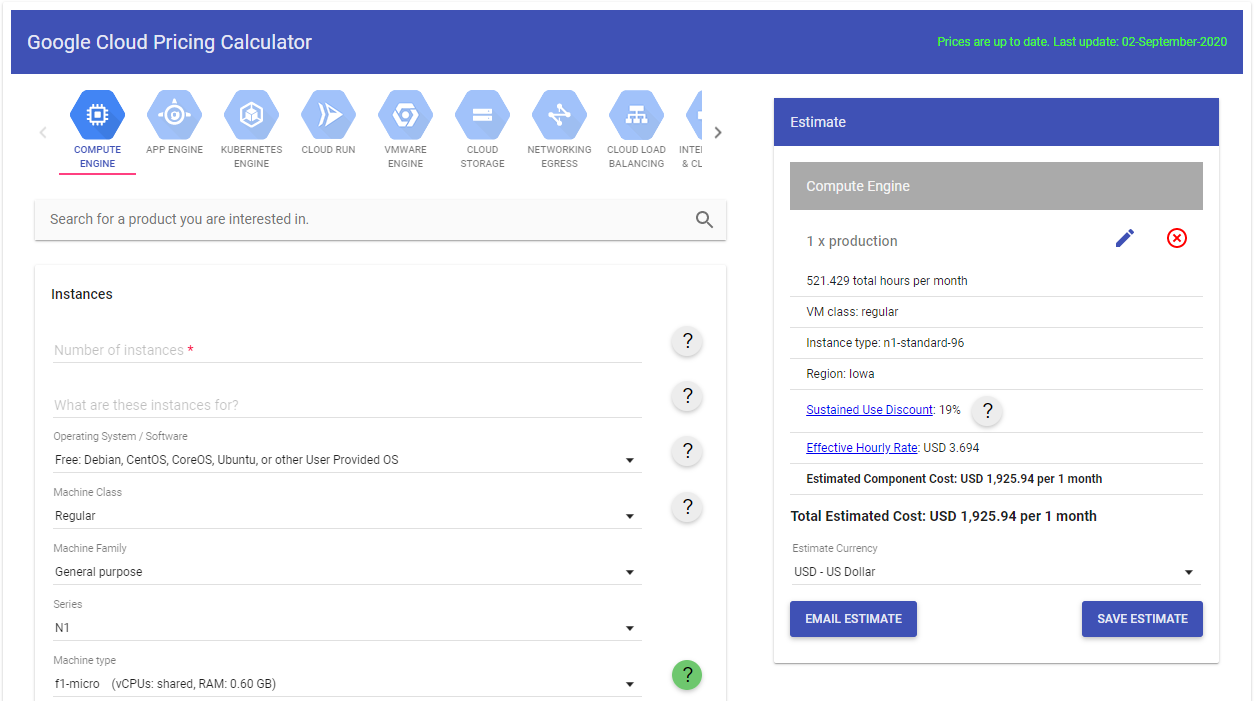
Pricing Calculator

You can estimate your cloud computing costs using the GCP Pricing Calculator.
Google Cloud Global Infrastructure

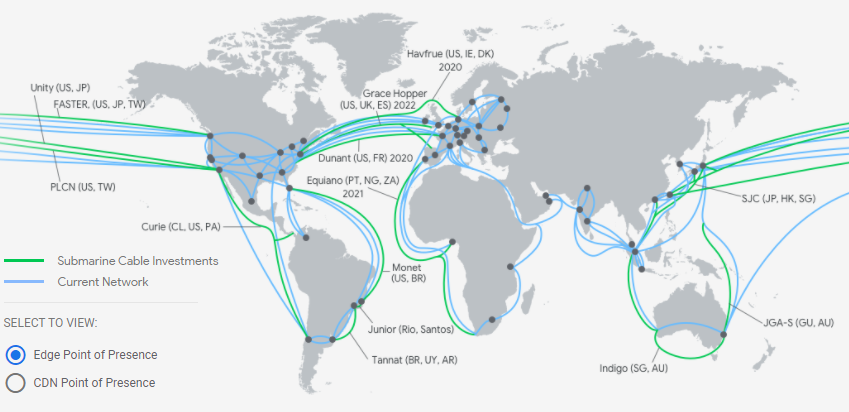
 The cloud infrastructure of GCP is built around:

  • 20+ regions
  • 70+ zones
  • 140+ network edge locations

Multi-regions

  • A large geographic area, such as the United States, that contains two or more geographic places.

Regions

  • Are collections of zones that provide high-bandwidth, low-latency network connections to other zones in the same region.

  • Regional resources can be used by any resource in that region, regardless of zone
  • Generally, communication within regions will always be cost-efficient and faster than communication across different regions.

Zones

  • It is an isolated location within a region and is composed of several physical infrastructures housed in a data center called cluster.
  • Resources that live in a zone such as virtual machines or persistent disks are referred to as zonal resources.
  • Zonal resources can only be used by other resources in the same zone.
  • The fully-qualified name for a zone is made up of <region>-<zone>.
    • For example, for zone a in region us-central1, the zone name would be us-central1-a.
  • Depending on how widely you want to distribute your application resources, you can provision them across multiple zones in multiple regions for redundancy.

Cluster

  • It is a distinct physical infrastructure that is housed in a data center.

Network edge locations

  • Offers connection to Google Cloud services from different locations across metropolitan areas.